
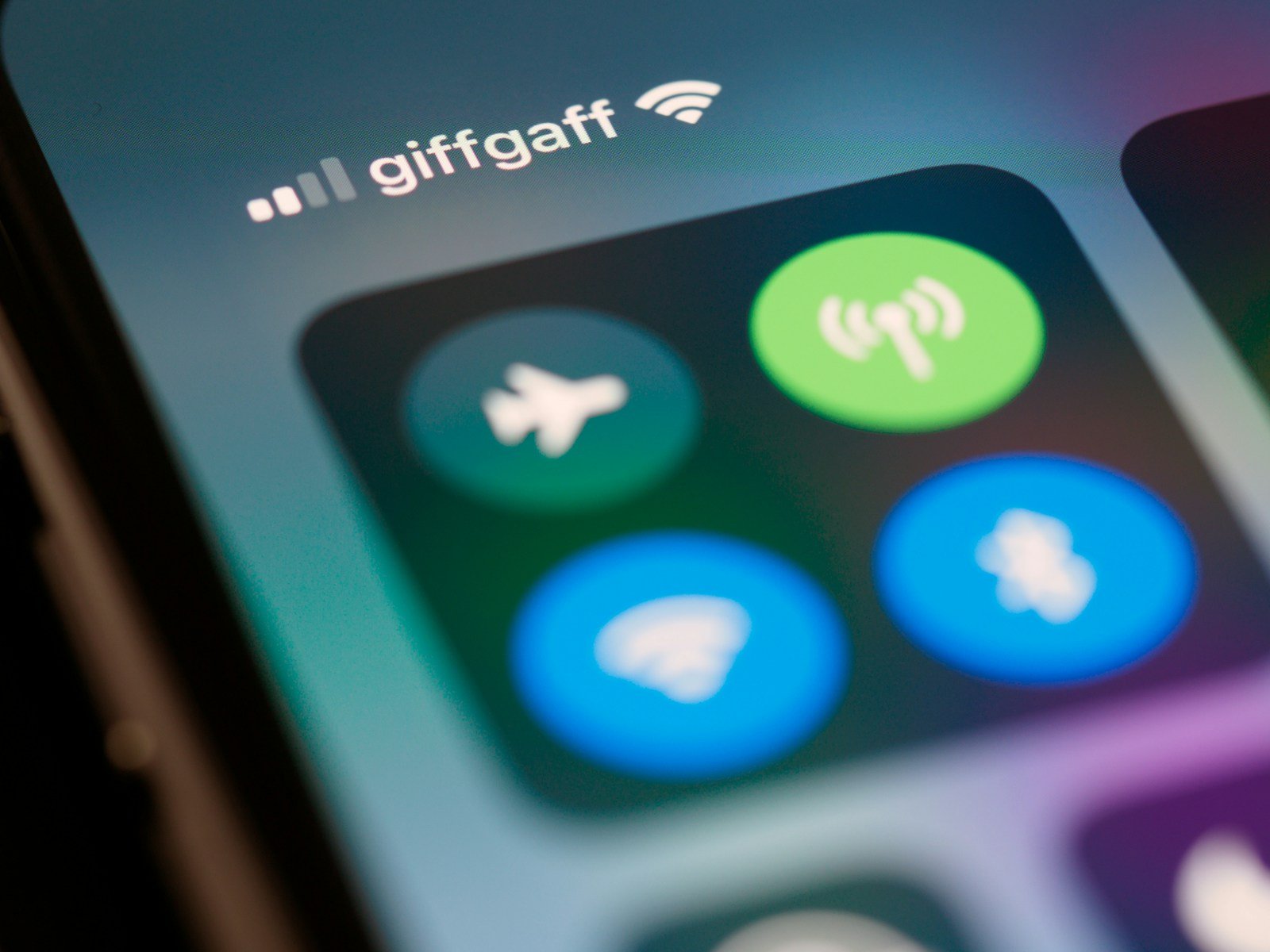
Is your iPhone struggling to find Bluetooth devices? You’re not alone. Many iPhone users experience connectivity issues with their Bluetooth devices, but don’t worry—most problems have simple fixes. Whether it’s a speaker, keyboard, or set of wireless earbuds, a few troubleshooting steps can get your devices back online.
Check if your iPhone’s Bluetooth is turned on. Sometimes, the fix is as simple as toggling the Bluetooth switch off and on. Make sure the device you want to connect is in pairing mode. Restarting your iPhone might also help resolve connectivity issues.
If these steps don’t work, there could be a deeper issue at play. Resetting network settings or updating the iOS might be needed. These actions often reconfigure settings that have caused the Bluetooth problem in the first place.
Why Your iPhone Might Not Find Bluetooth Devices
Common causes include:
- Bluetooth is turned off or glitching
- The accessory isn’t in pairing mode
- The device is already connected to another phone
- Software bugs after an iOS update
- Interference from other wireless devices
(Source: Apple Support, AllThings.How)
🧭 Step-by-Step Fixes
1. Check Bluetooth Settings
- Go to Settings → Bluetooth.
- Make sure Bluetooth is toggled ON.
- If it’s already on, turn it off, wait 10 seconds, then turn it back on.
- Ensure your accessory is in pairing mode (refer to its manual).
💡 Tip: Some devices only stay discoverable for 30–60 seconds after entering pairing mode.
2. Restart Both Devices
- Restart your iPhone:
Press and hold the Side button + Volume button, then slide to power off. Wait 30 seconds and power it back on. - Restart your Bluetooth device (turn it off and on again).
This clears temporary connection glitches.
3. Forget Old Bluetooth Devices
If your Bluetooth list is cluttered, your iPhone may struggle to detect new devices.
- Go to Settings → Bluetooth.
- Tap the ⓘ icon next to old or unused devices.
- Tap Forget This Device → Confirm.
Then try pairing again.
4. Reset Network Settings
If Bluetooth still won’t find devices:
- Go to Settings → General → Transfer or Reset iPhone → Reset → Reset Network Settings.
- Enter your passcode and confirm.
⚠️ This resets Wi-Fi networks, passwords, and VPN settings — but can fix deep Bluetooth issues.
(Source: Guiding Tech)
5. Check for iOS Updates
Apple often patches Bluetooth bugs in updates.
- Go to Settings → General → Software Update.
- If an update is available, tap Download and Install.
Example: Some users reported Bluetooth issues after iOS 18.1, which were fixed in later patches (source: GeeksChalk).
6. Test with Another Device
Try connecting your Bluetooth accessory to another phone or tablet:
- If it works elsewhere → the issue is likely your iPhone.
- If it doesn’t → the accessory may be defective or need a firmware update.
7. Reset All Settings (Last Resort)
If nothing else works:
- Go to Settings → General → Transfer or Reset iPhone → Reset → Reset All Settings.
This won’t delete your data but will reset preferences like Wi-Fi, Bluetooth, and notifications.
8. Contact Apple Support
If Bluetooth still won’t turn on or devices won’t appear even after resets, Apple recommends contacting support — especially if:
- Bluetooth is grayed out in Settings.
- No devices appear, even known ones.
- The issue began after a hardware repair or update.
👉 Visit Apple Support’s Bluetooth Help Page.
✅ Quick Summary
| Step | What It Does | When to Try |
|---|---|---|
| Toggle Bluetooth | Resets connection | First |
| Restart Devices | Clears temporary bugs | Early |
| Forget Devices | Removes old pairings | When list is full |
| Reset Network Settings | Fixes deeper issues | Midway |
| Update iOS | Fixes known bugs | Always check |
| Contact Apple | Hardware or persistent issues | Last resort |
Key Takeaways
- Bluetooth problems are common but often easy to fix.
- Restarting your iPhone and the Bluetooth device can resolve issues.
- Resetting network settings or updating iOS helps with deeper problems.
Diagnosing Connectivity Issues
Ensuring your iPhone connects smoothly with Bluetooth devices involves checking settings, confirming compatibility, updating iOS, and sometimes restarting or resetting network settings.
Checking iPhone Bluetooth Settings
First, verify that Bluetooth is on. Open the Settings app, tap Bluetooth, and ensure the toggle switch is green. If it’s gray, tap it to turn it on. Next, make sure the iPhone is in range of the Bluetooth device.
If Bluetooth is on, try turning it off and then back on. This can help refresh connections. Also, check if the device is listed under My Devices. If so, tap it to connect. If it’s not listed, ensure the device is in pairing mode.
Forget Device and re-pair if issues persist. Go to Settings > Bluetooth, tap the i next to the device, and choose Forget This Device. Then, attempt to pair again.
Ensuring Bluetooth Device Compatibility
Compatibility matters when pairing Bluetooth devices. Confirm that the Bluetooth device supports connection with iOS devices. Some older devices might not work with newer iOS versions.
Make sure the device’s firmware is up to date. Check the manufacturer’s instructions on updating firmware. Also, ensure that the device isn’t connected to another phone or tablet, which can prevent it from pairing with your iPhone.
Multiple devices can also cause issues. Disconnect other paired devices if troubleshooting. This clears potential conflicts and allows a fresh connection attempt.
Updating iOS to the Latest Version
Keeping iOS updated can resolve Bluetooth problems. Open Settings, then tap General, and select Software Update. If an update is available, follow the prompts to install it.
An iOS update can fix software glitches that disrupt Bluetooth connections. New updates often improve compatibility and fix bugs. After updating, try reconnecting your Bluetooth device.
Updating apps that use Bluetooth can also help. Visit the App Store, tap your profile picture, scroll down to updates, and update any pending apps.
Restarting and Resetting Procedures
Restarting can fix many issues. Press and hold the side button until the Slide to Power Off slider appears. Slide to turn off the iPhone. After a few seconds, press and hold the side button to turn it back on.
If restarting doesn’t help, try resetting network settings. Go to Settings > General > Reset, then tap Reset Network Settings. This resets Wi-Fi, Bluetooth, and VPN settings.
A reset can clear persistent connectivity issues. Re-pair the Bluetooth device after resetting the network settings. If problems continue, consider contacting Apple Support for further assistance.





