
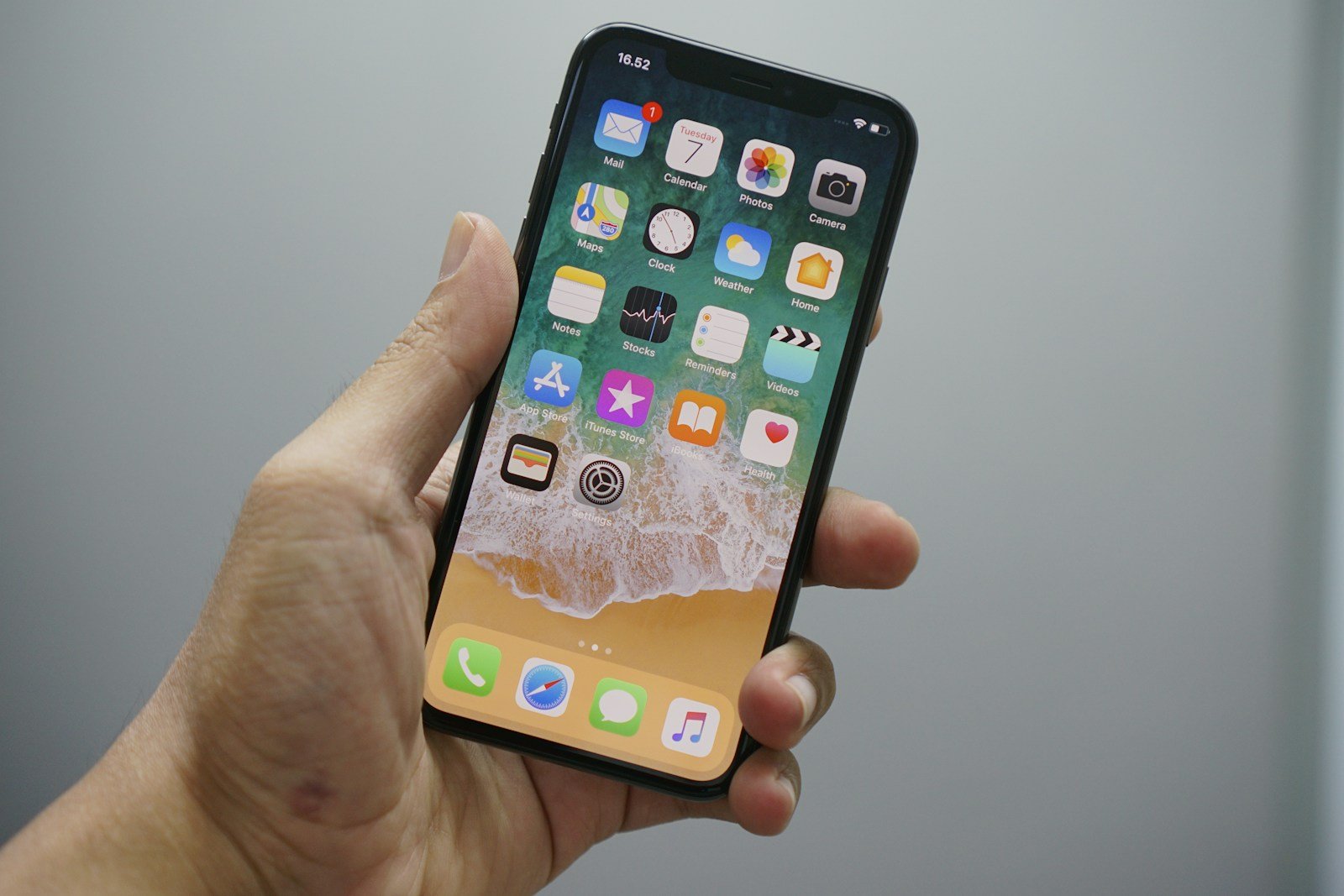
Losing a voicemail can be frustrating, especially if it’s an important message. For iPhone users, retrieving deleted voicemail is straightforward. To recover a deleted voicemail, simply tap the Voicemail tab, then find and choose the Deleted Messages option at the bottom. From there, select the voicemail and tap Undelete to restore it.
If the option to undelete isn’t available, there’s still hope. You can restore from an iCloud or iTunes backup if one was made before the voicemail was deleted. This means connecting your iPhone to your computer and using the restore function in Finder or iTunes.
Voicemail management may seem like a small part of phone usage, but it can be a lifesaver in such moments. Knowing these steps ensures you can always retrieve any accidentally deleted voicemails quickly and efficiently.
📱 1. Check the “Deleted Messages” Folder (Quick Recovery)
If you deleted a voicemail recently, it’s usually stored temporarily in a “Deleted Messages” folder before being permanently erased.
Steps:
- Open the Phone app.
- Tap the Voicemail tab (bottom right).
- Scroll to the bottom and tap Deleted Messages.
- Find the voicemail you want to recover.
- Tap the message, then tap Undelete to restore it.
✅ Result: The voicemail will return to your main Voicemail inbox.
(Source: Lifewire, How-To Geek)
☁️ 2. Retrieve from an iCloud or iTunes Backup
If the voicemail was permanently deleted, you can try restoring your iPhone from a backup that contains the voicemail.
Using iCloud Backup:
- Go to Settings → General → Transfer or Reset iPhone → Erase All Content and Settings.
- Set up your iPhone again.
- When prompted, choose Restore from iCloud Backup.
- Sign in to your Apple ID and select a backup made before the voicemail was deleted.
Using iTunes (Finder on Mac):
- Connect your iPhone to your computer.
- Open Finder (macOS) or iTunes (Windows).
- Select your device → choose Restore Backup.
- Pick a backup that predates the deletion.
⚠️ Note: Restoring a backup will replace your current data with the backup’s data.
(Source: FoneGeek 2025 Guide)
🧰 3. Use a Third-Party Recovery Tool (for Permanently Deleted Voicemails)
If you don’t have a backup, specialized recovery tools can sometimes retrieve voicemails directly from your iPhone’s storage.
Popular tools include:
- FoneGeek iPhone Data Recovery
- Gbyte Recovery
- Dr.Fone – Data Recovery (iOS)
Typical steps:
- Download and install the recovery software on your computer.
- Connect your iPhone via USB.
- Choose Voicemail or Audio Messages as the recovery type.
- Scan your device and preview recoverable items.
- Select the voicemail(s) you want to restore and save them.
📞 4. Contact Your Carrier (Last Resort)
If none of the above methods work, your cellular carrier may still have a copy of your voicemail on their servers (especially if you use carrier-based voicemail, not Visual Voicemail).
What to do:
- Call your carrier’s customer support.
- Ask if they can retrieve or resend a deleted voicemail.
- Provide the approximate date/time of the message.
(Source: Apple Community Discussion)
💡 Tips to Prevent Future Loss
- Regularly back up your iPhone via iCloud or iTunes.
- Don’t empty the “Deleted Messages” folder unless necessary.
- Save important voicemails by sharing them to Files or Notes:
- Open the voicemail → tap Share → choose Save to Files or AirDrop.
Key Takeaways
- Retrieve deleted voicemails from the Deleted Messages option in Voicemail.
- Use iCloud or iTunes backup to restore if undelete isn’t available.
- Managing voicemail can be crucial for important communications.
Understanding Voicemail Management on iPhone
Managing voicemails on an iPhone 11 involves using the Phone app and syncing with iCloud for storage and retrieval. Users can access deleted voicemails through specific options within the app.
The Role of iCloud in Voicemail Storage
iCloud can sync voicemails across all iOS devices logged in with the same Apple ID. This means voicemails saved on an iPhone can be accessed from an iPad or another iPhone. Users should enable iCloud Backup to ensure their voicemails are stored securely.
If the phone is lost or replaced, restoring from an iCloud backup will bring back the voicemail. This is especially helpful for important messages. Keeping regular backups on iCloud prevents data loss and allows easy retrieval of deleted voicemails.
Navigating Through the Phone App Voicemail Interface
The Phone app on iPhone 11 provides easy access to voicemails. Users open the app and tap the “Voicemail” tab at the bottom. This section shows all recent and saved voicemails. There is also a “Deleted Messages” folder found by scrolling to the bottom of the list.
In this folder, users can find and recover deleted voicemails by tapping the trash can icon with a slash through it. This action moves the voicemail back to the main inbox. Useful features include visual voicemail, which provides a text-transcribed version, making it easier to read messages quickly. This intuitive interface ensures users can manage voicemails with minimal effort.





