
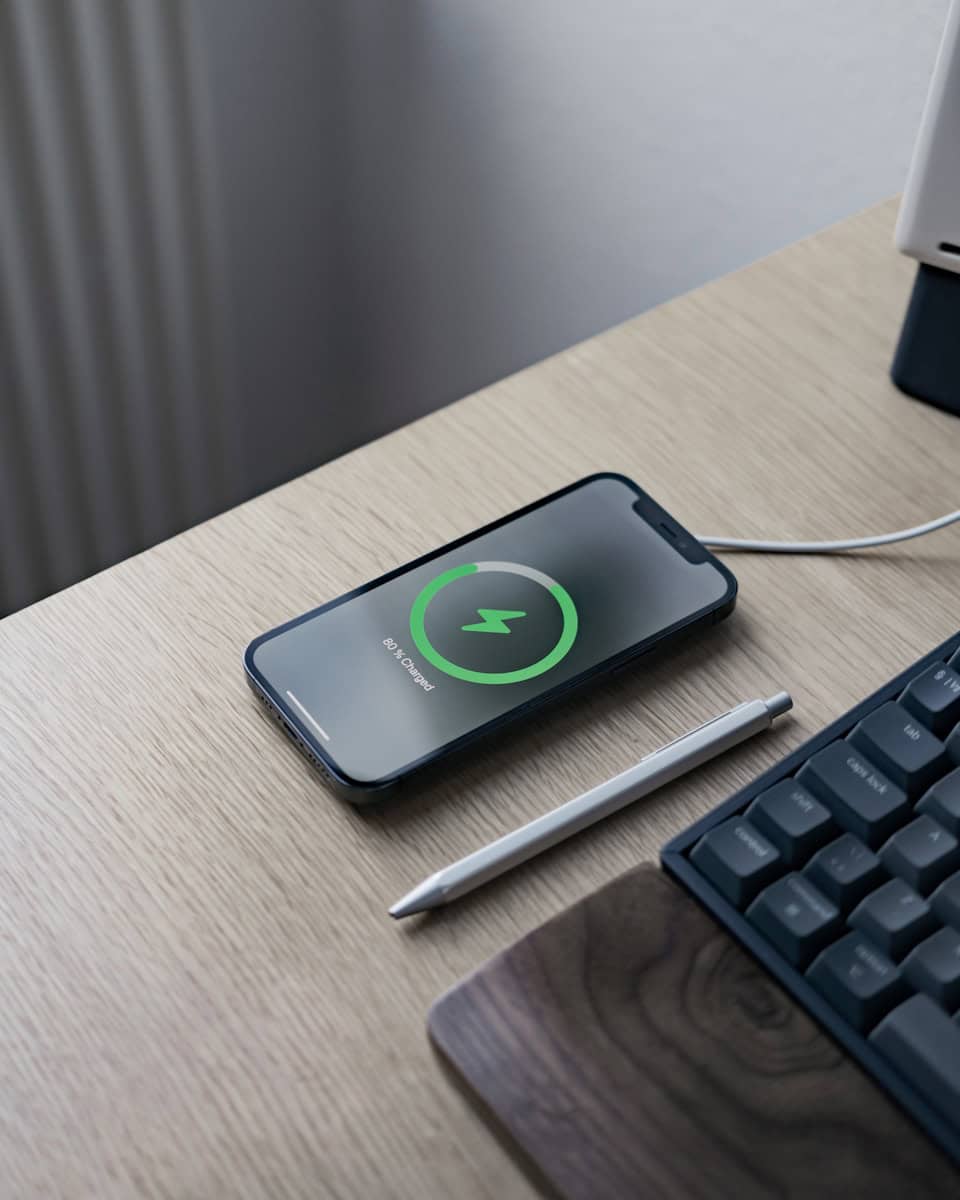
Does your iPhone show it’s charging but the battery percentage doesn’t increase? You’re not alone. The problem might stem from software bugs or hardware issues. Many iPhone users have experienced the same frustrating problem.
There are several possible solutions to this issue. Restarting the phone can sometimes fix this problem. Updating the iPhone’s software can also help. Checking the power source may show if the charger is faulty. Restarting the phone can sometimes fix this problem.
Other solutions could involve more technical steps. These may include closing background apps, performing a soft reset, and making sure the phone’s software is up to date. Understanding these options can help you get your iPhone back to normal.
⚙️ 1. Check the Basics First
Before diving into advanced troubleshooting, make sure the essentials are in order.
✅ Confirm It’s Actually Charging
- Plug your iPhone into a different power outlet.
- Try using a different Lightning/USB‑C cable and charger (preferably Apple-certified).
- If you’re using a wireless charger, test with a cable instead.
- Check for charging icon on the screen — a lightning bolt inside the battery icon.
If the icon appears but the percentage isn’t going up, continue below.
🔌 2. Inspect the Charging Port and Accessories
Dust, lint, or corrosion can block proper charging.
- Use a soft brush or toothpick to gently clean the Lightning or USB‑C port.
- Avoid using metal tools.
- Check your charging cable for frayed ends or bent connectors.
- If you use a case, make sure it doesn’t block the port or wireless charging coil.
(source: EaseUS)
🔋 3. Force Restart Your iPhone
Sometimes, the software just gets stuck showing the wrong charge level.
- iPhone 8 or later: Quickly press Volume Up → Volume Down → hold Side button until the Apple logo appears.
- iPhone 7: Hold Volume Down + Power button until the Apple logo appears.
- iPhone 6s or earlier: Hold Home + Power button until restart.
After restarting, plug it in again and see if the percentage starts to rise.
⚡ 4. Check Battery Health and Charging Settings
Go to Settings → Battery → Battery Health & Charging.
- If Maximum Capacity is below 80%, your battery may be degraded.
- If you see “Service” or “Important Battery Message,” it’s time for a replacement.
- Toggle off Optimized Battery Charging temporarily — this feature slows charging above 80% to preserve battery health.
(source: FoneGeek)
🪫 5. Let the iPhone Cool Down
If your iPhone is too hot or too cold, it might pause charging to protect the battery.
- Remove the case and leave it in a cool, dry place for 10–15 minutes.
- Avoid charging while gaming or streaming video.
- Once it cools, plug it back in.
🧩 6. Update iOS
Software bugs can cause charging misreads or battery calibration issues.
- Go to Settings → General → Software Update.
- Install the latest version of iOS.
Apple often fixes charging and battery reporting bugs in updates.
🧰 7. Reset All Settings (if issue persists)
If none of the above works, try resetting system settings (this won’t delete your data).
- Go to Settings → General → Transfer or Reset iPhone → Reset → Reset All Settings.
- Reconnect your charger and test again.
🔧 8. Check for Hardware Issues
If your iPhone still shows charging but doesn’t increase battery percentage:
- The charging IC (Tristar/U2 chip) or battery connector might be damaged.
- Visit an Apple Store or authorized repair center for diagnostics.
(source: TheGeekPage)
🧠 Bonus Tips to Prevent the Issue
| Tip | Why It Helps |
|---|---|
| Use Apple-certified cables | Prevents power irregularities |
| Avoid overnight charging | Reduces heat and battery wear |
| Keep iOS updated | Fixes bugs and improves efficiency |
| Don’t let battery drain to 0% often | Healthier battery chemistry |
✅ Summary
If your iPhone shows it’s charging but the battery percentage isn’t increasing:
- Check cable, charger, and port.
- Restart your iPhone.
- Inspect battery health and charging settings.
- Update iOS.
- Cool the device and avoid heat.
- If still stuck — contact Apple Support or a certified technician.
Key Takeaways
- Restarting the iPhone can sometimes solve the issue.
- Updating the software and checking the power source are also suggested fixes.
- Closing background apps and soft resetting can help improve battery percentage.
Diagnosing and Resolving iPhone Battery Percentage Issues
When an iPhone shows it’s charging but the battery percentage isn’t increasing, several factors might be at play. It’s crucial to inspect different aspects, from battery health to software glitches.
Evaluating Battery Health and Firmware
Check the battery health under Settings > Battery > Battery Health. It shows the maximum capacity and peak performance. If your battery health is significantly low, battery replacement might help.
Check if your iPhone’s firmware is up to date. Go to Settings > General > Software Update. Keeping your firmware updated fixes bugs and improves battery performance.
Troubleshooting Charging Equipment
Your charger or lightning cable could be at fault. Verify with a different, certified charger and cable to see if the problem persists.
Inspect the charging port for dust or debris. Use a flashlight to look inside and a small brush or compressed air to clean it gently.
Software and Settings Adjustments
Close unnecessary background apps. Double-click the home button or swipe up from the bottom and swipe away unnecessary apps to free resources.
Toggle the battery percentage setting off and on. Go to Settings > Battery > Battery Percentage.
Turn off features like Background App Refresh and Low Power Mode. These settings can help concentrate power on charging.
Advanced Solutions for Persistent Issues
If issues persist, more advanced steps may be needed. Perform a hard reset: Press and hold the power and volume down buttons until the Apple logo appears.
Consider Recovery Mode or DFU Mode for serious software issues. Follow Apple’s guidelines to avoid data loss.
Contact Apple Support if hardware issues are suspected.
Preventive Measures and Best Practices
To maintain battery health, avoid extreme temperatures and overcharging. Use official Apple accessories for charging.
Enable battery management features in iOS to extend battery life. Regularly checking and updating your iPhone’s firmware can prevent issues from arising.





