
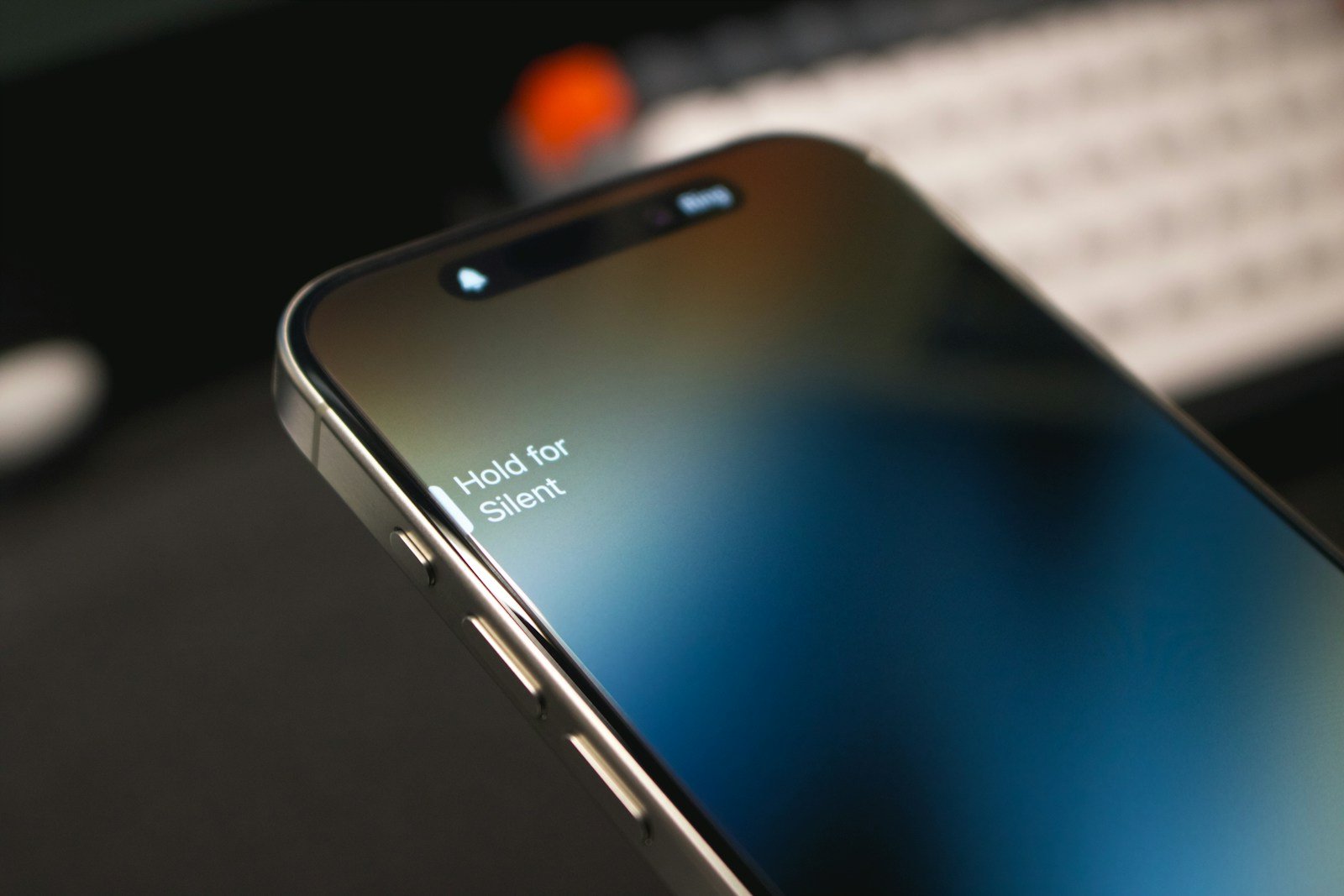
Struggling with low sound on your iPhone can be frustrating, especially when you’re trying to listen to music or take a call. The quickest way to fix a low volume issue is to check and adjust the volume buttons on the side of your iPhone. If that doesn’t help, there might be a few other things going on.
Sometimes dirt or lint can get stuck in your iPhone’s speakers, causing a muffled sound. Make sure to clean the speaker areas carefully. Another thing to check is the silent switch on the side of your phone. Flip it on and off a few times to see if that helps.
You should also check your volume settings in the Control Center and ensure Bluetooth or Do Not Disturb isn’t interfering. Simple adjustments can make a big difference in your iPhone’s sound quality and volume.
iPhone Sound Low: Solutions for Volume Issues
Is your iPhone volume suddenly too low? This frustrating issue can affect calls, music, notifications, and more. Here’s a comprehensive guide to diagnose and fix low volume problems on your iPhone.
Common Causes of Low iPhone Volume
According to experts, low iPhone volume typically stems from:
- Software glitches or incorrect settings
- Blocked or dirty speakers
- Physical obstructions from cases or screen protectors
- Hardware malfunctions (source: SimplyMac)
Quick Fixes to Try First
1. Check Your Volume Settings
Adjust the volume buttons:
- Press the volume up button on the side of your iPhone
- Make sure you’re adjusting the correct volume (ringer vs. media)
Check Settings:
- Go to Settings > Sounds & Haptics
- Ensure the Ringer and Alerts slider is turned up
- Toggle off Change with Buttons if you want consistent volume
2. Disable Volume Limit
A volume limit can restrict maximum sound output:
- Go to Settings > Music (or Sounds & Haptics) > Headphone Safety
- Turn off Reduce Loud Sounds
- Or adjust the decibel limit higher
3. Turn Off Bluetooth
Your iPhone might be routing audio to a connected Bluetooth device:
- Open Control Center (swipe down from top-right or up from bottom)
- Tap the Bluetooth icon to disable it
- Or go to Settings > Bluetooth and turn it off
4. Check Silent Mode and Do Not Disturb
- Flip the silent switch on the side of your iPhone (make sure you don’t see orange)
- Swipe down from top-right and ensure Focus modes are off
Clean Your iPhone Speakers
Dust, debris, and dirt can block speaker openings and significantly reduce volume (source: Apple Community).
How to clean safely:
- Use a soft-bristled brush (like a clean toothbrush)
- Gently brush the speaker grilles at the bottom and top of your iPhone
- Use compressed air to blow out stubborn debris
- Never use water, liquids, or sharp objects
Remove case and screen protector:
- Temporarily remove your case and screen protector to check if they’re blocking the speakers (source: Apple Community)
Software Solutions
5. Restart Your iPhone
A simple restart can fix software glitches:
- iPhone X and later: Press and hold volume up, then volume down, then hold the side button
- iPhone 8 and earlier: Hold the power button until “slide to power off” appears
6. Update iOS
Software bugs can cause audio issues:
- Go to Settings > General > Software Update
- Install any available updates
7. Reset All Settings
This won’t delete your data but will reset system settings:
- Go to Settings > General > Transfer or Reset iPhone
- Select Reset > Reset All Settings
- Enter your passcode and confirm
(source: iMobie)
Call-Specific Volume Issues
If your volume is only low during phone calls:
Enable Phone Noise Cancellation:
- Go to Settings > Accessibility > Audio/Visual
- Toggle on Phone Noise Cancellation
Check the receiver:
- During a call, press the volume up button
- Make sure you’re holding the phone correctly with the receiver near your ear
- Try using speakerphone or headphones to isolate the issue
(source: Apple Community)
Advanced Troubleshooting
8. Check for Water Damage
If your iPhone got wet, water in the speakers can muffle sound:
- Let your iPhone dry completely for 24-48 hours
- Place it in a dry area with good airflow
- Don’t use rice, as it can cause more damage
9. Test with Different Audio Sources
- Try playing music, videos, ringtones, and making calls
- Use headphones to determine if the issue is with external speakers only
- This helps identify if it’s a hardware or software problem
10. Use iOS System Repair Tools
If software issues persist, specialized tools can fix iOS system problems without data loss (source: iMobie).
When to Contact Apple Support
If none of these solutions work, you may have a hardware issue:
- Damaged speakers from drops or water
- Internal component failure
- Manufacturing defect
Next steps:
- Check your warranty status at Apple’s website
- Schedule an appointment at the Apple Store or authorized service provider
- Contact Apple Support for remote diagnostics
Prevention Tips
- Keep your iPhone clean and dust-free
- Use quality cases that don’t block speakers
- Regularly update iOS
- Avoid exposing your iPhone to extreme temperatures or moisture
- Don’t blast volume at maximum for extended periods
By following these solutions, you should be able to restore your iPhone’s volume to normal levels. Start with the simple fixes first, then move to more advanced troubleshooting if needed (source: thinglabs).
Key Takeaways
- Adjust the volume buttons on the side of your iPhone.
- Clean the speakers to remove any dirt or lint.
- Check the silent switch and settings in the Control Center.
Troubleshooting iPhone Sound Issues
Tackling sound problems on an iPhone involves checking basic settings, considering both hardware and software, ensuring connectivity, and exploring advanced fixes.
Checking Basic Sound Settings
First, adjust the volume using the side volume buttons. Make sure the volume is not set to the lowest level.
Open the Control Center by swiping down from the top-right on newer models, or up from the bottom on older models. Increase the volume slider there.
Check Settings > Sounds & Haptics. Ensure the Ringer and Alerts slider is not muted. Also, disable Do Not Disturb and Focus.
Hardware and Software Considerations
Sometimes dust blocks the sound. Clean the iPhone speakers with a brush or compressed air. Also, remove the screen protector if it’s covering the speaker.
Flip the silent mode switch on and off. Restart the iPhone by holding the side button and volume button. Ensure iOS is updated via Settings > General > Software Update.
Connectivity and External Devices
Headphones might connect accidentally. Disconnect them in Settings > Bluetooth. Ensure no AirPods or other Bluetooth devices are connected.
Check if wired headphones or accessories block audio. Test the sound with and without them. Turn off noise cancellation in Settings > Accessibility > Audio/Visual.
Advanced Settings and Additional Fixes
In Settings > Sounds & Haptics, use the Reduce Loud Sounds option. Reset all settings if issues persist (Settings > General > Reset > Reset All Settings).
Restore the iPhone to factory default as a last resort (Settings > General > Reset > Erase All Content and Settings). If problems continue, it might be a hardware issue. Contact Apple Support or visit an Apple Store to check your warranty status.





