
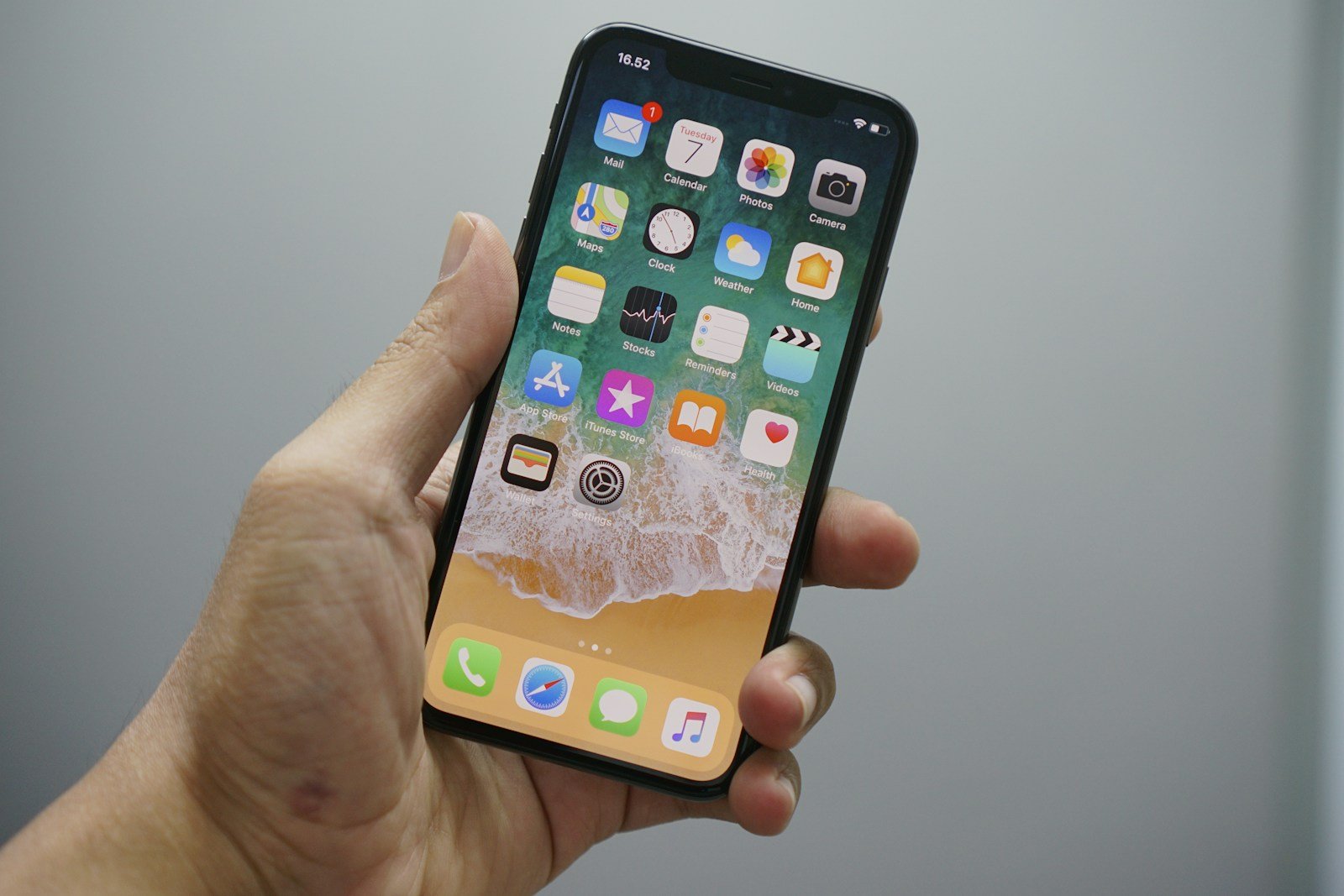
Having trouble deleting an app on your iPhone? This issue can be frustrating, especially when you’re trying to free up space or get rid of unwanted apps. Sometimes apps won’t delete in the usual way, leading to confusion.
Some apps that are integral to your iPhone’s functions cannot be deleted, such as the App Store, Photos, and Messages. If you’re facing this problem, it’s essential to know the different methods to remove apps effectively. This guide will walk you through how to fix this issue.
If the app still won’t delete, there are other steps you can take. Try deleting the app from the Settings menu or use the App Store to uninstall it. These alternate methods can often solve the problem when the usual way doesn’t work.
What To Do When An App Won’t Delete on iPhone
Have you ever tried to delete an app from your iPhone, only to find that the delete option is missing or simply doesn’t work? This frustrating issue is more common than you might think, but fortunately, there are several effective solutions to resolve it.
Why Can’t I Delete Some Apps on My iPhone?
Before diving into solutions, it’s important to understand why this happens:
- Screen Time Restrictions – Parental controls or self-imposed restrictions may be preventing app deletion
- Built-in System Apps – Some pre-installed Apple apps can only be hidden, not deleted
- App Installation Issues – Apps stuck in “waiting” or “loading” state
- iOS Bugs or Glitches – Temporary software issues
- Profile or MDM Restrictions – Enterprise or school device management profiles
(source: iPhone Wired)
Method 1: Check Screen Time Settings
This is the most common cause and usually the quickest fix.
Steps:
- Open Settings on your iPhone
- Scroll down and tap Screen Time
- Tap Content & Privacy Restrictions
- Enter your Screen Time passcode if prompted
- Tap iTunes & App Store Purchases
- Tap Deleting Apps
- Select Allow
Once enabled, you should be able to delete apps normally by long-pressing the app icon and selecting “Remove App.”
(source: 瘋先生 (Mr. Mad))
Method 2: Force Delete via iPhone Storage
If the app is stuck in a “waiting” state with a grayed-out icon, or the first method didn’t work, you can force delete it through Settings.
Steps:
- Go to Settings > General > iPhone Storage
- Wait for the list of apps to load (this may take a moment)
- Scroll down and find the problematic app
- Tap on the app
- Select Delete App
- Confirm by tapping Delete App again
This method removes the app completely from your device, including all its data and documents. It’s considered the “cleanest” way to remove stubborn apps.
(source: iPhone Wired)
Method 3: Restart Your iPhone
A simple restart can resolve temporary glitches preventing app deletion.
For iPhone 8 and newer:
- Press and quickly release the Volume Up button
- Press and quickly release the Volume Down button
- Press and hold the Side button until the Apple logo appears
For iPhone 7/7 Plus:
- Press and hold both the Volume Down and Side buttons
- Keep holding until the Apple logo appears
For iPhone 6s and earlier:
- Press and hold both the Home and Top (or Side) buttons
- Keep holding until the Apple logo appears
After restarting, try deleting the app again.
Method 4: Offload and Reinstall the App
If you can’t delete the app but need to fix it, try offloading it first.
Steps:
- Go to Settings > General > iPhone Storage
- Find and tap the problematic app
- Tap Offload App
- Confirm the action
Offloading removes the app but keeps its data. You can then reinstall it from the App Store or delete it completely through iPhone Storage.
Method 5: Check for Configuration Profiles
If your iPhone is managed by a school or employer, or if you’ve installed configuration profiles, these might prevent app deletion.
Steps:
- Go to Settings > General
- Scroll down to see if VPN & Device Management or Profiles appears
- If present, tap it to view installed profiles
- Check if any profiles restrict app deletion
- If it’s a personal device, you can remove the profile (this may require a passcode)
Note: Don’t remove profiles on work or school devices without permission from your IT administrator.
(source: Apple Community)
Method 6: Update iOS
Sometimes the issue is caused by an iOS bug that’s been fixed in a newer version.
Steps:
- Go to Settings > General > Software Update
- If an update is available, tap Download and Install
- Follow the on-screen instructions
- After updating, try deleting the app again
Method 7: Reset Home Screen Layout
This can help if apps are stuck or the home screen is acting strangely.
Steps:
- Go to Settings > General > Transfer or Reset iPhone
- Tap Reset
- Select Reset Home Screen Layout
- Confirm the action
Warning: This will reorganize all your apps back to their default arrangement, removing any custom folders or organization you’ve created.
Understanding Apple’s Built-in Apps
Some Apple apps cannot be completely deleted from your iPhone. These include:
- App Store
- Settings
- Phone
- Messages
- Safari (can be removed on iOS 14+)
- Camera
- Photos
However, many other Apple apps like Stocks, Tips, Voice Memos, and others can be deleted. If you try to delete a system app and don’t see the option, it’s likely one that Apple doesn’t allow removal of for core functionality reasons.
(source: YouTube – Why Can’t I Delete Certain Apps)
Quick Reference Table
| Problem | Solution | Time Required |
|---|---|---|
| No delete option appears | Check Screen Time restrictions | 1-2 minutes |
| App stuck in “waiting” state | Force delete via iPhone Storage | 2-3 minutes |
| Delete option grayed out | Restart iPhone | 3-5 minutes |
| App keeps reinstalling | Check Configuration Profiles | 3-5 minutes |
| Multiple apps won’t delete | Update iOS or Reset Home Screen | 10-30 minutes |
| Built-in Apple app | Cannot be deleted (only hidden) | N/A |
Tips to Prevent Future Issues
- Regularly update iOS to avoid bugs
- Review Screen Time settings periodically
- Complete app installations before trying to delete
- Avoid interrupting app updates or installations
- Keep adequate storage space (at least 1-2 GB free)
When to Contact Apple Support
If you’ve tried all these methods and still cannot delete an app, you may need professional help:
- The app is causing serious performance issues
- You suspect malware or unauthorized software
- Your device is managed and you need admin assistance
- None of the above solutions work
You can contact Apple Support through the Apple Support app, their website, or by visiting an Apple Store.
(source: AEA NET)
Final Thoughts
In most cases, an iPhone app that won’t delete is simply blocked by Screen Time restrictions—a quick settings adjustment will resolve the issue in seconds. If that doesn’t work, using iPhone Storage to force delete the app is your next best option.
Key Takeaways
- Some native iPhone apps cannot be deleted.
- You can delete apps via the Settings menu or App Store.
- Different methods may be needed if the usual way fails.
Understanding App Management on iPhone
App management on an iPhone involves various built-in features and settings to help users manage their applications efficiently. Knowing the common problems and how iOS supports app management can simplify the process.
Identifying Common Reasons for Deletion Difficulties
One reason why users can’t delete apps on their iPhone is Screen Time restrictions. This feature may block the deletion of apps based on parental controls or content restrictions. Users should check these settings if they encounter issues.
Another frequent cause is apps that are integral to iOS, known as built-in apps. Apps like Safari, Messages, and Photos cannot be deleted because they are essential to the device’s function.
Some apps may be protected by configuration profiles. These profiles, often installed by workplaces or schools, can prevent certain apps from being deleted. To address this, users might need to remove or adjust these profiles in Settings.
Examining iOS Features Related to App Deletion
iPhones with iOS 17 have several features that impact app management. The App Library organizes all installed apps, including those removed from the Home Screen but not deleted. Users can delete apps directly from the App Library by holding the app and selecting “Delete App”.
Screen Time offers a way to manage how and when apps are used. It can also prevent app deletion through Content & Privacy Restrictions. These settings must be checked if deletion is blocked.
Additionally, the iPhone Storage section in Settings provides a detailed view of all apps and their data usage. From this menu, users can delete apps to free up space. Access this by going to Settings > General > iPhone Storage, then selecting the app to remove.
Navigating iPhone Settings for App Management
To effectively manage apps, users should be familiar with key settings. The Settings app is central for this. In the General menu, both the iPhone Storage and Reset options are useful. Resetting can solve problems when standard methods fail, including the inability to delete apps.
Screen Time under Settings allows users to set limits and restrictions, which can include app deletion permissions. Checking these regularly helps maintain control over which apps stay on the device.
Finally, users may need to perform a force restart to resolve stubborn issues. This can clear temporary glitches that sometimes prevent app deletion. Knowing these settings and features helps keep the iPhone running smoothly.





