
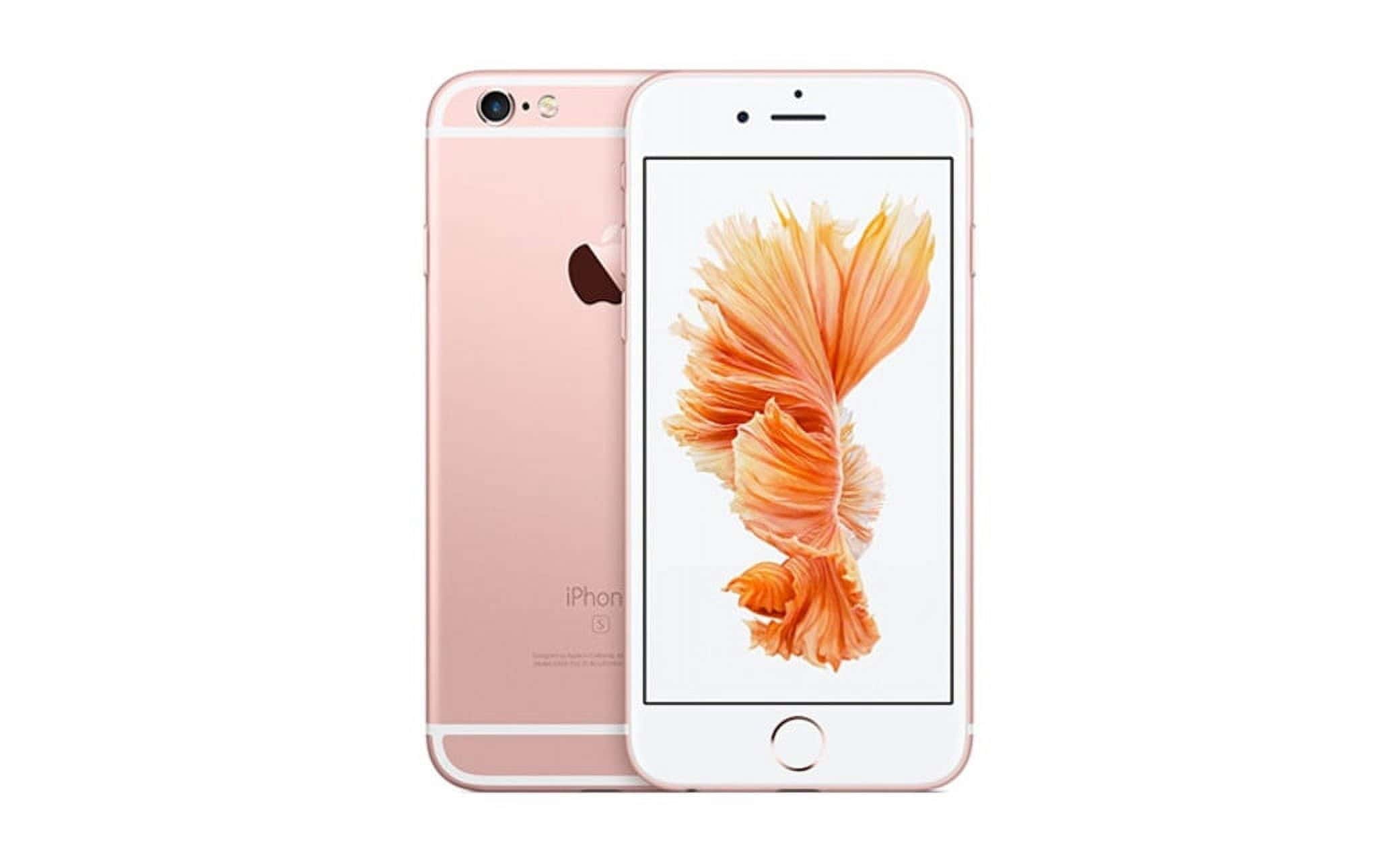
Unlocking an iPhone can sometimes be tricky, especially if you forget your passcode. You have 10 attempts to enter your passcode before your iPhone is disabled. This is a critical step to know because exceeding these attempts will lock your device, requiring further steps to regain access.
iPhones come with multiple security features to protect user data. If you fail to unlock your iPhone five times using Face ID or Touch ID, your device will ask for a passcode instead. This adds a layer of protection but can catch users off guard if they aren’t aware of the limits.
Knowing these security measures ensures you don’t get locked out of your own device. By understanding how many failed attempts you have, you can avoid frustration and enjoy the peace of mind that comes with knowing how to access your iPhone safely.
How Many Attempts to Unlock an iPhone Before It Locks
If you’ve ever entered the wrong passcode on your iPhone too many times, you’ve likely seen the message “iPhone Unavailable” or “iPhone Disabled.” This is Apple’s built-in security system designed to protect your data from unauthorized access.
In this guide, we’ll explain how many attempts you get to unlock your iPhone, what happens after too many failed tries, and how to safely regain access if your device becomes locked or disabled.
🔐 Why iPhones Lock After Wrong Passcode Attempts
Apple uses a progressive lockout system to deter brute-force attacks. Each incorrect passcode attempt increases the waiting time before you can try again. After a certain number of failed attempts, your iPhone will lock completely and may even erase all data (if that setting is enabled).
This system applies to all Face ID and Touch ID models, including iPhones running iOS 17, iOS 18, and later.
📱 Number of Attempts Before iPhone Locks
Here’s the breakdown of how many wrong passcode attempts you’re allowed before your iPhone locks temporarily or permanently:
| Failed Attempts | Result / Message | Wait Time Before Next Attempt |
|---|---|---|
| 1–4 | No lockout | Immediate retry |
| 5 | iPhone Unavailable – Try Again in 1 Minute | 1 minute |
| 6 | Try Again in 5 Minutes | 5 minutes |
| 7 | Try Again in 15 Minutes | 15 minutes |
| 8 | Try Again in 15 Minutes | 15 minutes |
| 9 | Try Again in 60 Minutes | 1 hour |
| 10 | iPhone Unavailable or iPhone Disabled – Connect to iTunes | Locked permanently |
⚠️ Important: If you have Erase Data enabled under Settings → Face ID & Passcode → Erase Data, your iPhone will automatically erase all data after 10 failed attempts.
🧭 What “iPhone Unavailable” or “iPhone Disabled” Means
When you see:
- “iPhone Unavailable” (iOS 15.2 and later) – your iPhone is locked out temporarily or permanently.
- “iPhone Disabled – Connect to iTunes” (older iOS versions) – you must restore your iPhone using a computer.
In both cases, you’ll need to wait for the timer to expire (if available) or erase and restore your device if it’s permanently locked.
🧰 How to Unlock iPhone After Too Many Attempts
If your iPhone is permanently locked, you can regain access using one of the following official methods:
Option 1: Use “Erase iPhone” (iOS 15.2 or Later)
If your iPhone shows “iPhone Unavailable” with an Erase iPhone option:
- Tap Erase iPhone on the lock screen.
- Enter your Apple ID password to sign out.
- Follow the prompts to erase all data and settings.
- Set up your iPhone again and restore from iCloud or Finder/iTunes backup.
Option 2: Use Finder or iTunes (Computer Restore)
If you don’t see the Erase iPhone option:
- Connect your iPhone to a Mac or PC.
- Open Finder (macOS Catalina or later) or iTunes (Windows/macOS Mojave or earlier).
- Put your iPhone into Recovery Mode:
- Quickly press Volume Up, then Volume Down, then hold Side Button until you see the recovery screen.
- Choose Restore when prompted.
- Once done, set up your iPhone and restore your data.
Option 3: Use iCloud (Find My iPhone)
If Find My iPhone is enabled:
- Go to iCloud.com/find.
- Sign in with your Apple ID.
- Select your locked iPhone.
- Click Erase iPhone.
- After erasing, set up your device again.
🧩 Prevent Getting Locked Out Again
To avoid future lockouts:
- Use Face ID or Touch ID for quicker, safer access.
- Write down or securely store your passcode.
- Back up regularly to iCloud or a computer.
- Disable “Erase Data” if you share your device with kids or family.
- Add a Recovery Contact under Settings → Apple ID → Sign-In & Security → Account Recovery.
🧠 Pro Tip: Use Apple’s Recovery Key and Contact
Starting with iOS 15, Apple allows you to set up:
- A Recovery Key (25-character code) for account recovery.
- A Recovery Contact (trusted person) who can help you regain access if you’re locked out of your Apple ID.
This ensures you can always get back into your account — even if you forget your passcode or lose your device.
✅ Summary
| Attempts | Lockout Duration | Outcome |
|---|---|---|
| 1–4 | None | Retry immediately |
| 5 | 1 minute | Temporary lock |
| 6 | 5 minutes | Temporary lock |
| 7–8 | 15 minutes | Temporary lock |
| 9 | 60 minutes | Temporary lock |
| 10 | Permanent lock | Must erase and restore |
If your iPhone says “iPhone Unavailable” or “iPhone Disabled,” you’ll need to erase and restore it through Erase iPhone, iTunes/Finder, or iCloud.
Sources:
- Apple Support – If You Forgot Your iPhone Passcode
- iMobie – How Many Attempts to Unlock iPhone
- iSunshare – iPhone Passcode Attempts Explained
- AppGeeker – Unlock iPhone After Too Many Attempts
Key Takeaways
- You have 10 tries to enter your passcode before your iPhone is disabled.
- Failing to unlock with Face ID or Touch ID five times requires the passcode.
- Understanding these security limits helps prevent lockouts.
Understanding iPhone Security Features
iPhone security features are designed to protect user data from unauthorized access. Key features include passcodes, biometric locks, and security protocols to handle multiple failed unlock attempts.
Passcode and Biometric Locks
Every iPhone requires a passcode to unlock. Users can set a 4-digit or 6-digit passcode. A longer passcode increases security.
Additionally, many iPhones use Face ID or Touch ID. Face ID recognizes facial features, while Touch ID uses fingerprints. These biometric locks add convenience and a higher level of security. Both methods protect data and grant access to various services and apps.
Failed Unlock Attempts and iPhone Disablement
Incorrect password attempts result in increasing lockout periods. For example:
| Attempts | Consequence |
|---|---|
| 1-5 | No consequence |
| 6 | 1-minute lockout |
| 7 | 5-minute lockout |
| 8+ | Longer lockout times |
After ten failed attempts, the iPhone shows “iPhone is Disabled”. Possible data erasure depends on settings.
Security Protocols for Unauthorized Access
To prevent unauthorized access, iPhones use iCloud Activation Lock. This feature ties the device to the user’s Apple ID. If someone tries to erase and set up the device, they must enter the Apple ID and password.
Another important feature is the security lockout screen. If the screen lock is on due to failed attempts, users need the correct passcode or Apple ID credentials to proceed. Other protocols include screen time passcode for parental controls and enhanced privacy settings. These layers ensure the safety of user data against unauthorized access.





