
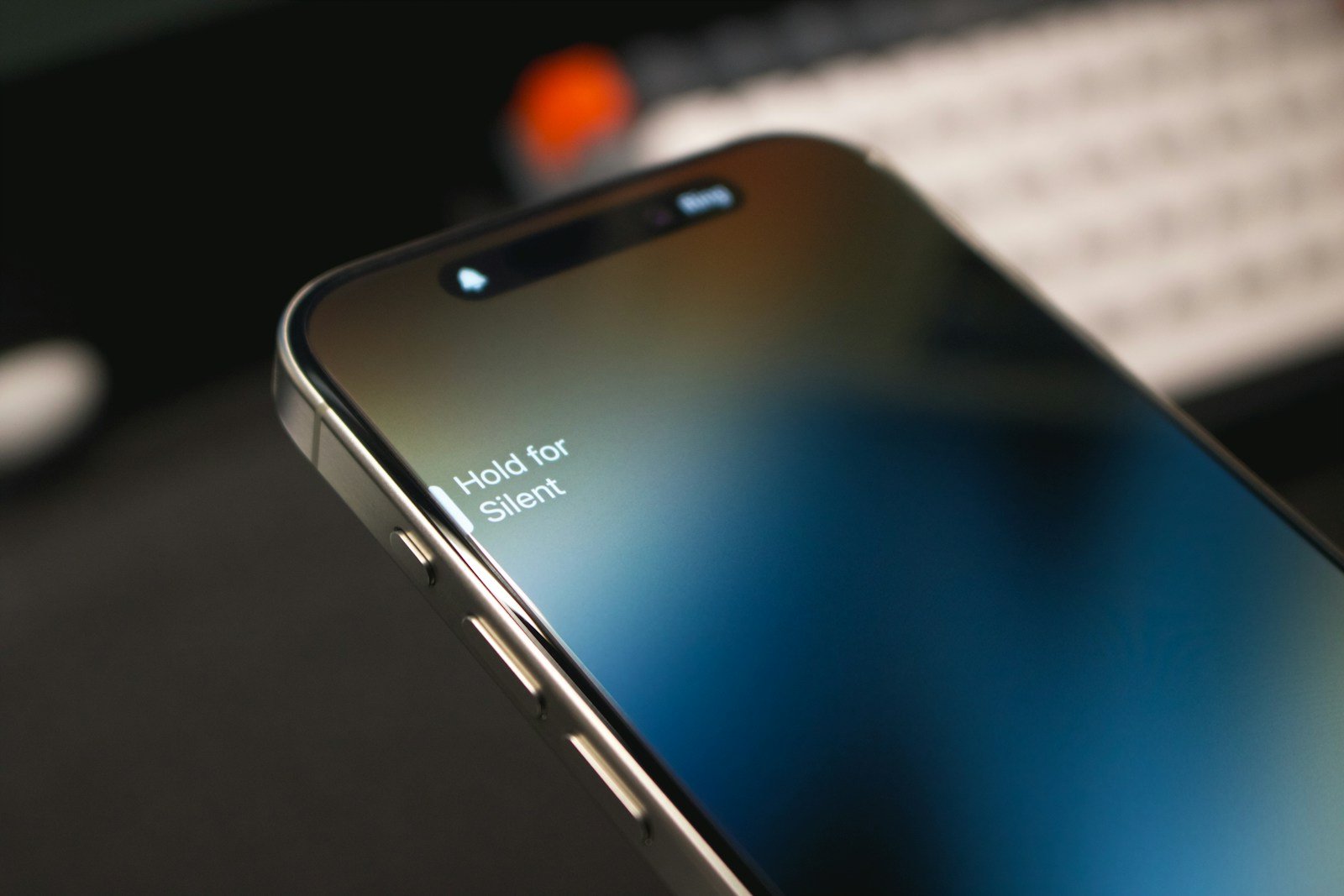
Does your iPhone volume keep rising by itself, and you can’t figure out why? This issue can be frustrating, especially if you’re in a quiet environment. The common causes for this problem include Bluetooth devices, dirty buttons, or software glitches. Often, simple troubleshooting steps can fix it quickly.
First, check if your iPhone is connected to a Bluetooth device. Sometimes, the device might be commanding the volume changes. Another common issue is dirt or debris stuck in the volume buttons. Cleaning the buttons can sometimes fix the problem instantly. Updating to the latest iOS version might also solve the problem, as updates often patch glitches.
If these steps don’t work, you can try turning off features like Attention Aware and Reduce Loud Sounds. Both settings can sometimes misbehave, automatically adjusting your volume. By understanding these causes, you can more effectively fix your iPhone’s volume issue and get back to enjoying your device without interruptions.
Why Does My iPhone Volume Keep Going Up by Itself?
If your iPhone’s volume is increasing on its own without you pressing any buttons, it can be confusing and frustrating. This issue can be caused by several factors, including software settings, hardware problems, or specific features designed to adjust volume automatically.
Common Causes
1. Attention Aware Features
- iPhones with Face ID use Attention Aware Features to detect when you’re looking at the screen and automatically lower volume for notifications or alerts.
- Sometimes, this feature can cause unexpected volume changes.
2. Software Glitches or Bugs
- Temporary software bugs or outdated iOS versions can cause erratic volume behavior.
- Background apps or processes might interfere with volume control.
3. Faulty Volume Buttons or Hardware Issues
- Stuck or damaged volume buttons can send false input signals causing the volume to change.
- Dirt or moisture around the buttons might cause unintended presses.
4. Bluetooth or External Device Interference
- Connected Bluetooth devices (headphones, speakers, car systems) may control volume remotely.
- Automatic volume adjustments can occur when switching between audio devices.
5. Accessibility Settings
- Features like Sound Recognition or Hearing Devices might affect volume levels.
How to Fix iPhone Volume That Keeps Going Up by Itself
1. Restart Your iPhone
- A simple restart can clear temporary glitches.
- Hold the side button and volume button, then slide to power off. Turn it back on after a minute.
2. Update iOS to the Latest Version
- Go to Settings > General > Software Update and install any available updates.
3. Disable Attention Aware Features
- Go to Settings > Face ID & Passcode.
- Toggle off Attention Aware Features and check if the problem persists.
4. Check Volume Buttons for Damage or Stuck Keys
- Inspect the volume buttons physically.
- Press them a few times to ensure they’re not stuck.
- If damaged, consider professional repair.
5. Disconnect Bluetooth Devices
- Turn off Bluetooth temporarily: Settings > Bluetooth > Off.
- See if volume still changes by itself.
6. Reset All Settings
- This resets settings like Wi-Fi, privacy, and volume preferences without deleting data.
- Go to Settings > General > Reset > Reset All Settings.
7. Restore iPhone as New (Last Resort)
- Backup your data via iCloud or iTunes.
- Restore your iPhone via iTunes and set it up as new to rule out software issues.
When to Contact Apple Support
- If none of the above fixes work, the issue might be hardware-related.
- Contact Apple Support or visit an Apple Store for diagnosis and repair.
By understanding these causes and following the steps above, you can usually fix your iPhone’s volume issue quickly (source: ComputerCity, ReiBoot, Guiding Tech).
Key Takeaways
- Check Bluetooth connections and clean volume buttons.
- Update to the latest iOS version to fix software glitches.
- Adjust settings like Attention Aware and Reduce Loud Sounds.
Troubleshooting iPhone Volume Fluctuations
iPhone volume fluctuating by itself can be frustrating. It could stem from software bugs or hardware issues. Here are some steps to help you find and fix the problem.
Understanding the Issue
Volume changes on an iPhone can be confusing. Sometimes, identifying why it happens is key to fixing it. Several factors could cause these changes. It could be due to software settings, hardware problems, or even the accessories used with the phone.
Investigating Software-Related Causes
Software glitches or updates can impact volume control. Start by checking your Settings. Go to Sounds & Haptics and see if the Change with Buttons feature is on. This setting lets you adjust the volume using side buttons. An update or a bug might affect this. If Headphone Safety or Reduce Loud Sounds is enabled, it could also be changing your volume.
Assessing Hardware Factors
Hardware issues can come from damaged buttons or accessories. Inspect the volume buttons. Make sure they’re not stuck or broken. A badly fitted case might press these buttons. Check if the case is causing the problem by removing it. Try adjusting the volume without the case. If this doesn’t help, there might be internal hardware damage.
Delving into Accessibility and Alert Settings
Certain settings meant to aid users can also alter volume. In Settings, go to Face ID & Attention and check if Attention Aware Features is on. This uses the TrueDepth camera to lower the volume if you’re looking at the screen. Different alert settings for notifications or calls can also change the ringer volume.
Exploring Connectivity and External Devices
External devices like headphones, AirPods, or Bluetooth speakers might affect volume levels. Check the connections to ensure they function correctly. Problems might arise if there’s an issue with paired devices or headphone jacks. Sometimes, reconnecting or repairing devices can solve the volume fluctuations. Review any apps that might control audio output because they might need updated or removed.
Taking these steps can help address iPhone volume fluctuation problems.





