
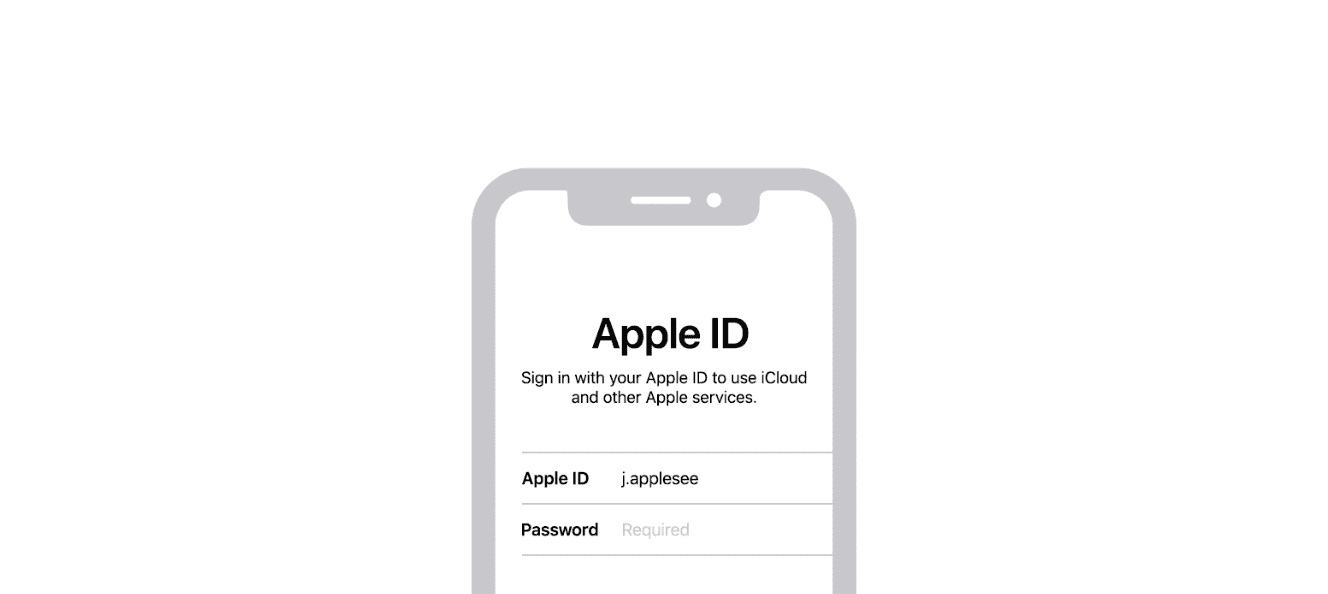
Struggling to sign in to your Apple ID on your iPhone can be frustrating. First, check your internet connection and ensure cellular data is on. Sometimes, weak signals or restrictions on the device can prevent sign-ins. You might also need to disable iMessage and try again.
If the problem persists, check if your Apple ID is greyed out in Settings. This can happen if there are restrictions on your account. Disabling these restrictions may solve the issue. If nothing works, having someone else try their Apple ID can help determine if the issue lies with your account.
Feeling stuck without access to your Apple ID is inconvenient. Fortunately, there are steps you can take to resolve sign-in issues. If problems continue, contact Apple Support for further assistance.
Apple ID Won’t Let Me Sign In on iPhone: Troubleshooting Guide
If you’re unable to sign in to your Apple ID on your iPhone, it can disrupt access to essential services like iCloud, the App Store, iMessage, and more. This guide will help you identify common causes and provide effective solutions.
Common Reasons Why Apple ID Won’t Sign In
- Incorrect Apple ID or password
- Account locked or disabled for security reasons
- Two-Factor Authentication (2FA) issues
- Network connectivity problems
- Outdated iOS version or system glitches
- Apple’s system outages
Step-by-Step Fixes
1. Check Your Apple ID and Password
- Make sure you’re entering the correct Apple ID email and password.
- If you forgot your password, reset it at iforgot.apple.com.
2. Verify Apple System Status
- Visit Apple’s System Status page to check if Apple ID services are down:
Apple System Status - If there is an outage, wait until Apple resolves it.
3. Check Your Internet Connection
- Ensure your iPhone is connected to Wi-Fi or cellular data.
- Try toggling Airplane Mode on and off.
- Restart your router if using Wi-Fi.
4. Restart Your iPhone
- A simple restart can fix temporary glitches.
- Press and hold the side button and volume button, then slide to power off. Turn it back on after a few seconds.
5. Update iOS to the Latest Version
- Go to Settings > General > Software Update.
- Download and install any available updates.
6. Sign Out and Sign Back In
- If you’re partially signed in, try signing out:
- Go to Settings > [Your Name] > Sign Out.
- Restart your iPhone and sign back in.
7. Reset Network Settings
- Go to Settings > General > Reset > Reset Network Settings.
- Note: This will erase saved Wi-Fi passwords.
8. Check Two-Factor Authentication (2FA)
- If 2FA is enabled, ensure you have access to your trusted devices or phone number to receive verification codes.
- If you’re not receiving codes, try resending or use account recovery.
9. Unlock Your Apple ID
- If your Apple ID is locked or disabled, you’ll see a message prompting you to unlock it.
- Follow the on-screen instructions or go to iforgot.apple.com to regain access.
10. Contact Apple Support
- If none of the above steps work, contact Apple Support for personalized help:
Apple Support Contact
Additional Tips
- Avoid multiple failed sign-in attempts to prevent your account from locking.
- Always keep your recovery email and phone number up to date.
- Use a strong, unique password for your Apple ID.
By following these steps, you should be able to resolve most Apple ID sign-in issues on your iPhone.
For more detailed troubleshooting, see resources like Apple Support and AppGeeker’s guide.
Key Takeaways
- Check your internet connection and turn on cellular data.
- Disable iMessage and ensure no account restrictions.
- If issues persist, contact Apple Support.
Troubleshooting Apple ID Sign-In Issues on iPhone
Users might face various issues when trying to sign in to their Apple ID on an iPhone. These problems could include incorrect credentials, poor network connections, needed software updates, or security restrictions.
Verifying Apple ID and Password
First, confirm that the Apple ID and password are correct. Often, inputting errors can occur. Visit the Apple ID website in a web browser to sign in and verify the credentials. If the password is forgotten, use the Forgot Apple ID or Password link to reset it.
Checking Network Connection and Apple System Status
Ensure the iPhone has a stable internet connection via Wi-Fi or cellular data. Go to Settings > Wi-Fi and check the network connection. Also, check the Apple System Status page to see if there are any outages affecting Apple ID services.
Update iOS to the Latest Version
Running an outdated iOS version can cause sign-in issues. To update, navigate to Settings > General > Software Update. If an update is available, follow the prompts to install it. This ensures compatibility with Apple services.
Restarting Your iPhone
A simple restart can resolve many issues. Hold down the power button until the slide to power off appears. After turning off the device, wait a few seconds, then turn it back on. For a forced restart, quickly press and release the volume up button, followed by the volume down button, then hold the side button until the Apple logo appears.
Resolving Issues with iCloud Services
Ensure you are signed into iCloud under Settings > [Your Name] > iCloud. If iMessage or FaceTime services are conflicting, sign out of these services under Settings > Messages and Settings > FaceTime, then sign back in with the Apple ID. Troubleshooting these services might resolve the issue.
Restoring iPhone to Factory Settings
If all else fails, restoring the iPhone to factory settings can help. This step will erase all data, so ensure that a backup exists. Go to Settings > General > Reset > Erase All Content and Settings. After the reset, restore the backup from iCloud or iTunes.
Addressing Security and Restriction Problems
Sometimes, restrictions might block signing in. Check Settings > Screen Time > Content & Privacy Restrictions. Ensure these settings are not restricting account changes. Additionally, verify that any security features like two-factor authentication are set correctly and not causing problems.
Seeking Further Assistance from Apple Support
If the issue persists, contact Apple Support. Visit the Apple Support website, use the chat option, or call the support number. Provide details about the problem, including any error messages, to get targeted help.





