
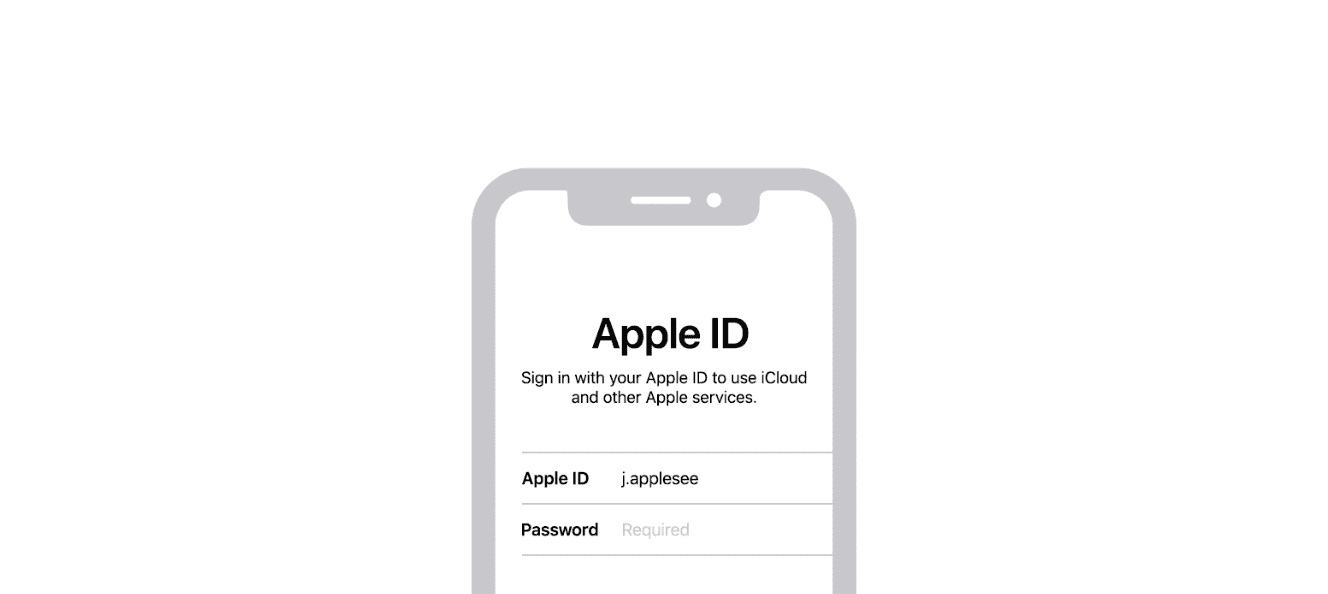
Removing an Apple ID from an iPhone without a password can seem tricky, but it’s possible and entirely free. This task often comes up when people buy second-hand iPhones or forget their Apple ID password. Luckily, there are steps you can follow that don’t require professional help or expensive software.
One effective way to do this is through the device’s settings. Navigate to Settings > App & iTunes Store, tap on your Apple ID, and sign out. This method is straightforward and can be done by anyone with a basic knowledge of iPhone settings.
Another method involves using iCloud. Visit www.iCloud.com on any browser, sign in with your email, and follow the steps to remove the Apple ID. This way lets you manage your iPhone remotely and is also free of charge.
How to Remove Apple ID from iPhone Without Password (Free Methods)
Removing an Apple ID from an iPhone without the password can be tricky due to Apple’s security features designed to prevent unauthorized access. However, there are some free methods you can try if you have legitimate access to the device but forgot the password or bought a second-hand iPhone.
Important Note:
- These methods work best if Find My iPhone is turned off.
- Removing Apple ID without password may cause data loss.
- If the device is Activation Locked (Find My iPhone ON), bypassing without password is very limited without paid tools or Apple support.
Method 1: Remove Apple ID via Settings (If Find My iPhone is OFF)
If Find My iPhone is disabled, you can remove the Apple ID without a password by following these steps:
- Open Settings on the iPhone.
- Tap on your name (Apple ID banner) at the top.
- Scroll down and tap Sign Out.
- When prompted for the Apple ID password, leave the password field blank and tap Done.
- You may get an error, but try tapping Cancel and then Sign Out again.
- If it still asks for a password, try the next method.
Method 2: Reset All Settings (Bypass Apple ID Password for Sign Out)
This method exploits a bug in some iOS versions allowing you to remove Apple ID without a password:
- Go to Settings > General > Reset.
- Tap Reset All Settings (this resets settings but not data).
- After reset, go back to Settings > Apple ID.
- Try to sign out again. Sometimes the password prompt is bypassed.
Note: This method may not work on the latest iOS versions, but it’s worth trying.
Method 3: Use Recovery Mode to Erase iPhone (Removes Data, Not Apple ID)
If you want to erase the iPhone completely but don’t have the Apple ID password:
- Connect your iPhone to a computer with iTunes (or Finder on macOS Catalina+).
- Put the iPhone into Recovery Mode:
- For iPhone 8 or later: Quickly press Volume Up, then Volume Down, then hold Side button until recovery mode screen appears.
- For iPhone 7/7 Plus: Hold Volume Down + Side button.
- For iPhone 6s and earlier: Hold Home + Side button.
- In iTunes/Finder, choose Restore to erase the device.
Important: After erasing, the iPhone will still ask for the original Apple ID and password during setup if Find My iPhone was enabled (Activation Lock).
Method 4: Contact Apple Support (Official Free Help)
If you are the rightful owner and have proof of purchase, Apple Support can help remove the Apple ID or disable Activation Lock for free.
- Visit Apple Support.
- Provide proof of purchase and identity.
- Apple may unlock the device after verification.
Summary Table of Free Methods
| Method | Requirements | Pros | Cons |
|---|---|---|---|
| Remove via Settings (Find My OFF) | Find My iPhone disabled | Simple, no tools needed | Only works if Find My iPhone off |
| Reset All Settings | Works on some iOS versions | No data loss, easy | Not reliable on latest iOS |
| Recovery Mode Erase | Access to computer | Erases device | Activation Lock remains |
| Contact Apple Support | Proof of ownership | Official, free | Requires proof and waiting time |
Final Notes
- If Find My iPhone is enabled, Apple ID password is required to disable it and remove the account.
- Avoid unauthorized bypass tools as they may be illegal or unsafe.
- Always backup your data before attempting resets or erasures.
Key Takeaways
- Remove Apple ID from iPhone using settings or iCloud
- Free methods are available and easy
- No need for professional help or software
Understanding Apple ID and Its Role on iPhone
Apple ID is crucial for accessing and synchronizing various services on iPhone like iCloud, the App Store, and Find My iPhone. It also secures personal information through features like two-factor authentication and Activation Lock.
The Importance of Apple ID on iPhone
Apple ID is key to using many features on an iPhone. First, it allows you to download apps from the App Store. Without it, you won’t have access to millions of apps and games.
Also, Apple ID syncs your data with iCloud. This includes photos, contacts, and documents, keeping everything updated across all your devices. You can also back up your device with iCloud, which is useful if you need to reset or get a new iPhone.
Additionally, Apple ID is needed for messaging apps like iMessage and FaceTime. These apps are popular for communication. This ID also helps use other services like Apple Music and Apple TV.
Security Measures and Access Control
Apple ID has strong security features to protect your information. One important feature is two-factor authentication. This requires a passcode sent to your device, adding an extra layer of security.
Another key feature is Find My iPhone. It helps you locate your phone if lost or stolen. You can lock your iPhone remotely or erase its data to keep it safe.
Activation Lock is another security measure tied to Apple ID. It keeps others from using your iPhone if it’s lost or stolen. To use your iPhone, the user must enter the Apple ID, making it secure.
In conclusion, Apple ID is not only about access but also about securing your data. These security features help keep your information and device safe.





