
A white dot on your iPhone screen can be frustrating. Whether it appeared suddenly or has been bothering you for some time, there are a few common causes and solutions. Often, the white dot is due to the AssistiveTouch feature, a software glitch, or a hardware issue. Knowing how to address this can save time and effort.
The first step is to determine if the white dot is the AssistiveTouch feature. This can be checked and turned off in the Accessibility settings. If the dot persists, it might be a hardware issue or a software problem that requires a reboot or a system repair tool.
For those facing persistent white dots, checking the screen’s hardware integrity is essential. Sometimes, it may be necessary to contact Apple support for a hardware inspection. Don’t ignore the problem. A small dot could be a sign of a bigger issue with your iPhone’s display.
White Dot on iPhone Screen: Causes and Solutions
Noticing a small white dot on your iPhone screen can be confusing and worrying—especially if it doesn’t move or disappear. The good news is that this issue can range from a simple software feature to a hardware problem. This guide explains what the white dot means, why it appears, and how to fix it.
What Does the White Dot on an iPhone Screen Mean?
A white dot on your iPhone screen is usually one of the following:
- AssistiveTouch button (most common)
- Display or pixel issue
- Touch sensor or pressure damage
- Internal hardware fault
Identifying which one you’re seeing is the key to solving it.
Cause 1: AssistiveTouch (Most Common)
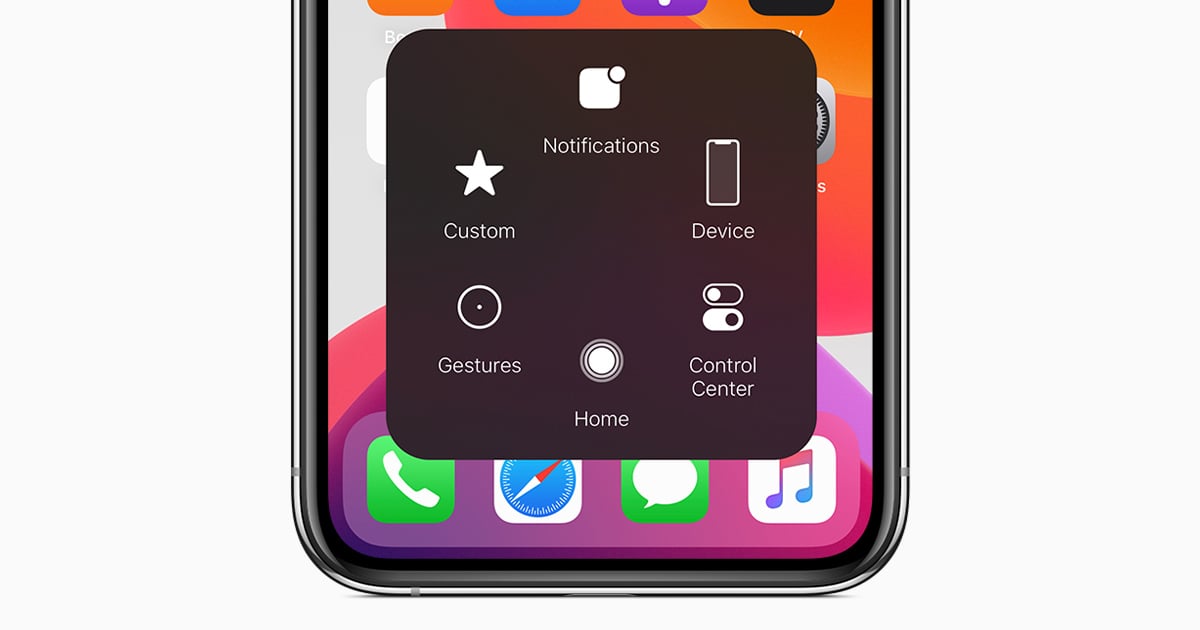
The most common reason for a floating white dot is AssistiveTouch, an accessibility feature.
How to tell:
- The dot floats over apps
- It moves when you drag it
- Tapping it opens a menu
How to turn it off:
- Go to Settings
- Tap Accessibility
- Select Touch
- Tap AssistiveTouch
- Toggle it Off
✅ The white dot should disappear immediately.
Cause 2: Stuck or Dead Pixel
If the dot:
- Does not move
- Appears in the same spot at all times
- Shows up even in screenshots
…it may be a stuck or dead pixel.
What you can try:
- Restart your iPhone
- Play a pixel‑refresh video (may help stuck pixels)
- Update iOS
⚠️ Dead pixels usually require screen replacement.
Cause 3: Pressure or Impact Damage
A white dot that appeared after:
- Dropping the phone
- Sitting on it
- Applying pressure to the screen
…may indicate LCD or OLED damage beneath the glass.
Signs:
- The dot grows over time
- Touch still works normally
- Bright spot visible on dark screens
✅ This requires professional repair.
Cause 4: Backlight Bleed (Older LCD Models)
On older iPhones with LCD screens (e.g., iPhone 8 and earlier), a white dot may be caused by backlight bleed.
Symptoms:
- Brighter area near edges
- Visible on black or dark screens
- More noticeable at high brightness
⚠️ Not fixable via software.
Cause 5: iOS Software Glitch
Rarely, a white dot may be a visual glitch.
Try these steps:
- Restart your iPhone
- Force restart (model‑specific)
- Update to the latest iOS
- Reset all settings:
- Settings → General → Transfer or Reset iPhone → Reset → Reset All Settings
✅ This won’t erase your data.
How to Identify the Exact Cause
| Test | What It Means |
|---|---|
| Dot moves when dragged | AssistiveTouch |
| Appears in screenshots | Software or pixel issue |
| Doesn’t appear in screenshots | Hardware damage |
| Changes with brightness | Backlight or display issue |
When to Get It Repaired
You should seek repair if:
- The dot is permanent
- It grows or spreads
- It affects visibility
- Touch becomes unresponsive
📌 Apple or authorized repair centers can diagnose the screen accurately.
Can You Ignore a White Dot?
- ✅ AssistiveTouch → Yes, disable it
- ⚠️ Pixel issues → May worsen
- ❌ Hardware damage → Should be repaired
Ignoring hardware issues can lead to larger display failures over time.
Final Takeaway
In most cases, a white dot on an iPhone screen is just AssistiveTouch and easy to fix. If it doesn’t move or go away, the issue is likely display‑related and may require professional repair.
✅ Quick tip: Try turning off AssistiveTouch first—it solves the problem for most users.
Key Takeaways
- White dot may be due to AssistiveTouch, software, or hardware issues.
- Check Accessibility settings and attempt a reboot for potential fixes.
- Persistent issues may require professional hardware inspection.
Understanding and Troubleshooting Screen Anomalies
White dots on an iPhone screen can be due to either software issues or physical damage. Addressing these anomalies involves identifying the cause, taking initial troubleshooting steps, and knowing when it’s time to seek professional help.
Identifying the Nature of White Dots
White dots may appear due to stuck pixels, pressure spots, or software bugs. Stuck pixels are faulty pixels that don’t change color. Pressure spots are caused by physical damage to the screen. Software glitches can also create white dots. Identifying the cause helps determine the next steps.
Stuck pixels are common and usually easy to fix. Pressure spots indicate potential hardware problems needing repair. Software glitches might resolve with updates or basic troubleshooting.
Initial Steps to Resolve White Dots
Restarting the iPhone often fixes minor glitches. Press and hold the power button until “Slide to power off” appears. Turn off the phone, wait a few seconds, and turn it back on.
Check for software updates. Go to Settings > General > Software Update. Install any available updates, as they can resolve glitches causing white dots.
Enable AssistiveTouch if the dot is a software feature. Go to Settings > Accessibility > Touch > AssistiveTouch and toggle it off if not needed.
Advanced Troubleshooting Techniques
For persistent issues, more advanced steps are necessary. Use JScreenFix for stuck pixels. Go to www.jscreenFix.com and follow the instructions to launch the fixer frame. Let it run for about 10 minutes to attempt fixing the pixels.
Backup your data. Then, try restoring the device through iTunes or Finder. Connect your iPhone to a computer, open iTunes, and select “Restore iPhone.” This removes all content and settings, which often solves software problems.
For severe issues, enter Recovery Mode or DFU Mode. Connect the iPhone to a computer, enter the mode, and restore the firmware package.
When to Seek Professional Help
If these steps fail, contact Apple Support or visit an Apple Store. Professional staff can diagnose and repair the hardware problem.
Check if your iPhone is still under warranty. Repairs might be covered if the damage wasn’t caused by misuse. Apple’s service repair process includes examining the phone to determine the issue.
Not all white dots mean hardware failure. However, if software fixes don’t work, professional diagnosis is best. Apple’s experts ensure your iPhone is properly fixed.





