
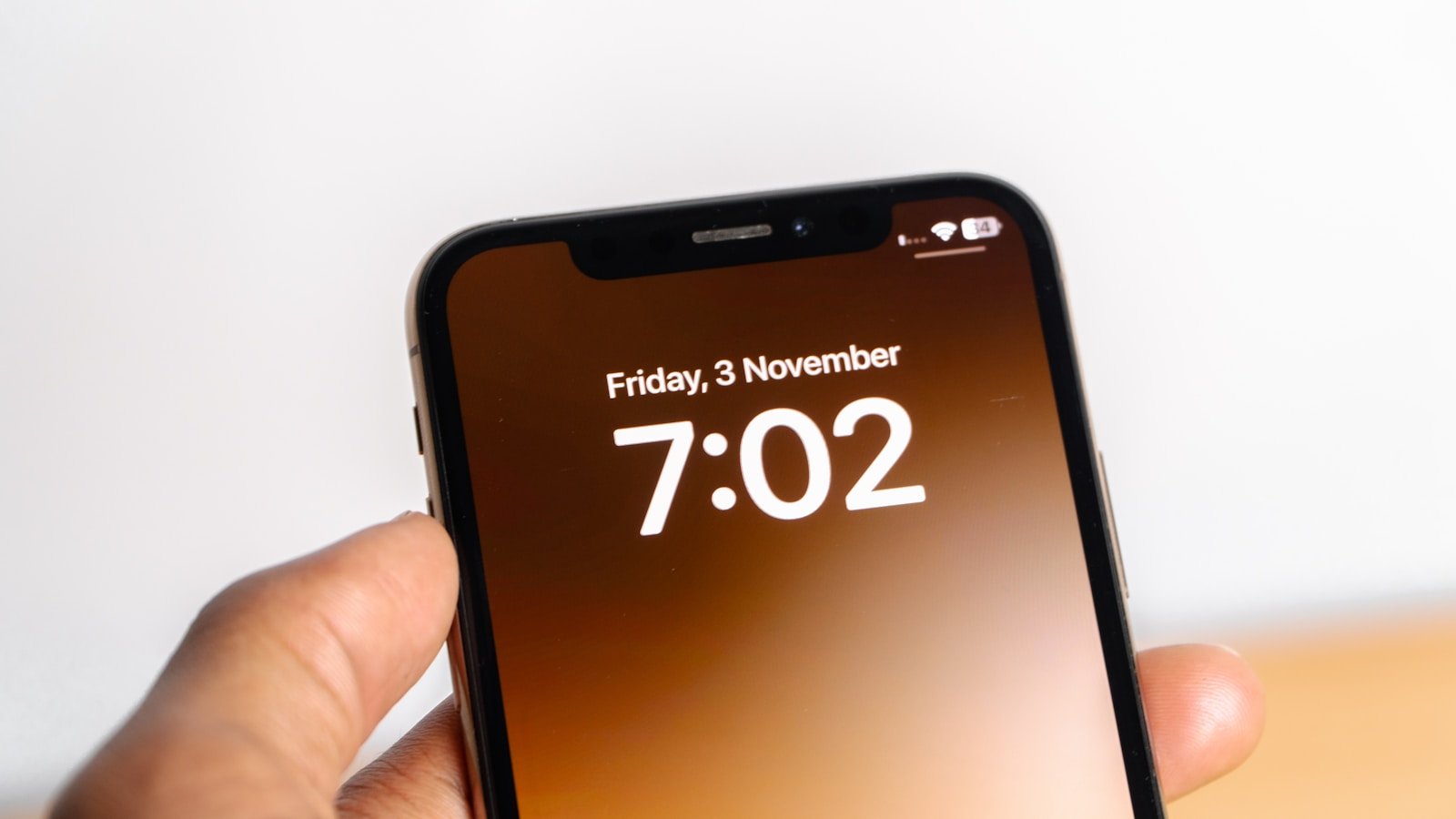
Having trouble with your iPhone alarm? This issue can be frustrating, especially when you rely on it to wake up in time. If your iPhone alarm doesn’t go off, there are several steps you can take to fix it quickly.
Many users face issues with their iPhone alarms because of settings or software problems. Sometimes, the volume on your phone is too low or you might have accidentally muted it. Other times, the alarm sound setting may have been changed or you could be using multiple alarms that overlap.
Occasionally, software updates or hardware problems can also interfere with your alarm. Ensuring that both the iOS software and the Clock app are up-to-date can prevent many issues. It’s important to check and troubleshoot each part of your phone to find the problem.
Alarm Doesn’t Go Off on iPhone: Troubleshooting Guide
Many users — especially on iOS 18 and newer iPhones like the iPhone 16 Pro — have reported alarms not ringing, vibrating, or showing notifications (Apple Community discussions).
If your iPhone alarm isn’t going off, follow these steps:
1. Check Alarm Settings
- Open the Clock app → Alarm tab.
- Ensure the alarm is enabled (toggle is green).
- Confirm the time, AM/PM, and repeat schedule are correct.
- Tap the alarm → choose a sound (not “None”).
- If “None” is selected, your alarm will vibrate silently or not at all.
2. Check Volume & Sound Settings
- Go to Settings → Sounds & Haptics.
- Make sure Ringer and Alerts volume is high.
- Toggle Change with Buttons off to prevent accidental volume changes.
- In Control Center, check Media Volume — some users found the alarm tied to this setting (Apple Community).
3. Disable Focus or Sleep Modes Temporarily
- Focus or Sleep Mode can silence alarms.
- Go to Settings → Focus → Sleep (or Do Not Disturb).
- Turn it off or allow Clock as an allowed app.
- If using Sleep Schedule, ensure it’s properly configured under:
Health app → Sleep → Full Schedule & Options.
4. Check Attention Awareness Settings
Some Face ID models lower alarm volume when you’re looking at the phone.
- Go to Settings → Face ID & Attention → Attention Aware Features.
- Turn this off if you suspect the alarm volume is dropping (Apple Community).
5. Restart Your iPhone
A simple restart can fix temporary software glitches.
- Press and hold the Side button + Volume Down, then slide to power off.
- Turn it back on and test with a short alarm (e.g., 1 minute ahead).
6. Update iOS
Apple frequently patches bugs affecting alarms.
- Go to Settings → General → Software Update.
- Install the latest iOS version (iOS 18.1.1 or newer as of November 2025).
7. Delete and Recreate Alarms
Corrupted alarm data can cause issues.
- Delete all alarms in the Clock app.
- Force quit the Clock app.
- Reopen and create a new alarm manually.
8. Check Third-Party Apps
Apps like Spotify, YouTube Music, or Sleep Cycle can interfere with native alarms.
- Try disabling or deleting these temporarily.
- Use only the Clock app for testing.
9. Reset All Settings (Last Resort)
If nothing works:
- Go to Settings → General → Transfer or Reset iPhone → Reset → Reset All Settings.
- This keeps your data but resets system settings (Wi-Fi, alarms, etc.).
10. Contact Apple Support
If the issue persists even after updates, it may be a system-level bug.
- Visit Apple Support or schedule a Genius Bar appointment.
- You can also post on the Apple Community for additional help.
✅ Quick Fix Summary
| Problem | Likely Fix |
|---|---|
| Alarm not sounding | Check alarm sound & volume |
| Alarm silent in Sleep Mode | Adjust Focus/Sleep settings |
| Alarm volume too low | Disable “Attention Aware Features” |
| Alarm not triggering at all | Recreate alarms or update iOS |
Key Takeaways
- iPhone alarm issues often arise from settings.
- Check volume and alarm sound settings first.
- Keep iOS and apps updated to fix many alarm problems.
Troubleshooting Common iPhone Alarm Issues
When an iPhone alarm doesn’t go off, it can be due to various issues. This guide will cover important points to consider, such as verifying alarm settings, checking sound configurations, inspecting app interactions, and addressing system issues.
Verifying Alarm Settings
First, check the alarm settings. Open the Clock app and tap the alarm in question to edit it. Review the time, making sure AM/PM is correct. Check the repeat settings to ensure the alarm is set for the correct days. Use a descriptive label to avoid confusion.
Make sure the snooze option is enabled if needed. Avoid using third-party alarm apps, which can sometimes conflict with iOS settings. The native Clock app is generally more reliable for alarms.
Checking Sound and Notification Configurations
Ensure the iPhone isn’t on silent mode. Check the volume settings by going to Settings > Sounds & Haptics. Adjust the Ringer and Alerts volume slider to a higher level. The alarm volume matches this slider.
Choose a loud alarm sound by editing the alarm in the Clock app. Avoid choosing a song from the Music app if it has playback issues. Disable Bluetooth to prevent the alarm from playing through Bluetooth devices like speakers or headphones.
Inspecting App and Device Interactions
Sometimes, other apps interfere with alarms. Disable Bluetooth and make sure no headphones are plugged in. Check apps like the Health app for Sleep settings or Bedtime features that might conflict with the alarm.
Look at third-party alarm apps, which may override native settings. Ensure only one alarm app is active. If the Apple Watch is connected, check its alarm settings too. Conflicting alarms can cause issues.
Addressing System Issues
A system issue can halt an alarm. Restart the iPhone by holding the side button and either volume button, then sliding to power off. Once off, turn it back on. Update iOS to the latest version through Settings > General > Software Update.
If problems persist, reset all settings. Go to Settings > General > Reset and choose “Reset All Settings.” This does not delete data but resets configurations. In severe cases, restoring the iPhone to factory settings might be necessary. Ensure an iCloud Backup before proceeding. Consider contacting Apple Support for hardware issues or software bugs.





