
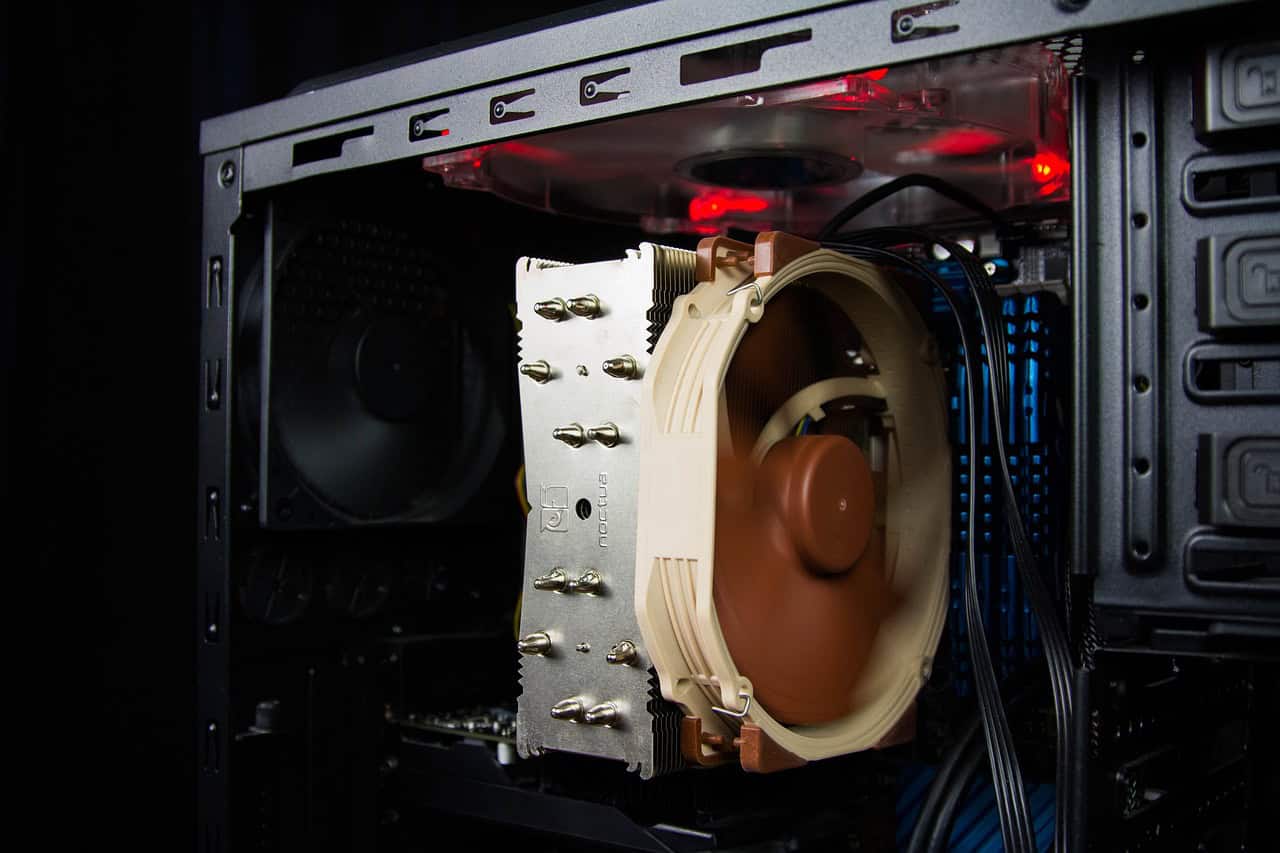
Overclocking a computer can boost its speed and power. It makes the CPU run faster than its normal rate. This can help with tasks like gaming and video editing. Overclocking can increase a computer’s performance by up to 20% without buying new hardware.
Many people think overclocking is hard or risky. But it’s not as tough as it seems. With the right steps, most users can do it safely. You just need to know the basics and take care.
Before you start, check if your CPU can be overclocked. Intel CPUs with a ‘K’ at the end of the model number work best. For AMD, most chips can be overclocked. You’ll also need a good cooling system to keep your CPU from getting too hot.

Computer Overclocking Guide: Boost Your PC’s Performance Safely
Overclocking is the process of increasing your computer’s CPU, GPU, or RAM clock speeds beyond their factory settings to achieve better performance. While it can unlock extra power for gaming, content creation, or demanding applications, it requires careful steps to ensure system stability and hardware safety. This guide will walk you through the essentials of overclocking your PC safely in 2025.
1. Understand What Overclocking Is
- Overclocking pushes your hardware to run faster than its rated speed.
- It can improve frame rates, reduce rendering times, and make your system more responsive.
- However, it increases heat output and power consumption, which can reduce hardware lifespan if done improperly.
2. Prepare Your System
- Backup Important Data: Overclocking can cause crashes; always safeguard your files.
- Update BIOS/UEFI: Ensure your motherboard firmware is up-to-date for better stability and compatibility.
- Install Monitoring Software: Tools like HWMonitor, CPU-Z, and MSI Afterburner help track temperatures, voltages, and clock speeds.
- Stress Testing Tools: Prime95, AIDA64, or Cinebench test system stability under load.
3. Start with the CPU Overclock
- Access BIOS/UEFI: Restart your PC and enter BIOS by pressing the designated key (usually Del, F2, or F10).
- Increase CPU Multiplier: This raises the CPU clock speed. Increase it gradually in small increments.
- Adjust Voltage (Vcore) Carefully: Higher clock speeds may require more voltage, but increasing voltage too much risks damage.
- Monitor Temperatures: Keep CPU temps ideally below 85°C under load.
- Test Stability: Run stress tests after each adjustment. If your system crashes or shows errors, dial back settings.
4. Overclocking RAM
- Enable XMP (Extreme Memory Profile) in BIOS to run RAM at its rated speed.
- For advanced users, manually tweak timings and voltage for better performance.
- Test stability with tools like MemTest86.
5. GPU Overclocking
- Use software like MSI Afterburner or EVGA Precision X1.
- Increase core clock and memory clock speeds incrementally.
- Monitor temperatures and artifacting (visual glitches).
- Test with GPU benchmarks or games.
6. Cooling Considerations
- Overclocking generates more heat; invest in good cooling solutions:
- High-quality air coolers or all-in-one liquid coolers.
- Ensure your case has good airflow.
- Regularly clean dust from fans and heatsinks.
7. Finalize and Save Settings
- Once stable, save your BIOS settings.
- Consider leaving a small safety margin by slightly lowering clocks or increasing voltage.
- Keep monitoring performance and temperatures during everyday use.
8. Know the Risks and Warranty Implications
- Overclocking can void warranties.
- Excessive voltage or heat can damage components.
- Proceed with caution and at your own risk.
Additional Resources
For a detailed, step-by-step approach and advanced techniques, see guides like HP’s Overclock Your CPU Safely: A Step-by-Step Guide 2025 or GearInstinct’s comprehensive article on Overclocking Your CPU in 2025.
Summary
Overclocking can unleash extra performance from your PC, but it demands patience, careful monitoring, and good cooling. By following these steps and testing thoroughly, you can enjoy a faster system without compromising stability or hardware health.
Key Takeaways
- Overclocking boosts computer speed for better gaming and tasks
- Most users can overclock safely with the right steps
- Good cooling is key to safe overclocking
Understanding the Basics of Overclocking
Overclocking boosts computer speed by pushing parts beyond normal limits. It’s a way to get more power from your PC without buying new gear.
The Overclocking Process
Overclocking starts in the BIOS or UEFI. These are special menus you see when you first turn on your computer. You can change settings here to make parts run faster.
The main things to adjust are clock speed and voltage. Clock speed is how fast a part works. Voltage is the power it gets. Raising these makes the part go faster but also hotter.
You’ll need to test your changes to make sure they work. This means running programs that push your computer hard. If it crashes you’ll have to lower your settings.
Key Overclocking Terms and Concepts
Clock rate is the speed of a part measured in MHz or GHz. Higher numbers mean faster speeds.
Multipliers are numbers that set the final clock speed. The base clock times the multiplier equals the part’s speed.
Vcore is the main voltage for a CPU. More voltage lets it run faster but also hotter.
Thermal throttling happens when parts get too hot. The computer slows down to cool off.
Risks and Considerations
Overclocking can damage parts if done wrong. It may shorten the life of your hardware. Most warranties don’t cover damage from overclocking.
Heat is the biggest danger. Good cooling is a must. This might mean getting a better CPU cooler or case fans.
Stability is key. An unstable system can crash or corrupt files. You need to test thoroughly to avoid problems.
Power supply quality matters too. Overclocking uses more power. A cheap power supply might not be able to handle it.
Practical Overclocking Guide
Overclocking can boost your computer’s speed. This guide will help you do it safely and get the best results.
Preparation and Precautions
Start by checking your system. Make sure you have good cooling. A liquid cooler or high-end air cooler is best. Clean out dust from your case. Get fresh air in and hot air out.
Update your BIOS to the latest version. This can fix bugs and add new features. Write down your current settings. You may need them if something goes wrong.
Know your CPU’s limits. Look up what others have achieved with the same model. This gives you a goal to aim for. Have a plan to undo changes if needed.
Step-by-Step Overclocking
Enter your computer’s BIOS. Find the CPU settings. Look for options like “multiplier” or “ratio.” These control your CPU’s speed.
Start small. Raise the multiplier by one step. Save and reboot. If it works, go back and raise it again. Keep doing this until your computer won’t boot.
When that happens, go back one step. This is your max stable speed. Now adjust the voltage. Raise it a little to support the higher speed.
Test after each change. Use a program like Prime95 to check stability. If it crashes, lower the speed or raise the voltage slightly.
Testing and Stability Verification
Run stress tests to check your overclock. Use Prime95 for at least an hour. Try Cinebench R23 for a quick CPU test. 3DMark is good for overall system checks.
Watch your temps while testing. Keep them under 80°C (176°F) for most CPUs. If they get too hot, improve cooling or lower your overclock.
Test real-world use too. Play games or run your usual programs. Make sure everything works as it should. If you see crashes or errors, adjust your settings.
Keep an eye on things over time. Temps can change as thermal paste ages. Re-test every few months to ensure stability.
Advanced Overclocking Techniques
Fine-tune your RAM for better performance. Adjust timings and frequency. This can give a nice boost, especially in games.
Try undervolting. This can lower temps and power use. It might even let you push speeds higher.
Explore per-core overclocking. Some CPUs let you set different speeds for each core. This can boost single-core tasks without pushing all cores too hard.
Use software tools for more control. Intel XTU and AMD Ryzen Master let you tweak settings in Windows. They’re great for testing before making BIOS changes.





