
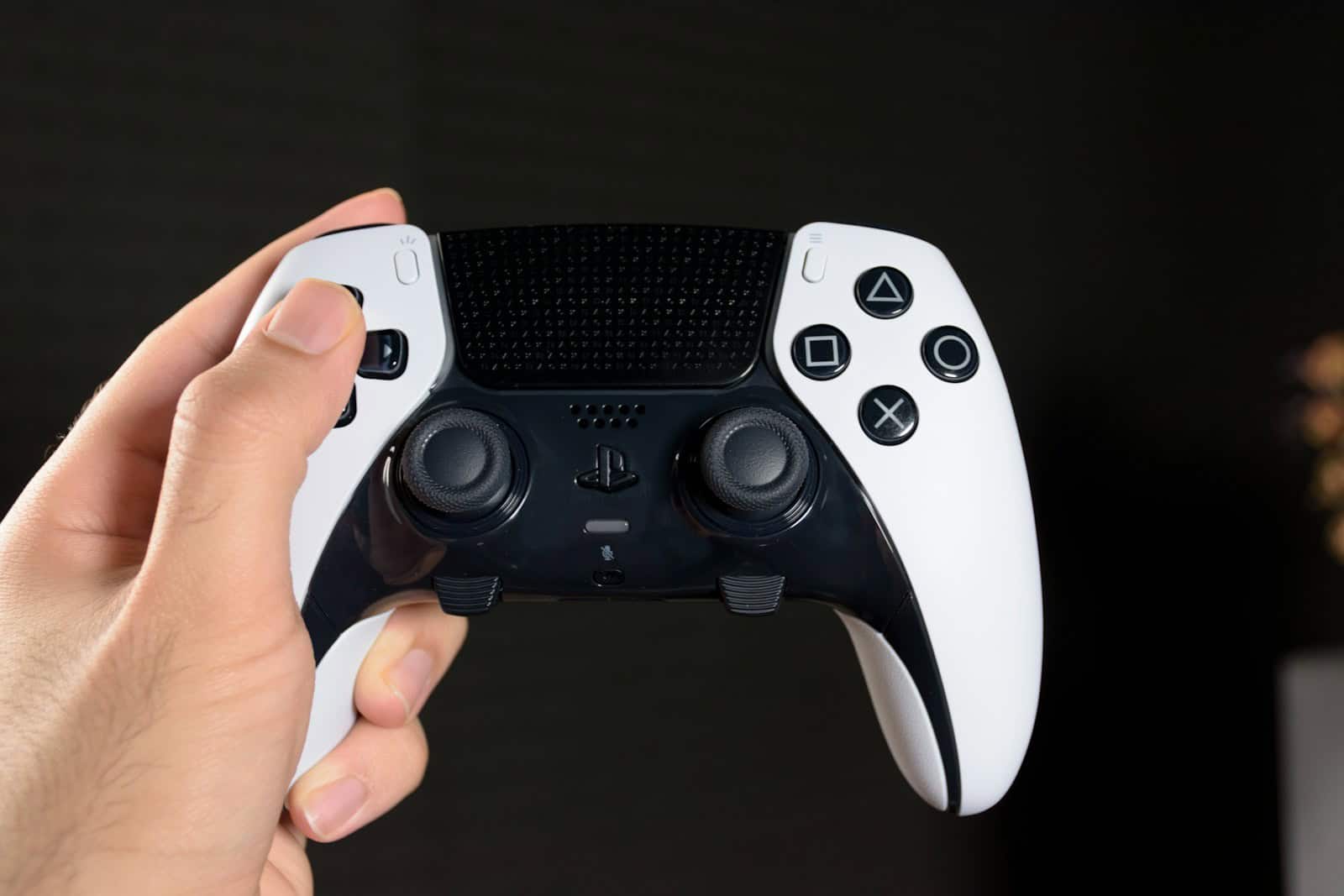
Playing video games on a PC with a PlayStation controller can be a great way to enjoy your favorite titles. You can use both PS4 and PS5 controllers on your computer. Connecting a PlayStation controller to a PC is easy and can be done wirelessly or with a USB cable.
The process is simple. For a wired connection, just plug the controller into your PC’s USB port. To connect wirelessly, you’ll need Bluetooth on your computer. Put the controller in pairing mode and select it from your PC’s Bluetooth devices list.
Using a PlayStation controller on PC can improve your gaming experience. Many games work well with these controllers right away. Some even support special features like the DualSense’s haptic feedback.
Use a PlayStation Controller on PC
Want to use your PlayStation controller across different devices? Whether you’re connecting a DualShock 4 (PS4) or DualSense (PS5) controller to a PC, PS4, or PS5, setup is quick and easy.
This step-by-step guide covers wired and wireless connections, Bluetooth pairing, Steam setup, and troubleshooting tips.
🎮 Which PlayStation Controller Do You Have?
- DualShock 4 – PS4 controller
- DualSense – PS5 controller
Both controllers can work on PC, while each pairs natively with its respective console.
✅ How to Use a PlayStation Controller on PS5
🔹 Connect DualSense to PS5 (First-Time Setup)
- Turn on your PS5.
- Connect the controller using a USB-C cable.
- Press the PS button (center button with PlayStation logo).
- Once paired, you can unplug the cable and use it wirelessly.
🔹 Connect Additional Controllers
- Go to Settings > Accessories > Bluetooth Accessories.
- Put the controller in pairing mode:
- Hold PS + Create (small button left of touchpad) until the light bar flashes.
- Select the controller from the list.
✅ Works only with DualSense (PS5 officially supports DualSense).
✅ How to Use a PlayStation Controller on PS4
🔹 Connect DualShock 4 to PS4 (First-Time Setup)
- Turn on your PS4.
- Connect the controller using a Micro-USB cable.
- Press the PS button.
- Disconnect the cable once paired.
🔹 Pair Wirelessly
- Go to Settings > Devices > Bluetooth Devices.
- Hold PS + Share on the controller until the light flashes.
- Select it from the device list.
✅ PS4 officially supports DualShock 4.
⚠️ DualSense works on PS4 only for basic navigation (limited compatibility).
✅ How to Use a PlayStation Controller on PC (Windows)
You can connect via USB cable or Bluetooth.
🔌 Method 1: Wired Connection (Easiest)
- Plug the controller into your PC:
- DualSense → USB-C cable
- DualShock 4 → Micro-USB cable
- Windows will automatically detect and install drivers.
- Open your game and start playing.
✅ Works instantly with most modern games.
📶 Method 2: Bluetooth Connection (Wireless)
Step 1: Enable Pairing Mode
- DualSense: Hold PS + Create until lights flash.
- DualShock 4: Hold PS + Share until light flashes.
Step 2: Connect in Windows
- Go to Settings > Bluetooth & Devices.
- Click Add Device > Bluetooth.
- Select:
- “Wireless Controller” (DualShock 4)
- “DualSense Wireless Controller”
- Click Connect.
✅ Your controller is now paired.
✅ Using PlayStation Controller on Steam (Recommended)
Steam has built-in PlayStation controller support.
Setup Steps:
- Open Steam.
- Go to Settings > Controller > General Controller Settings.
- Enable:
- ✅ PlayStation Configuration Support
- Customize button mapping if needed.
Steam supports:
- Button remapping
- Touchpad functionality
- Gyro controls
- Haptic feedback (limited on PC)
✅ Using PlayStation Controller for Non-Steam Games
For games outside Steam:
- Many modern titles support PlayStation controllers natively.
- If not detected, you can use:
- DS4Windows (for DualShock 4)
- Steam as a background launcher
- Built-in Windows game controller settings
🔋 Charging Your Controller
- Use a USB port on console or PC
- Use a certified USB wall charger
- Use official charging dock (optional)
Battery life:
- DualShock 4: ~4–8 hours
- DualSense: ~6–12 hours (varies by features used)
🛠 Troubleshooting Tips
Controller Not Connecting?
- Reset the controller:
- Use a paperclip to press the reset button on the back for 5 seconds.
- Remove device from Bluetooth list and re-pair.
- Try a different USB cable (some cables are charge-only).
Input Lag on PC?
- Use wired connection.
- Update Bluetooth drivers.
- Close background apps.
Controller Not Detected in Game?
- Enable PlayStation support in Steam.
- Restart the game after connecting controller.
- Check in Windows:
Control Panel > Devices and Printers
🎯 Quick Compatibility Summary
| Device | DualShock 4 | DualSense |
|---|---|---|
| PS4 | ✅ Full support | ⚠️ Limited |
| PS5 | ⚠️ Limited (PS4 games only) | ✅ Full support |
| Windows PC | ✅ Yes | ✅ Yes |
| Steam | ✅ Full support | ✅ Full support |
✅ Final Thoughts
Using a PlayStation controller on PC, PS4, or PS5 is simple:
- 🔌 Plug in for instant wired play
- 📶 Use Bluetooth for wireless freedom
- 🎮 Enable Steam support for best PC compatibility
Key Takeaways
- PlayStation controllers can be used on PC via USB or Bluetooth
- Setup is quick and easy for most games
- Some PC games support advanced controller features
Setting Up Your PlayStation Controller for PC Use
Connecting a PlayStation controller to a PC opens up new gaming options. The process involves choosing a connection method, installing drivers, and troubleshooting any issues that come up.
Connection Methods Overview
There are two main ways to connect a PlayStation controller to a PC: USB and Bluetooth. USB is the easiest method. Just plug the controller into a USB port on your PC with a cable. For Bluetooth, you’ll need to put the controller in pairing mode. On a PS4 controller, hold the Share and PS buttons. On a PS5 controller, hold the Create and PS buttons. The light bar will flash when it’s ready to pair. Go to your PC’s Bluetooth settings and select the controller to connect.
Installing Drivers and Software
Most PCs will detect PlayStation controllers right away. But some games might need extra software. For PS4 controllers, try DS4Windows. It’s free and easy to use. For PS5 controllers, Steam has built-in support. Just open Steam and go to the controller settings. You can set up button layouts there too. Some games work best with Xbox controller settings. In those cases, use software that makes your PC think the PlayStation controller is an Xbox one.
Troubleshooting Common Connectivity Issues
If your controller won’t connect, try these fixes:
- Check the USB cable if using a wired connection.
- Make sure Bluetooth is on for wireless connections.
- Restart your PC and the controller.
- Update your PC’s Bluetooth drivers.
- Try a different USB port.
For wireless issues, move closer to your PC. Walls and other devices can block the signal. If nothing works, try resetting the controller. There’s a small hole on the back. Use a paperclip to press the button inside for a few seconds. This will reset the controller to factory settings.
Enhancing Gameplay with PlayStation Controller Features
PlayStation controllers offer unique features that can boost your gaming on PC. These tools can make your play smoother and more fun.
Optimizing Control Settings
You can set up your PlayStation controller to work just how you want on PC. Steam lets you change button layouts and adjust stick sensitivity. This helps you play better in different types of games. You can make custom profiles for each game you play.
Some games let you change controls right in their settings. This is great for making the game feel natural with your controller. You can also use apps like DS4Windows to fine-tune your controller on PC.
Utilizing Exclusive DualSense Controller Features
The PS5 DualSense controller has special features that can work on PC. Its adaptive triggers can change how hard you need to press them. This makes shooting or driving feel more real. The controller also has advanced vibration called haptic feedback.
Some PC games support these DualSense features. Racing games might use the triggers to mimic gas and brake pedals. Action games could use vibration to make explosions feel more powerful. The touchpad can work as a mouse on your PC too.
Expanding Device Compatibility
PlayStation controllers work with more than just PCs. You can use them on Macs, iPhones, iPads, and Android devices. The PS Remote Play app lets you stream games from your PS4 or PS5 to these devices.
To connect, you can use Bluetooth or a USB cable. Newer versions of iOS, iPadOS, and Android have built-in support for PlayStation controllers. This means you can play mobile games with your familiar controller. It’s a great way to enjoy games on different screens.





