
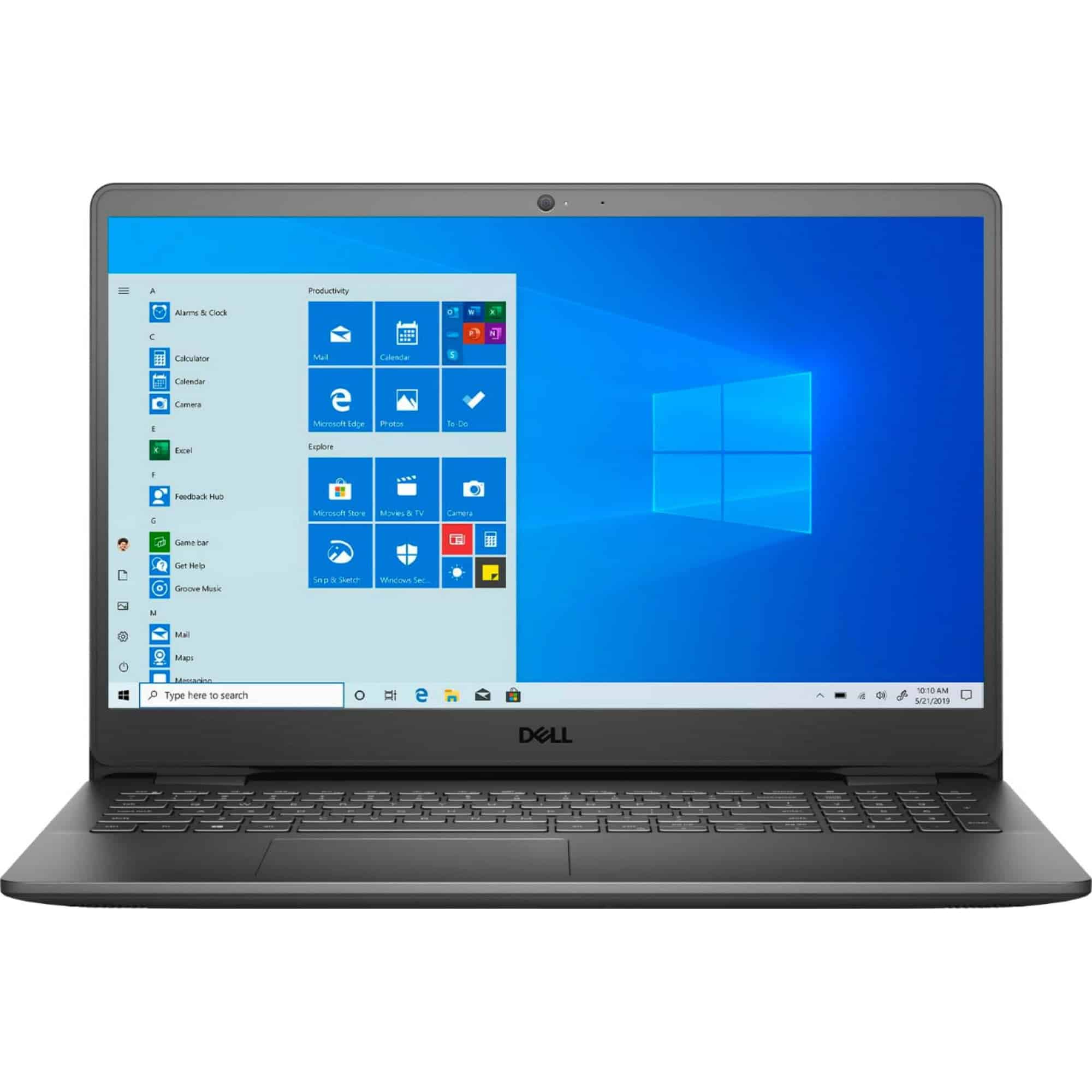
Connecting your PC to a 5G network opens up new possibilities for fast internet. 5G offers faster speeds and lower latency than older networks, making it great for work and play. This new tech is changing how we use our computers on the go.
Setting up 5G on your PC is easier than you might think. Most new laptops come ready for 5G. If yours doesn’t, you can use a mobile hotspot or a special adapter. These tools let you tap into 5G networks just like you would with Wi-Fi.
As 5G spreads, more people will use it for their PCs. It’s not just for phones anymore. In the coming years, 5G could become the main way many connect their computers to the internet when they’re away from home or the office.
Ways to Connect Your PC to a 5G Network
5G offers faster speeds, lower latency, and more reliable connections compared to 4G LTE. If you want your PC to take advantage of 5G, there are several ways to get connected — depending on your hardware and setup.
Here’s a complete guide to the different ways you can connect your PC to a 5G network.
1. Use a 5G Smartphone Hotspot (Easiest Method)
One of the simplest ways to connect your PC to 5G is by using your 5G smartphone as a mobile hotspot.
✅ How It Works:
Your phone connects to the 5G cellular network and shares that connection with your PC via Wi‑Fi, USB, or Bluetooth.
🔹 Option A: Wi‑Fi Hotspot
- Enable Mobile Hotspot in your phone’s settings.
- On your PC, open Wi‑Fi settings.
- Select your phone’s hotspot network.
- Enter the password and connect.
🔹 Option B: USB Tethering (More Stable)
- Connect your phone to your PC using a USB cable.
- Enable USB Tethering in your phone settings.
- Your PC will detect a wired network connection.
✅ Pros:
- No extra hardware required (if you already have a 5G phone)
- Quick and easy setup
⚠️ Cons:
- Drains phone battery
- May use significant mobile data
2. Use a 5G Mobile Hotspot Device (MiFi)
A dedicated 5G mobile hotspot (often called a MiFi device) connects directly to a 5G network and shares the connection with multiple devices.
✅ How It Works:
- Insert an active 5G SIM card.
- Power on the device.
- Connect your PC via Wi‑Fi (or USB, if supported).
✅ Pros:
- Designed for constant hotspot use
- Better battery life than phone tethering
- Can connect multiple devices
⚠️ Cons:
- Requires purchasing a separate device
- Requires a data plan
3. Install a 5G USB Modem (Plug‑and‑Play)
A 5G USB modem connects directly to your PC like a flash drive and provides internet via cellular data.
✅ Setup Steps:
- Insert your SIM card into the 5G USB modem.
- Plug the modem into your PC’s USB port.
- Install drivers if prompted.
- Connect to the network via the modem’s software.
✅ Pros:
- Direct, stable connection
- Portable
- No need for Wi‑Fi
⚠️ Cons:
- Hardware cost
- May require driver installation
4. Use a 5G Cellular Laptop (Built-In 5G)
Some modern laptops come with built-in 5G connectivity.
✅ How It Works:
- Insert a nano-SIM or activate eSIM.
- Go to Settings > Network & Internet > Cellular.
- Enable cellular data.
✅ Pros:
- No extra devices needed
- Seamless connectivity
- Designed for mobility
⚠️ Cons:
- Limited to specific laptop models
- Usually more expensive
5. Use a 5G Home Internet Router
Many carriers now offer 5G home internet service through a dedicated 5G router.
✅ Setup:
- Plug in the 5G router.
- Position it near a window for best signal.
- Connect your PC via Wi‑Fi or Ethernet.
✅ Pros:
- Supports multiple devices
- Stronger antennas for better reception
- Good alternative to cable or fiber
⚠️ Cons:
- Requires home service plan
- Speeds vary by location
6. PCIe 5G Expansion Card (Advanced Users)
Some desktop PCs can be upgraded with internal 5G expansion cards (if compatible).
✅ Steps:
- Install the 5G PCIe card in your desktop.
- Attach external antennas.
- Insert SIM card.
- Install required drivers.
✅ Pros:
- Permanent solution
- Clean setup (no external dongles)
⚠️ Cons:
- Requires technical knowledge
- Limited availability
- May require compatible motherboard
Things to Check Before Connecting to 5G
✅ Confirm 5G Coverage
Not all areas have strong 5G signals. Check your carrier’s coverage map.
✅ Make Sure You Have a 5G Plan
Some carriers require a specific plan for 5G access.
✅ Data Limits
5G speeds can use large amounts of data quickly — monitor your usage.
✅ Signal Strength
Indoor coverage may be weaker. Position devices near windows for better reception.
Which Option Is Best?
| Situation | Best Option |
|---|---|
| Occasional use | Smartphone hotspot |
| Frequent travel | 5G mobile hotspot device |
| Work laptop | Built-in 5G laptop |
| Home internet replacement | 5G home router |
| Desktop power user | 5G USB modem or PCIe card |
Final Thoughts
Connecting your PC to a 5G network is easier than ever. Whether you use your smartphone, a dedicated hotspot, a USB modem, or a built-in 5G laptop, there’s a solution for every need and budget.
If you need quick access, your phone’s hotspot is the fastest way to get started. For long-term or high‑usage setups, a dedicated 5G device or home router may be the better choice.
With the right setup, you can enjoy faster downloads, smoother video calls, and lower latency — wherever 5G is available.
Key Takeaways
- 5G brings faster internet speeds to PCs
- Many new laptops are 5G-ready
- 5G is set to grow for PC use in the future
Understanding 5G and Its Advantages for PC Connectivity
5G brings faster speeds and lower lag for PCs. It allows more devices to connect at once and works in both cities and rural areas.
5G Technology Explained
5G is the fifth generation of cellular networks. It uses higher frequency waves to send data faster. 5G can reach speeds up to 20 Gbps, much quicker than 4G.
This new tech also cuts down on lag. Devices can respond in just 1 millisecond. 5G networks can handle many more connected gadgets too.
5G comes in three main types:
- Low-band: Covers large areas but slower speeds
- Mid-band: Good mix of coverage and speed
- High-band: Very fast but limited range
Comparing 5G with Previous Generations
5G beats older networks in many ways. It’s much faster than 3G and 4G. Here’s a quick look:
- 1G: Voice calls only
- 2G: Texts and basic data
- 3G: Mobile internet (slow)
- 4G: Faster internet, video streaming
- 5G: Super-fast data, low lag, many devices
5G can be 100 times faster than 4G. It also allows more devices to connect at once without slowing down.
For PCs, 5G means smoother video calls and faster file transfers. Games run better too, with less delay.
The Future of 5G in Urban and Rural Connectivity
5G will change how we connect in cities and towns. In urban areas, it will support smart city tech. Traffic lights, security cameras, and other devices will work together better.
Rural spots will see big changes too. 5G can reach far-off places easier than fiber cables. This could bring fast internet to areas that never had it before.
As 5G grows, we’ll see new uses for PCs. They might link up with cars, homes, and city systems in new ways. Work and play could change a lot with these super-fast, always-on connections.
Setting Up Your PC for 5G Connectivity
Getting your PC ready for 5G can boost your internet speed and connection. You’ll need the right hardware and settings to make it work.
Requirements for 5G Connectivity
To use 5G on your PC, you need a few key things:
- A 5G-ready PC or laptop
- A 5G network adapter (built-in or external)
- A 5G data plan from a mobile carrier
Most new PCs don’t have built-in 5G. You might need to buy a 5G USB dongle or modem. These plug into your PC’s USB port.
Check if your PC has 5G support:
- On Windows 10/11, open Device Manager
- Look for a 5G-capable network adapter
If you don’t see one, you’ll need to get an external 5G device.
Choosing the Right 5G Equipment and Network Plan
Pick 5G gear that works with your PC:
- USB modems are easy to use and portable
- 5G Wi-Fi hotspots can connect multiple devices
- Some laptops have 5G built-in
5G Network Plans:
- Check coverage in your area
- Compare data limits and speeds
- Look for plans with no extra fees
Ask carriers about trying their 5G service before you buy. This helps you pick the best plan for your needs.
Configuring Network Settings on Your PC
Once you have 5G hardware, set it up on your PC:
- Plug in your 5G device
- Windows should install drivers automatically
- If not, download them from the maker’s website
To connect:
- Click the network icon in the taskbar
- Select your 5G network
- Enter the password if asked
For best speed, make sure your PC prefers 5G:
- Open Device Manager
- Find your network adapter
- Right-click and select Properties
- Go to the Advanced tab
- Set “Preferred Band” to 5GHz if you see this option
Optimizing Your PC Setup to Maximize 5G Performance
To get the most from 5G:
- Update your PC and drivers
- Close apps you’re not using
- Use a virus scanner to keep your PC clean
Place your 5G device or PC where the signal is strongest:
- Near windows
- Away from walls and metal objects
- Higher up if possible
Try different spots to find the best signal. Use a speed test app to check your connection in each place.
If speeds are slow, check for Wi-Fi interference. Change your router’s channel in its settings. This can help if you’re using 5G Wi-Fi.





