
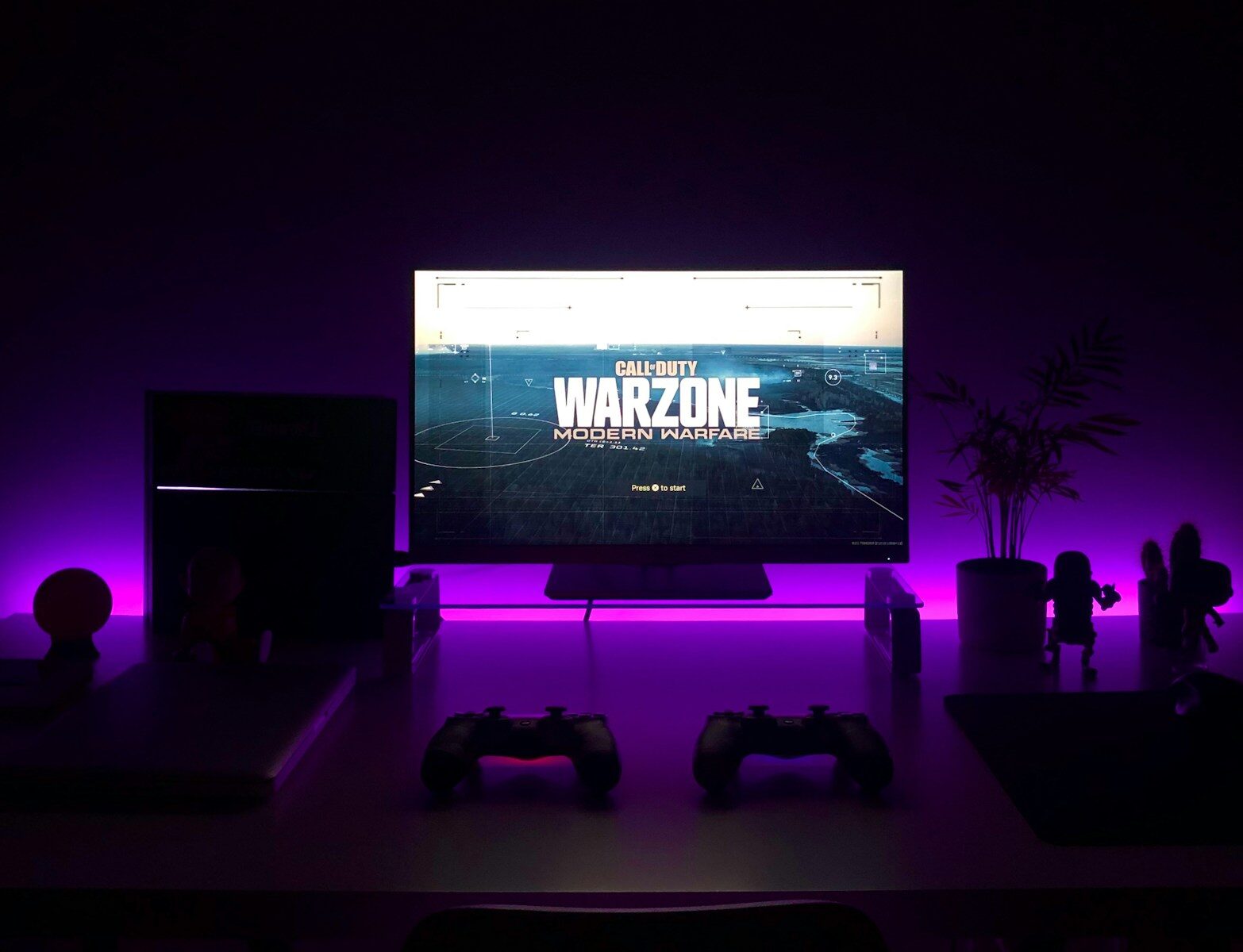
Playing PlayStation games on your PC is now possible thanks to PS Remote Play. This free app lets you stream games from your PS4 or PS5 to a Windows PC or Mac. You can enjoy your favorite PlayStation titles on a bigger screen without buying extra hardware.
Setting up Remote Play is easy. You need a PS4 or PS5 console, a PC or Mac, and a fast internet connection. Download the app, link your PlayStation account, and connect a controller. Once set up, you can start gaming on your computer in minutes.
Remote Play works best with a wired internet connection. Use an Ethernet cable for your console and PC to reduce lag. Adjust video quality settings in the app to match your network speed. This helps ensure smooth gameplay on your computer screen.
How to Play PlayStation Games on Your PC (2026 Guide)
Want to enjoy PlayStation games without owning a console — or play your PS5 titles right from your computer? Good news: there are several official and reliable ways to play PlayStation games on a PC in 2026.
This guide covers all the current methods, including PlayStation Remote Play, PlayStation Plus cloud streaming, and PC ports.
Method 1: PlayStation Remote Play (Best If You Own a PS4 or PS5)
Best for: Playing your own console games on your PC
Requirements: A PS4 or PS5 console
PlayStation Remote Play lets you stream games from your console directly to your PC over the internet.
✅ What You Need
- A PS4 or PS5
- A Windows PC (Windows 10/11)
- High-speed internet (at least 15 Mbps recommended)
- A PlayStation Network (PSN) account
- DualSense or DualShock 4 controller
🔧 Step-by-Step Setup
Step 1: Enable Remote Play on Your Console
On PS5:
- Go to Settings
- Select System
- Tap Remote Play
- Turn on Enable Remote Play
On PS4:
- Go to Settings
- Select Remote Play Connection Settings
- Enable Remote Play
Step 2: Install Remote Play on Your PC
- Visit the official PlayStation Remote Play website
- Download the Windows version
- Install the app
Step 3: Connect Your Controller
- Plug in via USB
or - Pair via Bluetooth
Step 4: Sign In and Connect
- Open the Remote Play app
- Sign in to your PSN account
- Select your console
Your console will power on automatically and begin streaming to your PC.
🎮 Performance Tips
- Use wired Ethernet on your console for best performance
- Close background apps on your PC
- Use 5 GHz Wi-Fi if wireless
- Adjust streaming resolution in Remote Play settings
Method 2: PlayStation Plus Cloud Streaming (No Console Needed)
Best for: Playing PlayStation games without owning a console
With PlayStation Plus Premium, you can stream select PlayStation games directly to your PC.
✅ What You Need
- Windows PC
- PlayStation Plus Premium subscription
- Stable internet (20–30 Mbps recommended)
- Compatible controller
🔧 How to Set It Up
Step 1: Subscribe to PlayStation Plus Premium
Upgrade to the Premium tier through the PlayStation website.
Step 2: Download the PlayStation Plus PC App
Install the official PlayStation Plus app for Windows.
Step 3: Sign In and Start Streaming
Browse the available game catalog and launch games instantly — no downloads required.
📌 What Games Are Available?
PlayStation Plus Premium includes:
- PS5 titles (streamed)
- PS4 games
- Classic PS1, PS2, PS3 titles
- Select Ubisoft+ titles
Game availability rotates periodically.
⚠️ Limitations
- You cannot stream purchased games outside the catalog
- Performance depends on internet speed
- Not all PS5 exclusives are available
Method 3: Official PlayStation PC Ports (Best Quality Option)
Best for: Native PC performance and graphics
Sony now releases many PlayStation exclusives directly on PC.
✅ Popular PlayStation Games Available on PC
- God of War
- Spider-Man Remastered
- The Last of Us Part I
- Horizon Zero Dawn
- Horizon Forbidden West
- Ghost of Tsushima
- Ratchet & Clank: Rift Apart
- Returnal
- Helldivers 2
🔧 Where to Buy
You can purchase these games from:
- Steam
- Epic Games Store
These versions are optimized for PC and often include:
- Higher frame rates
- Ultrawide monitor support
- DLSS / FSR support
- Ray tracing options
Method 4: PS3 Emulation (Advanced Users Only)
Note: Emulation requires you to legally own the games.
RPCS3 is a PS3 emulator that allows some PS3 games to run on PC. However:
- Setup can be complex
- Not all games run perfectly
- Requires a powerful PC
This method is recommended only for advanced users.
Internet Speed Recommendations
| Activity | Recommended Speed |
|---|---|
| Remote Play (720p) | 15 Mbps |
| Remote Play (1080p) | 25 Mbps |
| PS Plus Streaming | 20–30 Mbps |
| Competitive Online Play | 50+ Mbps |
Lower latency is more important than raw speed.
Controller Compatibility
| Controller | Works on PC? | Best Use |
|---|---|---|
| DualSense (PS5) | ✅ Yes | Remote Play & PC ports |
| DualShock 4 | ✅ Yes | Remote Play & Streaming |
| Xbox Controller | ✅ Yes | PC ports only |
| Keyboard & Mouse | ✅ Yes | PC-native games |
Some PlayStation PC ports support full keyboard and mouse controls.
Which Method Is Best?
| Scenario | Best Option |
|---|---|
| Own a PS5 | Remote Play |
| No console | PlayStation Plus Premium |
| Want best graphics | Official PC ports |
| Retro PS3 titles | Emulation |
Final Thoughts
In 2026, playing PlayStation games on a PC is easier than ever. Your best option depends on what you want:
- ✅ Own a console? Use Remote Play
- ✅ No console? Try PlayStation Plus Premium
- ✅ Want maximum performance? Buy native PC ports
Key Takeaways
- PS Remote Play streams PlayStation games to PCs and Macs
- Setup requires a console, computer, fast internet, and controller
- Wired connections and adjusted settings improve performance
Setting Up PlayStation Remote Play
PlayStation Remote Play lets you play PS4 and PS5 games on your computer. This feature needs some setup steps on both your console and PC.
System Requirements and Preparations
To use Remote Play, you need a computer with Windows 10 or 11, or a Mac. Your PC should have at least 2 GB of RAM and 100 MB of free storage. You also need a PlayStation 4 or 5 console and a DualShock 4 or DualSense controller. A fast internet connection is key. Sony suggests at least 5 Mbps, but 15 Mbps or more is best for smooth gameplay.
Make sure your console and computer are on the same network for the best experience. You can use Wi-Fi, but a wired connection to your router is better. Check that your PlayStation and computer have the latest system updates installed.
Installing PS Remote Play on Your Computer
Go to the PlayStation website to download the PS Remote Play app. Choose the right version for your computer’s operating system. Run the installer file and follow the prompts. The app will ask for permission to access your microphone and camera. Allow this if you want to use voice chat or stream yourself while playing.
After installation, open the app. Sign in with your PlayStation Network account. This must be the same account you use on your console. The app may ask you to download extra software. Follow the on-screen steps if this happens.
Connecting to Your PlayStation Console
Turn on your PlayStation console. On PS5, go to Settings > System > Remote Play. On PS4, go to Settings > Remote Play Connection Settings. Make sure “Enable Remote Play” is turned on.
Open the PS Remote Play app on your computer. Click “Find Console” or choose your console type. The app will search for your console on the network. If it can’t find it, you might need to enter a code shown on your TV screen.
Once connected, you’ll see your console’s screen on your computer. You can now control your PlayStation using your computer keyboard or a connected controller.
System and Console Configuration
For the best Remote Play experience, set up your console correctly. On PS4, go to Settings > Account Management. Choose “Activate as Your Primary PS4”. This lets you use Remote Play even when your console is in Rest Mode.
Next, go to Power Save Settings > Set Features Available in Rest Mode. Turn on “Stay Connected to the Internet” and “Enable Turning On PS4 from Network”. Do the same on PS5, but the menu names might be slightly different.
Adjust video quality in the Remote Play app settings. Lower quality settings work better on slower internet connections. You can change resolution, frame rate, and use HDR if your devices support it.
Optimizing and Utilizing the Remote Play Experience
Remote Play lets you enjoy PlayStation games on other devices. You can make the most of this feature by tweaking settings and exploring different options.
Enhancing the Connection and Streaming Quality
To get the best Remote Play experience, start with a strong Wi-Fi connection. Put your console and device close to your router. If possible, use an Ethernet cable for a more stable link.
Next, adjust the video settings in the Remote Play app. Lower the resolution and frame rate if you notice lag. For PS5 and PS4 Pro, you might get up to 1080p automatically. On other systems, try 540p or 360p resolution. Pick a lower frame rate to reduce stuttering.
Check your console settings too. Go to Settings > System > Remote Play on PS5. For PS4, it’s under Settings > Remote Play Connection Settings. Make sure Remote Play is turned on and your devices are linked.
Device Integration and Management
Remote Play works with many devices. You can use it on Windows PCs, Macs, smartphones, and tablets. Each device type has its own setup process.
For computers, download the PS Remote Play app. On mobile, get the app from your device’s app store. Follow the setup steps to link your device to your PlayStation account.
You can use different controllers too. The DualShock 4 and DualSense work on most devices. Some games even let you use a keyboard and mouse on PC or Mac.
To add a new device, go to your console’s Remote Play settings. Choose “Link Device” and follow the prompts. You can manage linked devices from this menu too.
Exploring PS4 and PS5 Features via Remote Play
Remote Play isn’t just for gaming. You can access your console’s home screen and use many of its features.
Browse your game library, start downloads, and change settings. On PS5, you can even help friends by watching their gameplay or taking control of their game.
Voice chat works through Remote Play too. Use a headset or your device’s built-in mic to talk with friends while you play. You can join parties and send messages just like on your console.
Remember that some features might work differently on Remote Play. Check your console’s user guide for the most up-to-date info on what you can do.





