
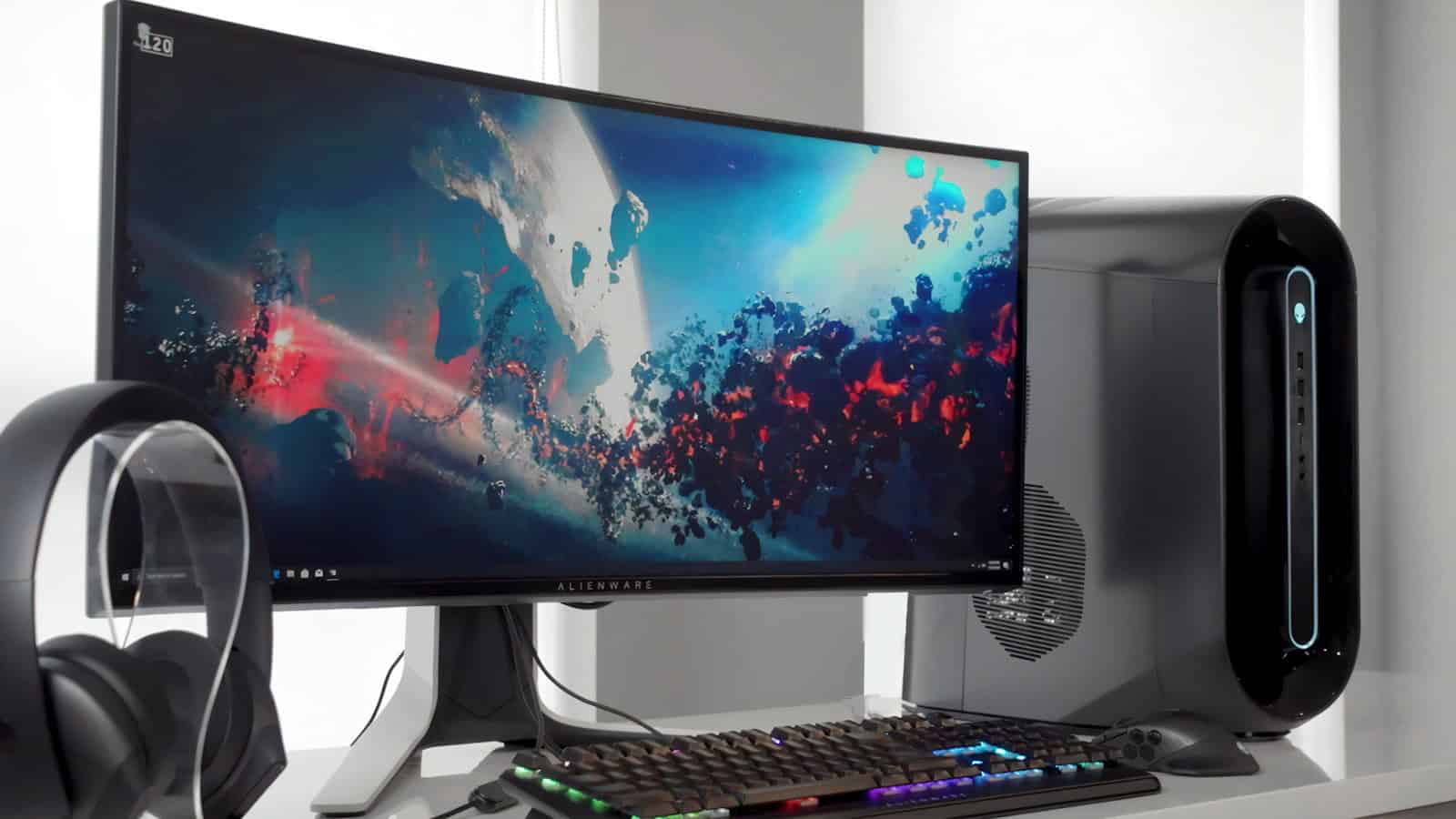
Buying a desktop PC can be tricky. There are many options to think about. A good desktop PC should fit your needs and budget while providing enough power for your tasks.
Desktop PCs come in different sizes and styles. Some are small and fit on a desk. Others are big and sit on the floor. You can choose based on how much space you have and what you want to do with your computer.
The parts inside the PC matter too. The processor, memory, and storage all affect how well the computer works. A faster processor and more memory let you run more programs at once. More storage means you can keep more files on your computer.Desktop PC Buying Guide: Essential Tips for Choosing Your Ideal System
Choosing the right desktop PC can be overwhelming with the wide variety of options available in 2025. Whether you’re building a new system or buying pre-built, this guide will help you focus on the essential factors to find a desktop that perfectly fits your needs and budget.
1. Identify Your Usage Needs
- Basic Tasks: Email, web browsing, office applications require modest specs.
- Gaming: High-performance CPUs and powerful GPUs are critical.
- Content Creation: Video editing, 3D modeling, and design demand strong multi-core processors, plenty of RAM, and fast storage.
- Professional Work: CAD, data analysis, or software development may require specialized hardware.
2. Choose the Right Form Factor
- Full Tower: Maximum expandability and cooling; ideal for enthusiasts and gamers.
- Mid Tower: Balanced size and upgrade options; most popular choice.
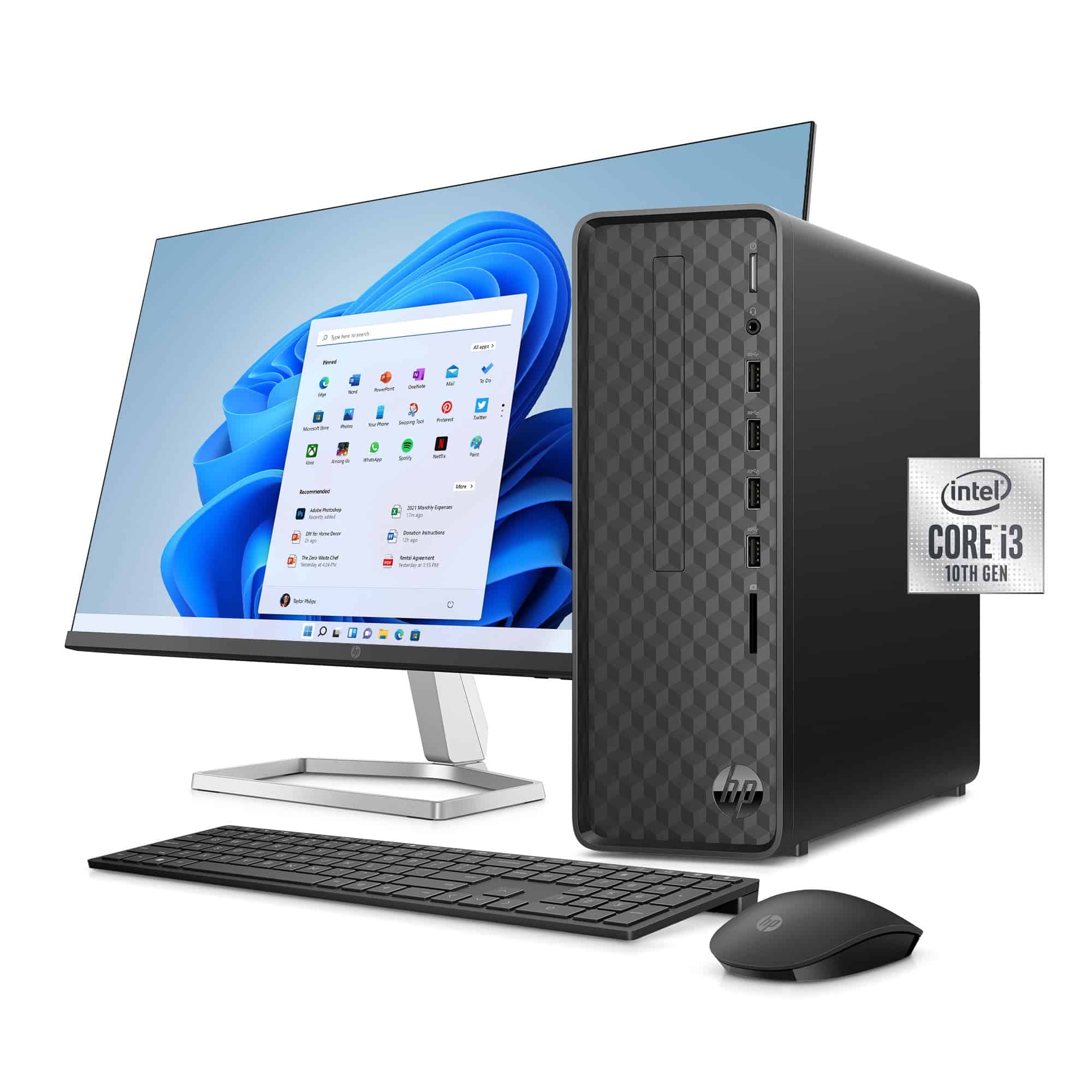
- Mini Tower/Small Form Factor: Compact, space-saving but limited upgrade potential.
- All-in-One: Integrated monitor and PC in one unit; great for minimal desk space.
3. Key Hardware Components to Consider
- Processor (CPU): Look for the latest Intel Core or AMD Ryzen processors. Multi-core CPUs improve multitasking and performance in demanding apps.
- Graphics Card (GPU): Dedicated GPUs like NVIDIA RTX or AMD Radeon are crucial for gaming and creative work. Integrated graphics suffice for basic tasks.
- Memory (RAM): 8GB is the minimum; 16GB or more is recommended for gaming and professional use.
- Storage: SSDs dramatically improve system speed. Consider NVMe SSDs for faster data access alongside larger HDDs for storage.
- Motherboard: Ensure it supports your CPU and has enough ports and expansion slots.
4. Connectivity and Expansion
- Verify the number and type of USB ports (including USB-C).
- Check for Ethernet and Wi-Fi capabilities.
- Expansion slots for additional GPUs, sound cards, or storage can future-proof your system.
5. Power Supply and Cooling
- Choose a reliable power supply unit (PSU) with enough wattage for your components.
- Cooling solutions vary from air coolers to liquid cooling; proper cooling extends hardware lifespan and performance.
6. Monitor Compatibility
- Match your PC’s GPU output with your monitor’s resolution and refresh rate.
- Consider monitors with 1080p for everyday use or 4K for creative work and gaming.
7. Budget Wisely
- Entry-level desktops start around $500-$700.
- Mid-range builds with good performance range from $1,000-$1,500.
- High-end gaming or workstation PCs can exceed $2,000.
- Factor in peripherals like keyboard, mouse, and monitor if not included.
8. Prebuilt vs. Custom Build
- Prebuilt PCs: Convenient, come with warranty and support, but may be pricier.
- Custom Builds: More control over parts and potential cost savings but require assembly knowledge.
9. Warranty and Support
- Look for at least a one-year warranty on components.
- Consider brands with good customer service and easy RMA processes.
Summary
By assessing your needs, choosing the right components, and balancing budget with performance, you can select a desktop PC that will serve you well for years. Whether you prefer a ready-to-use system or building your own, focusing on these essentials ensures a satisfying computing experience.
Key Takeaways
- Pick a desktop PC that fits your space and tasks
- Check the processor, memory, and storage to match your needs
- Set a budget and compare options before buying
Understanding Desktop PC Specifications
Desktop PC specs can seem confusing. But knowing what they mean helps you pick the right computer for your needs.
Choosing the Right Processor
The processor is the brain of your PC. It handles all the tasks you do. Faster processors let you do more things at once. Intel and AMD are the main brands.
Look at the number of cores. More cores mean better performance. Clock speed is also key. It’s measured in GHz. Higher numbers are faster.
For basic tasks like web browsing, a dual-core CPU is fine. For gaming or video editing, get at least a quad-core. High-end CPUs can have 8 or more cores.
Memory and Storage Solutions
RAM is short-term memory. More RAM lets you run more programs at once. Most PCs need at least 8GB. 16GB or more is better for heavy use.
Storage is where you keep files long-term. Hard drives (HDDs) are cheap but slow. Solid-state drives (SSDs) are faster but cost more. Many PCs have both.
For speed, get an SSD for your operating system and programs. Use a larger HDD for storing files. 256GB SSD + 1TB HDD is a good mix for most users.
Graphics and Display
Graphics affect how things look on screen. For basic use, integrated graphics are fine. Gamers and creators need a dedicated graphics card.
NVIDIA and AMD make most graphics cards. More powerful cards let you play newer games at higher settings.
Monitor size and resolution matter too. Bigger screens show more at once. Higher resolutions make images sharper. 1080p is standard, but 4K offers the best picture.
Consider refresh rate for smooth motion. 60Hz is normal. Gamers may want 144Hz or higher.
Selecting a Desktop PC for Your Needs
Picking the right desktop PC depends on what you’ll use it for. Different types of computers work best for gaming, work, or general use. Think about your needs and budget when choosing.
Desktops for Gaming and Media
Gaming PCs need strong parts to run new games well. Look for a fast CPU like an Intel Core i5 or AMD Ryzen 5. Get at least 16GB of RAM and a good graphics card. A big hard drive or SSD helps store lots of games.
Gaming desktops often have cool cases with RGB lights. Some brands known for gaming PCs are Asus and MSI. These PCs can also handle video editing and other tough tasks.
For media use, pick a PC with a big screen and good speakers. All-in-one desktops save space and look nice. They work well for watching videos or basic tasks.
Workstations and Productivity
Work PCs need to be fast and reliable. For office tasks, any recent desktop will do fine. Look for at least 8GB of RAM and an SSD for quick startup.
If you use tough programs, get a workstation. These have very fast CPUs and lots of RAM. They can handle big spreadsheets or 3D design work.
Mac desktops like the iMac are good for creative jobs. They run macOS and come with useful apps. Windows PCs offer more choices and often cost less.
Mini PCs are great for small spaces. They’re tiny but can still do most office work. They’re perfect for web browsing, email, and writing.
Connectivity and Peripherals
Check what ports your desktop has. USB ports let you plug in devices like keyboards and mice. HDMI ports connect to screens or TVs.
Wi-Fi is built into most desktops now. If not, you can add it with a small adapter. Ethernet ports give the fastest internet speeds.
Think about what you’ll connect. Do you need spots for many USB devices? Want to use more than one screen? Make sure the PC has the right ports.
Don’t forget about the keyboard and mouse. Some desktops come with these. Others let you pick your own. A comfy keyboard helps if you type a lot.





