
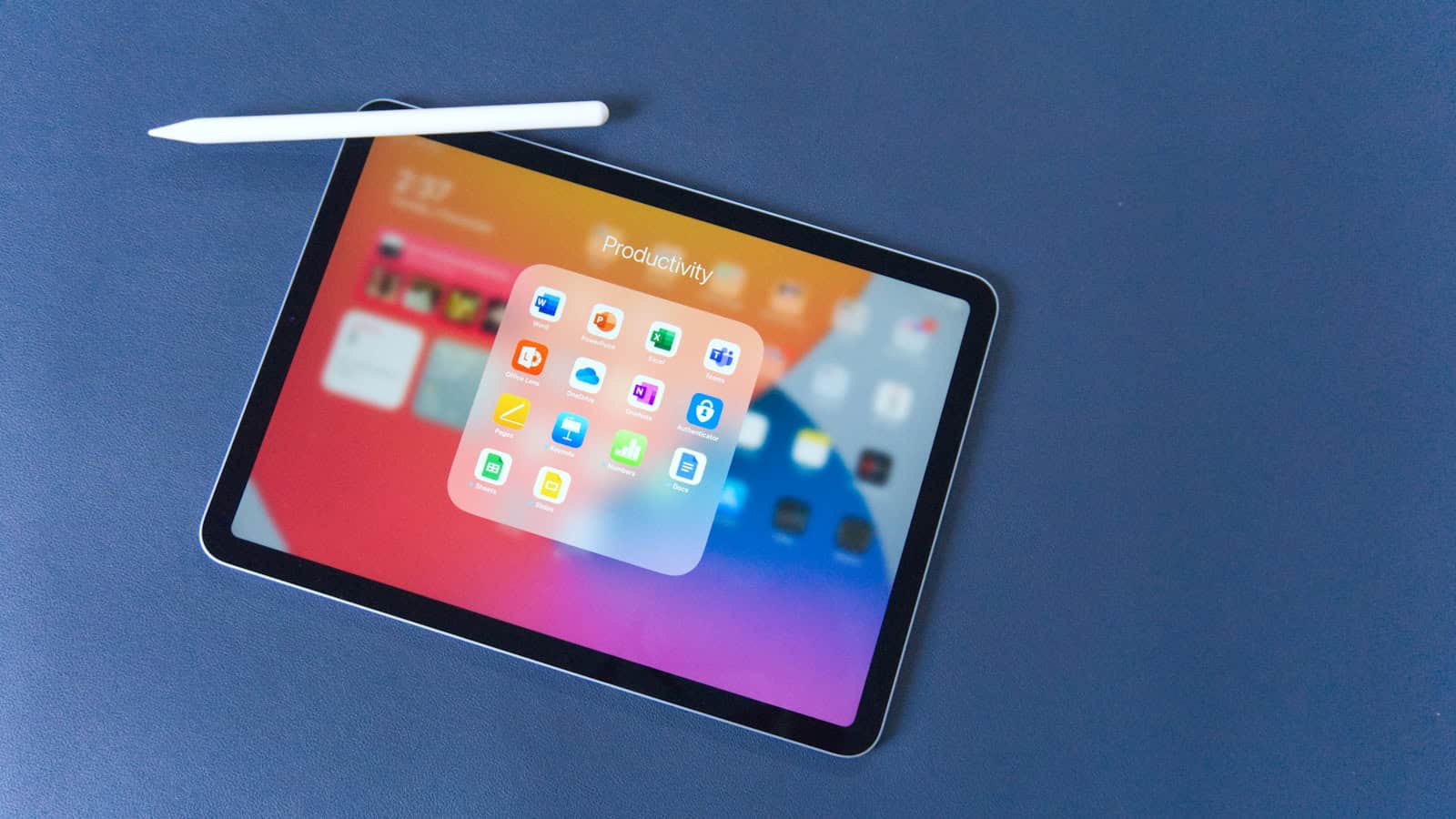
The Apple Pencil is a versatile tool designed to complement the iPad, offering users a seamless way to draw, jot down notes, and interact with their devices. Its precision allows for a natural drawing and writing experience that echoes the use of a traditional pencil. However, the Apple Pencil is more than just a stylus; it is equipped with a range of features to enhance productivity and creativity.
Many are familiar with the basics of using an Apple Pencil, but there are numerous tips and tricks that can transform the way one utilizes this accessory. For example, drawing in the Notes app can quickly turn rough sketches into neat shapes, and handwritten notes can be converted to text, saving time and improving workflow. Mastering these functions can elevate the user’s interaction with their iPad, making the Apple Pencil not just a tool for artists, but for anyone looking to maximize efficiency and creativity in their daily tasks.
Apple Pencil Tips and Tricks (2026 Guide)
The Apple Pencil transforms your iPad into a powerful tool for note‑taking, drawing, editing, and productivity. Whether you’re using Apple Pencil (2nd generation), Apple Pencil (USB‑C), or Apple Pencil Pro, there are features many users don’t even realize exist.
Here’s a complete guide to the best Apple Pencil tips and tricks to help you get the most out of it.
1. Double‑Tap to Switch Tools (2nd Gen & Pro)
If you’re using Apple Pencil (2nd gen) or Apple Pencil Pro, you can double‑tap near the flat edge to quickly switch tools.
How to Customize It:
- Open Settings
- Tap Apple Pencil
- Choose what double‑tap does:
- Switch between current tool and eraser
- Switch to last used tool
- Show color palette
- Turn off
Great for artists who constantly switch between brush and eraser.
2. Use Hover Preview (Supported iPads)
On supported iPad Pro and iPad Air models, Apple Pencil hover lets you preview where your tip will land before touching the screen.
Benefits:
- More precise drawing
- Better brush control
- Easier small edits
It’s especially helpful in apps like Procreate, Notes, and Photoshop.
3. Scribble to Convert Handwriting to Text
You don’t have to type. Just write.
With Scribble, you can handwrite in any text field and your iPad automatically converts it to typed text.
To Enable:
- Go to Settings
- Tap Apple Pencil
- Turn on Scribble
Works in:
- Safari search bars
- Messages
- Notes
- Third-party apps
You can also:
- Scratch out text to delete
- Circle words to select
- Draw a vertical line to insert space
4. Take a Quick Note from Anywhere
Need to jot something down instantly?
Simply tap the screen with Apple Pencil while the iPad is locked.
This opens Quick Note immediately.
Perfect for:
- Meeting notes
- Reminders
- Capturing ideas
- Website annotations
5. Mark Up Screenshots Instantly
When you take a screenshot:
- Tap the preview in the corner
- Use Apple Pencil to annotate immediately
You can:
- Highlight text
- Draw arrows
- Sign documents
- Add handwritten notes
This is especially useful for students and professionals reviewing documents.
6. Sign PDFs and Documents
You can use Apple Pencil to sign documents directly in:
- Files app
- Mail attachments
- Preview
- Third-party PDF apps
Just tap Markup, add your signature, and save.
No printing required.
7. Use Pressure Sensitivity for Better Drawing
Apple Pencil supports pressure sensitivity in compatible apps.
- Press lightly → thin lines
- Press harder → thicker lines
This makes it feel more like drawing on paper.
Apps that support pressure sensitivity:
- Procreate
- Adobe Fresco
- Affinity Designer
- Concepts
8. Tilt for Shading
Tilt the Apple Pencil sideways to shade — just like a real pencil.
Works great for:
- Sketching
- Shading illustrations
- Digital painting
Not all apps support this, so check brush settings.
9. Drag and Drop with Apple Pencil
You can use Apple Pencil for drag-and-drop gestures:
- Move images between apps
- Rearrange files
- Drag text selections
Great for multitasking in Split View.
10. Find Your Apple Pencil Pro (If Supported)
If you’re using Apple Pencil Pro, it supports Find My tracking.
If misplaced:
- Open Find My app
- Select your Apple Pencil
- View last known location
This is extremely helpful since Apple Pencil is easy to lose.
11. Customize Apple Pencil Settings
Go to: Settings → Apple Pencil
Here you can adjust:
- Double-tap behavior
- Scribble
- Pressure settings (app-dependent)
- Hover features (if supported)
Take a few minutes to tailor it to your workflow.
12. Use Shape Recognition in Notes
When drawing shapes in the Notes app:
- Draw a rough circle, square, or triangle
- Hold the tip down for a second
The shape will automatically snap into a perfect version.
Great for diagrams and planners.
13. Handwrite and Search Notes
In Apple Notes, handwritten notes are searchable.
You can:
- Write by hand
- Later type a keyword
- Instantly find that handwritten word
Perfect for students and researchers.
14. Charge Your Apple Pencil Efficiently
- Apple Pencil (2nd gen / Pro): Magnetically attaches to iPad
- Apple Pencil (USB‑C): Charges via USB‑C cable
- 1st gen: Lightning connector (older models)
Keep it attached magnetically when not in use to avoid losing charge.
Best Apps to Use with Apple Pencil
Here are top apps that truly unlock its potential:
- Procreate – Digital art
- GoodNotes / Notability – Note-taking
- Adobe Fresco – Illustration
- Apple Notes – Built-in simplicity
- Concepts – Technical drawing
- Affinity Photo – Photo editing
Apple Pencil Tips for Students
- Use Quick Note for fast lecture notes
- Record audio in note apps while writing
- Highlight PDFs directly
- Convert handwritten math to text (supported apps)
Apple Pencil Tips for Professionals
- Sign contracts digitally
- Annotate client presentations
- Sketch ideas during meetings
- Use hover for precision design
Final Thoughts
The Apple Pencil isn’t just a stylus — it’s a powerful productivity and creativity tool. Once you learn these tips and tricks, your iPad becomes far more versatile for school, work, and creative projects.
Whether you’re sketching, editing, planning, or signing documents, mastering these features will dramatically improve your workflow.
Key Takeaways
- The Apple Pencil provides a natural writing and drawing experience on the iPad.
- Users can turn sketches into clean shapes and convert handwriting to text for efficiency.
- Knowing the tips and tricks of the Apple Pencil can greatly enhance productivity.
Maximizing Your Apple Pencil Potential
Discovering the full range of what your Apple Pencil can do enhances your experience and skill. Whether it’s for artistic endeavors, taking notes, or navigating your iPad, learning these tips unlocks the potential of this powerful tool.
Getting Started with Your Apple Pencil
Before you begin, pairing your Apple Pencil with your iPad is crucial. For the first-generation Apple Pencil, plug it into the Lightning port of a compatible iPad, and a pairing request appears. The second-generation Apple Pencil pairs by simply attaching it to the magnetic strip on the side of an iPad Pro 11 or iPad Pro 12.9. Once paired, the iPad communicates with the Pencil via Bluetooth, ensuring a smooth and responsive experience. Keep the Apple Pencil charged and ready—attach it to the magnetic strip for the second-generation or use the adapter for the first-generation.
Advanced Tips and Techniques
The Apple Pencil’s pressure and tilt sensitivities allow for impressive control over your work. Apply more pressure for thicker lines or tilt for shading effects. Use the double-tap function on the Apple Pencil 2 to swiftly switch tools, bringing efficiency to your workflow. The more you understand these nuances, the better your drawing, sketching, and writing will be.
Apple Pencil for Productivity and Creativity
Your Apple Pencil is not just a drawing tool—it’s an all-around productivity booster. From marking up emails to signing official documents, it enables quick actions. Take Quick Notes by swiping with the Apple Pencil from the corner of your screen. Employ the Scribble feature to transform handwritten notes into typed text, useful for both work and creativity.
Tricks for Everyday Use
Get more from your daily tasks with these handy tricks. Draw a shape and hold for a moment to have it auto-correct into a perfect form—great for neat diagrams and doodles. Quickly navigate the iPad’s interface by using the Apple Pencil to swipe, tap, and scroll, which can be more precise than using your finger.
Care and Maintenance
To ensure the longevity of your Apple Pencil, treat it with care. Substitute the tip when it wears down to maintain accuracy and protect your iPad’s screen. If your Apple Pencil is lost, promptly disconnect it via the iPad’s settings to save battery life. Proper maintenance means your Apple Pencil remains accurate and fast.
Exploring Further Possibilities
The Apple Pencil isn’t only an accessory for your iPad. It’s a bridge to digital art, note-taking, and entertainment. Explore apps designed to work seamlessly with the Apple Pencil, expanding its use beyond the basics. With each app, you might discover new techniques that enhance how you draw, write, and more.





