
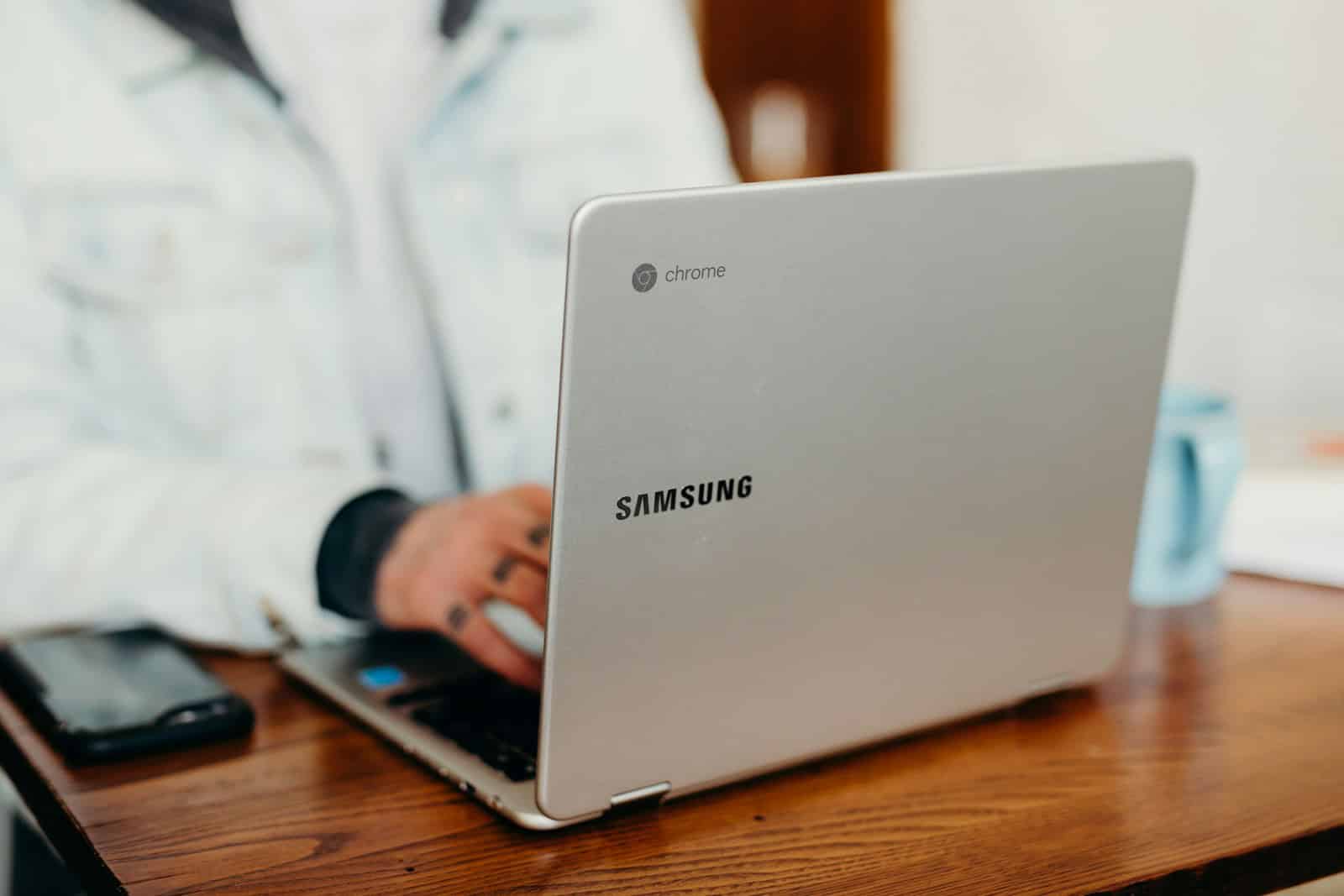
Chromebooks have garnered a reputation for being straightforward and user-friendly, yet there are numerous features beneath the surface that can elevate user experience significantly. Owners might think they have a handle on their devices but digging deeper can reveal a host of shortcuts and tools designed to make navigation and functionality smoother. Exploring these built-in functions serves to enhance productivity and provides a more tailored user experience.
Many users are unaware of their Chromebook’s full potential. Simple gestures and keyboard combinations can transform the way tasks are performed. For instance, learning the appropriate touchpad swipes or uncovering the power of voice commands can change how a user interacts with their device. Moreover, knowing how to access advanced settings and utilize them effectively is crucial for those who wish to get the most out of their Chromebook.
Chromebook Secrets: Hidden Features and Performance Hacks
Chromebooks are known for being simple, fast, and secure — but most users only scratch the surface of what they can do. Behind ChromeOS’s clean interface are powerful shortcuts, hidden tools, and performance tweaks that can dramatically improve your experience.
Here’s your complete guide to Chromebook secrets, including hidden features and performance hacks.
🚀 Speed Up Your Chromebook
✅ 1. Disable Unnecessary Extensions
Too many Chrome extensions slow everything down.
How to check:
- Open Chrome
- Type
chrome://extensions - Remove anything you don’t use
Fewer extensions = faster browsing.
✅ 2. Use the Built‑In Task Manager
Yes — Chromebooks have one.
Press:Search + Esc
You can:
- See memory usage
- End frozen tabs
- Identify resource-heavy apps
This is one of the best hidden troubleshooting tools.
✅ 3. Turn Off Android Apps (If You Don’t Use Them)
Android support consumes system resources.
- Go to Settings → Apps
- Disable Google Play Store (if not needed)
This can noticeably improve performance on lower-end models.
✅ 4. Restart Regularly
Chromebooks are stable, but a weekly restart:
- Clears memory
- Fixes minor glitches
- Improves performance
Don’t just close the lid — fully restart.
🔎 Hidden Features Most Users Don’t Know
✅ 5. Use Virtual Desks
Perfect for organizing work and school.
Press:Show Windows key (rectangle with two lines)
Click + New Desk
You can:
- Separate work and personal tasks
- Switch quickly between desktops
✅ 6. Split Screen Like a Pro
Drag a window to one side — or:
- Press
Alt + [to snap left - Press
Alt + ]to snap right
Great for multitasking.
✅ 7. Enable Clipboard History
Chromebooks can store multiple copied items.
Press:Search + V
You’ll see your clipboard history.
This is a major productivity boost.
✅ 8. Use Phone Hub
If you use Android:
- Connect your phone in Settings → Connected Devices
- View notifications
- Access recent photos
- Enable hotspot instantly
It turns your Chromebook into a mobile productivity hub.
🧠 Advanced ChromeOS Tweaks
✅ 9. Explore Chrome Flags (Experimental Features)
Type this in your browser:
chrome://flags
You can enable:
- Smoother scrolling
- Performance improvements
- UI enhancements
⚠️ Only change settings if you understand what they do.
✅ 10. Enable Linux Mode (For Power Users)
Want more power? Turn on Linux.
- Go to Settings → Advanced → Developers
- Turn on Linux Development Environment
You can:
- Install desktop apps
- Run coding tools
- Use advanced utilities
This turns your Chromebook into a mini development machine.
✅ 11. Use Keyboard Shortcuts to Save Time
Here are must-know shortcuts:
| Shortcut | Function |
|---|---|
| Ctrl + Shift + T | Reopen closed tab |
| Ctrl + L | Highlight address bar |
| Ctrl + Enter | Auto-complete .com |
| Search + L | Lock screen |
| Ctrl + Alt + ? | View all shortcuts |
Learning shortcuts makes ChromeOS feel much faster.
🔋 Battery Performance Hacks
✅ 12. Lower Screen Brightness
The display is the biggest battery drain.
Lower brightness when indoors.
✅ 13. Disable Background Apps
- Go to Chrome settings
- Turn off “Continue running background apps when Chrome is closed”
✅ 14. Turn Off Bluetooth When Not Needed
Bluetooth consumes power even when idle.
Disable it in Quick Settings if not in use.
🛡 Security Features You Might Not Know
✅ 15. Guest Mode for Privacy
Use Guest Mode when sharing your Chromebook.
- No saved browsing history
- No saved passwords
- Clean session every time
✅ 16. Built-In Antivirus
Chromebooks don’t need traditional antivirus software.
They include:
- Sandboxing
- Verified Boot
- Automatic updates
- Encrypted storage
Less clutter = better performance.
🎨 Customize for a Better Experience
✅ 17. Change ChromeOS Theme & Wallpaper
Right-click desktop → Set Wallpaper & Style.
You can:
- Enable dark mode
- Adjust accent colors
- Customize your layout
✅ 18. Pin Important Apps to the Shelf
Drag frequently used apps to the bottom shelf for faster access.
💡 Bonus: Hidden Diagnostics Tool
Type:
chrome://system
You’ll see detailed system information.
For deeper diagnostics:
- Go to Settings → About ChromeOS → Diagnostics
Check:
- CPU usage
- Battery health
- Memory stats
When to Powerwash (Factory Reset)
If your Chromebook feels slow and nothing helps:
- Go to Settings → Reset
- Select Powerwash
This restores it to factory condition and often fixes performance issues.
Final Thoughts
Chromebooks may look simple, but they’re packed with hidden power.
If you:
- Want speed → Remove extensions & disable Android apps
- Want productivity → Use virtual desks & clipboard history
- Want power → Enable Linux mode
- Want better battery → Manage brightness & background apps
With the right tweaks, even an older Chromebook can feel fast and efficient.
Key Takeaways
- Chromebooks offer a range of underused features that boost productivity.
- Gestures and keyboard shortcuts enable faster and more efficient device navigation.
- Advanced settings are key to optimizing and personalizing the Chromebook experience.
Mastering Chromebook Fundamentals
To get the most out of Chromebooks, users should know how to navigate Chrome OS, optimize their device, enhance productivity, and understand accessibility features.
Navigating Chrome OS
Chromebooks run on Chrome OS, a simple operating system that emphasizes speed and security. It has a taskbar known as the shelf, which holds app shortcuts. Users can customize the shelf’s position to their liking. The launcher helps in finding apps and files fast. To see all open windows and virtual desktops, users hit the Overview key.
Basic Navigation Shortcuts:
- Launcher: Press the Search key or tap the Circle icon
- Shelf position: Right-click the Shelf to change its position
- Virtual Desktops: Swipe up with three fingers on the trackpad
Optimizing Chromebook Performance
To keep a Chromebook running smoothly, users should monitor system info like RAM and storage. The file manager lets them manage downloads and documents. They can check remaining storage easily in the system settings. To see what’s using the most resources, users open the task manager. They can close apps that slow down the device.
Performance Tips:
- Check System Info: Press Search + Esc to open the task manager
- Manage Storage: Use the Files app to clean up unnecessary files
Enhancing Productivity
Chromebooks support keyboard shortcuts, search functions, and voice commands with Google Assistant, boosting productivity. Shortcuts save time, like using Shift + Alt + M to open the file manager. Search helps find apps and files quickly. Google Assistant can set reminders or answer questions with a simple voice command.
Productivity Boosters:
- Keyboard Shortcuts: Learn shortcuts to open apps faster
- Google Assistant: Say “Hey Google” to start using voice commands
Understanding Chrome OS Accessibility
For those who need them, accessibility features in Chrome OS are easy to find and use. Options like the on-screen keyboard and screen magnification are available. There’s even a night light to reduce eye strain. Users can record their screen for tutorials or presentations. With these tools, Chromebooks become more usable for everyone.
Accessibility Features:
- On-Screen Keyboard: Enable in Settings > Accessibility
- Night Light: Reduce eye strain by adjusting the screen color temperature





