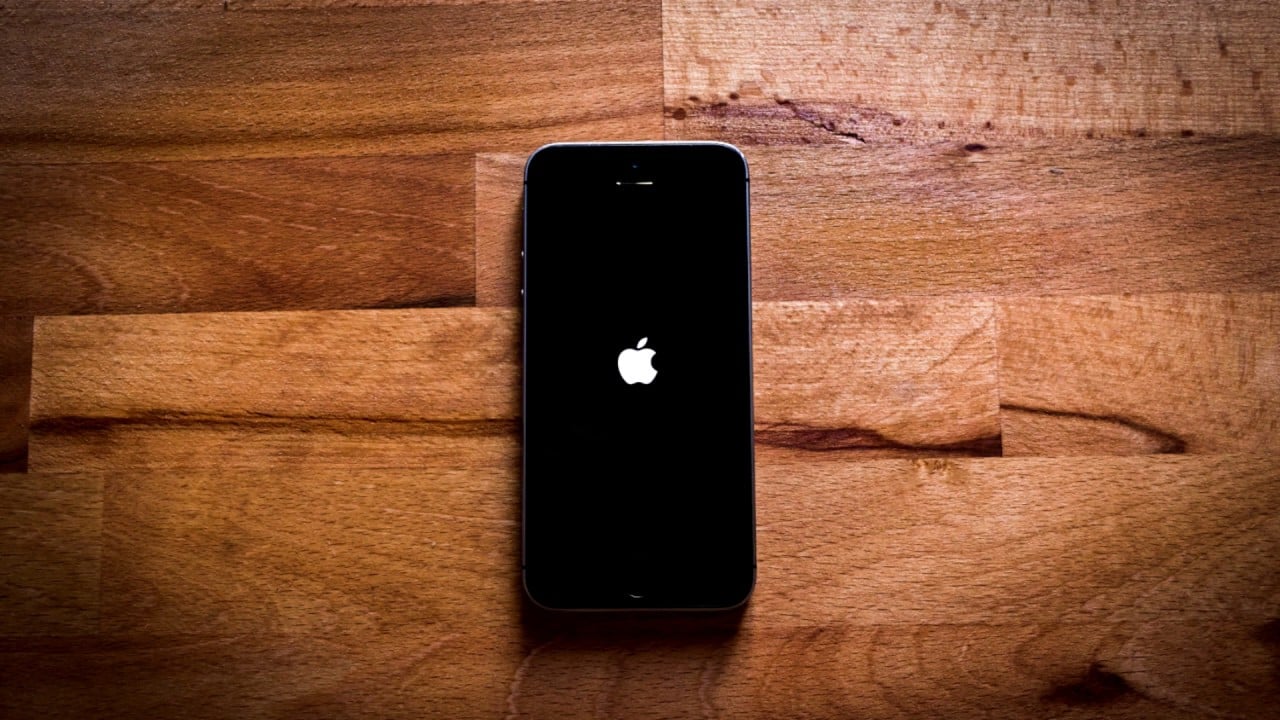
For anyone with an iPhone that won’t restore or update, this situation can be very frustrating. Picture having your phone stuck on the same issue day after day. To fix this problem, you’ll need to try some key troubleshooting steps. Don’t worry, these solutions are simple and easy to follow.
Make sure your device is directly connected to the computer’s USB port, not to a hub or keyboard. Also, confirm that the USB cable is in good condition. Sometimes, a bad connection is all it takes to cause trouble. Restart both your iPhone and computer; it helps remove software errors that may affect the update or restore process.
If those steps don’t work, you might need to find the problematic update in your iPhone’s settings and delete it. After that, try to download and install the update again. This is a good way to clear out any issues from corrupted files.
iPhone Won’t Restore or Update
If your iPhone refuses to restore or update, you may see error messages like “An unknown error occurred (4013, 4005, or 9)”, or your device might get stuck on the Apple logo or Restore screen.
This guide walks you through the most effective fixes — straight from Apple’s official support resources.
🔍 1. Check Your Connection and Computer
Before diving deeper, make sure:
- Your internet connection is stable.
- You’re using a certified Apple Lightning or USB-C cable.
- You’ve connected your iPhone directly to your computer (avoid USB hubs).
- You’re using the latest version of macOS or iTunes (on Windows).
📘 Source: Apple Support – If you can’t update or restore your iPhone
💻 2. Update macOS or iTunes
Outdated software often causes restore/update failures.
On Mac:
- If you’re using macOS Catalina or later, use Finder to update or restore your iPhone.
- Go to Apple Menu → System Settings → General → Software Update and install any available updates.
On Windows:
- Make sure you have the latest version of iTunes.
- Open iTunes → Help → Check for Updates, or download it from the Microsoft Store.
📘 Apple Support: iOS Update and Restore Errors
🔄 3. Force Restart Your iPhone
If your iPhone is stuck or unresponsive, a force restart can help.
How to Force Restart:
- iPhone 8 or later: Quickly press Volume Up, then Volume Down, then hold Side button until the Apple logo appears.
- iPhone 7 / 7 Plus: Hold Volume Down + Side button together until you see the Apple logo.
- iPhone 6s or earlier: Hold Home + Power button until you see the Apple logo.
After restarting, try updating or restoring again.
🧰 4. Use Recovery Mode
If your iPhone still won’t update or restore, put it into Recovery Mode and try again.
Steps:
- Connect your iPhone to your computer.
- Open Finder (macOS Catalina or later) or iTunes (Windows/macOS Mojave or earlier).
- Force restart your iPhone — but keep holding the buttons until you see the Recovery Mode screen (a cable pointing to a computer).
- When prompted, choose Update (to reinstall iOS without erasing data).
- If Update fails, choose Restore (this erases all data).
⚠️ If the download takes more than 15 minutes, your iPhone may exit Recovery Mode — repeat the steps.
📘 Official guide: If you can’t update or restore your iPhone or iPod touch
🧩 5. Try DFU Mode (Device Firmware Update)
If Recovery Mode doesn’t work, use DFU Mode, which reloads both firmware and software.
Steps:
- Connect your iPhone to your computer.
- Follow these button combos:
- iPhone 8 or later: Press Volume Up, then Volume Down, then hold Side button until the screen goes black.
Then hold Side + Volume Down for 5 seconds, release Side, but keep holding Volume Down for 10 seconds. - iPhone 7 / 7 Plus: Hold Side + Volume Down for 10 seconds, release Side, but keep holding Volume Down for 5 more seconds.
- iPhone 6s or earlier: Hold Home + Power for 8 seconds, then release Power while continuing to hold Home.
- iPhone 8 or later: Press Volume Up, then Volume Down, then hold Side button until the screen goes black.
If the screen stays black and Finder/iTunes detects your iPhone in recovery mode, you’re in DFU mode.
Click Restore iPhone.
⚠️ DFU Mode erases all data, so use it as a last resort.
🧱 6. Check for Hardware or USB Errors
If you see error codes like 9, 4013, 4014, or 4005, these often indicate hardware or connection issues.
Try:
- Switching to a different USB port or different cable.
- Restarting your computer and iPhone.
- Trying a different computer if possible.
📘 Apple Support: If you see an error when you update or restore your iPhone
🧼 7. Free Up Space or Disable Security Software
- Make sure your computer has at least 10 GB of free storage.
- Temporarily disable antivirus or firewall software, which can block iTunes/Finder connections.
- On Windows, run iTunes as Administrator.
🔋 8. Charge and Try Again
If your iPhone battery is too low, the update or restore may fail.
- Plug your iPhone into power for at least 30 minutes before retrying.
- Keep it connected during the entire process.
🛠️ 9. Contact Apple Support
If none of these steps work, your iPhone may have a hardware issue (e.g., logic board, NAND, or connector failure).
You can:
- Visit Apple Support
- Go to an Apple Store or Authorized Service Provider.
- Use Apple Diagnostics (on Mac) to check for errors.
🧾 Summary: Quick Fix Table
| Problem | Likely Fix |
|---|---|
| iPhone stuck on Apple logo | Force restart or Recovery Mode |
| iTunes/Finder error (4013, 4005, 9) | Try new cable, port, or computer |
| Update fails repeatedly | Use Recovery or DFU Mode |
| Restore won’t complete | Disable antivirus/firewall |
| Device not detected | Update iTunes/Finder, check USB drivers |
✅ Final Tip
Always back up your iPhone before updating or restoring — either via iCloud or Finder/iTunes.
Keeping your macOS, iTunes, and iPhone software up to date prevents most restore/update issues.
Key Takeaways
- Directly connect the iPhone to the computer and check the USB cable.
- Restart the iPhone and computer to remove software errors.
- Delete any problematic updates and reinstall them.
Troubleshooting iPhone Update and Restore Issues
Fixing the update and restore problems on an iPhone can be tricky. This guide provides detailed steps. Be sure to follow each step for the best results.
Initial Checks and Preparations
Start with basic checks. Make sure your iPhone and computer have enough battery power. A stable internet connection is important for downloading software. Use a good USB or Lightning cable to connect the iPhone to the computer. Plug the cable directly into your computer’s USB port, not through a hub or keyboard.
Next, check storage space on your iPhone. Go to Settings > General > [Device name] Storage. If space is low, delete unnecessary apps or data. Also, check for any pending iPhone software updates in Settings > General > Software Update. An update might fix the issue.
Restart both your iPhone and computer. Sometimes a simple restart clears minor software problems. For iPhones with Face ID, press and hold the side button and either volume button. For older models, press and hold the top or side button.
Advanced Solutions to Resolve Restoration and Updating Problems
If basic steps don’t work, move to more advanced solutions. Start by putting your iPhone in Recovery Mode. Connect it to the computer, then press and hold the side button and a volume button until you see the recovery mode screen.
Use iTunes or Finder on your computer to complete the restore or update. If problems persist, try DFU Mode. Connect your iPhone to the computer, then quickly press the volume up and down buttons. Hold the side button until the screen turns off. Then, hold the side and volume down buttons together. After 5 seconds, release the side button but continue holding the volume down button until iTunes or Finder detects the iPhone.
Check the USB cable and ports if you encounter error messages. Faulty cables or ports can cause issues. Also, review any error messages from iTunes or Finder. Apple Support can help interpret these messages and offer extra solutions.
If your iPhone is stuck on the Apple logo or unresponsive, consider a hard reset or force restart. Sometimes hardware issues are the root cause and might need professional help.
Keep a backup of your data on iCloud or your computer before starting advanced troubleshooting. This protects your important files and ensures you can restore your iPhone to its previous state if needed.