
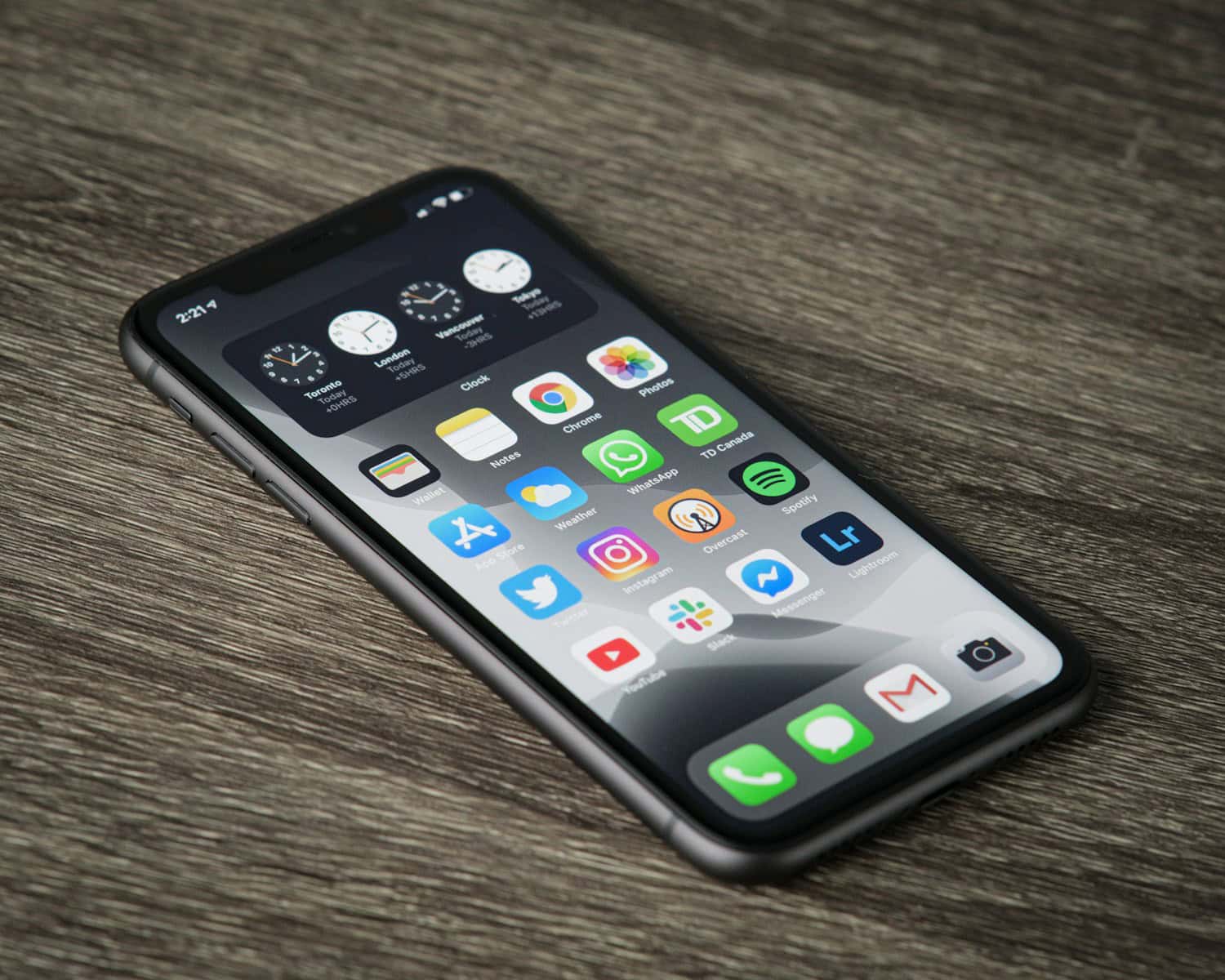
If you’ve forgotten your iPhone passcode, you’re not alone. This common issue might feel stressful, but there’s a clear solution. You can reset your iPhone without a passcode by using iTunes, Finder, or iCloud. This guide will give you easy-to-follow steps to save your device and data.
Turning off your iPhone is the first step. For newer models like iPhone 8 and later, hold the side button and Volume down button until the slider appears. For iPhone 7 and older models, different button combinations apply. Once your phone is off, connect it to a computer with iTunes or Finder installed. This connection allows your computer to restore or erase your iPhone, bypassing the need for a passcode.
If you can’t access a computer, iCloud’s “Find My” feature is another way. Log into iCloud, select your iPhone, and choose the “Erase iPhone” option. Make sure your iPhone is connected to the internet for this method to work.
How to Wipe an iPhone Without Passcode
If you’ve forgotten your iPhone passcode or purchased a used iPhone that’s locked, wiping the device without the passcode is possible but requires specific methods. Here are the main ways to erase your iPhone without the passcode.
Important Note
- Wiping your iPhone will erase all data on it.
- If Find My iPhone is enabled, you will need the Apple ID and password after the wipe to reactivate the device (Activation Lock).
- Make sure you have a backup if you want to restore your data later.
Method 1: Use Recovery Mode (Requires Computer)
- Connect your iPhone to a computer (Mac or Windows) with iTunes installed (or Finder on macOS Catalina and later).
- Put your iPhone into Recovery Mode:
- For iPhone 8 and later (including iPhone SE 2nd gen and later):
- Quickly press and release Volume Up.
- Quickly press and release Volume Down.
- Press and hold the Side button until the recovery mode screen appears.
- For iPhone 7 and 7 Plus:
- Press and hold Volume Down and Side buttons simultaneously until recovery mode screen appears.
- For iPhone 6s and earlier:
- Press and hold Home and Side (or Top) buttons until recovery mode screen appears.
- For iPhone 8 and later (including iPhone SE 2nd gen and later):
- iTunes or Finder will detect the iPhone in recovery mode and prompt to Restore or Update.
- Choose Restore to erase the device and install the latest iOS.
- After the process completes, set up your iPhone as new.
Method 2: Use iCloud (Find My iPhone Must Be Enabled)
If Find My iPhone is enabled and you know the Apple ID credentials:
- Go to iCloud.com and sign in with the Apple ID linked to the iPhone.
- Select Find iPhone.
- Choose the iPhone from the list of devices.
- Click Erase iPhone.
- This will remotely wipe the iPhone, but you will need the Apple ID password to reactivate it.
Method 3: Use Third-Party Software Tools
There are software tools like Tenorshare 4uKey, iMyFone LockWiper, and others that claim to erase iPhones without passcodes. These usually require a computer and may help bypass certain locks but often need you to disable Find My iPhone or know Apple ID credentials.
- Use these tools cautiously and ensure you download from official sources.
- They may come with a cost.
What If Activation Lock Is Enabled?
After wiping your iPhone without the passcode, if Activation Lock is active, you’ll need the original Apple ID and password to set up the device again. Without these, the iPhone remains locked and unusable.
Summary
| Method | Requires Passcode? | Requires Apple ID? | Notes |
|---|---|---|---|
| Recovery Mode + iTunes | No | No | Erases device, reinstalls iOS |
| iCloud Erase (Find My iPhone) | No | Yes | Remote erase, needs Apple ID |
| Third-Party Tools | No | Sometimes | May help bypass but limited cases |
Sources:
- Apple Support: If you forgot your iPhone passcode
- WikiHow: How to Factory Reset iPhone Without Apple ID Password
- iMobie: 4 Ways to Erase iPhone Without Passcode
Key Takeaways
- You can reset your iPhone passcode using iTunes, Finder, or iCloud.
- Turn off your iPhone and connect it to a computer for a factory reset.
- iCloud’s “Find My” feature offers an alternative if a computer isn’t available.
Preparatory Steps Before Wiping Your iPhone
Before wiping your iPhone, it’s crucial to understand the risks and benefits. Confirm you own the device and back up your data. Use the Find My feature for added security and functionality.
Understanding the Risks and Benefits
Wiping an iPhone will erase all data and settings. This process is useful if you plan to sell or give away your device. It can also solve software problems or remove personal data quickly.
However, if not done correctly, you could lose important information. Make sure to back up all your data. This way, you can restore it later.
Verifying Ownership and Backup Options
First, ensure you own the iPhone. This is important to prevent issues with Activation Lock. Go to Settings > [Your Name] > iCloud to sign out. Enter your Apple ID password to complete the process.
Next, back up your data. Use iTunes or iCloud to save photos, contacts, and apps. In Settings, go to iCloud > iCloud Backup > Back Up Now. This way, you can restore your data on a new device.
Utilizing the Find My Feature
Activate the Find My feature before wiping your iPhone. This helps locate your device if it’s lost or stolen. Go to Settings > [Your Name] > Find My > Find My iPhone. Turn on all options.
Use this feature to erase your iPhone remotely. This is helpful if you can’t access the device physically. Log into iCloud and select your device to wipe it clean.
Following these steps ensures a smooth process when wiping your iPhone. Always verify you have backed up your data and used the Find My feature for security.





