
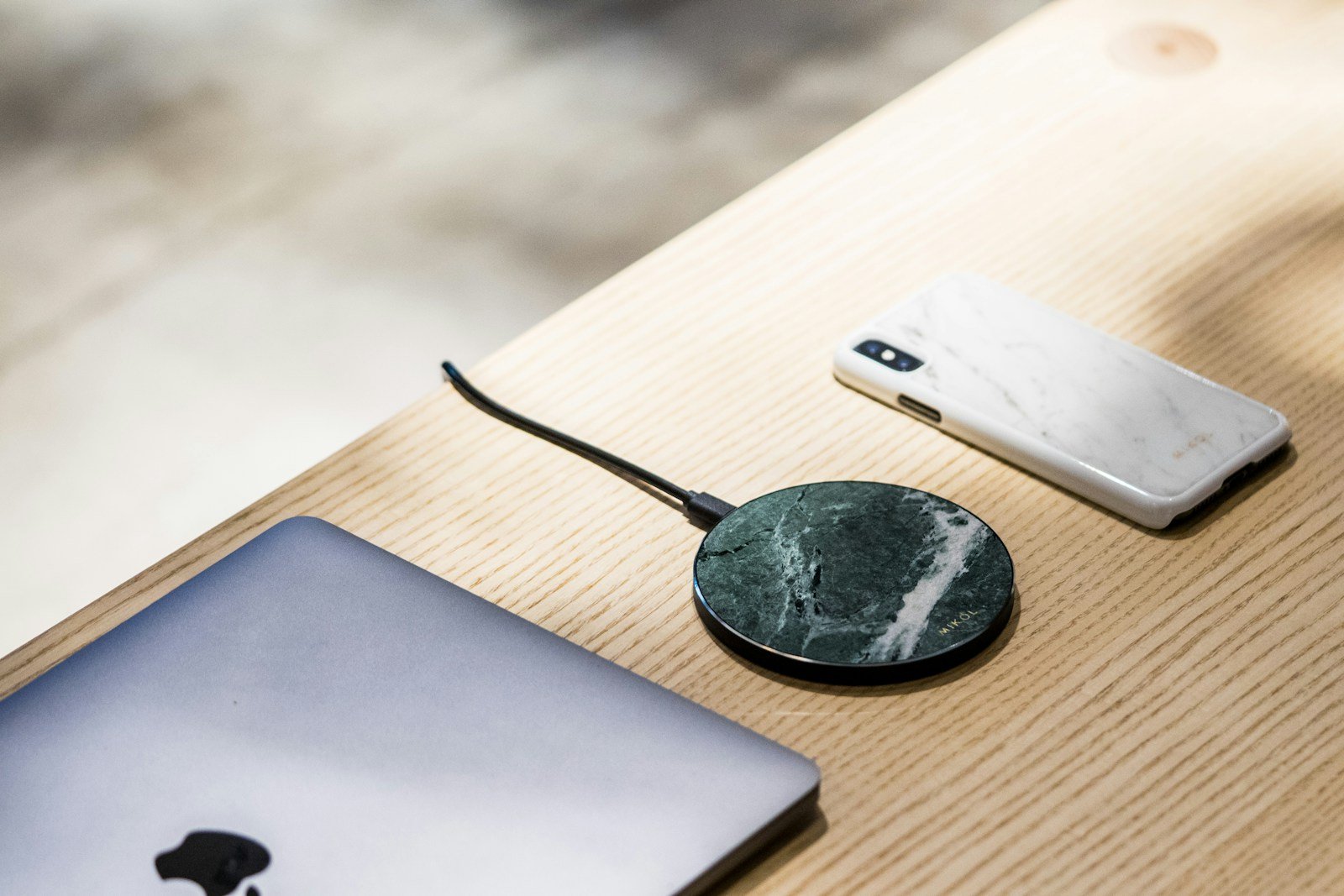
Sometimes, iPhone users face issues with wireless charging. The main reason behind this could be a problem with the charger itself or the iPhone’s software. Using a Qi-certified charger and making sure the charger is properly connected to power can help.
Another common solution includes placing the iPhone correctly on the charger. Ensure the iPhone is centered and the display faces up. This can often jumpstart the charging process. Additionally, restarting or updating the iPhone may resolve any software glitches.
Wireless charging should make life easier, not harder. If the phone isn’t charging, simple troubleshooting steps might fix the problem. Follow the guides, and your iPhone should start charging wirelessly again.
iPhone Not Charging on a Wireless Charger: Troubleshooting Guide
1. Check Compatibility
- Ensure your iPhone model supports wireless charging.
Supported models: iPhone 8 and later all support Qi wireless charging. - Use a Qi-certified wireless charger for best compatibility.
2. Proper Placement
- Align your iPhone correctly on the charging pad.
- The charging coil on the back of the iPhone must line up with the coil in the charger.
- Remove any cases or objects that might block charging, especially thick, metal, or magnetic cases.
3. Inspect the Charger and Power Source
- Verify the wireless charger is properly connected to power.
- Use the power adapter and cable recommended by the charger manufacturer.
- Try plugging the charger into a different power outlet to rule out outlet issues.
4. Restart Your iPhone
- Turn off your iPhone, place it on the wireless charger while off, then turn it back on.
- This can sometimes fix charging glitches (reported effective in iOS 18 and later).
5. Update iOS
- Make sure your iPhone is running the latest iOS version.
- Software updates can fix bugs related to wireless charging.
6. Remove Obstructions and Clean Surfaces
- Remove any dust, dirt, or debris from the back of your iPhone and the charger surface.
- Clean gently with a soft cloth.
7. Try a Different Wireless Charger
- If possible, test your iPhone with another Qi-certified charger to determine if the issue is with the charger or the phone.
8. Check for Physical Damage
- Inspect your iPhone’s back and charging coil area for damage.
- Damage can prevent wireless charging from working.
9. Disable Accessories That May Interfere
- Remove any magnetic accessories (like MagSafe wallets) that might interfere with charging.
Additional Tips:
- Avoid charging in very hot or cold environments.
- If charging in a car, note that some car wireless chargers may have alignment or power issues. Using a wired USB charger in the car is often more reliable.
When to Contact Apple Support
If none of the above steps work, your iPhone may have a hardware issue affecting wireless charging. Contact Apple Support or visit an Apple Store for professional diagnostics and repair.
References
- Apple Support: How to wirelessly charge your iPhone
- Apple Community troubleshooting tips from users with similar issues.
Key Takeaways
- The issue could be with the charger or iPhone software.
- Place the iPhone correctly on the charger.
- Restarting or updating may help.
Diagnosing Wireless Charging Issues
Getting wireless charging to work properly on an iPhone can be tricky. Diagnosing the problem involves understanding the technology, identifying common issues, and following specific troubleshooting steps.
Understanding Wireless Charging Technology
Wireless charging uses electromagnetic fields to transfer energy between two objects. The iPhone has a built-in charging coil that aligns with the coil in the wireless charger. Qi-certified chargers are recommended, as they meet specific standards for safety and efficiency. The charging process should begin automatically when the phone is placed on the charger. Look for the charging icon on the status bar as an indicator.
Identifying Common Wireless Charging Problems
Common reasons an iPhone won’t charge wirelessly include a faulty charger, a software bug, or problems with the phone’s hardware. If the charger isn’t plugged in correctly or the adapter is incompatible, the phone might not charge. A damaged charging port, issues with the iPhone’s battery health, or the temperature may also impact the charging experience. Look at these possibilities to pinpoint the problem.
Troubleshooting Steps
First, check if the wireless charger is plugged in and connected to a functioning power source. Use a Qi-certified charger for the best results. Make sure your iPhone is placed correctly on the charger. If it’s still not charging, try to restart the iPhone by holding the side button until the Apple logo appears. Updating your iPhone’s software can also fix bugs that might be causing the issue. If none of these work, perform a hard reset. Press and release the volume up button, press and release the volume down button, then hold the side button until the Apple logo shows. If problems persist, consult Apple support for possible hardware issues.





