
If you are having trouble turning off Find My iPhone, you are not alone. To disable Find My iPhone, you must first sign out of your iCloud account. This feature is vital for locating a lost device but can be tricky to turn off before selling or giving away your phone.
You might run into issues because Find My iPhone remains active if your device is still logged into iCloud. Access your settings, click on your name, and sign out at the bottom. This step is often missed and is crucial to turning off the feature.
Some users still face challenges despite following these steps. In such cases, visiting Apple’s support page or seeking help from the community forums might provide the solution. This blog will guide you through the process and offer tips for managing Find My iPhone settings effectively.
Find My iPhone Won’t Turn Off: How to Fix It
The Find My iPhone feature is crucial for locating your device if lost or stolen, but sometimes you might want to turn it off—perhaps before selling or troubleshooting your iPhone. If you find that Find My iPhone won’t turn off, here’s how to resolve the issue.
Why Can’t You Turn Off Find My iPhone?
- Apple ID Password Required: To disable Find My iPhone, your Apple ID password is needed for security reasons.
- Device Restrictions: Sometimes device management profiles or restrictions prevent turning it off.
- Software Glitches: Bugs or software issues might block the toggle.
- Activation Lock: If the device is locked with Activation Lock, it requires the Apple ID credentials to turn it off.
How to Fix Find My iPhone That Won’t Turn Off
1. Make Sure You Have the Correct Apple ID Password
- When turning off Find My iPhone, you must enter the Apple ID password linked to the device.
- Double-check you are using the right Apple ID and password.
2. Turn Off Find My iPhone Properly
- Go to Settings > [Your Name] > Find My > Find My iPhone.
- Toggle Find My iPhone off.
- Enter your Apple ID password when prompted.
- If it doesn’t turn off, try restarting your iPhone and try again.
3. Check for Restrictions or Screen Time Settings
- Go to Settings > Screen Time > Content & Privacy Restrictions.
- If enabled, disable or adjust restrictions that might prevent changes to Find My iPhone.
- Sometimes, device management profiles (especially on work or school devices) can restrict this setting. Check under Settings > General > VPN & Device Management.
4. Sign Out of iCloud and Sign Back In
- Go to Settings > [Your Name] > Sign Out.
- You’ll need your Apple ID password.
- After signing out, sign back in and try turning off Find My iPhone again.
5. Update Your iPhone to the Latest iOS
- Go to Settings > General > Software Update.
- Install any available updates.
- Software bugs can cause issues with Find My iPhone, and updates often fix them.
6. Reset Network Settings
- Go to Settings > General > Reset > Reset Network Settings.
- This can resolve connectivity issues that might interfere with Apple ID verification.
7. Contact Apple Support
- If none of the above work, contact Apple Support for further assistance.
- In some cases, proof of purchase may be required to disable Find My iPhone if you’re not the original owner.
Important Notes
- Do not try unauthorized third-party tools claiming to disable Find My iPhone; they can compromise your device security.
- Turning off Find My iPhone disables Activation Lock, which protects your device from unauthorized use.
Summary:
| Step | What to Do |
|---|---|
| Enter Apple ID Password | Required to disable Find My iPhone |
| Check Restrictions | Disable Screen Time or device management |
| Restart & Update iPhone | Fix potential software bugs |
| Sign Out and Sign Back In | Refresh iCloud connection |
| Contact Apple Support | For persistent issues |
If you need more help or detailed troubleshooting, Apple’s official support page is a great resource:
Apple Support – Find My iPhone
Key Takeaways
- Sign out of the iCloud account first.
- Access settings and sign out to disable the feature.
- Seek community or support help if issues persist.
Understanding Find My iPhone
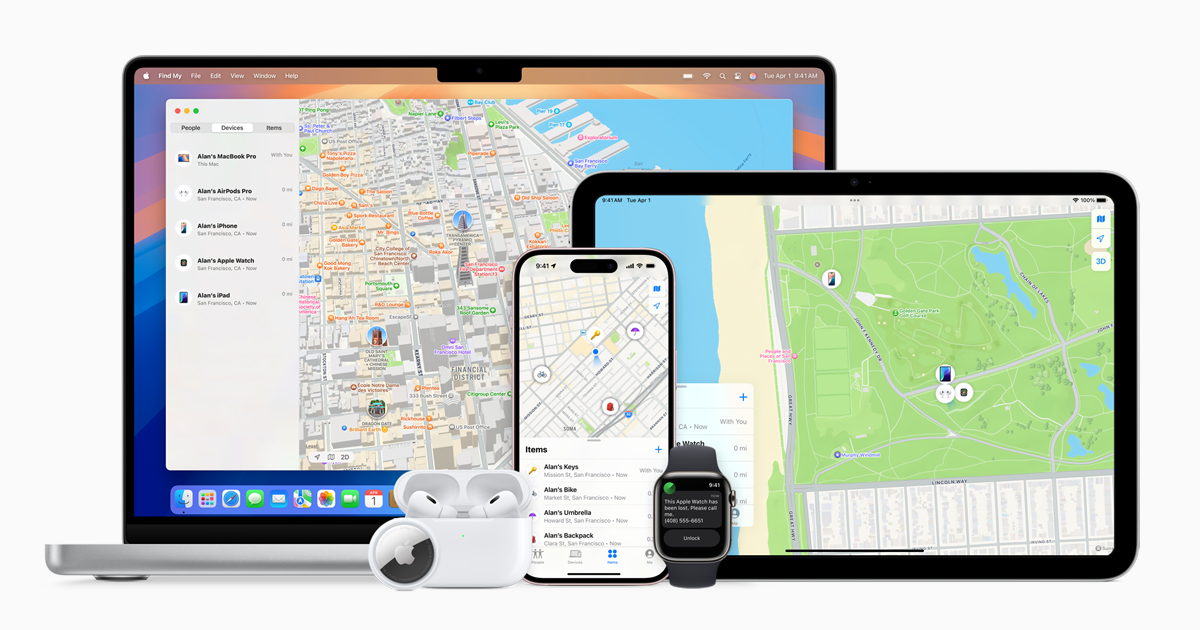
Find My iPhone is a useful tool designed to help users locate lost or stolen iPhones. It also plays a key role in safeguarding data by allowing devices to be remotely locked or erased. Learning how this feature works and troubleshooting common disable issues are crucial.
The Role and Benefits of Find My iPhone
Find My iPhone is part of Apple’s iCloud services. It uses your iPhone’s Location Services to track and display its location on a map. This feature provides peace of mind if your device is ever lost or stolen.
When enabled, Find My iPhone lets you:
- Locate your device: Find its current location using the Find My app or iCloud.com.
- Play a sound: This helps in locating the device if it’s nearby.
- Mark as lost: Lock the device and display a contact message.
- Erase your iPhone: Protect personal data by erasing all content remotely.
These capabilities make it easier to recover lost devices and protect sensitive information.
Troubleshooting Issues with Disabling Find My iPhone
Disabling Find My iPhone can sometimes be problematic. Users may encounter error messages or other issues. Common problems include Verification Failed errors when entering the Apple ID Password. This can happen due to Wi-Fi or Cellular Service issues.
To troubleshoot:
Check Internet Connection: Make sure your iPhone is connected to a reliable Wi-Fi or Cellular Network.
Restart iPhone: Sometimes a simple restart can resolve issues. Press and hold the power button to shut down, then restart.
Update iOS: Ensure your iPhone is running the latest version of iOS. Go to Settings > General > Software Update.
Reset All Settings: As a last resort, reset all settings by going to Settings > General > Transfer or Reset iPhone > Reset > Reset All Settings.
For persistent issues, contacting Apple Support might be necessary to resolve any error messages or Verification Failed problems.





