
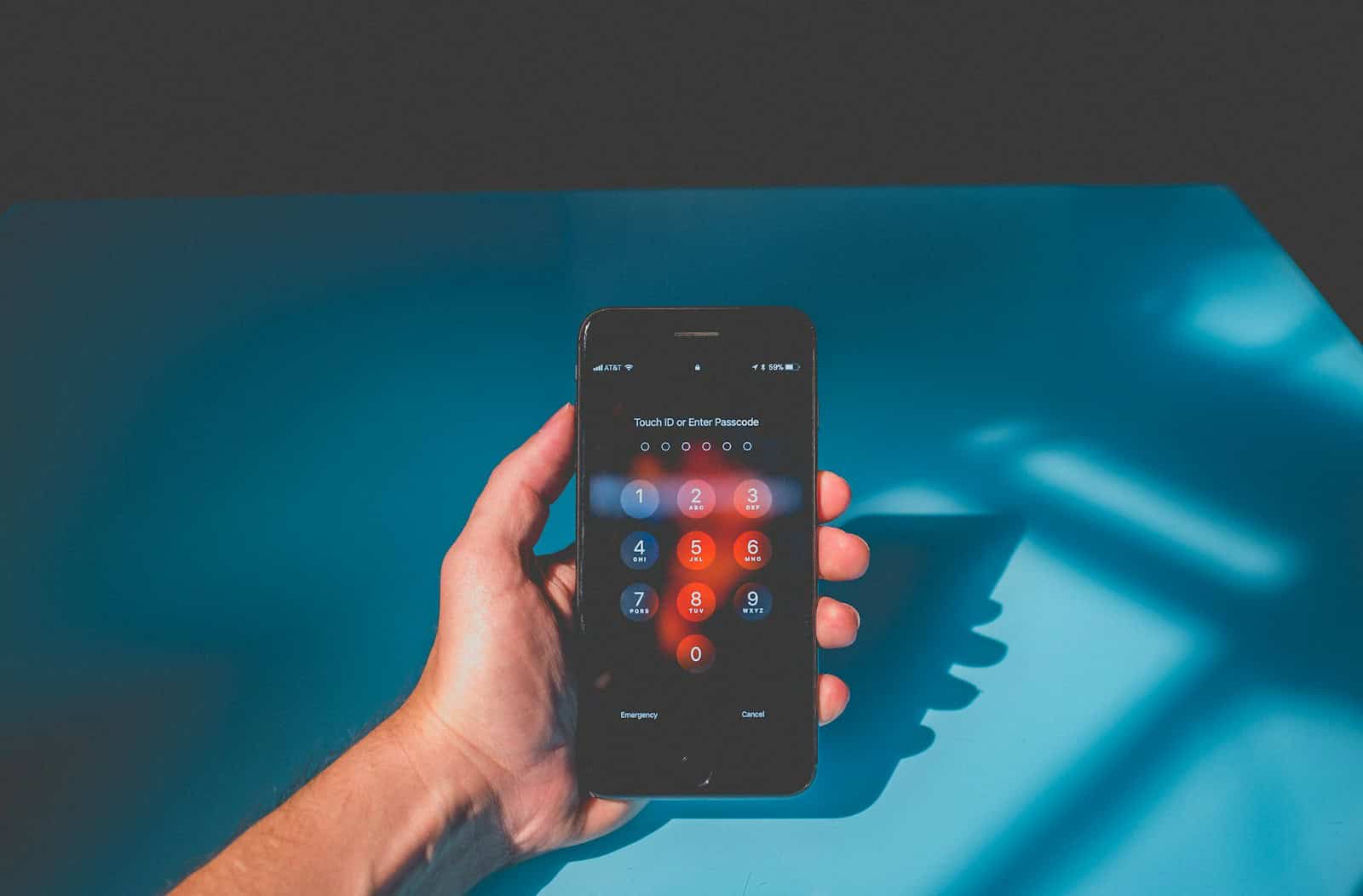
The frustration of forgetting an iPhone passcode can be overwhelming, especially when there’s no computer around to assist. The good news is that you can unlock your iPhone without a computer using methods like the Find My app. This approach uses another device, such as an iPad or another iPhone, to help you reset your passcode remotely.
Another potential solution is using the Erase iPhone feature, which can be accessed through the lock screen. This requires entering the Apple ID and password associated with the device. Once done, it will wipe the iPhone clean, allowing for a fresh start without needing a computer.
With these methods at your disposal, there’s no need to panic if you forget your passcode and don’t have a computer handy. Unlocking your iPhone can be straightforward and attainable by following a few simple steps on another device.
How to Unlock iPhone Passcode Without a Computer
If you’ve forgotten your iPhone passcode or your device is disabled after multiple incorrect attempts, you might think you need a computer to unlock it. However, there are ways to reset your iPhone passcode without using a computer, especially with recent iOS updates. This guide covers the methods you can use to regain access to your iPhone without a PC or Mac.
Important Note
- Unlocking your iPhone without a computer will erase all data on the device.
- You will need your Apple ID and password to set up the iPhone again after the reset (due to Activation Lock).
- Make sure you have a recent backup (iCloud or otherwise) to restore your data after unlocking.
Method 1: Use the “Erase iPhone” Option on the Lock Screen (iOS 15.2 and Later)
Starting with iOS 15.2, Apple introduced a feature that allows you to erase and reset your iPhone directly from the lock screen after multiple failed passcode attempts.
Steps:
- Enter the wrong passcode several times until the “Erase iPhone” option appears on the screen.
- Tap Erase iPhone.
- Confirm by tapping Erase iPhone again.
- Enter your Apple ID password to sign out and remove Activation Lock.
- The iPhone will erase itself and restart as a new device.
- Follow the on-screen setup instructions and restore from your iCloud backup if available.
Method 2: Use Find My iPhone via iCloud (No Computer Required)
If you have Find My iPhone enabled and know your Apple ID credentials, you can erase your iPhone remotely from another device.
Steps:
- On another iPhone, iPad, or any device with internet access, open a browser and go to iCloud.com.
- Sign in with your Apple ID.
- Tap Find iPhone.
- Select your locked iPhone from the list of devices.
- Tap Erase iPhone to remotely erase the device.
- After erasing, set up your iPhone again and restore from backup if available.
Method 3: Use a Friend’s or Family Member’s iPhone with the Find My App
If you don’t have access to a computer but have access to another iOS device:
- Open the Find My app on the other device.
- Sign in with your Apple ID.
- Select your locked iPhone.
- Choose Erase This Device.
- Confirm and erase your iPhone remotely.
- After erasing, set up your iPhone again.
Additional Tips
- After erasing, your iPhone will require your Apple ID password to disable Activation Lock.
- If you don’t remember your Apple ID password, use the Apple ID account page to reset it.
- Regularly back up your iPhone to iCloud to avoid data loss in such situations.
Summary
| Method | Requirements | Data Loss | Notes |
|---|---|---|---|
| Erase iPhone on Lock Screen | iOS 15.2 or later | Yes | Quickest, no other device needed |
| Find My iPhone via iCloud | Find My enabled, Apple ID access | Yes | Requires another internet device |
| Find My App on Another iOS Device | Apple ID access | Yes | Convenient if you have another iOS device |
By following these methods, you can unlock your iPhone passcode without a computer. Remember, these processes erase your device, so having a backup is crucial.
Key Takeaways
- Use the Find My app on another device to reset your iPhone.
- Erase iPhone feature can help unlock the device by wiping data.
- No computer needed for these methods.
Unlocking iPhone Passcode without a Computer
Unlocking an iPhone passcode without a computer involves using various iOS features and services. Users can reset their locked devices by leveraging iCloud, Siri, or other iOS devices. Methods depend on the iOS version installed on the iPhone.
Leveraging iCloud’s Find My Feature
iCloud’s Find My feature helps users erase a locked iPhone. This process needs another device that supports the Find My app, like an iPhone or iPad. Follow these steps:
- Open the Find My app on the other device.
- Sign in with your Apple ID.
- Select the locked iPhone from the list of devices.
- Choose the Erase iPhone option.
- Confirm the decision to reset the passcode.
This will erase the data on the iPhone, but you can restore it using an iCloud backup.
Using Siri for Locked iPhone Access
On some iOS versions, Siri can be used to bypass the passcode. This method is less reliable and works on specific iOS versions:
- Activate Siri by holding the Home button or saying “Hey Siri.”
- Ask Siri to “open the Clock app.”
- Once the clock opens, go to World Clock and select Add to add a new clock.
- Type any text in the search bar and Tap on the text to select it.
- Choose Share and select the Message app.
- In the message field, type any text and press Return.
- Tap on the Create new contact option.
- Select Add Photo and choose the Choose Photo option.
- After accessing the photo library, press the Home button.
This method doesn’t erase the phone but only grants temporary access.
Recovery Methods for Specific iOS Versions
Different iOS versions have unique recovery options. For example:
- iOS 15.2 and later: iPhones can be reset directly from the Security Lockout screen. Just enter the Apple ID password to erase the device.
- iOS 14 and iOS 15: Using the Find My app or Recovery Mode on another device.
Older iOS versions might not support these features. Always ensure iOS is updated for security and feature access.
Utilizing Other iOS Devices
If you have another iOS device, it can help unlock a locked iPhone. Here’s how:
- Use another iPhone or iPad.
- Open Find My or go to Settings to access the device list.
- Select the locked iPhone and choose Erase iPhone.
- Follow prompts to erase and reset the device.
This method uses your Apple ID and trusted device. It ensures that your data is safe and restores from an iCloud backup if available.
These methods offer flexible solutions to unlock your iPhone without a computer. Always keep your Apple ID and password secure, as they’re essential for these processes.





