
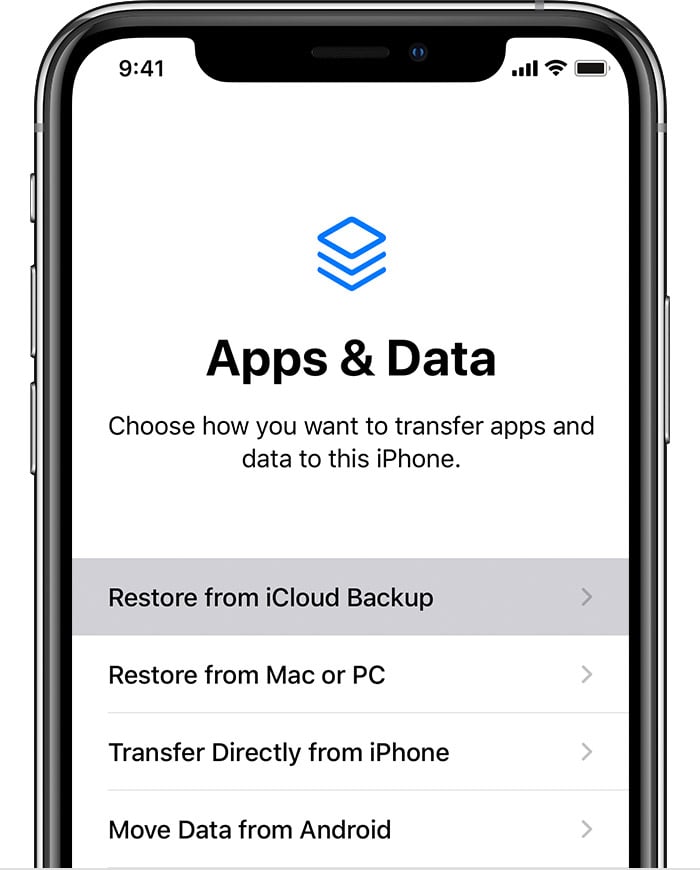
The “Apps and Data” screen on the iPhone is crucial for setting up your new device. If you’re setting up a new iPhone, you will see the “Apps and Data” screen during the setup process. This screen allows you to restore from a backup, transfer data from another device, or set up as a new iPhone. Users looking to access this feature after setup will need to reset their device.
To reach the “Apps and Data” screen on an iPhone that is already in use, you must perform a factory reset. This action wipes all existing data to return the phone to its original state. Once reset, the iPhone will guide users through the setup process again, where they can find the “Apps and Data” screen for restoring or transferring data.
Resetting the phone can be daunting, but it’s the only way to access the “Apps and Data” screen on an already set up iPhone. It’s essential for users who want to move data from an old iPhone to a new one or start afresh with their existing device.
Where is Apps & Data on iPhone?
The Apps & Data screen on an iPhone is a crucial step during the device setup process. It allows you to restore your data from backups, transfer from another device, or set up as new.
When Does the Apps & Data Screen Appear?
- The Apps & Data screen appears only during the initial setup of a new or recently reset iPhone.
- If your iPhone is already set up and you want to access this screen, you will need to erase all content and settings to trigger the setup process again.
How to Get to the Apps & Data Screen
1. On a New iPhone or After Factory Reset
- Turn on your iPhone.
- Follow the on-screen instructions for language, region, and Wi-Fi setup.
- Eventually, the Apps & Data screen will appear with options like:
- Restore from iCloud Backup
- Restore from Mac or PC
- Transfer Directly from iPhone
- Move Data from Android
- Don’t Transfer Apps & Data (Set up as new)
2. If Your iPhone Is Already Set Up
- You must erase your iPhone to see the Apps & Data screen again:
- Go to Settings > General > Transfer or Reset iPhone > Erase All Content and Settings.
- Confirm and enter your passcode.
- Your iPhone will restart and begin the setup process, showing the Apps & Data screen.
Why Use the Apps & Data Screen?
- Restore from Backup: Recover your apps, settings, and data from iCloud or a computer backup.
- Transfer Data: Move data directly from another iPhone or Android device.
- Set Up as New: Start fresh without restoring any previous data.
Summary Table
| Scenario | How to Access Apps & Data Screen |
|---|---|
| New iPhone or Factory Reset | Automatically appears during setup |
| Already Set Up iPhone | Erase all content and settings to reset |
| Purpose | Restore or transfer data, or set up new |
Additional Tips
- Back up your current data before erasing your iPhone.
- Make sure you have your Apple ID and password to reactivate the device after reset.
- Use a stable Wi-Fi connection during setup for smooth data transfer.
For more details, see Apple’s official support page: Set up your iPhone, iPad, or iPod touch.
Key Takeaways
- “Apps and Data” screen appears during initial setup
- Reset your iPhone to access the “Apps and Data” screen again
- Use it to transfer data or start fresh
Navigating to the ‘Apps and Data’ Screen
To access the ‘Apps and Data’ screen on an iPhone, users need to start with the setup process. This can be done when the phone is new or after a factory reset. You can use iCloud or iTunes backups for restoring data. Additionally, there’s an option to transfer data from an Android device.
Starting the Setup Process
Turn on your iPhone. If you are setting up a new device or one that has been reset, you will be greeted with a ‘Hello’ screen.
Follow the on-screen instructions until you reach the ‘Apps and Data’ screen. Here you can choose how you want to set up your device.
You will see options to restore from an iCloud Backup, restore from an iTunes Backup, set up as new, or transfer data from an Android device.
Restoring Data from a Backup
To restore data from iCloud, you need an iCloud account. Select ‘Restore from iCloud Backup’ on the ‘Apps and Data’ screen.
Sign in to your iCloud account. Choose the backup you want to restore from. Your data, apps, and settings will be restored to your iPhone.
For an iTunes backup, connect your iPhone to a computer using a USB cable. Choose ‘Restore from iTunes Backup’ on the ‘Apps and Data’ screen.
Select the backup from iTunes. Click ‘Restore’ and wait for the process to complete.
Transferring Data From an Android Device
To transfer data from an Android device, begin on the ‘Apps and Data’ screen. Select ‘Move Data from Android’.
On your Android device, download the ‘Move to iOS’ app from the Google Play Store. Open the app and follow the instructions.
A code will appear on your iPhone. Enter this code on your Android device. Select the data you want to transfer.
The transfer will begin and may take some time depending on the amount of data being moved.





