
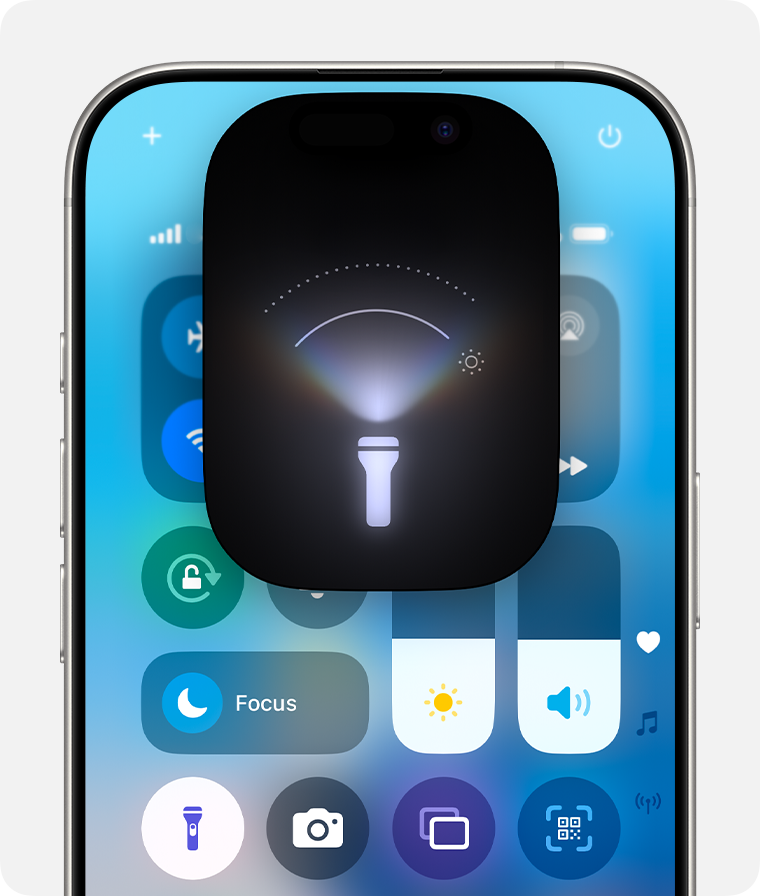
Sometimes, it feels like the flashlight on iPhone’s lock screen turns on at the worst moments. It can happen when adjusting your phone in your pocket or while carrying it. To remove the flashlight shortcut from your lock screen, go to Settings > Control Center, then tap the minus icon next to the flashlight. This simple change will save you from unexpected bright flashes.
Almost everyone has had their flashlight turn on by accident. For many, the flashlight icon placement on the lock screen causes this. Adjusting your lock screen can make a difference in avoiding this common problem. It’s quick and easy once you know where to go in the settings.
Modern iPhones have various options for customization. Many users find removing the flashlight shortcut to be one of the most helpful. By customizing your Control Center, you make using your iPhone much simpler and more efficient.
How to Remove Flashlight from iPhone Lock Screen
The flashlight shortcut on the iPhone Lock Screen is convenient — until it accidentally turns on in your pocket or bag. Fortunately, there are several ways to remove or disable the flashlight from your Lock Screen, depending on your iOS version.
🧭 Quick Summary
| iOS Version | Method | Difficulty |
|---|---|---|
| iOS 18 | Customize Lock Screen → Remove Flashlight icon | ⭐ Easy |
| iOS 17 or earlier | Disable “Tap to Wake” / “Raise to Wake” or use Screen Time restrictions | ⭐⭐ Moderate |
🆕 Method 1: Remove Flashlight from Lock Screen (iOS 18 and Later)
Apple introduced Lock Screen customization in iOS 18, allowing you to remove or replace the flashlight and camera icons directly.
✅ Steps:
- Wake your iPhone and press and hold on the Lock Screen.
- Tap Customize.
- Choose Lock Screen (not Home Screen).
- Tap the minus (–) icon above the Flashlight icon.
- Tap Done in the top-right corner.
That’s it! The flashlight icon will disappear from your Lock Screen.
🪄 Pro Tip:
You can replace it with another control, such as Focus Mode or Shortcut, for quick access to custom actions.
(source: Beebom, iDownloadBlog)
📱 Method 2: Prevent Accidental Flashlight Activation (iOS 17 and Earlier)
If you’re using iOS 17 or an older version, you can’t remove the icon entirely — but you can prevent it from turning on accidentally.
Option A: Turn Off “Tap to Wake”
- Go to Settings → Display & Brightness.
- Toggle off Tap to Wake.
Option B: Turn Off “Raise to Wake”
- Go to Settings → Display & Brightness.
- Toggle off Raise to Wake.
These settings prevent your screen from lighting up unintentionally, reducing accidental flashlight activations.
🔒 Method 3: Use Screen Time to Restrict Flashlight Access
You can also use Screen Time to block flashlight access on the Lock Screen.
Steps:
- Go to Settings → Screen Time → Content & Privacy Restrictions.
- Turn on Content & Privacy Restrictions.
- Tap Allowed Apps.
- Toggle off Camera.
Since the flashlight is tied to the Camera system, disabling the Camera also removes the flashlight icon from the Lock Screen.
⚠️ Note:
This also disables the Camera app entirely — you’ll need to re-enable it to use the camera again.
(source: HowToiSolve)
🧠 Bonus: Use Control Center Instead
Even after removing the flashlight from your Lock Screen, you can still access it quickly from Control Center:
- Swipe down from the top-right corner (on Face ID models).
- Tap the Flashlight icon to turn it on or off.
You can also adjust brightness by pressing and holding the flashlight icon.
🏁 Final Thoughts
Removing or disabling the flashlight on your iPhone Lock Screen can:
- Prevent accidental battery drain
- Avoid awkward moments in dark rooms
- Simplify your Lock Screen layout
If you’re on iOS 18, use the new Customize Lock Screen feature to remove it completely.
If you’re on iOS 17 or earlier, turning off “Tap to Wake” or using Screen Time restrictions is your best alternative.
In short:
To remove the flashlight from your iPhone Lock Screen, go to Customize Lock Screen → Tap the minus icon above Flashlight → Done.
Key Takeaways
- Go to Settings > Control Center to remove the flashlight.
- Tap the minus icon to delete the flashlight shortcut.
- Customizing your Control Center can improve phone efficiency.
Disabling Flashlight on iPhone Lock Screen
This guide covers step-by-step methods to remove the flashlight from your iPhone’s lock screen and prevent accidental activation. Learn about the lock screen components, how to use settings to customize, and advanced options.
Understanding Lock Screen Components
The iPhone lock screen includes shortcuts for quick access to features like the flashlight. These shortcuts are useful but can be accidentally triggered. The flashlight and camera icons are located at the bottom corners. Knowing their position helps in avoiding unintended activations. The lock screen also offers quick access to notifications, which may cause unintentional interactions if you swipe too quickly.
Navigating iOS Settings
To deactivate the flashlight, begin by opening the Settings app on your iPhone. Tap on “Display & Brightness” to access options related to your screen. Here, you can disable Raise to Wake and Tap to Wake features. Disabling these prevents the screen from lighting up when the phone is moved or tapped. This helps reduce the chances of accidentally turning on the flashlight.
Customization and Control Center Adjustments
Customizing the Control Center gives you control over what appears on the lock screen. Go to Settings > Control Center. Here, add or remove shortcuts based on your preference. Find the flashlight option and tap the red minus button to remove it. This action removes the flashlight from shortcuts, reducing accidental activation.
Advanced Options for Disabling Features
For more control, consider using the Accessibility settings. Go to Settings > Accessibility. Here, you have additional options like Touch and Interaction settings. For instance, you can turn off 3D Touch or Haptic Touch, which might trigger the flashlight. Another advanced method involves using an iPhone unlocker or MDM solutions for firms, which can customize settings on multiple devices remotely.
By following these steps, you can make sure your iPhone lock screen only has the components you need. This can improve user experience and reduce battery drain caused by accidental flashlight use.





