
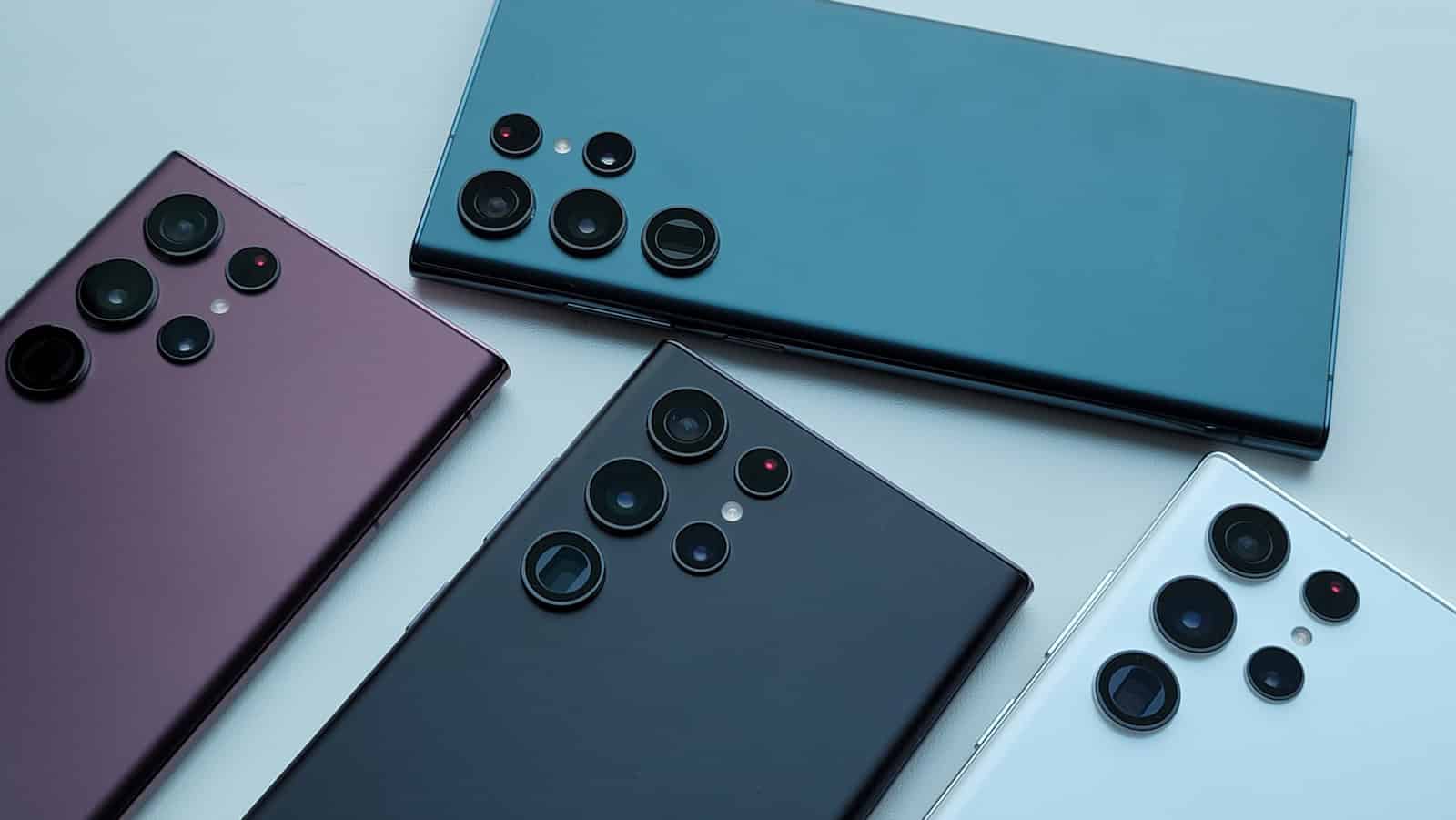
Calibrating the touchscreen of a Samsung device can significantly improve the user experience. Touchscreen calibration ensures that the device accurately registers your touch inputs. This is important for the functionality of your phone or tablet. Sometimes a user might notice that their device is not responding precisely to their touch. It could be because the screen needs calibration.
Samsung’s Android devices come with built-in features and codes that enable users to calibrate their phone’s touchscreen. Regular calibration can prevent or solve issues with screen sensitivity. This process is usually straightforward. It benefits the device’s performance and the user’s interaction with their phone or tablet.
How to Calibrate a Samsung Phone: A Step-by-Step Guide
Calibrating your Samsung phone can improve its touchscreen responsiveness, display accuracy, and battery performance. Here’s a comprehensive guide to help you calibrate various aspects of your Samsung device for optimal performance.
1. Calibrating the Touchscreen
If your touchscreen is unresponsive, laggy, or inaccurate, recalibrating it can help.
Steps:
- Restart your phone: Sometimes a simple reboot fixes touchscreen glitches.
- Use built-in diagnostics:
- Open the Phone app.
- Dial
*#0*#to open Samsung’s hardware test menu. - Tap Touch to test touchscreen responsiveness.
- Use third-party apps:
- Download apps like Touchscreen Calibration from the Google Play Store.
- Follow the app instructions to recalibrate the screen.
- Clear cache:
- Go to Settings > Device care > Storage and clear cache.
- Factory reset (last resort):
- Backup your data.
- Go to Settings > General management > Reset > Factory data reset.
2. Calibrating the Display (Color and Brightness)
Samsung phones allow you to adjust display settings for better color accuracy and brightness.
Steps:
- Go to Settings > Display > Screen mode.
- Choose from modes like Vivid, Natural, AMOLED Cinema, AMOLED Photo.
- Adjust White balance sliders (Red, Green, Blue) to your preference.
- Enable Adaptive brightness for automatic adjustment.
- For advanced calibration, use apps like Display Calibration from the Play Store.
3. Calibrating the Battery
If your battery percentage or charging behavior seems off, calibrating the battery can help.
Steps:
- Fully charge your phone to 100% without interruption.
- Use your phone normally until it completely drains and turns off.
- Fully charge it again to 100% without unplugging.
- This process recalibrates the battery meter for more accurate readings.
4. Calibrating Sensors (Gyroscope, Accelerometer)
If your phone’s motion sensors behave erratically (e.g., screen rotation issues), recalibrate sensors.
Steps:
- Open Samsung Members app or dial
*#0*#for diagnostics. - Select Sensor to test sensors.
- Use apps like GPS Status & Toolbox to recalibrate sensors.
- Follow app instructions to reset and calibrate accelerometer and gyroscope.
Tips for Maintaining Calibration
- Keep your phone software updated (Settings > Software update).
- Avoid third-party apps that interfere with system settings.
- Regularly clear cache and restart your phone.
- Use genuine chargers to maintain battery health.
Summary Table
| Calibration Type | How to Calibrate | Tools/Settings Location |
|---|---|---|
| Touchscreen | Restart, test via *#0*#, use calibration apps | Phone app dialer, Google Play Store apps |
| Display (Color/Brightness) | Adjust screen mode and white balance sliders | Settings > Display > Screen mode |
| Battery | Full charge, full discharge, full charge again | Manual process |
| Sensors | Use diagnostics or sensor calibration apps | Samsung Members, *#0*#, Play Store apps |
By following these steps, you can ensure your Samsung phone’s touchscreen, display, battery, and sensors are calibrated for the best user experience.
If you want help with a specific Samsung model or calibration issue, just ask!
Sources:
- TheTechyLife – How Do I Calibrate My Samsung?
- NerdyTechBlog – How to Calibrate a Samsung Phone
- HowToGeek – How to Calibrate Your Touchscreen on Android
Key Takeaways
- Screen calibration enhances touch accuracy on Samsung devices.
- Specific codes can initiate touchscreen calibration on Samsung Android devices.
- Regular calibration improves device interaction and performance.
Understanding Calibration on Samsung Devices
Calibration is a critical process that ensures Samsung devices respond accurately to user input and perform optimally.
Types of Calibration
Samsung devices may need various types of calibration for different components. Touchscreen calibration fine-tunes the screen’s sensitivity. Users notice when their device does not register touch accurately or when it reacts to non-existent touches. For touchscreen issues, some Samsung phones offer a calibration tool accessed by a specific code entered through the phone app. A screen protector can sometimes affect touch sensitivity, and recalibrating the touchscreen may help. GPS calibration is another type, ensuring location services provide accurate data.
Importance of Calibration
Proper calibration is essential for the best user experience. It keeps a device accurate and sensitive to inputs. Over time, a touchscreen may become less responsive. Calibrating helps maintain the device’s touch sensitivity at a level consistent with its original design.
Identifying Calibration Issues
Users may identify the need for calibration when they experience a lack of sensitivity, or when the device becomes unresponsive. Simple tests like the touchscreen test can help determine if calibration is necessary. Users may notice a lag in response or find that their device registers touch inaccurately. When these issues persist, calibration is often the required solution. Calibration can involve updating or reconfiguring the software that interprets touch or tap on the screen.





