
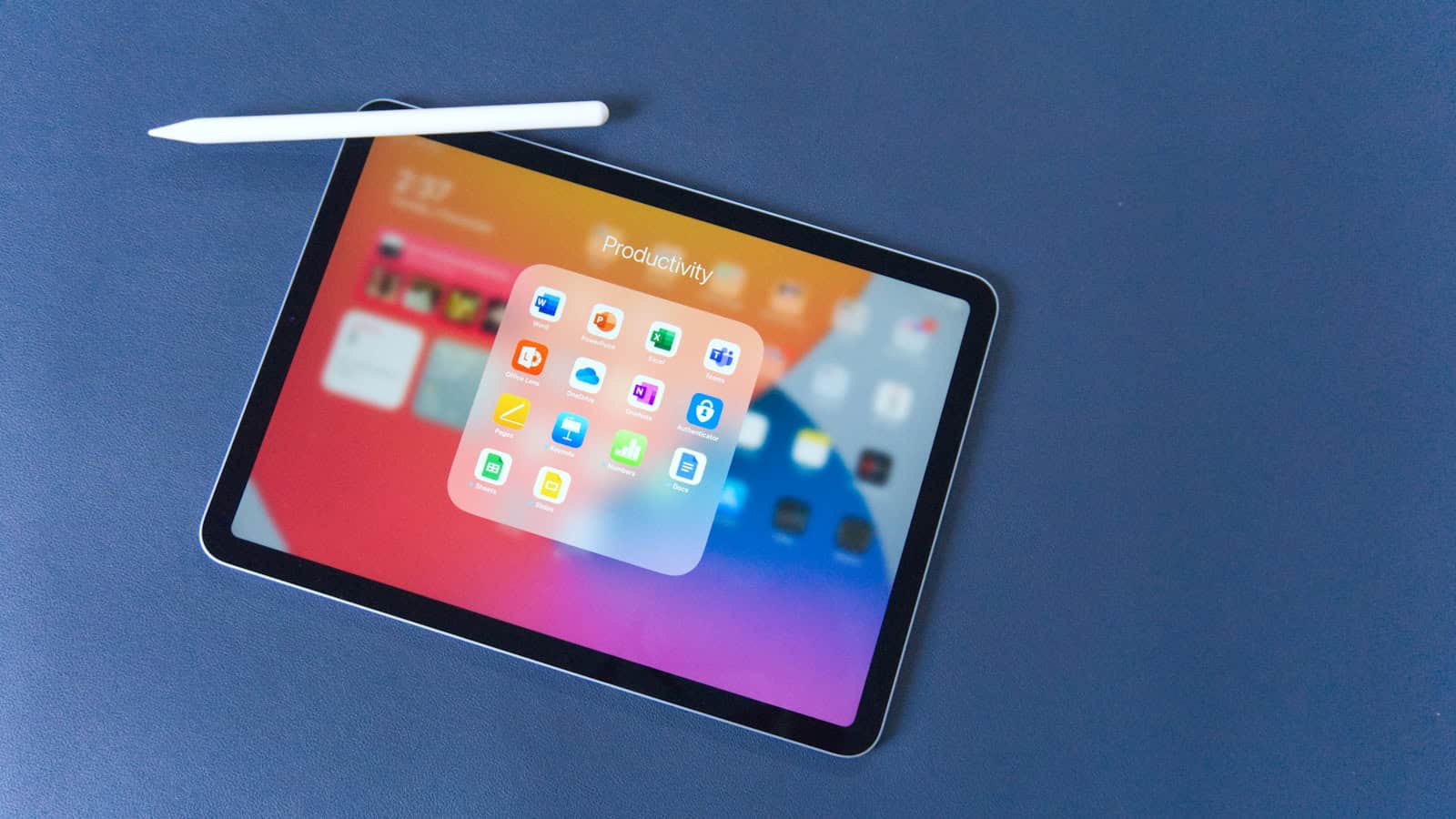
The Apple Pencil has turned iPads into powerful creative tools, letting users draw, take notes, and edit with precision. Finding the right apps that work well with the Apple Pencil can transform your iPad experience from good to amazing. These specialized apps are designed to detect pressure sensitivity, tilt, and palm rejection that make the Apple Pencil special.
Whether you’re an artist looking to create digital masterpieces, a student taking notes, or someone who needs to annotate documents, there’s an Apple Pencil app that fits your needs. From drawing apps with realistic brushes to note-taking apps that convert handwriting to text, the options are plentiful and impressive.
1. Procreate
Procreate stands out as the leading digital art app for iPad users with an Apple Pencil. It offers a powerful set of tools that both beginners and professionals love.
For a one-time fee of $13, artists get access to hundreds of handmade brushes and a complete suite of artistic tools. No subscription needed!
The app uses an advanced layer system similar to desktop software, giving artists flexibility to work on complex pieces. Its Valkyrie graphics engine ensures smooth performance even with detailed artwork.
Many artists praise Procreate for its fluid, analog-like experience when paired with Apple Pencil. The pressure sensitivity and tilt features of the pencil work seamlessly with the app.
Procreate is perfect for creating various types of artwork. Users can make expressive sketches, rich paintings, and detailed illustrations all in one app. Recent updates even added animation capabilities.
The interface is intuitive yet powerful. Tools are easy to find but don’t clutter the workspace. This balance makes it approachable for new artists while offering depth for experts.
For those who prefer working on iPhone, Procreate Pocket provides similar features in a mobile-friendly format. Though the smaller screen has limitations, many core functions remain intact.
Artists particularly appreciate the customization options. Brushes can be tweaked or created from scratch, and the workspace can be arranged to fit personal preferences.
The community surrounding Procreate is active and supportive. Countless tutorials exist online, making it easier for newcomers to learn techniques and tricks.
With frequent updates and responsive developers, Procreate continues to improve and add features based on user feedback. This dedication helps maintain its position as the king of iPad Pro natural media apps.
2. GoodNotes 5
GoodNotes 5 is one of the most popular iPad Pro apps for Apple Pencil when it comes to note-taking. It transforms your iPad into a digital notebook that feels remarkably similar to writing on paper.
The app offers a handwriting experience like no other, making it perfect for Apple Pencil users who miss the feeling of traditional note-taking. Users can write naturally and see their handwriting converted into neat, organized notes.
GoodNotes 5 lets you create multiple notebooks with different paper styles including lined, grid, and dot paper. You can easily organize notes with folders and use the powerful search feature that even recognizes handwritten text.
The app allows you to import PDFs and annotate them directly. This makes it great for students or professionals who need to mark up documents or textbooks.
Adding images and diagrams to your notes is simple with GoodNotes. You can resize and move elements around to create visually appealing pages that help with information retention.
Cloud syncing keeps your notes available across all your Apple devices. Start a note on your iPad and continue working on it from your iPhone or Mac without missing a beat.
GoodNotes offers a paper-like notebook experience that digital note-takers love. The realistic writing feel combined with digital advantages makes it stand out from other note-taking apps.
The app costs $8.99 as a one-time purchase, which is reasonable considering the features it provides. There are no monthly subscriptions to worry about after buying.
Many users appreciate how GoodNotes balances simplicity with powerful features. It’s easy enough for beginners but has advanced tools for power users who want to create complex note systems.
3. Notability
Notability stands out as a top choice for Apple Pencil users. This app combines powerful note-taking features with an easy-to-use interface that works well for students and professionals alike.
The app lets you write by hand, type text, or mix both in the same document. You can also record audio while taking notes, which is perfect for lectures or meetings.
One of Notability’s best features is its new AI capabilities. The app can now create quick summaries, quizzes, and flashcards from your notes. This makes studying and reviewing information much easier.
Drawing and sketching feel natural with multiple pen styles and colors. The app also includes helpful tools for making shapes, highlighting text, and organizing your thoughts.
Math lovers will appreciate that Notability can calculate equations written by hand. Just write down a math problem and let the app solve it for you.
Organization is straightforward with Notability’s folder system. You can group notes by subject, project, or any system that works for you.
The app syncs across all your Apple devices, so your notes are always available. Start a note on your iPad and finish it later on your iPhone.
Notability offers both free and paid options. The free version gives you the basics, while paid tiers unlock more features like unlimited editing and the AI tools.
For students especially, Notability has become a classroom favorite. It handles everything from simple notes to complex drawings and makes studying more efficient.
The app works smoothly with Apple Pencil, recognizing different pressure levels for more natural writing and drawing. This makes it feel much like writing on actual paper.
4. Sketchbook
Sketchbook is a popular drawing app loved by both beginners and professionals. This award-winning sketching, painting, and drawing app offers a clean interface that puts your artwork front and center.
The app comes with many tools you’d expect from professional software. Artists enjoy using Sketchbook because it includes a wide range of customizable brushes. It also offers helpful features like guides and rulers to make your drawings more precise.
One great thing about Sketchbook is its accessibility. The app is designed for everyone who loves to draw, not just experts. You can create artwork ranging from quick sketches to detailed illustrations.
Sketchbook works well with Apple Pencil, giving you accurate control over your lines. The pressure sensitivity lets you create thin or thick lines based on how hard you press, just like drawing with traditional tools.
The interface stays out of your way while you work. This means more screen space for your art and less distraction from menus and buttons. When you need tools, they’re easy to find.
Best of all, Sketchbook is now free to download. This makes it an excellent option for anyone wanting to try digital art without spending money first. Its professional features and user-friendly design make it one of the best drawing apps for iPad.
Many artists use Sketchbook for concept art, illustrations, and even technical drawings. The app’s flexibility makes it suitable for many different styles and projects.
5. Art Set 4
Art Set 4 is a fantastic digital art app for the Apple Pencil that mimics real-world art supplies with impressive accuracy. The app features a photo-realistic interface that makes digital artists feel like they’re using actual art tools.
This app has been wildly successful, becoming the number one iPad app in over 30 countries. The developers completely rewrote the program to include advanced digital painting and drawing features.
Beginners will appreciate Art Set 4’s user-friendly design. It’s often recommended as one of the best drawing apps for new artists transitioning from physical to digital art. The learning curve isn’t steep, so you can start creating right away.
The watercolor tools stand out as particularly impressive. You can actually see your watercolor paint behave realistically on screen. This attention to detail helps artists achieve more natural-looking results.
Art Set 4 costs $13 to download, making it an affordable option compared to some professional-grade apps. The price is a one-time purchase with no subscription fees.
The app works beautifully with Apple Pencil, responding to pressure and tilt for a natural drawing experience. This makes shading and line work feel much more like traditional art.
For artists who miss physical media but enjoy digital convenience, Art Set 4 bridges that gap nicely. The hyper-real tools provide the tactile feel of traditional art with the flexibility of digital creation.
While it’s perfect for beginners, many experienced artists also enjoy Art Set 4 for quick sketches or when they want a more traditional art feel without the mess. Its simplicity doesn’t mean it lacks power.
6. Nebo
Nebo stands out as a top choice for Apple Pencil users who need to take handwritten notes. This app transforms messy handwriting into clean text with impressive accuracy.
Unlike other note-taking apps, Nebo can understand a wide range of handwriting styles, even when they’re hard to read. This makes it perfect for quick notes during meetings or classes.
The app lets you create beautiful notes and professional documents by hand. You can sketch your ideas on an unlimited canvas, giving you plenty of space to work with.
Nebo also supports PDF annotation, which is handy for students and professionals who need to mark up documents. The app combines handwriting with typing, making it flexible for different situations.
What makes Nebo special is its AI-powered handwriting recognition technology. The app can turn your scribbles into readable text that you can edit, format, and share easily.
Users praise Nebo for its handwriting conversion accuracy, even when dealing with messy penmanship. This feature saves time and makes digital note-taking more practical.
The app works well for both quick notes and detailed documents. You can organize your content with headings, lists, and paragraphs just by using simple gestures with your Apple Pencil.
Nebo is available on the App Store and works on iPad models that support Apple Pencil. While it’s not free, many users find the investment worthwhile for its powerful features.
For anyone who prefers writing by hand but needs digital organization, Nebo bridges this gap perfectly. The app keeps improving with updates, adding new features while maintaining its smooth performance.
7. Adobe Fresco
Adobe Fresco is a free drawing and painting app designed for digital artists. It works great with Apple Pencil on iPad and iPhone devices, making it a top choice for artists on the go.
The app comes with thousands of brushes that mimic real art tools. Users can paint, sketch, and even create animations all in one place. These features make it perfect for both beginners and professional artists.
One of Fresco’s strengths is how it brings a natural painting and drawing experience to the iPad. The brushes respond well to pressure and tilt when using the Apple Pencil, giving artists more control over their work.
Many iPad Pro users enjoy using Fresco for sketching and tracing. The app’s intuitive interface makes it easy to create beautiful artwork without a steep learning curve.
Recently, some users have noted that while the new Apple Pencil Pro works with Fresco’s brushes, some advanced features like squeezing the pencil to see menus aren’t fully supported yet. Adobe will likely address this in future updates.
The app integrates well with other Adobe products, which is helpful for artists who use multiple programs in their workflow. You can easily move your projects between Fresco and other Creative Cloud apps.
While the basic version is free, some premium features require a subscription. Still, many artists find that the free version offers plenty of tools to create impressive artwork with the Apple Pencil.
For anyone looking to make the most of their Apple Pencil, Adobe Fresco provides a powerful yet accessible platform for digital art creation.
8. Apple Notes
Apple Notes comes pre-installed on every iPad, making it an excellent starting point for Apple Pencil users. No download required – just pick up your pencil and start writing.
The app has evolved significantly over the years. What was once a basic note-taking tool now supports Apple Pencil with impressive responsiveness and natural writing feel.
Drawing and sketching in Notes feels smooth and intuitive. The app offers several pen styles, highlighters, and an eraser tool that work well for basic note-taking needs.
One of the best features is the ability to scan documents directly into Notes and then mark them up with your Apple Pencil. This proves handy for signing forms or adding comments to PDFs.
Notes automatically organizes your content by date and lets you create folders to keep everything tidy. The search function even recognizes handwritten text, making it easy to find scribbled notes later.
The app syncs seamlessly across all Apple devices through iCloud. Write a note on your iPad, and it appears almost instantly on your iPhone and Mac.
While Notes lacks some advanced features found in apps like Notability or GoodNotes, its simplicity is actually a strength for many users. There’s virtually no learning curve.
The clean, minimalist interface keeps distractions at bay. You won’t find elaborate templates or specialized tools – just a blank canvas ready for your thoughts.
For students and professionals who need basic note-taking capabilities without extra frills, Apple Notes hits the sweet spot between functionality and ease of use.
Battery efficiency is another plus. Notes consumes less power than many third-party alternatives, helping your iPad last through long study or meeting sessions.
The best part? It’s completely free and fully integrated with iOS, requiring no subscription or one-time purchase like many competing apps.
9. Concepts
Concepts is a flexible vector-based sketchbook that helps turn ideas into reality. It stands out from other Apple Pencil apps by offering an infinite canvas where creativity has no bounds.
The app provides a smooth drawing experience that feels natural with the Apple Pencil. Users can easily sketch, plan, and create on its limitless workspace.
One of the best features of Concepts is its vector-based approach. This means all drawings can be resized without losing quality, which is perfect for designers who need to make adjustments.
Concepts works well for many different uses. Architects can draft buildings, artists can sketch illustrations, and students can take visual notes. The app adapts to whatever creative task you need.
The infinite canvas is especially useful for brainstorming. You can create mind maps, mood boards, and complex designs without running out of space.
Tools in Concepts mimic real-world drawing implements but with digital advantages. Pens, pencils, and brushes all respond to pressure from the Apple Pencil, creating varied line weights.
For precision work, Concepts offers helpful features like snap-to-points and shape guides. These tools make technical drawing much easier on the iPad.
Color options are extensive in the app. Users can create custom palettes or use preset collections to maintain consistency in their work.
The organization system helps keep projects tidy. Work can be sorted into different notebooks and exported in various formats when finished.
While Concepts offers a free version, some advanced features require purchase. Still, many users find the investment worthwhile for the professional-grade tools.
As one of the top iPad Pro apps for Apple Pencil, Concepts strikes a good balance between powerful features and usability. It’s suitable for both professional designers and casual sketchers.
10. MediBang Paint
MediBang Paint is a free drawing app that artists love for its simple interface. With over 100 million downloads, it has become popular among digital artists and manga creators alike.
The app comes in different versions, with specific ones for iPad and iPhone. The iPad version takes full advantage of the larger screen space.
What makes MediBang stand out is its user-friendly design. The clean interface lets artists focus on creating art rather than learning complicated tools.
Artists can enjoy customizable brushes that suit different needs. The app offers specialized tools for manga creation, including intuitive painting brushes that mimic traditional techniques.
The iPad version works well with Apple Pencil, providing good pressure sensitivity and control. This makes it feel natural when drawing or painting.
For beginners, MediBang Paint is easy to pick up. The simple UI doesn’t overwhelm new users with too many options. For more experienced artists, there are plenty of advanced features to explore.
One great aspect is the price—it’s completely free. This makes it an excellent option for students or hobbyists who don’t want to invest in expensive software.
The app includes layer support, which is essential for digital art. Artists can work with multiple layers to build complex illustrations step by step.
MediBang also offers cloud storage, allowing users to save their work online and access it from different devices. This feature is helpful for artists who work on multiple platforms.
While not as feature-rich as some paid apps, MediBang Paint provides all the essential tools needed for digital art creation with Apple Pencil. It strikes a good balance between functionality and simplicity.
Understanding Apple Pencil Compatibility
Before diving into Apple Pencil apps, it’s important to know which iPad models work with this digital stylus and how different generations of the Apple Pencil vary in features and functionality.
iPad Models That Support Apple Pencil
Not all iPads work with the Apple Pencil, and knowing which models are compatible can save you frustration and money. The original Apple Pencil works with these iPads:
- iPad Pro 12.9-inch (1st and 2nd generation)
- iPad Pro 10.5-inch
- iPad Pro 9.7-inch
- iPad (6th, 7th, 8th, and 9th generation)
- iPad Air (3rd generation)
- iPad mini (5th generation)
The Apple Pencil 2nd generation is compatible with newer iPad models:
- iPad Pro 12.9-inch (3rd generation and later)
- iPad Pro 11-inch (all generations)
- iPad Air (4th generation and later)
- iPad mini (6th generation)
Before buying an Apple Pencil, check your iPad model number in Settings > General > About to confirm compatibility.
Differences Between Apple Pencil Generations
The two Apple Pencil generations offer different features that affect how you use them with drawing and note-taking apps.
The first-generation Apple Pencil has a round design and charges by plugging into the iPad’s Lightning port. It offers pressure sensitivity and tilt detection but lacks some advanced features.
The second-generation Apple Pencil brought significant improvements:
- Magnetic attachment to the iPad for easy storage
- Wireless charging when attached to the iPad
- Double-tap feature to switch between tools
- Matte finish that feels more like writing on paper
- Flat edge to prevent rolling
These improvements make the second-generation pencil more convenient for everyday use and provide better functionality in creative and productivity apps.
Tips for Maximizing Apple Pencil Usage
Your Apple Pencil can do much more than just draw and take notes. These practical tips will help you customize your experience and keep your pencil ready whenever inspiration strikes.
Customization Options
You can adjust how your Apple Pencil works in most iPad apps. To change settings, go to Settings > Apple Pencil on your iPad. From there, you can choose what happens when you double tap the side of your Apple Pencil (2nd generation).
In apps like Notes, Pages, and Numbers, you can quickly undo mistakes by swiping left with two fingers. No need to hunt for an undo button!
Try using Quick Note by swiping up from the bottom right corner with your Apple Pencil. This lets you jot down ideas without closing your current app.
For drawing apps like Procreate, consider getting a matte screen protector. It creates a paper-like feel that gives you better control.
Battery Life Management
Check your Apple Pencil battery level by swiping right on your iPad’s home screen to see the Batteries widget. If it’s not there, scroll down and tap Edit, then add it.
Always attach your 2nd generation Apple Pencil to the side of your iPad when not in use. This keeps it charged and ready. For 1st generation pencils, try to plug them in for at least 15 minutes before you plan to use them.
Turn off Bluetooth on your iPad when you won’t be using your pencil for several days. This prevents your pencil from wasting battery trying to maintain a connection.
Remember that extreme temperatures can affect battery performance. Don’t leave your Apple Pencil in very hot or cold places for long periods.
Frequently Asked Questions
Apple Pencil users often have specific questions about which apps deliver the best experience and features. Here are answers to common questions about top Apple Pencil-compatible apps.
What are the top free apps that pair well with an Apple Pencil?
Several free apps work beautifully with Apple Pencil. Apple’s Notes app comes pre-installed and offers solid drawing features with pressure sensitivity.
Autodesk Sketchbook provides professional-grade drawing tools without cost. It includes layers, brushes, and precision features that respond well to Apple Pencil pressure.
Adobe Fresco also offers a free version that many artists use for sketching and tracing. The app includes live brushes that simulate real painting effects.
Which note-taking apps for iPad offer the best experience with an Apple Pencil?
GoodNotes 5 and Notability stand out as the top note-taking apps for Apple Pencil users. Both apps provide smooth writing experiences with minimal lag.
GoodNotes 5 excels with its paper templates, folder organization, and search function that can identify handwritten text. Many students prefer it for organized study notes.
Notability offers audio recording that syncs with your notes, making it perfect for lectures. Its palm rejection technology works seamlessly with Apple Pencil, preventing accidental marks.
Can you recommend any Apple Pencil apps for creative coloring and drawing?
Procreate tops the list for creative drawing and painting. At $9.99, it offers professional-grade features including hundreds of brush options and 4K canvas support.
Art Set 4 provides realistic painting tools that mimic real media like watercolors, oils, and pastels. The app responds beautifully to Apple Pencil pressure and tilt.
Pigment offers premium coloring book experiences for adults with precise control using Apple Pencil. The app includes thousands of illustrations and unique brush styles.
Are there specific apps designed for kids to use with an Apple Pencil?
Pok Pok is a playful digital toybox that works wonderfully with Apple Pencil for younger children. Its simple interface encourages creative exploration.
Drawing Pad provides a kid-friendly canvas with realistic art supplies that respond to Apple Pencil pressure. Children can create artwork using crayons, markers, and stickers.
Disney Coloring World lets kids bring favorite characters to life using Apple Pencil. The precision tip makes staying within lines easier for developing fine motor skills.
What apps can help me make the most out of my Apple Pencil’s unique features?
Concepts maximizes Apple Pencil features with its vector-based infinite canvas. The app utilizes pressure sensitivity, tilt, and the double-tap feature for tool switching.
Astropad Studio turns your iPad into a graphics tablet for Mac, using all Apple Pencil capabilities. It’s perfect for professional designers who need precision control.
LiquidText uses Apple Pencil for unique document annotation and connecting ideas across multiple sources. The app enables gestures specifically designed for the Pencil.
Could you suggest some of the best apps for the iPad Pro that enhance the use of an Apple Pencil?
ProCreate Pocket brings powerful drawing capabilities to the iPad Pro with full Apple Pencil support. The app offers professional illustration tools in a mobile package.
Affinity Designer harnesses iPad Pro’s power for vector graphic design with Apple Pencil precision. It’s ideal for creating logos, icons, and UI designs.
Pixelmator Pro utilizes the Apple Pencil for photo editing with pixel-perfect adjustments. The app allows for precise masking and retouching that would be difficult with finger input.





