
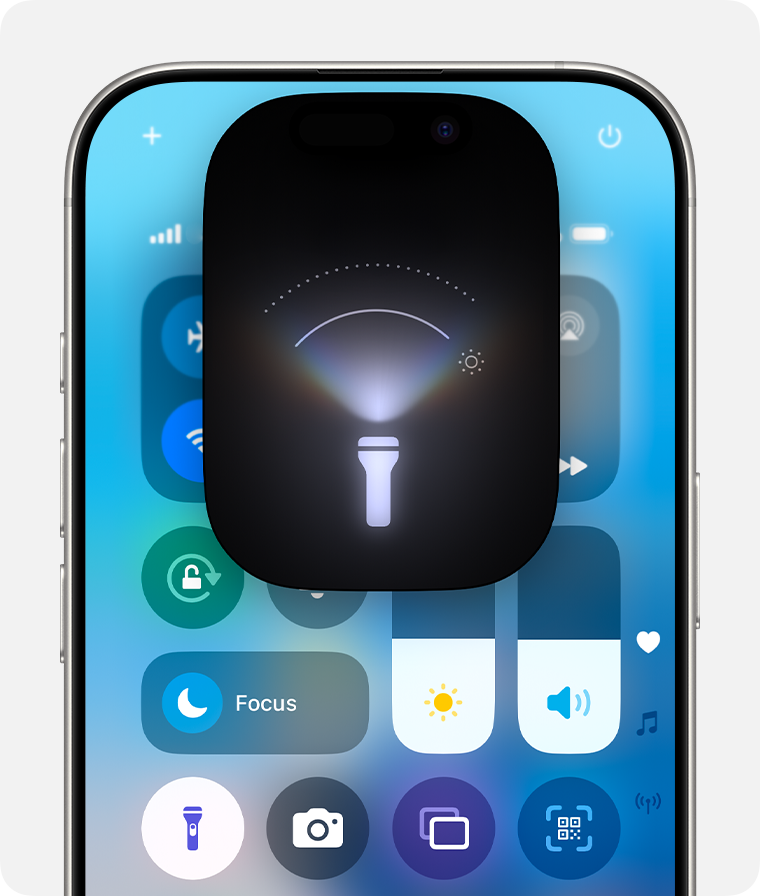
Dealing with a non-working iPhone flashlight can be frustrating, especially when you need light in a dark environment. Usually, a software bug, glitch, or power mode setting can cause this issue. Sometimes, the problem may be as simple as needing to charge your phone.
Another common fix involves opening the Camera app, switching to Video mode, and turning on the flash. This simple step often resets the flashlight function. If that doesn’t work, checking your settings in the Control Center can help restore functionality.
If the flashlight remains unresponsive, other troubleshooting steps include checking your case for obstructions, ensuring sufficient battery level, and inspecting the LED flash. Addressing these issues can often resolve the problem quickly.
Why Is My iPhone Flashlight Not Working?
If your iPhone flashlight won’t turn on, is grayed out, or works intermittently, you’re not alone. This issue can be caused by software glitches, settings conflicts, or hardware problems. This guide walks you through the most common reasons—and how to fix them.
Common Reasons Your iPhone Flashlight Isn’t Working
1. Camera App Is Using the Flash
Your iPhone’s flashlight and camera flash share the same hardware.
Fix:
- Close the Camera app
- Swipe up from the bottom (or double‑click Home) and force close it
- Try turning on the flashlight again
2. Low Battery or Power Saving Mode
iOS disables the flashlight when battery levels are too low.
Fix:
- Charge your iPhone
- Turn off Low Power Mode:
- Go to Settings → Battery
- Toggle Low Power Mode off
3. Flashlight Icon Is Grayed Out
A gray flashlight icon usually indicates a system restriction or error.
Fix:
- Restart your iPhone
- Update iOS:
- Settings → General → Software Update
4. iOS Software Glitch
Temporary bugs can prevent the flashlight from functioning.
Fix:
- Restart your iPhone
- If the issue persists, force restart:
- iPhone 8 or later: Press Volume Up → Volume Down → Hold Power
- iPhone 7/7 Plus: Hold Power + Volume Down
- iPhone 6s or earlier: Hold Power + Home
5. Overheating iPhone
When your iPhone gets too hot, iOS disables the flashlight to protect hardware.
Fix:
- Let your phone cool down
- Remove case temporarily
- Avoid direct sunlight or heavy apps
6. Flashlight Disabled by Accessibility Settings
Certain accessibility features can interfere.
Fix:
- Go to Settings → Accessibility
- Check Touch and Audio/Visual settings
- Reset settings if needed
7. Flash Hardware Damage
If your camera flash doesn’t work either, the LED may be damaged.
Signs of hardware failure:
- Flash doesn’t work in Camera app
- Flashlight never turns on
- Phone was dropped or exposed to water
Fix:
- Contact Apple Support
- Visit an Apple Store or authorized repair center
Quick Troubleshooting Checklist
✅ Close Camera app
✅ Charge your iPhone
✅ Restart or force restart
✅ Update iOS
✅ Let device cool down
✅ Test camera flash
✅ Reset settings if needed
How To Reset All Settings (Last Software Step)
This won’t delete your data but resets system preferences.
- Go to Settings → General → Transfer or Reset iPhone
- Tap Reset
- Choose Reset All Settings
When To Contact Apple Support
You should contact Apple if:
- Flashlight and camera flash both fail
- Problem persists after reset
- iPhone has physical or water damage
Final Thoughts
Most iPhone flashlight issues are caused by temporary software glitches or low battery, and they’re easy to fix. If basic troubleshooting doesn’t work, the issue may be hardware‑related.
If you want, I can also help with:
- Flashlight shortcuts not working
- Camera flash issues
- iOS bugs affecting hardware
- iPhone overheating fixes
Key Takeaways
- Software bugs or power mode settings often cause the issue.
- Using the Camera app can reset the flashlight.
- Check case, battery, and LED flash.
Diagnosing the Problem
To figure out why the iPhone flashlight isn’t working, consider basic checks, software issues, and hardware problems. This can help identify the cause and find a solution.
Checking the Basics
First, check if your iPhone is in Low Power Mode. When the battery is low, some features like the flashlight might be disabled to save power. Navigate to the Settings App > Battery to see if this mode is on and switch it off if needed.
Next, ensure the Flashlight Button in the Control Center is configured correctly. Sometimes, it’s accidentally removed. Go to Settings > Control Center to check and add it back if necessary.
Also, check if your phone needs to charge. Low battery power can impact certain functions. Connect your iPhone to a power source and wait a few minutes before trying the flashlight again.
Software-Related Issues
A software glitch might cause the flashlight to stop working. Restarting your iPhone can solve many issues. For newer models without a Home button, press and hold a volume button and the side button until the power-off slider appears. Slide it to turn off, then turn it back on.
Check for any software updates. Go to Settings > General > Software Update. Keeping your iPhone updated can fix bugs that might disable the flashlight.
If the problem continues, consider resetting your settings. Go to Settings > General > Reset > Reset All Settings. This won’t delete your data but will restore default settings which might fix the flashlight issue.
Hardware Considerations
Sometimes, the issue might be hardware-related. The LED flash could be malfunctioning or damaged. Open the Camera App, switch to video mode, and try turning on the flash while recording. If the flash doesn’t work, it might be a hardware issue.
Check if your phone is overheating. If it’s too hot, some features, including the flashlight, may be disabled until it cools down. Let your iPhone rest and try again later.
Lastly, inspect the iPhone case. Some cases can block the flash or put pressure on your iPhone, affecting the function. Try removing the case to see if the flashlight works then. If it does, consider changing the case.





