
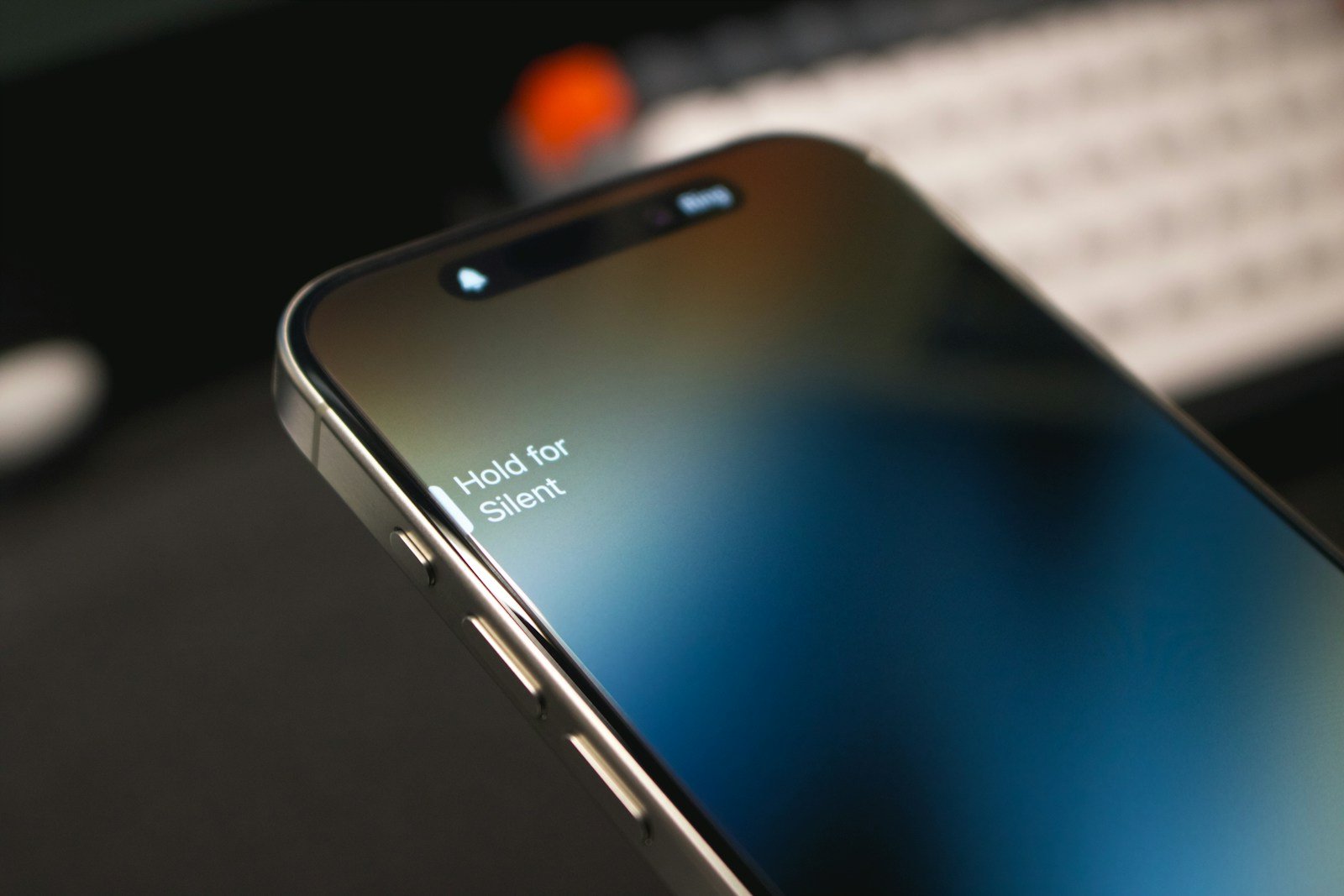
Having an iPhone with volume buttons that don’t work can be frustrating. The good news is that there are several ways to fix this problem. This article will guide you through the different methods to restore your volume buttons.
Many iPhone users face this issue. It could be due to physical damage, software glitches, or even dirt. Before you consider a repair service, there are simpler steps you can try yourself at home. These methods can save you time and money.
It’s not always easy to diagnose the exact cause. Follow these steps to troubleshoot and resolve the issue. From cleaning the buttons to using software features, you’ll find practical solutions here.
iPhone Volume Button Not Working: Complete Troubleshooting Guide
When your iPhone’s volume buttons stop working, it can be incredibly frustrating. Whether you can’t adjust the volume during calls, while watching videos, or listening to music, this guide will help you diagnose and fix the problem.
Quick Diagnostics
Before we dive into solutions, let’s identify exactly what’s wrong:
Test Your Volume Buttons
1. Physical Button Test
- Press the volume up button – Does it click?
- Press the volume down button – Does it click?
- Does the volume indicator appear on screen?
2. Different Scenarios Test
- Try adjusting volume while playing music
- Try during a phone call
- Try while watching a video
- Try on the lock screen
- Try in different apps
3. Which Button Isn’t Working?
- ❌ Volume Up only
- ❌ Volume Down only
- ❌ Both buttons
- ❌ Buttons feel stuck or loose
- ❌ Buttons click but don’t respond
4. Check for Software Issues
- Do the buttons work in Safe Mode?
- Did this start after an iOS update?
- Did you recently install new apps?
Common Causes
Understanding why your volume buttons stopped working:
Software Issues (70% of cases)
- iOS bugs or glitches
- App conflicts
- Settings misconfiguration
- Corrupted system files
- Recent iOS update issues
Hardware Issues (30% of cases)
- Liquid damage
- Dirt/debris under buttons
- Physical damage from drops
- Worn out button mechanism
- Case interference
- Manufacturing defect
Specific Scenarios
- Works sometimes: Usually software or loose connection
- Never works: Usually hardware damage
- Stopped after drop: Physical damage likely
- Stopped after iOS update: Software issue likely
- Stopped after water exposure: Liquid damage
Software Solutions
Start here – these fixes work for most users and require no tools.
Solution 1: Force Restart Your iPhone
This fixes 60% of software-related volume button issues.
iPhone 8 and newer (including all models through iPhone 15):
- Press and quickly release Volume Up button
- Press and quickly release Volume Down button
- Press and hold the Side button until you see Apple logo
- Release and wait for iPhone to restart
iPhone 7 and 7 Plus:
- Press and hold Volume Down + Side button simultaneously
- Keep holding until you see Apple logo (10-15 seconds)
- Release and wait for restart
iPhone 6s and earlier:
- Press and hold Home button + Top/Side button simultaneously
- Keep holding until you see Apple logo
- Release and wait for restart
After restart: Test your volume buttons immediately.
Solution 2: Check Volume Settings
Disable “Change with Buttons” (then re-enable):
Settings → Sounds & Haptics
→ Turn OFF "Change with Buttons"
→ Wait 10 seconds
→ Turn it back ON
This resets the button configuration.
Check Ringer and Alerts Volume:
Settings → Sounds & Haptics
→ Drag the slider manually
→ Ensure "Change with Buttons" is ON
Check for Do Not Disturb/Focus Mode:
Settings → Focus
→ Ensure no Focus mode is active
→ Or swipe down from top-right → Check Focus icon
Solution 3: Disable AssistiveTouch (If Enabled)
AssistiveTouch can sometimes interfere:
Settings → Accessibility → Touch → AssistiveTouch
→ Turn OFF
→ Test volume buttons
→ Turn back ON if needed
Solution 4: Check Bluetooth Connections
Connected Bluetooth devices can override volume buttons:
Disconnect Bluetooth:
Settings → Bluetooth
→ Turn OFF Bluetooth
→ Test volume buttons
Or disconnect specific devices:
Settings → Bluetooth
→ Tap (i) next to connected device
→ Disconnect or Forget This Device
Solution 5: Reset All Settings
This won’t delete your data but resets system settings:
Settings → General → Transfer or Reset iPhone
→ Reset → Reset All Settings
→ Enter passcode
→ Confirm Reset All Settings
What this resets:
- Wi-Fi passwords
- Wallpaper settings
- Privacy settings
- Keyboard dictionary
- Home screen layout
- All system preferences
What it keeps:
- Photos, videos, music
- Apps and app data
- Messages and contacts
- Documents
After reset: Test volume buttons and reconfigure your settings.
Solution 6: Update iOS
Software bugs are often fixed in updates:
Check for updates:
Settings → General → Software Update
→ Download and Install (if available)
Important: Backup your iPhone first using iCloud or iTunes/Finder.
If already on latest version: Sometimes waiting for the next update is necessary if it’s a known iOS bug.
Solution 7: Restore iPhone via Recovery Mode
⚠️ Warning: This erases your iPhone. Backup first!
Step 1: Backup Your iPhone
Settings → [Your Name] → iCloud → iCloud Backup → Back Up Now
Or connect to computer and backup via Finder/iTunes.
Step 2: Put iPhone in Recovery Mode
Connect iPhone to computer, then:
iPhone 8 and newer:
- Press and release Volume Up
- Press and release Volume Down
- Press and hold Side button until Recovery Mode screen appears
iPhone 7:
- Press and hold Volume Down + Side button
- Keep holding until Recovery Mode screen appears
iPhone 6s and earlier:
- Press and hold Home + Top/Side button
- Keep holding until Recovery Mode screen appears
Step 3: Restore
- iTunes/Finder will detect iPhone in Recovery Mode
- Click “Restore”
- Follow on-screen instructions
- Set up as new iPhone or restore from backup
Solution 8: Check for App Conflicts
Some apps can cause volume button issues:
Test in Safe Mode (temporarily disables third-party apps):
There’s no official Safe Mode for iPhone, but you can:
- Restart iPhone
- Immediately after Apple logo, don’t unlock
- Use iPhone without opening any third-party apps
- Test volume buttons with only Apple apps (Music, Phone)
If buttons work: A third-party app is the problem.
Find the culprit:
- Recently installed apps are most likely
- Delete apps one by one, testing after each
- Common culprits: Volume boosters, audio enhancers, custom camera apps
Hardware Solutions
If software fixes didn’t work, it’s likely a hardware issue.
Solution 9: Remove iPhone Case
Cases can interfere with button operation:
- Remove any case or cover
- Test volume buttons
- Clean the case opening around buttons
- Try a different case or go case-free
Common case issues:
- Too-tight cases pressing buttons constantly
- Misaligned button cutouts
- Dirt accumulated between case and phone
- Cheap cases with button covers
Solution 10: Clean Around Volume Buttons
Dirt and debris can prevent button operation:
What you need:
- Soft-bristled brush (old toothbrush works)
- Isopropyl alcohol (70% or higher)
- Cotton swabs
- Compressed air (optional)
- Toothpick (use carefully)
Cleaning procedure:
- Power off iPhone completely
- Brush the buttons:
- Use dry brush to remove surface dirt
- Brush around edges of buttons
- Brush in all directions
- Apply alcohol:
- Dampen cotton swab with isopropyl alcohol
- Gently clean around button edges
- Don’t let liquid drip into openings
- Use compressed air:
- Short bursts around buttons
- Hold iPhone at angle so debris falls out
- Press buttons repeatedly:
- While cleaning, press buttons 20-30 times
- This helps work out stuck debris
- Let dry completely:
- Wait 15-30 minutes
- Ensure all alcohol has evaporated
- Test buttons
Solution 11: Check for Liquid Damage
Liquid Contact Indicators (LCI):
iPhones have indicators that turn red when exposed to liquid.
Where to look:
- SIM tray: Remove SIM tray and look inside
- Normal: White or silver
- Liquid damage: Red or pink
If you see red:
- Liquid has entered the device
- May have corroded button contacts
- Needs professional repair
What to do after liquid exposure:
- Power off immediately
- Don’t try to charge
- Remove SIM card and case
- Let air dry for 48 hours
- Don’t use rice (it doesn’t help and can cause more damage)
- Use silica gel packets if available
- Take to Apple or repair shop
Solution 12: Test Button Response with Diagnostic
Apple Diagnostics (built-in test):
- Disconnect all external devices
- Shut down iPhone completely
- This test requires connecting to Mac/PC
- Use Apple Configurator 2 (Mac only) for hardware diagnostics
Or visit Apple Store for free diagnostics:
- They can run comprehensive hardware tests
- Tests detect button malfunctions
- You’ll get a detailed report
Solution 13: Check for Physical Damage
Inspect your iPhone carefully:
Look for:
- Dents or bends near volume buttons
- Cracks in the frame
- Screen separation (indicates internal damage)
- Buttons feel stuck, loose, or don’t click properly
- Frame damage from drops
Common damage scenarios:
Dropped on volume button side:
- Can break internal button mechanism
- Can sever flex cable connection
- May require button replacement
Bent iPhone:
- Pressure on internal components
- Buttons may be misaligned
- Expensive to fix
If you see physical damage: Professional repair needed.
Alternative Volume Control Methods
While you troubleshoot, use these workarounds:
Method 1: On-Screen Volume Controls
Control Center:
- Swipe down from top-right corner (iPhone X and newer)
- Or swipe up from bottom (iPhone 8 and earlier)
- Adjust volume slider
During media playback:
- Volume slider appears on lock screen
- Also visible in Now Playing widget
- Adjust with finger
Method 2: AssistiveTouch
Add virtual volume buttons to screen:
Enable AssistiveTouch:
Settings → Accessibility → Touch → AssistiveTouch
→ Turn ON
Add volume controls:
AssistiveTouch settings → Customize Top Level Menu
→ Tap + to add icon
→ Select "Volume Up" and "Volume Down"
Quick Access:
AssistiveTouch → Single-Tap or Double-Tap
→ Assign to "Volume Up" or "Volume Down"
Now a floating button appears on screen for volume control.
Method 3: Siri Voice Control
Just say:
- “Hey Siri, turn volume up”
- “Hey Siri, turn volume down”
- “Hey Siri, set volume to 50%”
- “Hey Siri, mute”
Enable Siri:
Settings → Siri & Search
→ Enable "Listen for 'Hey Siri'"
Method 4: Headphone Controls
With wired or Bluetooth headphones:
- Use headphone volume buttons
- Works independently of iPhone buttons
- Temporary solution while troubleshooting
Method 5: Apple Watch
If you have an Apple Watch:
- Swipe up on watch face to open Control Center
- Adjust volume using Digital Crown
- Or use volume slider on watch
Method 6: Settings App
Settings → Sounds & Haptics
→ Manually drag
Key Takeaways
- Many methods can fix iPhone volume button issues at home.
- Diagnose the problem before considering repair services.
- Explore both physical and software fixes for volume issues.
Diagnosing Volume Button Issues
Identifying the problem with non-working volume buttons on an iPhone involves several steps. It includes verifying settings, checking for physical issues, and troubleshooting software problems.
Verifying iPhone Settings
The first step is to check your iPhone’s settings. Open the Settings app and navigate to Sounds & Haptics. Ensure the Change with Buttons option is turned on. This will allow the volume buttons to adjust the volume.
Check the volume slider under the same menu. If the volume is low, move the slider to the right to increase it. You can also use the Control Center to adjust the volume. Swipe down from the upper-right corner of the screen and use the volume slider there.
Physical Inspection and Cleaning
Inspect your iPhone for any physical damage to the volume buttons. Sometimes, dust or debris might block the buttons from functioning correctly. Remove your iPhone case to get a closer look.
Use a soft cloth to clean the volume buttons. You can use a small brush or compressed air to remove any dirt. Make sure you are gentle to avoid damaging the buttons. Also, see if the buttons feel stuck or unresponsive when pressed.
Software Troubleshooting
Sometimes, a software issue could cause the volume buttons to stop working. Restart your iPhone by turning it off and then on again. If this does not help, try a force restart.
Make sure your iPhone is updated to the latest version of iOS. Go to Settings > General > Software Update and check for updates. If the problem persists, consider resetting all settings. Navigate to Settings > General > Reset and select Reset All Settings. This will not delete your data but will reset system settings to default.
If nothing works, a factory reset might be needed. This will erase all data and restore your iPhone to its original state. Backup your data before performing this step.





