
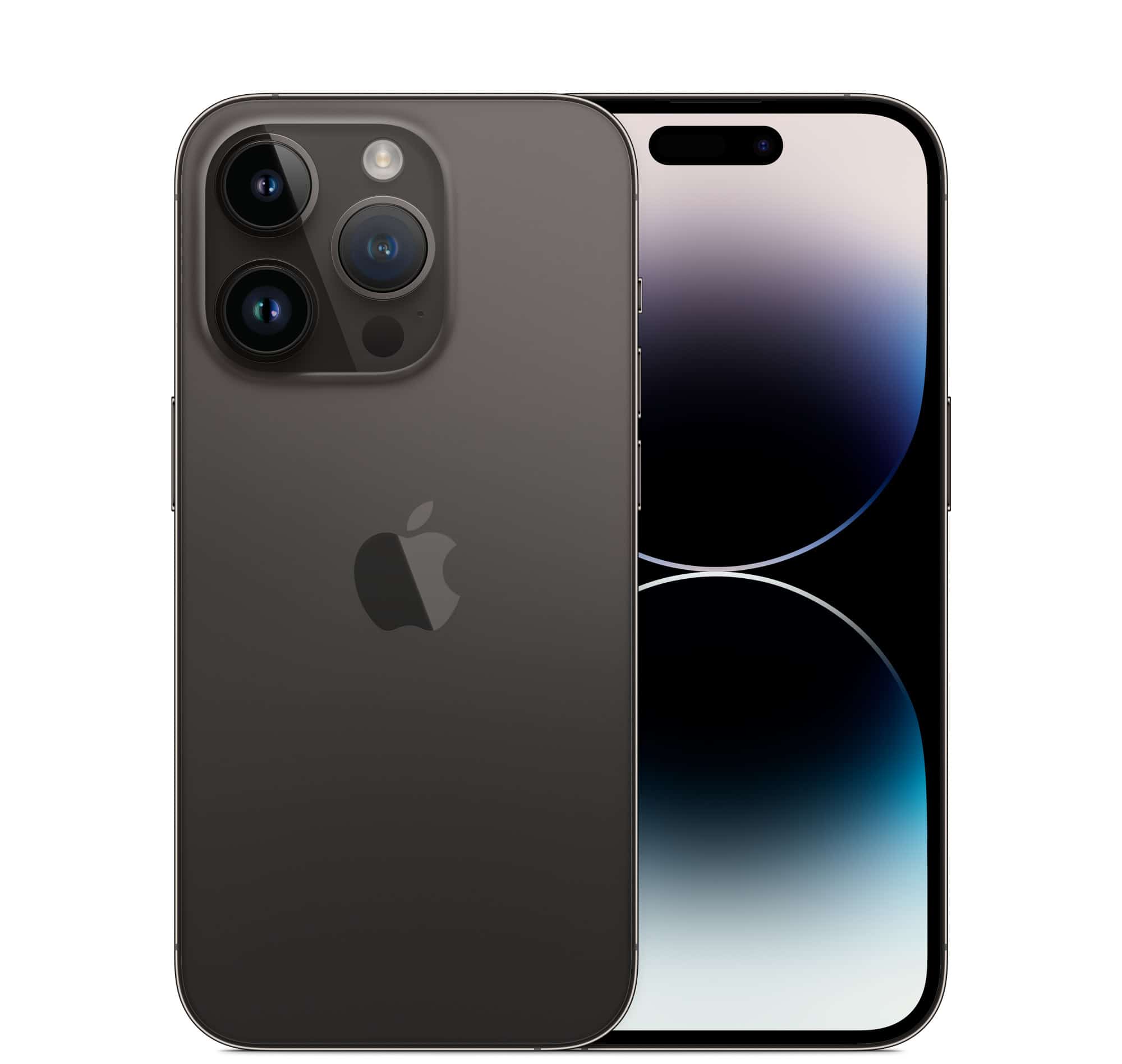
The “Last Line No Longer Available” error on the iPhone 14 can be frustrating, especially when you need to make a call. If your iPhone shows this message, make sure your phone is updated to the latest version of iOS. This often solves many issues quickly.
Another method to fix this error is to manually switch the phone lines. When the error message pops up, try tapping “Call” again to place the call through the other line. If this doesn’t work, you can also restart your iPhone by holding the power button, sliding to power off, and then turning it back on.
For a more detailed solution, you might need to reset your network settings. Head to Settings, find the “Reset Network Settings” option, and follow the prompts. This can clear up any glitches and get your phone working properly again.
“Last Line No Longer Available” on iPhone 14: What It Means & How to Fix It
If you’ve seen the “Last Line No Longer Available” error on your iPhone 14, you’re not alone. This message usually appears when trying to make a phone call and can be confusing—especially if your cellular service seems otherwise fine.
This guide explains what the error means, why it happens, and step-by-step solutions to fix it.
What Does “Last Line No Longer Available” Mean?
This error typically appears on Dual SIM iPhones, including the iPhone 14, which supports:
- One physical SIM (in some regions)
- One or more eSIMs
The message means your iPhone is trying to place a call using a cellular line that’s currently unavailable, inactive, or misconfigured.
Common Causes on iPhone 14
- Recently switched or removed an eSIM
- Network settings glitch after an iOS update
- Carrier service interruption
- Calling a contact saved to the wrong line
- Corrupted network configuration
- Temporary iOS bug
Quick Fixes to Try First
1. Turn Airplane Mode On and Off
- Swipe down from the top-right corner.
- Enable Airplane Mode for 10–15 seconds.
- Turn it off and try calling again.
✅ This refreshes your cellular connection.
2. Restart Your iPhone
- Press and hold Volume Up/Down + Side Button
- Slide to power off
- Turn your iPhone back on
✅ Fixes many temporary software glitches.
Change the Default Calling Line
3. Set the Correct Default Line
- Go to Settings → Cellular
- Tap Default Voice Line
- Select the line you actively use
✅ Prevents your iPhone from attempting calls on an inactive SIM.
4. Manually Select Line When Calling
- Open Phone → Keypad
- Tap the line label (e.g., “Primary” or “Secondary”)
- Choose the correct line before calling
✅ Useful if you regularly switch between numbers.
Fix Contact-Specific Issues
5. Change the Line for a Specific Contact
- Open Contacts
- Select the contact
- Tap Edit
- Tap Preferred Cellular Plan
- Choose the correct line
✅ Fixes the issue if it happens with only certain contacts.
Reset Network Settings
6. Reset Network Settings (Most Effective Fix)
- Go to Settings → General → Transfer or Reset iPhone
- Tap Reset
- Select Reset Network Settings
- Enter your passcode
⚠️ This will erase saved Wi‑Fi passwords and VPN settings.
✅ Often resolves persistent network-related errors.
Check for Carrier & iOS Updates
7. Update iOS
- Go to Settings → General → Software Update
- Install any available updates
✅ Apple frequently patches network bugs in updates.
8. Update Carrier Settings
- Go to Settings → General → About
- Wait 10–15 seconds
- Install carrier update if prompted
✅ Keeps your cellular configuration current.
Disable and Re‑Enable eSIM
9. Refresh Your eSIM
- Go to Settings → Cellular
- Tap the affected line
- Turn Turn On This Line off
- Restart your iPhone
- Turn the line back on
✅ Useful after switching carriers or plans.
When to Contact Your Carrier
Contact your carrier if:
- The error appears on all outgoing calls
- Your line shows “No Service”
- You recently changed plans or ported your number
- The issue persists after a network reset
They may need to:
- Reprovision your eSIM
- Refresh network registration
- Check for outages in your area
Apple Support: Last Resort
Contact Apple Support if:
- Your iPhone shows the error on multiple carriers
- The issue started after physical damage
- Network resets and carrier fixes don’t help
📞 Apple Support: https://support.apple.com
Quick Summary
| Fix | Effectiveness |
|---|---|
| Airplane Mode toggle | ⭐⭐ |
| Restart iPhone | ⭐⭐⭐ |
| Change default line | ⭐⭐⭐⭐ |
| Reset network settings | ⭐⭐⭐⭐⭐ |
| Carrier support | ⭐⭐⭐⭐⭐ |
Final Thoughts
The “Last Line No Longer Available” error on iPhone 14 is usually related to Dual SIM or eSIM configuration issues, not hardware failure. In most cases, resetting network settings or selecting the correct calling line fixes the problem quickly.
Key Takeaways
- Update your iPhone to the latest iOS version.
- Try switching phone lines manually.
- Reset network settings if other steps fail.
Troubleshooting the ‘Last Line No Longer Available’ Error
When encountering the “Last Line No Longer Available” error on an iPhone 14, there are multiple steps you can take to resolve it. These include managing network settings, updating software, and handling the physical SIM and eSIM.
Understanding the Error
The “Last Line No Longer Available” error appears when trying to make a call using the preferred line, but the phone is unable to access it. This issue often occurs on iPhones with dual-SIM functionality, where one line might be faulty or not accessible. Misconfigured settings or software bugs can also cause this error.
Network and Carrier Settings
Checking network and carrier settings can help solve the error. Go to Settings > General > Transfer or Reset iPhone > Reset > Reset Network Settings. This will clear old network settings. Also, check for any carrier updates in Settings > General > About. Keeping these settings up to date ensures better connectivity.
Physical SIM and eSIM Management
Problems with the physical SIM or eSIM can trigger this error. Ensure that the SIM card is correctly placed in the SIM tray. If using an eSIM, manage the lines by going to Settings > Cellular > Cellular Plans. Here, you can switch between your primary and secondary lines to see if one works over the other. Also, clear recent call logs to prevent conflicts.
Software Updates and Restarts
Software updates can fix bugs causing this issue. Always update your iPhone to the latest iOS version by going to Settings > General > Software Update. Restarting the phone can resolve many glitches. To restart, hold the power button and slide to power off, then turn it back on. For a hard reset, hold the power and volume buttons until the Apple logo appears.
Advanced Fixes
For persistent issues, consider advanced troubleshooting. Toggle Airplane Mode on and off in Settings to reset the network connection. Try disabling Wi-Fi Calling in Settings > Phone > Wi-Fi Calling. If the issue remains, contact Apple Support or visit an Apple Store. They can offer professional assistance and ensure hardware isn’t causing the issue.
These steps help diagnose and fix the “Last Line No Longer Available” error, ensuring seamless communication on your iPhone 14.





