
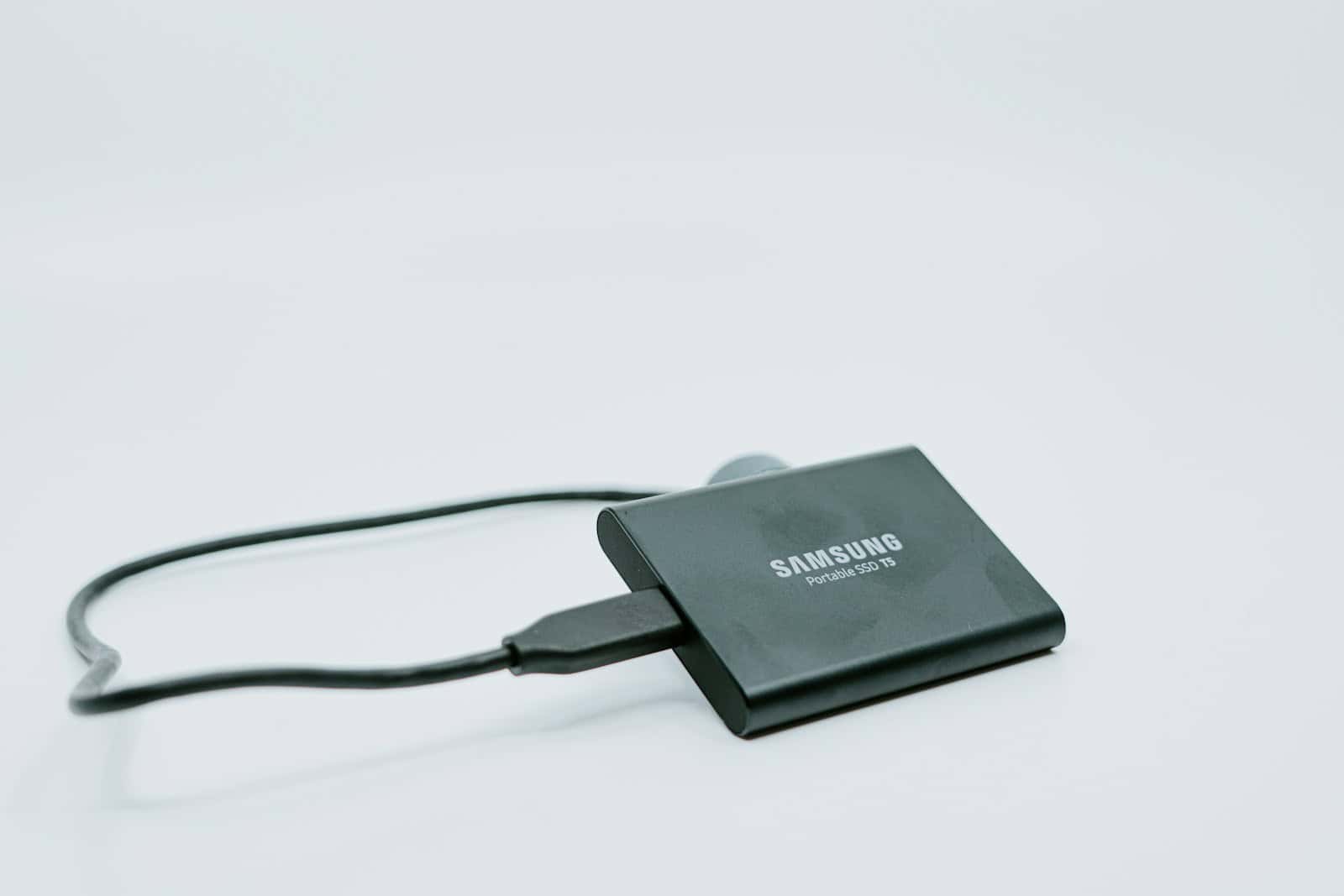
Backing up an iPhone to an external drive can save space on your device and add an extra layer of protection for your data. With this guide, you’ll learn how easy it is to transfer your iPhone data to an external hard drive, ensuring your files are safe and accessible. Forget the clutter on your iPhone and keep your data secure without depending solely on cloud storage.
You’ll need a few things to get started. A reliable external hard drive and the right adapter to connect your iPhone to the drive. The adapter will link your iPhone to the external hard drive, making the transfer process smooth. Once connected, your iPhone can communicate with your external drive like it would with a computer.
Following simple steps, you’ll be able to copy your backup files from your iPhone to the external drive. This way, you can clear space on your device without losing any important files. Whether you use a Mac’s Finder or a Windows PC’s iTunes for the backup, transferring the files to an external drive will give you peace of mind.
iPhone Backup to External Drive: A Complete Guide
Backing up your iPhone to an external drive gives you full control over your data and frees up space on your computer. This guide walks you through everything you need to know, whether you’re using a Mac or a Windows PC.
Why Back Up Your iPhone to an External Drive?
- Extra storage without paying for iCloud
- Offline access to your backups
- Improved privacy and security
- Faster backups and restores
- Protection against computer failure
What You’ll Need
- An iPhone with the latest iOS recommended
- A USB cable (or USB‑C for newer iPhones)
- A Mac or Windows PC
- An external hard drive or SSD
- Enough free space on the external drive (iPhone backup size can be large)
Method 1: Back Up iPhone to an External Drive on macOS
macOS stores iPhone backups locally by default. You can move them to an external drive using a symbolic link.
Step 1: Create a Local iPhone Backup
- Connect your iPhone to your Mac.
- Open Finder.
- Select your iPhone from the sidebar.
- Under Backups, choose Back up all data on your iPhone to this Mac.
- Click Back Up Now.
Step 2: Locate the Backup Folder
- Open Finder.
- Click Go → Go to Folder.
- Paste:
~/Library/Application Support/MobileSync/ - Press Return.
Step 3: Move Backup to External Drive
- Inside the MobileSync folder, you’ll see a Backup folder.
- Copy (or move) this folder to your external drive.
- Example location:
/Volumes/ExternalDrive/iPhoneBackups/
- Example location:
Step 4: Create a Symbolic Link
- Open Terminal.
- Enter the following command (modify paths as needed):
ln -s /Volumes/ExternalDrive/iPhoneBackups/Backup \ ~/Library/Application\ Support/MobileSync/Backup - Press Return.
✅ Future iPhone backups will now be stored on your external drive.
Method 2: Back Up iPhone to an External Drive on Windows
Windows stores iPhone backups in a fixed location, but you can redirect them using a symbolic link.
Step 1: Create an iPhone Backup
- Connect your iPhone to your PC.
- Open iTunes.
- Select your iPhone.
- Click Back Up Now.
Step 2: Locate the Backup Folder
Navigate to:
C:\Users\[YourUsername]\Apple\MobileSync\Backup
Step 3: Move Backup to External Drive
- Copy the Backup folder to your external drive.
- Example:
E:\iPhoneBackups\Backup
- Example:
Step 4: Create a Symbolic Link
- Press Windows + S, type cmd.
- Right‑click Command Prompt → Run as administrator.
- Enter:
mklink /J "C:\Users\[YourUsername]\Apple\MobileSync\Backup" "E:\iPhoneBackups\Backup" - Press Enter.
✅ iTunes will now store backups on your external drive.
How to Restore an iPhone Backup from an External Drive
- Connect the external drive to your computer.
- Make sure the symbolic link is active.
- Connect your iPhone.
- Open Finder (Mac) or iTunes (Windows).
- Select Restore Backup.
- Choose the backup and follow on‑screen instructions.
Encrypting Your iPhone Backup (Recommended)
Encrypted backups store:
- Saved passwords
- Health data
- Wi‑Fi settings
To enable encryption:
- In Finder or iTunes, check Encrypt local backup.
- Create a strong encryption password.
- Store it safely — Apple cannot recover it.
Common Issues & Fixes
External Drive Not Detected
- Make sure it’s mounted and unlocked
- Use APFS or Mac OS Extended on Mac
- Use NTFS or exFAT on Windows
Backup Fails
- Ensure enough free space
- Keep the external drive connected during the entire backup
- Restart your computer and try again
Symbolic Link Errors
- Double‑check folder paths
- Ensure the original Backup folder no longer exists in the default location
Best Practices
- Use an SSD for faster backups
- Label your backups by date
- Keep at least two backup copies
- Safely eject your external drive
Summary
Backing up your iPhone to an external drive gives you flexibility, speed, and control over your data. With a one‑time setup using symbolic links, all future backups will automatically go to your external drive on both macOS and Windows.
Key Takeaways
- Backing up an iPhone to an external drive saves space and protects data.
- You’ll need an adapter and an external drive to start.
- Simple steps in Finder or iTunes can transfer backups.
Setting Up Your External Drive for iPhone Backup
To back up your iPhone to an external drive, there are a few steps you’ll need to follow. These steps include preparing the drive, configuring your Mac, and creating a symlink to redirect backups.
Preparing the External Drive
First, connect your external hard drive to your Mac using a USB cable or adapter. Ensure the drive has enough space for your iPhone backup.
Next, format the external drive if needed. Open Disk Utility, select the drive, and choose format. Opt for Mac OS Extended (Journaled).
After formatting, create a dedicated folder for iPhone backups. This helps keep files organized and easy to find later.
Configuring MacOS for External Backup
To back up iPhone data to your external drive, change the location of iTunes or Finder backups. Open Finder and select your iPhone under Locations.
In Manage Backups, right-click your iPhone’s backup and select Show in Finder. Drag the backup folder to the external drive.
Use Terminal for more control. Open Terminal and enter commands to change the backup destination permanently. Grant Full Disk Access in System Preferences for the best results.
Creating a Symlink to the External Drive
A symlink lets your Mac save backups straight to the external drive. First, locate the backup folder on your Mac: ~/Library/Application Support/MobileSync/Backup.
Open Terminal and type the following:
mv ~/Library/Application\ Support/MobileSync/Backup /Volumes/YourExternalDrive/Backup
ln -s /Volumes/YourExternalDrive/Backup ~/Library/Application\ Support/MobileSync/Backup
This moves the existing backup and creates a symlink. Now, backups will go directly to the external drive. Remember to verify the backup by checking the files on the external drive. This ensures everything is in the right place.





