
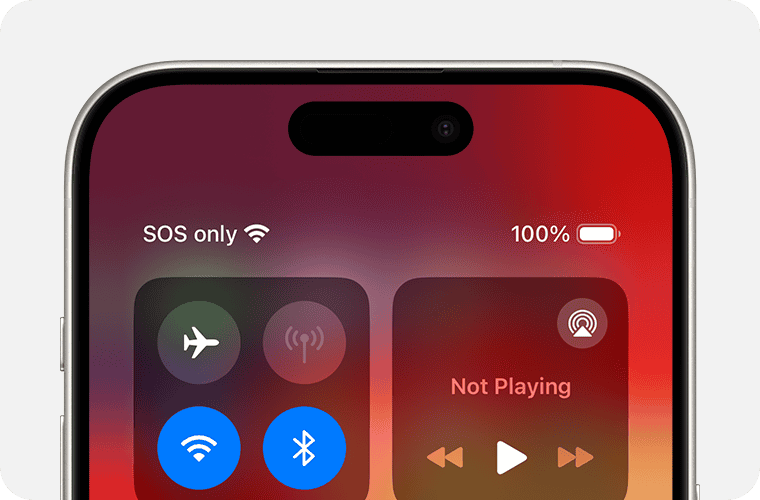
Is your iPhone not letting you swipe up to open the Control Center? This issue can be frustrating but it’s something many users face. The most common reason for this problem is that the Control Center isn’t enabled for use on the lock screen. Double-checking and adjusting your settings might be the quickest solution.
Sometimes the problem can also occur if you’re not swiping from the correct spot. For iPhones with a home button swipe up from the bottom edge of the screen. For newer models swipe down from the top-right corner. If that doesn’t work there may be other settings or software issues to consider.
Troubleshooting can help solve the problem. Make sure you’ve enabled Control Center access within apps and on the lock screen. If you’re still unable to swipe up a software update or a quick restart might resolve the issue. Keep reading to learn how you can get your Control Center working properly again.
iPhone Control Center Won’t Swipe Up: Troubleshooting Tips
If your iPhone’s Control Center won’t appear when you swipe up (or swipe down from the top‑right on newer models), the issue is usually related to settings, software glitches, or screen responsiveness. Follow these troubleshooting steps to fix the problem.
1. Check the Correct Swipe Gesture
Different iPhone models use different gestures:
- iPhone with Face ID (no Home button):
Swipe down from the top‑right corner of the screen. - iPhone with a Home button:
Swipe up from the bottom edge of the screen.
Using the wrong gesture is one of the most common causes.
2. Enable Control Center in Settings
Control Center may be disabled for certain screens.
- Open Settings
- Tap Control Center
- Make sure Access Within Apps is turned ON
- (Optional) Turn on Access on Lock Screen
Now try swiping again.
3. Remove Screen Restrictions
Some modes can block Control Center access.
Check Screen Time Restrictions
- Go to Settings → Screen Time
- Tap Content & Privacy Restrictions
- Select Allowed Apps
- Make sure Control Center is enabled
4. Disable Guided Access or Focus Modes
- Guided Access limits gestures:
- Go to Settings → Accessibility → Guided Access
- Turn it OFF
- Focus Modes (Do Not Disturb, Sleep, etc.) may restrict access:
- Open Settings → Focus
- Temporarily turn Focus OFF
5. Restart Your iPhone
A simple restart can fix temporary software glitches.
- Face ID models:
Press and hold the Side button + Volume button, then slide to power off. - Home button models:
Press and hold the Power button, then slide to power off.
Turn your iPhone back on and test Control Center.
6. Check for iOS Updates
Software bugs may prevent Control Center from working.
- Open Settings
- Tap General → Software Update
- Install any available updates
7. Clean the Screen and Remove the Case
- Clean your screen with a microfiber cloth.
- Remove thick screen protectors or cases that may block edge swipes.
- Make sure your fingers and screen are dry.
Touch sensitivity issues can stop swipe gestures from registering.
8. Test Touch Responsiveness
Check if your screen is detecting touches properly:
- Try opening apps and scrolling
- Use Settings → Accessibility → Touch → Touch Accommodations and ensure it’s off
- If swipes don’t register anywhere, the screen may be damaged
9. Reset All Settings (Last Resort)
If nothing else works, reset system settings (this won’t erase your data):
- Go to Settings → General → Transfer or Reset iPhone
- Tap Reset
- Select Reset All Settings
You’ll need to re‑enter Wi‑Fi passwords and preferences.
10. Contact Apple Support
If Control Center still won’t open, the issue may be hardware‑related.
- Visit an Apple Store
- Contact Apple Support via the Support app or website
Final Tip
If Control Center works on the Home screen but not inside apps, double‑check Settings → Control Center → Access Within Apps.
Key Takeaways
- The Control Center might not be enabled for the lock screen.
- Swiping from the correct spot is crucial.
- Checking and adjusting settings can fix the issue.
Diagnosing Swipe Up Issues
When the iPhone Control Center won’t swipe up, it could be caused by a variety of issues. This guide discusses the most common reasons for this problem and how to identify them.
Understanding Control Center Functionality
The Control Center on an iPhone allows quick access to settings and apps. Users can swipe up from the bottom of the screen or swipe down from the top-right corner, depending on the iPhone model. Control Center helps manage Wi-Fi, brightness, music, and more. It simplifies navigation and saves time. Knowing how the Control Center works is important. Problems often happen due to software glitches or setting changes.
Common Causes for Swipe Malfunctions
Several factors might cause the Control Center not to swipe up. A stuck touch screen or a failing display can be issues. Cases and screen protectors sometimes block proper swiping. Another common cause could be software glitches. These glitches might need a device restart or an update. In some cases, personalized settings may interfere with normal swiping. Identifying the root cause helps in fixing the problem.
Accessibility and Gestures
The iPhone has several accessibility features that might affect swipe gestures. Assistive Touch creates a virtual home button that can perform the swipe-up action. VoiceOver can sometimes interfere with swipe gestures. Checking the settings for these features is crucial. Disabling them might solve the Control Center problem. Custom gestures can also impact swiping. Review and adjust any custom gestures if the swipe up isn’t working. Testing different configurations can identify which setting is causing an issue.





