
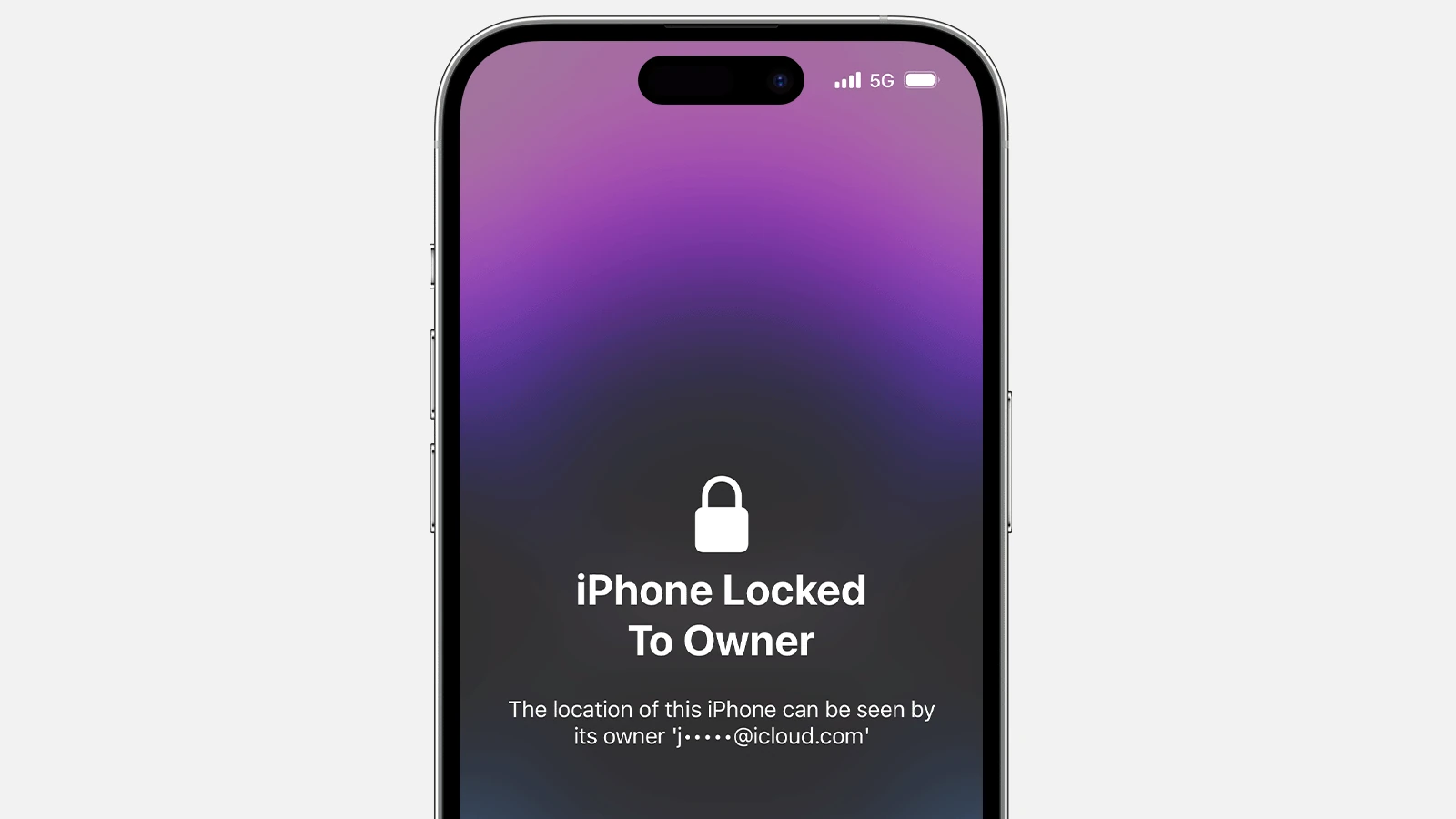
iPhone Security Lockout can be frustrating, especially when you’re locked out of your own device. This security feature is designed to protect your data and privacy from unauthorized access. Imagine the annoyance of forgetting your passcode and not being able to access important information on your phone. Fortunately, there are ways to bypass this lockout and restore your device to normal use.
Make sure you are logged into the Find My app with the same credentials associated with your locked iPhone. This method allows you to erase your device and remove the lockout. Keep in mind that this will erase all data on your device. Another option is using Recovery Mode by connecting your iPhone to iTunes or Finder on a computer. Follow the prompts to restore your device to its factory settings.
These methods have their own pros and cons, but the key is to regain access to your device while maintaining security. Always remember to back up your data regularly to prevent data loss. With these tips, you can overcome the frustration of iPhone Security Lockout and keep your information secure.
iPhone Security Lockout Bypass
If your iPhone displays “Security Lockout” or “iPhone Unavailable”, it means the wrong passcode has been entered too many times. Apple locks the device to protect your data — but there are legitimate ways to regain access.
This guide explains what causes Security Lockout, how to bypass it safely, and how to prevent it from happening again.
(Sources: Apple Support, GeeksChalk, AppGeeker, iBoysoft, iSunshare)
⚠️ What “Security Lockout” Means
After multiple failed passcode attempts, iPhones automatically enter Security Lockout mode (iOS 15 and later).
You’ll see messages like:
- “iPhone Unavailable. Try again in 15 minutes.”
- “Security Lockout. Try again later.”
- “Erase iPhone” option (bottom-right corner).
This is a built-in security feature designed to prevent unauthorized access.
🧩 Before You Begin
✅ Ensure you remember your Apple ID and password — you’ll need them to reactivate the device after erasing.
✅ Make sure your iPhone is connected to Wi-Fi or cellular data (if possible).
✅ Backups: If you’ve previously backed up to iCloud or iTunes/Finder, your data can be restored later.
🔓 Method 1: Use “Erase iPhone” on the Lock Screen (No Computer Needed)
If your iPhone shows “Erase iPhone” on the Security Lockout screen:
- Tap “Erase iPhone.”
- Confirm you want to erase all content and settings.
- Enter your Apple ID password to sign out of iCloud.
- Wait for the device to erase and reboot.
- Set up your iPhone again and restore from iCloud backup if available.
✅ Best for: iPhones running iOS 15.2 or later with an internet connection.
✅ Pros: Simple, no computer required.
❌ Cons: All data on the device is erased.
💻 Method 2: Use Finder or iTunes (Computer Required)
If you don’t see the “Erase iPhone” option or your iPhone is offline:
- Turn off your iPhone completely.
- Enter Recovery Mode:
- iPhone 8 or later: Press and hold Side + Volume Down until the recovery screen appears.
- iPhone 7: Hold Volume Down + Side.
- iPhone 6s or earlier: Hold Home + Top/Side.
- Connect your iPhone to your Mac or PC using a cable.
- Open Finder (macOS Catalina or later) or iTunes (Windows/macOS Mojave or earlier).
- When prompted, choose “Restore.”
- Wait for the process to complete, then set up your iPhone as new.
✅ Best for: Devices without the “Erase iPhone” option.
✅ Pros: Works even if the iPhone is offline.
❌ Cons: Requires a computer and erases all data.
☁️ Method 3: Use iCloud’s “Find My iPhone” Feature
If Find My iPhone is enabled and the device is online:
- Go to iCloud.com/find on another device or computer.
- Sign in with your Apple ID.
- Select your locked iPhone from the list.
- Click “Erase iPhone.”
- Wait for the process to finish, then set up your iPhone again.
✅ Best for: Users who have Find My iPhone enabled.
✅ Pros: Remote erase, no cables needed.
❌ Cons: Requires internet and Apple ID access.
🧠 Method 4: Using Apple Configurator (Advanced Users / IT Admins)
For organizations or tech-savvy users managing multiple devices:
- Install Apple Configurator 2 on a Mac.
- Connect the locked iPhone via USB.
- Select the device → Click “Restore.”
- Wait for the process to complete and reactivate the device.
✅ Best for: IT admins or advanced users.
✅ Pros: Ideal for supervised or managed devices.
❌ Cons: Requires Mac and technical knowledge.
🔐 Important Notes
- There is no legitimate way to bypass Security Lockout without erasing the device.
Apple’s security system ensures that only verified owners can unlock it. - Avoid using third-party “unlock” tools or websites that claim to remove the lock — many are scams or violate Apple’s security policies.
- Always back up your iPhone regularly to iCloud or a computer to prevent data loss.
🧾 After Unlocking: Restore Your Data
Once the iPhone is erased, you can restore your data from:
- iCloud Backup: During setup, choose Restore from iCloud Backup.
- Computer Backup: Connect to Finder or iTunes and choose Restore Backup.
- No Backup: You’ll need to set up the iPhone as new.
🧩 Best Practices to Avoid Security Lockout
- Use Face ID or Touch ID to minimize passcode entry errors.
- Write down or securely store your passcode in a password manager.
- Update iOS regularly for bug fixes and improved security.
- Enable Find My iPhone for remote recovery options.
- Perform regular backups via iCloud or Finder/iTunes.
🧭 Summary Table
| Method | Requires Computer | Data Erased | Works Offline | Best For |
|---|---|---|---|---|
| Erase iPhone (on screen) | ❌ | ✅ | ❌ | Most users |
| Finder/iTunes Restore | ✅ | ✅ | ✅ | Devices without “Erase iPhone” |
| iCloud Find My | ❌ | ✅ | ❌ | Remote unlock |
| Apple Configurator | ✅ | ✅ | ✅ | IT/Admin users |
🚨 When to Contact Apple Support
If:
- You forgot your Apple ID password
- The iPhone is disabled without “Erase iPhone” option
- The device is linked to another Apple ID (Activation Lock)
👉 Visit Apple Support or an Apple Store for official assistance.
✅ Final Thoughts
A Security Lockout protects your privacy — but Apple provides safe, official ways to regain access.
Stick to Apple’s methods, avoid third-party “unlock” tools, and always keep your device backed up and updated to prevent future lockouts.
Key Takeaways
- Log into the Find My app to erase your locked iPhone.
- Recovery Mode can restore your device to factory settings.
- Regularly back up your data to prevent loss.
Understanding iPhone Security Lockout
iPhone Security Lockout is an important feature to protect your device from unauthorized access and secure your data. It involves various security measures and methods for recovery if locked out.
Security Measures and Lockout Triggers
Apple has put multiple security measures in place to protect iPhones. Face ID and Touch ID help secure the Lock Screen. When the wrong password or passcode is entered too many times, the iPhone Unavailable or Security Lockout screen may appear. iPhones running iOS 15.2 or later include a Timer that increases with each failed attempt. This feature prevents unauthorized access by making it harder to guess the password.
Recovery and Erase Options
If locked out, there are a few recovery options available. The Erase iPhone Option allows you to reset the device. Users can do this via the Find My iPhone app or by using Recovery Mode with iTunes or Finder. Find My iPhone lets you erase the device remotely. It is crucial to remember your Apple ID Password as it is required during the process. Resetting will erase all data, so having a Backup in iCloud Account is important.
Preventive Actions and Best Practices
To avoid Security Lockout, use Face ID or Touch ID for ease of access. Regularly update to the latest iOS version as it includes security enhancements. Make sure to remember your Apple ID Passcode. Set a memorable yet strong Password or Passcode. Regularly backup data to your iCloud Account. If you often mistype your password, consider enabling features that lock services after a set number of failed attempts to reduce the risk of bypass or permanent lockout.
Using these measures can help in maintaining the security of your iPhone while making recovery smoother in case of accidental lockout.





