
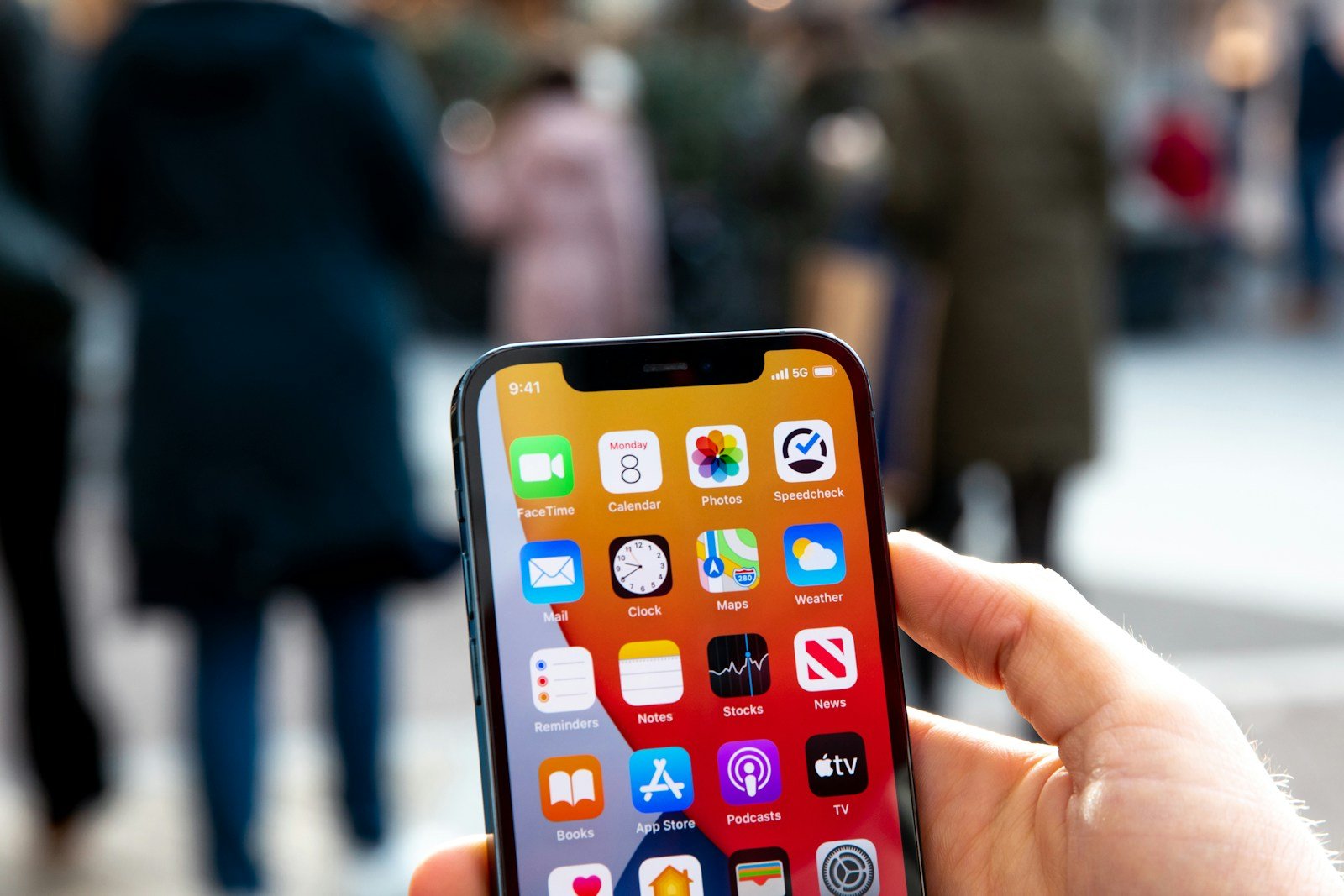
Dealing with a Wi-Fi disconnect issue when your iPhone is locked can be frustrating. The main reason why iPhones disconnect from Wi-Fi when locked is to save battery life. Yet, this can be inconvenient if you miss important notifications. Luckily, there are several ways to address this issue without compromising on performance.
For instance, turning off Wi-Fi Assist in settings can help maintain a stable Wi-Fi connection. Some users found disabling VPNs also makes a big difference. Adjusting these settings can keep your iPhone connected to Wi-Fi even when it’s locked.
Timed disconnects from Wi-Fi do more than frustrate. They can also interfere with app updates, backups, and notifications. With a few adjustments, your iPhone can stay connected and perform optimally even when it’s locked.
Guide: iPhone Disconnects from WiFi When Locked – Causes and Fixes
Many iPhone users experience a frustrating issue where their device disconnects from WiFi as soon as it locks or goes into sleep mode. This can disrupt downloads, streaming, notifications, and other background activities that rely on a stable internet connection. Fortunately, there are several reasons why this happens and multiple ways to fix it.
Why Does My iPhone Disconnect from WiFi When Locked?
The primary reason your iPhone disconnects from WiFi when locked is related to power-saving features designed to extend battery life. When the screen is off, iOS may reduce WiFi activity or switch to cellular data to conserve power. Other causes include:
- WiFi network settings or router issues
- Outdated iOS software
- Incorrect device settings
- Router firmware needing an update
- Interference or weak WiFi signal
How to Fix iPhone Disconnecting from WiFi When Locked
1. Ensure WiFi is Set to Automatically Join Networks
- Go to Settings > Wi-Fi.
- Tap the i icon next to your WiFi network.
- Make sure Auto-Join is enabled.
2. Disable Low Power Mode
Low Power Mode can limit background network activity.
- Go to Settings > Battery.
- Turn off Low Power Mode if it’s enabled.
3. Check WiFi Assist
WiFi Assist switches to cellular data when WiFi connectivity is poor, which might cause disconnections.
- Go to Settings > Cellular.
- Scroll down and toggle Wi-Fi Assist off.
4. Forget and Reconnect to the WiFi Network
- Go to Settings > Wi-Fi.
- Tap the i next to your network and select Forget This Network.
- Reconnect by selecting the network and entering the password.
5. Restart Your iPhone and Router
Sometimes a simple restart can resolve connectivity glitches.
- Power off your iPhone and turn it back on.
- Restart your WiFi router by unplugging it for 30 seconds and plugging it back in.
6. Update iOS and Router Firmware
- Update your iPhone to the latest iOS version via Settings > General > Software Update.
- Check your router manufacturer’s website for firmware updates and apply them.
7. Reset Network Settings
If issues persist, reset network settings. This erases saved WiFi passwords, so be prepared to reconnect.
- Go to Settings > General > Reset.
- Tap Reset Network Settings.
8. Disable VPN or Security Apps Temporarily
VPNs or security apps can interfere with WiFi connections. Try disabling them to see if it helps.
Additional Tips
- Keep your iPhone charged; very low battery can trigger aggressive power-saving modes.
- Avoid using WiFi networks with weak signals or overcrowded channels.
- If you use a dual-band router, try switching between 2.4 GHz and 5 GHz bands.
When to Contact Apple Support
If none of the above solutions work, the issue might be hardware-related or more complex software corruption. Contact Apple Support or visit an Apple Store Genius Bar for professional diagnostics.
By following these troubleshooting steps, you should be able to prevent your iPhone from disconnecting from WiFi when locked, ensuring uninterrupted connectivity even when your screen is off.
Sources:
- Techbout: Fix iPhone Disconnects from WiFi When Locked
- Apple Community Discussions
- TunesKit iOS Repair Guide
- Gotechtor Troubleshooting Guide
Key Takeaways
- Disable Wi-Fi Assist in settings to keep Wi-Fi stable.
- Turning off VPNs can resolve Wi-Fi disconnects.
- Adjust iPhone settings to stay connected when locked.
Identifying and Resolving iPhone Wi-Fi Disconnection Issues
Many iPhone users experience Wi-Fi disconnection when their device is locked or in sleep mode. This guide covers understanding the problem, identifying common causes, adjusting network settings, and exploring hardware fixes.
Understanding the Problem
When an iPhone disconnects from Wi-Fi during lock screen mode, it can be frustrating. The primary effect is the inability to receive calls or messages through apps that need internet. This often happens due to software bugs, outdated iOS versions, or incorrect settings. Identifying the exact issue is key to finding a solution that keeps the iPhone connected to the Wi-Fi network.
Common Causes of Wi-Fi Disconnection
Wi-Fi disconnections can stem from several causes. Software bugs and glitches in the iOS are common culprits. Outdated router firmware can also cause issues. Some devices may have trouble maintaining a stable connection due to incompatible settings. Additionally, VPN services can interfere with Wi-Fi connectivity. To address these causes, updating software and checking router compatibility are crucial steps.
Network Settings and Configuration
Proper network settings are essential for a stable Wi-Fi connection. First, users should check if the Wi-Fi Assist feature is off. This feature switches to cellular data if the Wi-Fi connection is weak. Turning off VPN services can also help. It’s important to reset network settings if the issue persists. This can be done through the iPhone’s settings menu. Users should also consider restarting their iPhone and router.
Hardware-Related Fixes
Hardware issues can also cause Wi-Fi disconnections. The router might need a firmware update to ensure it works well with the iPhone. Sometimes, simply restarting the modem and router can solve connectivity issues. Users should also ensure their router is in a good location for optimal signal strength. In rare cases, the iPhone’s Wi-Fi antenna may be faulty, requiring professional repair.
By addressing these key areas, users can often resolve their iPhone’s Wi-Fi connectivity issues effectively.





