
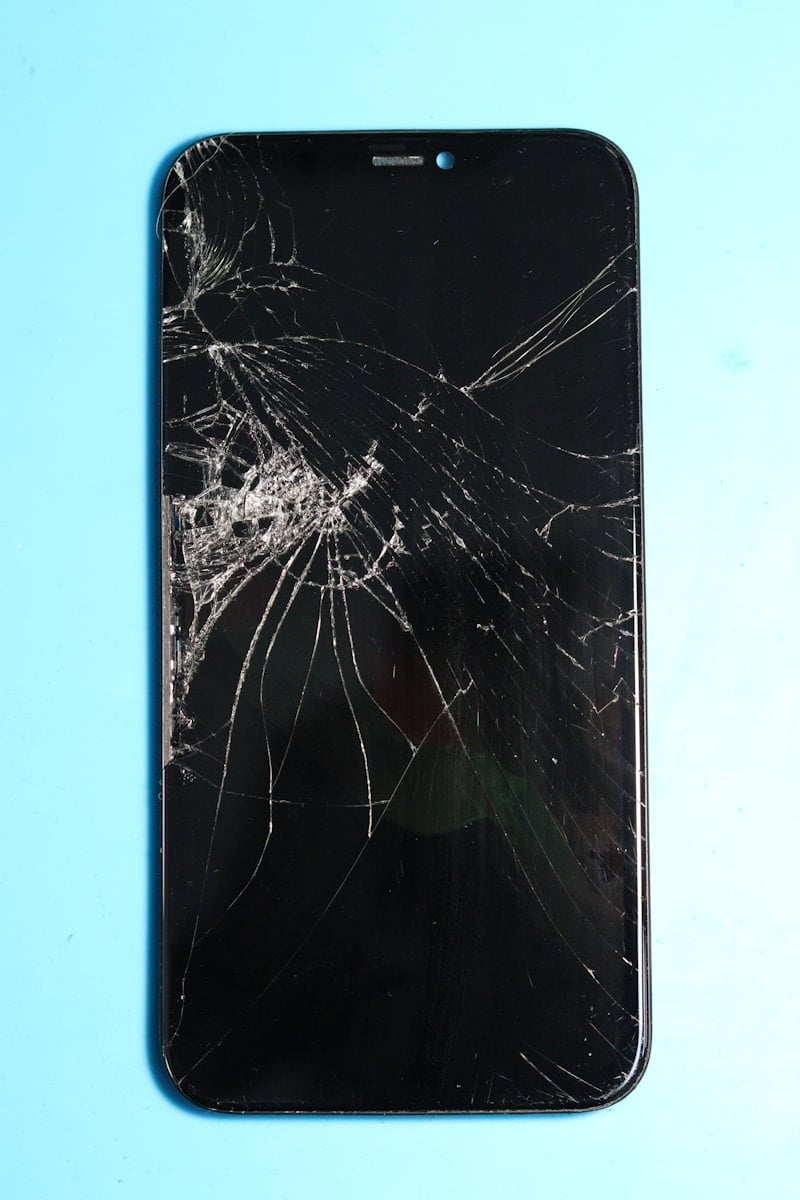
Experiencing a broken iPhone screen can be frustrating, especially if you need urgent access. There are several ways to unlock your iPhone even with a broken screen, ensuring you stay connected and get your data. This article will guide you through simple methods that can help you bypass the passcode without needing a full screen.
Using Siri, an external keyboard, or even iTunes, you can navigate and unlock your iPhone. Each method is straightforward and can be accomplished with tools and features you likely already have. You’ll be able to choose a method that fits your situation best.
Assessing the extent of the screen damage is also crucial. If only a part of the screen is broken, some touch functionality might still work. However, if the entire screen is unresponsive, alternative methods like using a computer or voice commands will be necessary.
How to Get Into an iPhone with a Broken Screen
Dropping your iPhone and cracking the screen is frustrating enough, but when the touchscreen becomes unresponsive, accessing your device seems impossible. Fortunately, there are several methods to unlock and control your iPhone even with a broken screen.
Quick Assessment: Can You Still Use Touch?
Before trying advanced methods, test if your screen still responds to touch in certain areas:
- Try entering your passcode by tapping where the numbers should be
- If Face ID or Touch ID still works, you may be able to unlock without touching the screen at all
- If the screen is completely black but the iPhone powers on, you may still have options
Method 1: Use Face ID or Touch ID (Easiest)
If your biometric authentication still works, this is the simplest solution:
For Face ID:
- Wake your iPhone (press the side button)
- Look at your phone to unlock with Face ID
- Swipe up from the bottom (even if you can’t see it)
For Touch ID:
- Press the Home button with your registered fingerprint
- The device should unlock automatically
Once unlocked, you can connect to a computer or use Siri to access certain functions (source: AppGeeker).
Method 2: Use Siri to Make Calls or Access Features
If Siri is enabled, you can control some iPhone functions without touching the screen:
- Say “Hey Siri” (if enabled) or press and hold the Home/Side button
- Ask Siri to:
- “Call [contact name]”
- “Send a message to [contact]”
- “Open [app name]”
- “Turn on VoiceOver”
- “What time is it?” (to verify Siri is working)
Enable VoiceOver through Siri:
- Say “Hey Siri, turn on VoiceOver”
- VoiceOver reads screen elements aloud and allows gesture-based navigation
- Use different tap and swipe patterns to control your phone
(source: iSunshare)
Method 3: Connect to a Computer (Previously Trusted)
If you’ve previously connected your iPhone to a computer and selected “Trust This Computer,” you can access your data:
For Mac (macOS Catalina or later):
- Connect your iPhone to your Mac using a Lightning cable
- Open Finder
- Select your iPhone from the sidebar
- You can now back up, sync, or restore your iPhone
- Use QuickTime Player to mirror your iPhone screen
For Windows or older Mac (with iTunes):
- Connect your iPhone to the computer
- Open iTunes
- Your iPhone should appear automatically
- Click on your device icon
- Back up your data before attempting repairs
(source: AppGeeker)
Method 4: Use an External Mouse or Keyboard (Adapter Required)
You can control your iPhone using an external device:
What You Need:
- Lightning to USB Camera Adapter (or USB-C adapter for newer iPhones)
- USB mouse or keyboard
- Or use a Bluetooth mouse/keyboard
Steps:
- Connect the adapter to your iPhone
- Connect a USB mouse to the adapter
- A cursor should appear on your screen
- Use the mouse to navigate and enter your passcode
- Once unlocked, back up your data immediately
For Bluetooth:
- If Bluetooth was previously enabled, you can pair a Bluetooth mouse/keyboard
- If not enabled, you’ll need the adapter method first
(source: Passixer)
Method 5: Mirror to Apple TV or AirPlay Device
If your iPhone was previously connected to an Apple TV:
- Ensure your iPhone and Apple TV are on the same Wi-Fi network
- On your Apple TV, go to Settings > AirPlay and HomeKit
- Your iPhone may automatically connect if previously paired
- Navigate using your Apple TV remote to control the iPhone interface
- Enter your passcode using the remote
(source: Mobikin)
Method 6: Use VoiceOver for Navigation
VoiceOver is an accessibility feature that can help you navigate without seeing the screen clearly:
Enable through Siri:
- Say “Hey Siri, turn on VoiceOver”
Enable through Computer (if connected):
- In iTunes or Finder, go to your device settings
- Enable VoiceOver from accessibility options
VoiceOver Gestures:
- Single tap – Select an item (it will be read aloud)
- Double tap – Activate the selected item
- Three-finger swipe – Scroll
- Two-finger double tap – Answer/end calls
(source: iBoysoft)
Method 7: Use Find My iPhone to Erase (Last Resort)
If you need to access your iPhone urgently but can’t get in, and you’re willing to erase it:
- Go to iCloud.com on any device
- Sign in with your Apple ID
- Click Find My iPhone
- Select your iPhone
- Click Erase iPhone
- After erasing, set up as new or restore from backup
- You’ll have a fresh iPhone (minus the broken screen) that you can access
Important: This deletes all data not backed up to iCloud (source: imyPass).
Method 8: Third-Party Screen Mirroring Apps
If you had previously installed screen mirroring software:
Popular Options:
- TeamViewer
- AnyDesk
- ApowerMirror
These apps allow you to control your iPhone from a computer, but they must have been installed and configured before the screen broke (source: Mobikin).
What If None of These Work?
Professional Repair
- Take your iPhone to an Apple Store or authorized repair center
- Screen repairs typically cost $129-$379 depending on model
- Apple can often replace the screen while preserving your data
Data Recovery Services
- Professional data recovery services can extract data from iPhones
- These services can be expensive ($300-$1000+)
- Only necessary if you have critical unbackable data
Recovery Mode Restore (Data Loss Warning)
If you’re locked out and willing to lose data:
- Connect iPhone to computer
- Force restart to enter Recovery Mode:
- iPhone 8 or later: Press Volume Up, then Volume Down, then hold Side button
- iPhone 7: Hold Volume Down + Side button
- iPhone 6s or earlier: Hold Home + Top/Side button
- Hold until you see the Recovery Mode screen
- Choose Restore in iTunes/Finder
- This erases everything and installs fresh iOS
(source: iSunshare)
Prevention Tips for the Future
Enable These Features Now:
- iCloud Backup – Settings > [Your Name] > iCloud > iCloud Backup
- Hey Siri – Settings > Siri & Search > Listen for “Hey Siri”
- VoiceOver Shortcut – Settings > Accessibility > Accessibility Shortcut > VoiceOver (triple-click side/home button to enable)
- Trust Your Computer – Connect to your main computer regularly
- Face ID/Touch ID – Set up biometric authentication
Regular Backups:
- Enable automatic iCloud backups
- Periodically back up to your computer via iTunes/Finder
- Use third-party backup solutions for important data
Physical Protection:
- Use a quality screen protector and case
- Consider AppleCare+ for accidental damage coverage
Conclusion
Getting into an iPhone with a broken screen is challenging but often possible, especially if you’ve prepared in advance by enabling features like Face ID, Siri, and iCloud backups. The best method depends on your specific situation—whether the screen is cracked but functional, completely unresponsive, or totally black.
Priority Actions:
- Try biometric unlock (Face ID/Touch ID)
- Use Siri to enable VoiceOver or access functions
- Connect to a trusted computer
- Use an external mouse via adapter
- As a last resort, erase and restore from backup
The most important takeaway: Back up your iPhone regularly. Even if you can’t access a broken phone, a recent backup means you’ll lose minimal data when you get a replacement or repair (source: AppGeeker).
Key Takeaways
- Several methods can unlock an iPhone with a broken screen.
- Using Siri, an external keyboard, or iTunes are effective approaches.
- Knowing the extent of the damage helps in selecting the right method.
Assessing the Extent of the Damage
Evaluating the condition of a broken iPhone screen is crucial before any repair or recovery process. This involves checking both the physical damage and how it impacts functionality.
Determining the Damage to Your iPhone Screen
Start by inspecting the screen for any visible cracks or breaks. Use a soft cloth to wipe the screen clean so you can see all the details. Look for hairline cracks, which might not affect usability much, versus deep breaks that can disable the touch screen. If you see pieces of glass sticking out, handle your device with care to avoid cuts.
Next, examine the glass for any areas where it has separated from the frame. This can cause more serious issues. If the screen is jagged or has large cracks, you should avoid using the phone. Large cracks often signal more internal damage.
Understanding the Impact on Screen Functionality
Test if the touch screen works. Try to swipe and touch icons to see if they respond. Even if the screen is cracked, it might still work partially. In many cases, the top part of the screen works while the bottom doesn’t. This can help decide the next steps for either using or repairing the phone.
If the screen is unresponsive, it likely indicates more severe issues. Check if the display shows any discoloration or if there are any visible lines. These signs suggest internal damage that might require professional repair.
Finally, see if there are parts of the screen where touch doesn’t work. This can mean that certain parts of the digitizer (the touch layer) are damaged. If you find these issues, you might need to back up your data and look into repair options quickly.





