
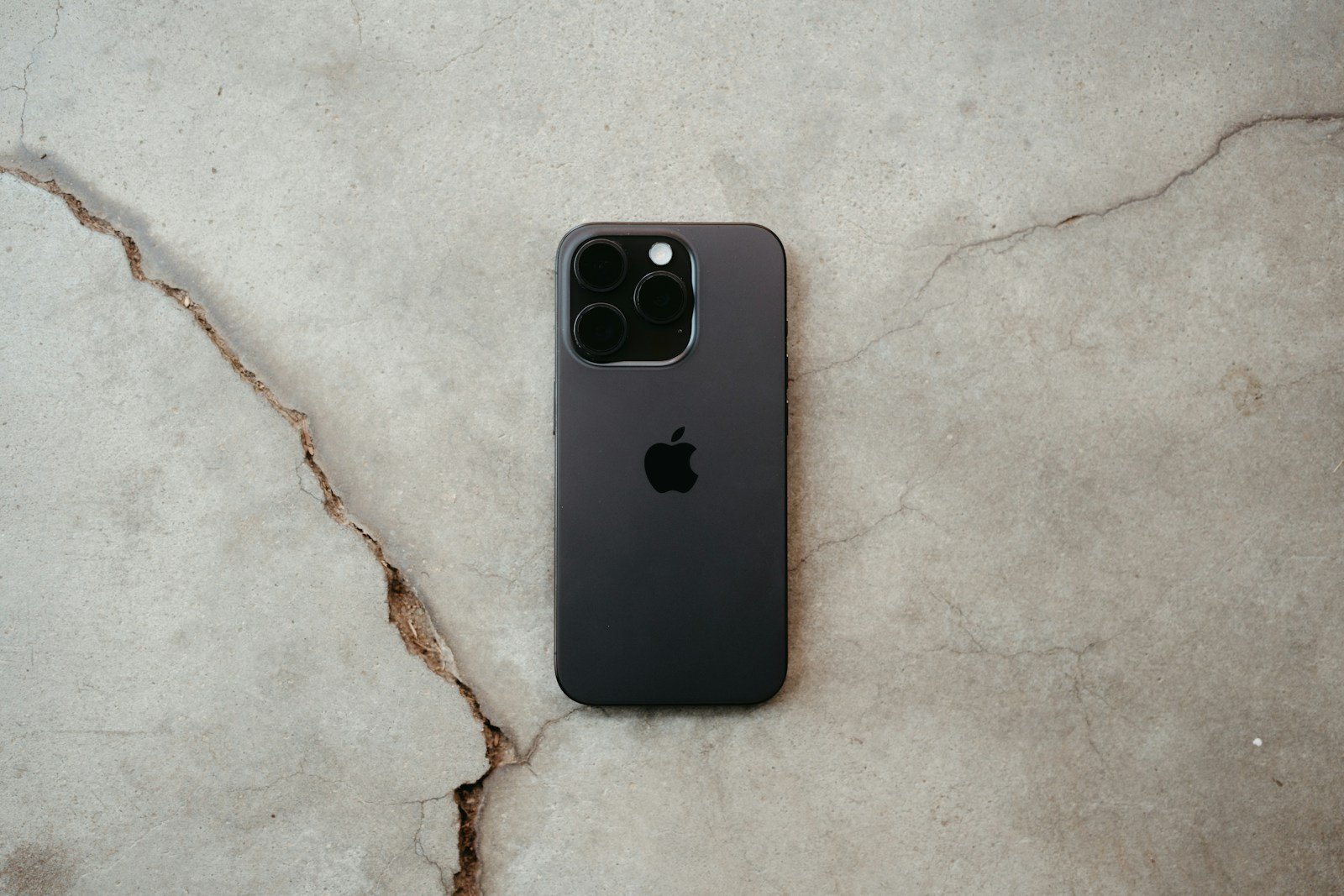
The fear of losing an iPhone to theft is a common concern for many people. It’s not just the value of the device but the personal data it holds. Yes, a thief can unlock a stolen iPhone, but it is not easy. Thieves often try to remove passcodes or use methods such as erasing everything on the phone.
iPhone security features, like Find My iPhone and Lost Mode, give owners a fighting chance to locate or lock their device. If your iPhone is stolen, highlighting just how vital it is to use these features becomes clear. Thieves have techniques, but Apple’s measures often make their tasks harder.
Understanding how they bypass these protections can help you respond more effectively. Knowing these details is crucial. This information can help you take the right precautions and act quickly if you find yourself in this unlucky situation.
Can Someone Unlock My Stolen iPhone?
If your iPhone has been stolen, one of your biggest concerns is likely whether the thief can unlock it and access your personal information. This comprehensive guide covers what thieves can and cannot do with a stolen iPhone, how Apple’s security features protect you, and what steps you should take immediately.
Can a Thief Unlock a Stolen iPhone?
The short answer: It’s extremely difficult, but not impossible in certain circumstances.
Modern iPhones have multiple layers of security that make unauthorized access very challenging. However, the level of protection depends on your security settings and how quickly you act after the theft.
Apple’s Built-In Security Features
1. Activation Lock
Activation Lock is tied to your Apple ID and makes it nearly impossible for someone to use a stolen iPhone (source: Apple Support).
- Prevents anyone from activating the device without your Apple ID and password.
- Remains active even if the thief erases the iPhone.
- Makes the device essentially worthless to thieves.
2. Face ID and Touch ID
- Biometric authentication prevents unauthorized access to your lock screen.
- Cannot be bypassed without your face or fingerprint.
- Limited to 5 failed attempts before requiring passcode.
3. Passcode Protection
- Six-digit (or custom) passcode required after biometric failures.
- Device erases all data after 10 failed passcode attempts (if enabled).
- Strong passcodes are extremely difficult to crack.
4. Find My iPhone
- Tracks your device’s location in real-time.
- Allows you to remotely lock or erase your iPhone.
- Displays a custom message on the lock screen.
How Thieves Might Try to Unlock Your iPhone
Methods That Usually Don’t Work:
- Guessing Your Passcode: With limited attempts and increasing delays between tries, this is nearly impossible.
- Factory Reset Without Apple ID: The thief can erase the device, but Activation Lock prevents reactivation without your credentials (source: Tenorshare).
- Third-Party Unlocking Tools: Most consumer-grade tools cannot bypass modern iOS security without the passcode.
Methods That Might Work (In Limited Circumstances):
- Social Engineering: Thieves may try to trick you into providing your Apple ID password through phishing emails or fake messages claiming to be from Apple.
- Shoulder Surfing: If someone observed you entering your passcode before the theft, they can access your device.
- Weak Passcodes: Simple passcodes (like “1234” or “0000”) can be guessed more easily.
- Professional Forensic Tools: Law enforcement-grade tools exist but are expensive, rarely accessible to common thieves, and don’t always work on newer iPhones (source: UltFone).
- Recovery Mode Exploit: Using iTunes/Finder to restore the iPhone, but Activation Lock still prevents use of the device afterward (source: Tenorshare).
What Happens When Your iPhone Is Stolen?
| Scenario | Can Thief Access Your Data? | Can Thief Use the iPhone? |
|---|---|---|
| Locked with strong passcode + Find My enabled | No | No |
| Locked with weak passcode + Find My enabled | Possibly | No (due to Activation Lock) |
| Unlocked or no passcode + Find My enabled | Yes | No (once you mark as lost) |
| Locked + Find My disabled | Unlikely | Yes (after factory reset) |
| Unlocked + Find My disabled | Yes | Yes |
Immediate Steps to Take If Your iPhone Is Stolen
1. Mark Your iPhone as Lost
- Go to iCloud.com/find or use Find My app on another Apple device.
- Select your stolen iPhone.
- Click Mark as Lost or Lost Mode.
- This locks your device remotely and displays a custom message with contact information (source: Apple Support).
2. Remotely Erase Your iPhone
If you believe you won’t recover your device and want to protect your data:
- In Find My, select your device.
- Choose Erase This Device.
- All personal information will be permanently deleted.
- Note: You won’t be able to track the device after erasing, but Activation Lock remains active (source: Forbes).
3. Report the Theft
- File a police report with your iPhone’s serial number and IMEI.
- Contact your carrier to suspend service and blacklist the device.
- Report to your insurance company if you have coverage.
4. Change Your Apple ID Password
- Go to appleid.apple.com.
- Sign in and change your password immediately.
- This prevents the thief from accessing iCloud, making purchases, or disabling Find My.
5. Change Other Important Passwords
- Banking apps
- Email accounts
- Social media
- Any apps with saved login credentials
6. Enable Two-Factor Authentication (if not already enabled)
- Adds an extra layer of security to your Apple ID.
- Prevents unauthorized access even if someone has your password.
Preventive Measures: Protect Your iPhone BEFORE It’s Stolen
Enable Stolen Device Protection (iOS 17.3+)
Apple introduced enhanced security features to protect against theft (source: Forbes):
- Go to Settings > Face ID & Passcode.
- Enable Stolen Device Protection.
- This requires Face ID/Touch ID and security delays for sensitive actions when away from familiar locations.
Use a Strong Passcode
- Avoid simple combinations like “123456” or birthdates.
- Use an alphanumeric passcode for extra security.
- Enable automatic device wipe after 10 failed attempts.
Enable Find My iPhone
- Go to Settings > [Your Name] > Find My.
- Turn on Find My iPhone.
- Enable Send Last Location to track your device even when battery is critically low.
Disable Control Center and Siri Access from Lock Screen
- Prevents thieves from accessing settings or information without unlocking.
- Go to Settings > Face ID & Passcode and disable these features.
Regular Backups
- Use iCloud or iTunes/Finder to back up regularly.
- Ensures you can restore data to a new device if theft occurs.
Record Your Device Information
- Note your iPhone’s serial number and IMEI (found in Settings > General > About).
- Keep this information somewhere safe for police reports and insurance claims.
Can Stolen iPhones Be Used for Parts?
Even if a thief cannot unlock your iPhone, they might attempt to:
- Sell it for parts (screen, battery, camera modules).
- Export it to countries with less stringent Activation Lock enforcement.
- Attempt to bypass Activation Lock through unauthorized methods.
However, Apple’s security makes stolen iPhones significantly less valuable to thieves than they once were.
What NOT to Do If Your iPhone Is Stolen
| Don’t | Why |
|---|---|
| Meet the thief alone | Dangerous; always involve law enforcement |
| Click suspicious links | Phishing attempts to steal your Apple ID |
| Delay marking as lost | Gives thieves more time to attempt access |
| Assume it’s gone forever | Many iPhones are recovered through Find My |
| Remove device from Find My | Disables Activation Lock and helps the thief |
Can Police Track a Stolen iPhone?
- Yes, if Find My is enabled: You can share your device’s location with law enforcement.
- Police may be able to work with Apple in serious cases, though Apple typically requires a court order.
- Having your serial number and IMEI helps police identify recovered devices.
Summary: Protection Levels
| Security Setup | Thief Can Unlock? | Thief Can Use Device? | Your Data Protected? |
|---|---|---|---|
| Strong passcode + Find My + Stolen Device Protection | No | No | Yes |
| Strong passcode + Find My | Very Unlikely | No | Yes |
| Weak passcode + Find My | Possibly | No | Partially |
| No passcode + Find My | Yes | No (after marked lost) | No |
| Any passcode + No Find My | Possibly | Yes (after reset) | Partially |
Conclusion
While determined thieves with professional tools might have limited success in specific circumstances, Apple’s comprehensive security features—especially Activation Lock and Find My iPhone—make it extremely difficult for someone to unlock and use a stolen iPhone (source: Apeaksoft).
The key takeaways:
- Enable Find My iPhone and use a strong passcode.
- Act quickly to mark your device as lost and erase it remotely if necessary.
- Enable Stolen Device Protection for enhanced security.
- Be vigilant against phishing attempts after a theft.
By following these preventive measures and responding promptly if your iPhone is stolen, you can significantly reduce the risk of unauthorized access to your personal information (source: Clarify How).
Key Takeaways
- A thief can unlock a stolen iPhone.
- Apple provides security features to help protect your device.
- Responding quickly can improve your chances of recovery.
Understanding iPhone Security Features
Apple provides several security features to help keep iPhones safe from unauthorized access. These include Activation Lock, Find My iPhone, and advanced iOS security settings like passcodes and biometric options.
Activation Lock and Apple ID
Activation Lock is a feature tied to your Apple ID. When you set up Find My iPhone, Activation Lock activates automatically.
This feature prevents anyone from using your iPhone without your Apple ID and password. If someone tries to erase or reactivate your device, they’ll be stopped by this lock.
To enable Activation Lock, make sure Find My iPhone is turned on. You can check this in Settings -> Apple ID -> iCloud -> Find My iPhone.
Once enabled, your Apple ID and password will be required to turn off Find My iPhone, erase your device, or reactivate it.
Find My iPhone and Lost Mode
Find My iPhone helps you locate your device if it’s lost or stolen. You can access it through the Find My app or iCloud website.
With Find My iPhone, you can see your device’s location on a map. Lost Mode locks your device with a passcode and displays a custom message on the lock screen.
To turn on Lost Mode, open the Find My app, select your device, and choose Activate under Lost Mode.
This feature can also track the device’s location and notify you when it’s found. This ensures you can keep tabs on your iPhone even when it’s out of your hands.
iOS Security and Passcode Settings
iOS provides several layers of security settings. These include passcodes, Touch ID, and Face ID.
Start with a strong passcode. Go to Settings -> Face ID & Passcode (or Touch ID & Passcode if you have an older device). A strong passcode is at least six digits long.
Face ID uses facial recognition, while Touch ID offers fingerprint recognition. Both are secure and convenient.
For added security, enable two-factor authentication (2FA) for your Apple ID. With 2FA, even if someone has your password, they can’t access your account without a verification code sent to your trusted devices.
Keeping your iPhone’s software up to date ensures you benefit from the latest security improvements. Regular updates protect against new vulnerabilities, helping keep your device secure.





