
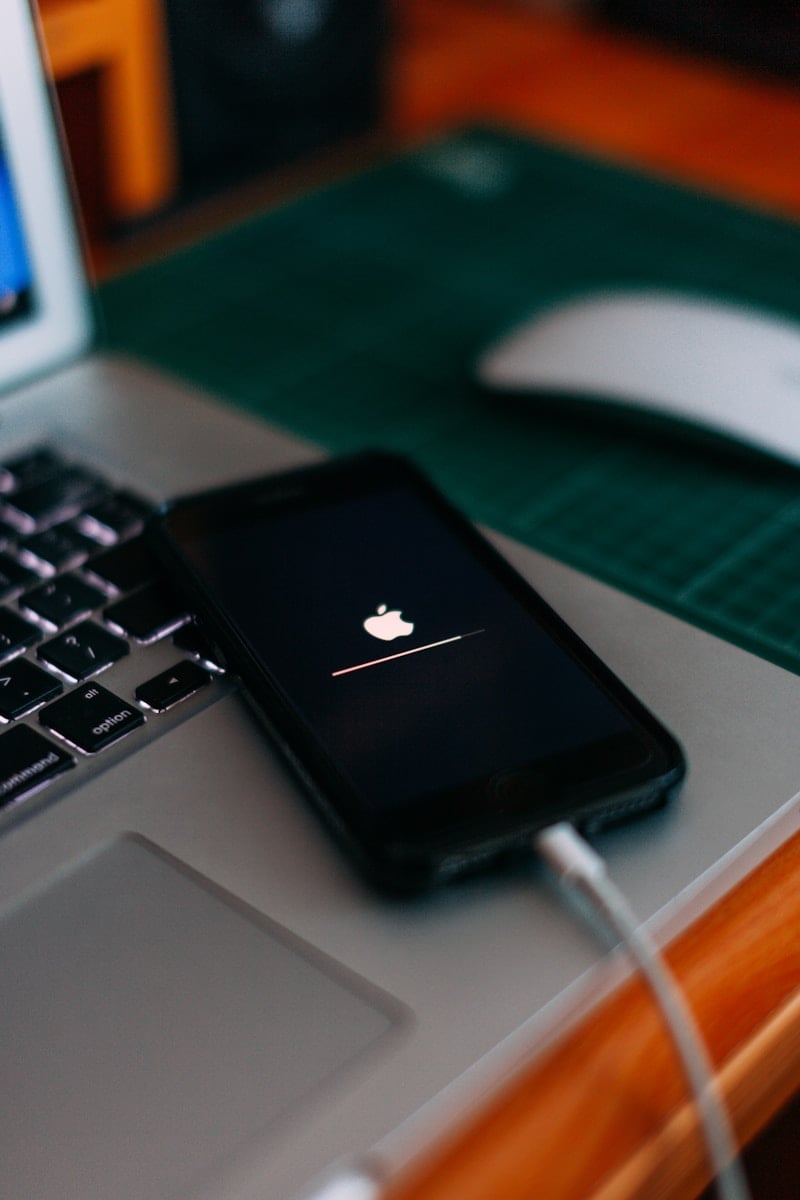
Encountering an issue where your iPhone can’t check for updates can be frustrating. This problem might prevent you from accessing the latest features or important security patches. If your iPhone can’t check for updates, the issue may stem from a variety of factors such as network problems, insufficient storage, or even a glitch in the system.
Ensuring your iPhone is connected to a stable Wi-Fi network is the first step. Sometimes, a weak or unstable internet connection can hinder the update process. Restarting your device and closing the Settings app may also resolve minor system glitches. Checking your available storage space is crucial. Free up some space if necessary to enable smooth updates.
Deleting any partially downloaded updates from the storage is another helpful step. If the problem persists, connecting your iPhone to a computer and updating through iTunes or Finder may be the next best solution. Properly addressing these common issues can often get your iPhone back on track with the latest updates.
iPhone Can’t Check for Updates: Solutions and Troubleshooting Steps
If your iPhone is stuck on “Checking for Update” or shows an error when trying to check for iOS updates, it can be frustrating. This guide provides effective solutions to resolve the problem.
Common Causes
- Poor or unstable internet connection
- Apple’s update servers are temporarily down
- Insufficient storage space on your iPhone
- Software glitches or bugs
- VPN or network restrictions interfering with update checks
- Outdated iOS version or corrupted system files
Step-by-Step Troubleshooting
1. Check Apple’s System Status
- Visit Apple’s System Status page to see if the iOS Software Update service is experiencing downtime.
- If servers are down, wait and try again later.
2. Verify Internet Connection
- Ensure your iPhone is connected to a stable Wi-Fi network.
- Avoid using cellular data for updates.
- Restart your Wi-Fi router if necessary.
- Try toggling Wi-Fi off and on.
3. Disable VPN or Proxy
- VPNs or proxies can interfere with update checks.
- Go to Settings > VPN and disconnect any active VPN.
- Also, check Settings > Wi-Fi > [Your Network] > Configure Proxy and set it to Off if enabled.
4. Restart Your iPhone
- A simple restart can fix temporary glitches.
- Press and hold the power button and volume button (or just the power button depending on model).
- Slide to power off, then turn your iPhone back on.
5. Check Available Storage
- Go to Settings > General > iPhone Storage.
- Ensure you have at least 5GB free for the update.
- Delete unnecessary apps, photos, or files if storage is low.
6. Reset Network Settings
- Go to Settings > General > Transfer or Reset iPhone > Reset > Reset Network Settings.
- This will erase saved Wi-Fi passwords, so be prepared to reconnect.
7. Update iPhone Using iTunes or Finder
- Connect your iPhone to a computer with the latest version of iTunes (Windows or macOS Mojave and earlier) or Finder (macOS Catalina and later).
- Select your device and click Check for Update.
- Update your iPhone via the computer.
8. Disable Automatic Updates Temporarily
- Go to Settings > General > Software Update > Automatic Updates.
- Turn off Download iOS Updates and Install iOS Updates.
- Try checking for updates manually again.
9. Restore iPhone as Last Resort
- Backup your iPhone via iCloud or computer.
- Use iTunes or Finder to Restore iPhone.
- This erases all content and settings but can fix deep software issues.
Additional Tips
- Ensure your date and time settings are set to Automatic (Settings > General > Date & Time).
- Avoid beta software profiles that may interfere with update checks.
- Keep your iPhone plugged into power during the update process.
Summary Table
| Step | What to Do |
|---|---|
| Check Apple System Status | Verify if update servers are down |
| Verify Internet Connection | Use stable Wi-Fi, restart router |
| Disable VPN/Proxy | Turn off VPN and proxy settings |
| Restart iPhone | Power cycle device |
| Check Storage | Free up space if needed |
| Reset Network Settings | Reset Wi-Fi and network configurations |
| Update via iTunes/Finder | Use computer to update |
| Disable Automatic Updates | Turn off auto-download/install |
| Restore iPhone | Backup and restore as last resort |
Key Takeaways
- Ensure a stable Wi-Fi connection.
- Check and free up storage space.
- Delete partially downloaded updates.
Troubleshooting iOS Update Issues
To resolve issues with your iPhone not being able to check for updates, it’s essential to focus on four main areas: network connections, storage space, Apple system status, and device restarts.
Verifying Network Connections and Settings
First, make sure the iPhone is connected to a stable Wi-Fi network, as updates generally require an internet connection. Open the Settings app and go to Wi-Fi. Confirm the connection shows a blue check mark and the network signal is strong.
If there are still issues, consider resetting the network settings. Navigate to Settings > General > Reset > Reset Network Settings. This will not delete personal data but will remove saved Wi-Fi passwords. After resetting, reconnect to the Wi-Fi network and try updating the iPhone again.
Ensuring Adequate Storage Space
Check if there is enough storage space for the update. Go to Settings > General > iPhone Storage. You will see a list of apps and the space they use. Clear any unnecessary apps, photos, or files to free up space.
Delete the existing update if it is partially downloaded. Open Settings > General > iPhone Storage, find the update, and tap on it. Then tap Delete Update. Afterward, go to Settings > General > Software Update and try downloading and installing the update again.
Checking Apple System Status
Sometimes, the problem isn’t with your device but with Apple’s servers. Visit Apple’s System Status page online. This page displays the current status of Apple services, including software updates.
If the status shows issues with the update server, it is best to wait until Apple resolves them. Trying to update during this time will not work.
Restarting Your iPhone
Restarting the iPhone can sometimes fix various issues. Hold down the power button until you see the slide to power off option. Slide to turn off the device. After the device powers down, wait a moment and hold the power button again until the Apple logo appears.
Also, it’s good to keep the iPhone charged during updates. Ensure that the device has at least 50% battery or is plugged into a power source before you begin the update process.





