
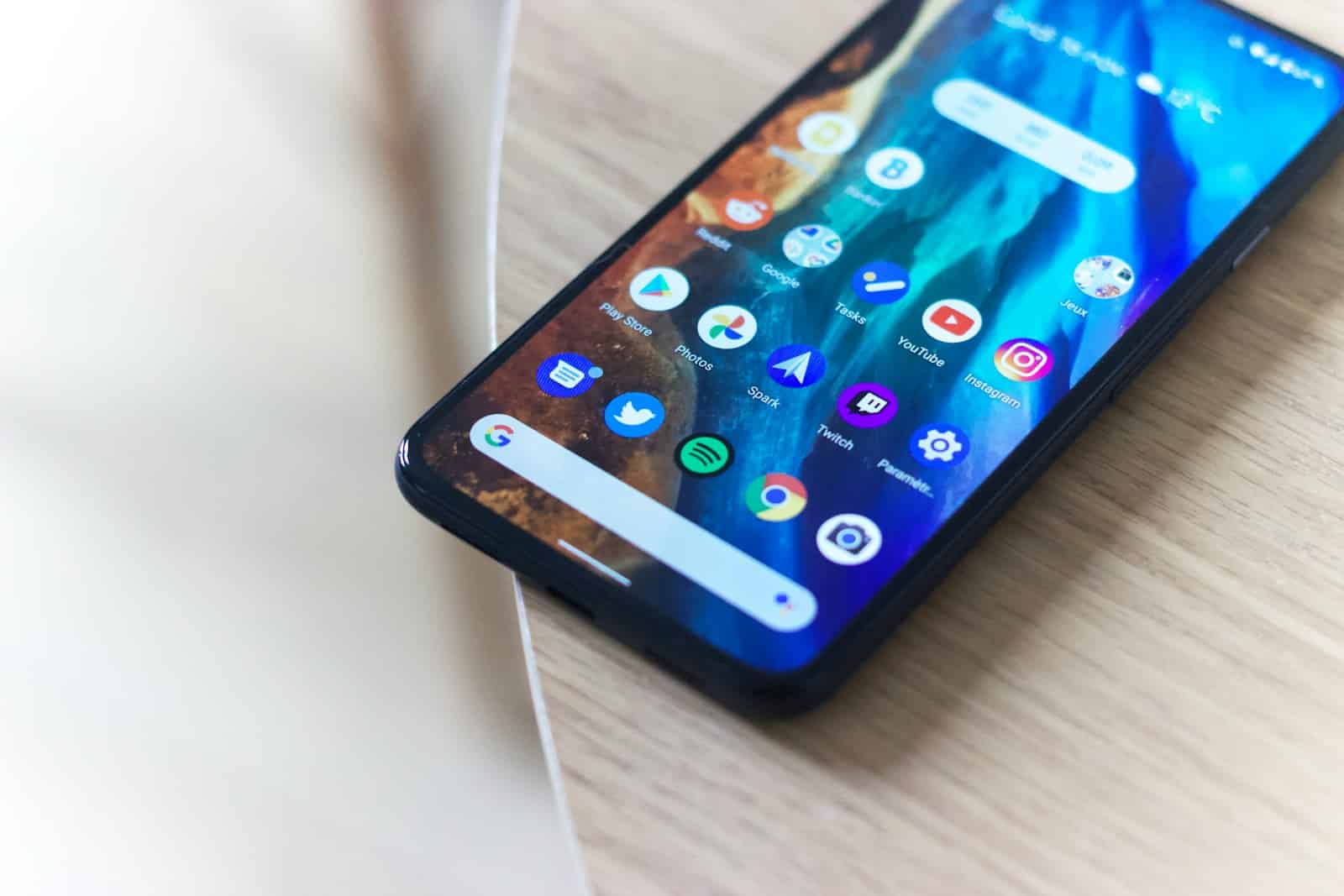
Resetting an Android phone is a process that restores the device to its original factory settings. It’s an effective solution when one encounters persistent issues, wants to clear personal data before selling the device, or simply seeks a fresh start. A factory reset removes all user data, including apps, contacts, messages, and media files, so it’s crucial to back up important information beforehand.
Preparing an Android phone for a reset involves several steps to ensure that valuable data is not lost. Users should back up their data to their Google account, an external storage device, or cloud services. It is also recommended to charge the phone or keep it connected to a power source during the reset process to prevent any interruptions.
How to Reset an Android Phone: Step‑By‑Step
Resetting your Android phone can fix persistent software issues, improve performance, or prepare it for sale. There are two main types of resets:
- Soft Reset (Restart) – Restarts your phone without erasing data.
- Factory Reset (Hard Reset) – Wipes all data and restores the device to original settings.
1. Soft Reset (Restart)
Use this for minor glitches or slow performance.
- Press and hold the Power button (or Power + Volume Down on some models).
- Tap Restart (or Reboot).
- Wait for your phone to power back on.
2. Factory Reset from Settings (Recommended)
This erases all personal data — back up your files first.
- Open Settings.
- Scroll to System (or General Management on Samsung).
- Tap Reset or Reset Options.
- Select Factory Data Reset.
- Review what will be erased, then tap Reset Phone (or Erase All Data).
- Enter your PIN/password if prompted.
- Tap Confirm to start the reset.
3. Factory Reset with Buttons (If Phone Won’t Turn On or Respond)
- Power off your phone.
- Press and hold the Power + Volume Up buttons (on Samsung, Power + Volume Up; on Pixel, Power + Volume Down, then navigate to Recovery Mode).
- Release buttons when the Android Recovery screen appears.
- Use the Volume buttons to highlight Wipe data/factory reset.
- Press Power to select.
- Confirm the reset.
- Once done, choose Reboot system now.
4. After the Reset
- You’ll need to sign in with your Google account (Factory Reset Protection).
- Restore your backup if you created one.
- Reinstall apps and adjust settings.
5. Important Notes
- A factory reset cannot be undone — all data is erased.
- Remove your SIM and microSD card if selling or giving away the device.
- If your phone is linked to a Google account, make sure you know the password to avoid being locked out.
Key Takeaways
- Resetting an Android phone reverts it to its original factory settings
- One should perform a data backup before the factory reset
- The device should have sufficient power throughout the reset process
Preparing for Reset
Resetting your Android phone is an important step to maintain your privacy and security when you decide to sell or recycle it. Before performing a factory reset, it is crucial to safeguard your personal information.
Backup Important Data
Your phone contains valuable data including photos, contacts, and files. They need protection. Use Google Drive or another cloud service to back up your Android. This ensures you can access your information even after the reset. Follow this list to back up different types of data:
- Contacts: Sync them with your Google account.
- Photos and videos: Upload to Google Photos.
- Files and documents: Save them to Google Drive or another cloud provider.
- App data: Many apps automatically back up to your Google account. Check app settings to confirm.
Remove SD and SIM Cards
If your phone has an SD card, remove it. This card has your photos and files. Removing the card protects this data. The same goes for your SIM card. It links to your carrier and contains personal info.
Sign Out of Accounts
Your smartphone likely has multiple accounts, like Google or social media. Signing out prevents future users from accessing them. To sign out:
- Open your phone’s settings.
- Tap on “Accounts” or “Users & accounts.”
- Select each account and remove it.
Check Your Internet Connection
Make sure your device has a strong internet connection during backup. A steady connection helps complete the data transfer without errors. Once the backup is done, you’re ready to reset your phone without losing important data.





