
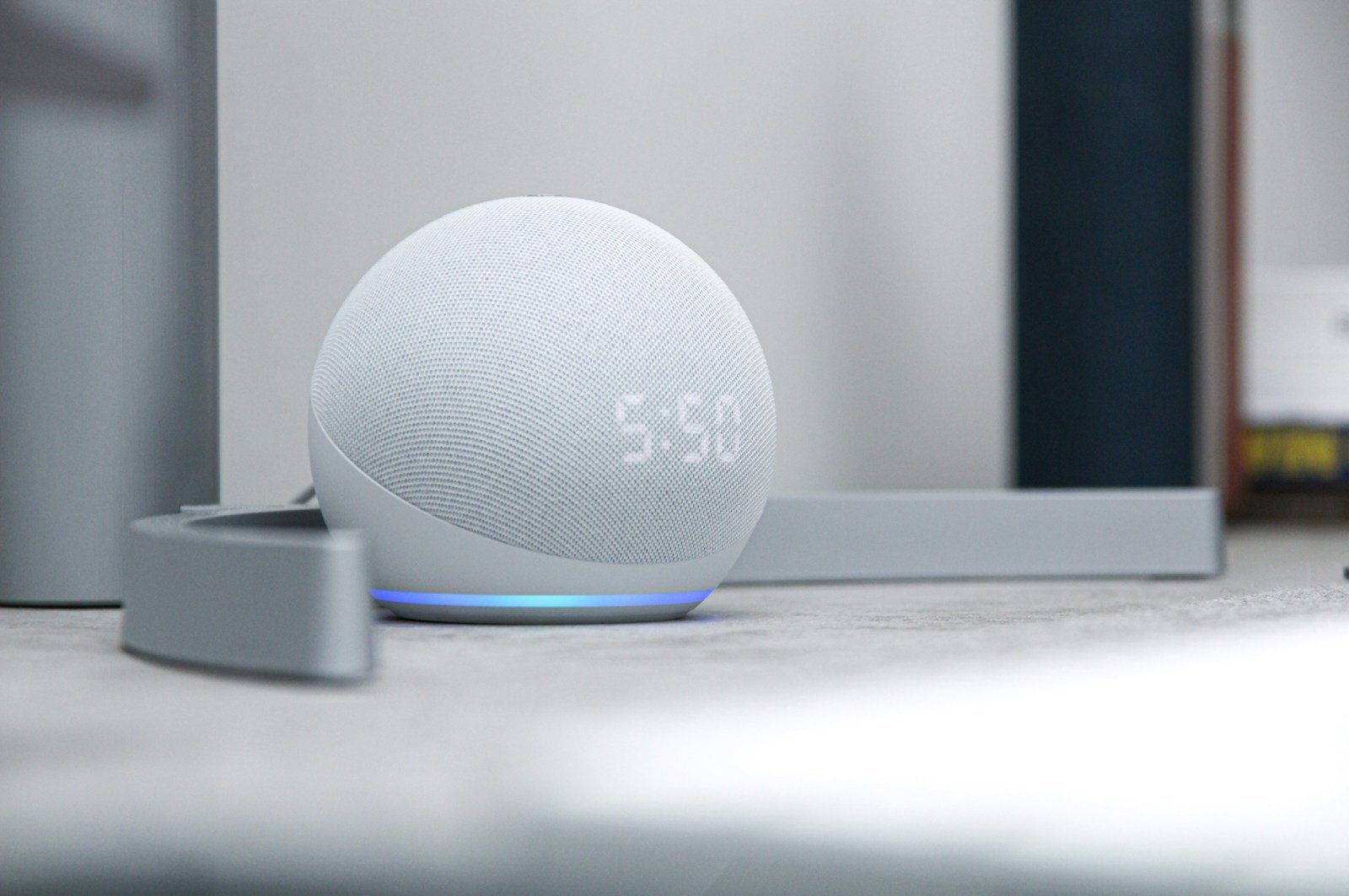
Amazon’s Alexa, a voice service that powers a variety of devices, has expanded its reach to Android phones, allowing users to interact with this smart assistant on their mobile devices. With Alexa’s ability to perform a vast array of tasks through voice commands, Android users can now leverage this intelligent service to make life more convenient. Users can ask Alexa to play music, provide news updates, check the weather, control smart home devices, and much more, right from their Android phone.
Setting up Alexa on an Android device is a simple process that involves downloading the Amazon Alexa app from the Google Play Store and logging in with an Amazon account. Once the app is set up, users can start interacting with Alexa by giving commands or asking questions. The service integrates with the phone’s features and apps, providing a seamless experience across both the phone and other Alexa-enabled devices.
Does Alexa Work with Android? Compatibility and Setup Guide
If you use an Android phone and are thinking about using Amazon Alexa, the good news is yes—Alexa works with Android. You don’t need an Echo device to get started, and setup is simple. This guide explains how Alexa works on Android, what you can do with it, and how to set it up properly.
Does Alexa Work on Android Phones?
✅ Yes. Alexa is fully compatible with Android devices.
Amazon provides an official Amazon Alexa app for Android that lets you:
- Talk to Alexa
- Control smart home devices
- Manage reminders, alarms, and routines
- Play music and podcasts
- Connect to Echo devices
Alexa works on most Android phones running Android 8.0 or newer.
How Alexa Works on Android
Alexa on Android functions as an app-based voice assistant, not a system-level assistant like Google Assistant.
Key differences from Google Assistant:
- Alexa does not replace Google Assistant
- You must open the Alexa app or use a widget
- Hands‑free activation is limited on most phones
Despite these limitations, Alexa still offers powerful smart home and Amazon ecosystem features.
How to Set Up Alexa on Android
Step 1: Download the Amazon Alexa App
- Open the Google Play Store
- Search for “Amazon Alexa”
- Install the official app by Amazon Mobile LLC
Step 2: Sign In to Your Amazon Account
- Open the Alexa app
- Sign in using your Amazon credentials
- Allow required permissions (microphone, notifications)
Step 3: Configure Basic Settings
Inside the app, you can:
- Set your location and time zone
- Choose your preferred language
- Enable voice responses
- Link music services (Amazon Music, Spotify, etc.)
Step 4: Add Alexa Devices (Optional)
If you own Echo devices:
- Go to Devices
- Tap + Add Device
- Follow the on-screen instructions
Using Alexa on Android
Once set up, you can use Alexa for:
✅ Smart Home Control
- Lights, plugs, thermostats, cameras
- Smart home routines
- Voice commands for supported devices
✅ Music & Media
- Amazon Music, Spotify, Apple Music
- Podcasts and audiobooks
- Multi-room audio with Echo devices
✅ Daily Tasks
- Alarms and timers
- Reminders and lists
- Weather, news, and traffic updates
✅ Shopping & Amazon Features
- Track Amazon orders
- Add items to shopping lists
- Reorder compatible products
Can Alexa Be Used Hands‑Free on Android?
⚠️ Limited support
Some Android devices previously supported “Alexa hands‑free,” but support varies by phone model and Android version.
Common limitations:
- You usually need to tap the app or widget
- Wake word (“Alexa”) may not work when the screen is off
- Battery optimization settings can interfere
For full hands‑free control, an Echo device is recommended.
Alexa vs Google Assistant on Android
| Feature | Alexa | Google Assistant |
|---|---|---|
| Works on Android | ✅ Yes | ✅ Yes |
| System-level control | ❌ No | ✅ Yes |
| Smart home ecosystem | ✅ Excellent | ✅ Excellent |
| Amazon integration | ✅ Best | ❌ Limited |
| Default assistant | ❌ No | ✅ Yes |
👉 Many users use both: Google Assistant for phone tasks and Alexa for smart home control.
Common Issues and Troubleshooting
Alexa Not Responding?
- Check microphone permissions
- Disable battery optimization for the Alexa app
- Ensure internet connectivity
Can’t Control Smart Devices?
- Make sure the skill is enabled
- Re-link the smart home account
- Check device compatibility
App Crashing or Freezing?
- Update the Alexa app
- Clear cache
- Restart your phone
Is Alexa Worth Using on Android?
✅ Yes, especially if you:
- Own Echo devices
- Use Amazon services
- Have a smart home setup
❌ Less ideal if you:
- Want a hands‑free phone assistant
- Need deep system-level phone control
Final Verdict
Alexa works well on Android and is easy to set up. While it doesn’t replace Google Assistant, it excels at smart home control, Amazon integration, and cross-device functionality. For the best experience, many Android users pair the Alexa app with Echo devices.
Key Takeaways
- Alexa can perform tasks on Android phones, enhancing user convenience.
- Setting up Alexa on Android involves downloading the app and logging in.
- Alexa integrates with phone features for a cohesive experience.
Compatibility and Setup
Alexa brings voice assistant capabilities to Android phones through a dedicated app and device pairing. This integration allows users to access Alexa’s features on their Android devices.
Alexa App on Android
The Amazon Alexa app serves as a bridge connecting Alexa to an Android phone. Users can find this app in the Google Play Store. Once the download is complete, they sign in with an Amazon account or create a new one. Android devices need a stable Wi-Fi connection during setup to ensure a smooth experience. The app’s compatibility with various Android phones makes it widely accessible.
Pairing Alexa With Android Devices
Connecting an Echo device to an Android phone starts with opening the Alexa app. Users tap ‘Echo & Alexa’ to choose the device they want to connect. In the Android phone’s settings, Bluetooth must be active. Under Bluetooth connections, the Echo appears in the list of available devices. Tapping the Echo name starts the pairing process, and once paired, users can enjoy a seamless link between Alexa and their Android phone.





