
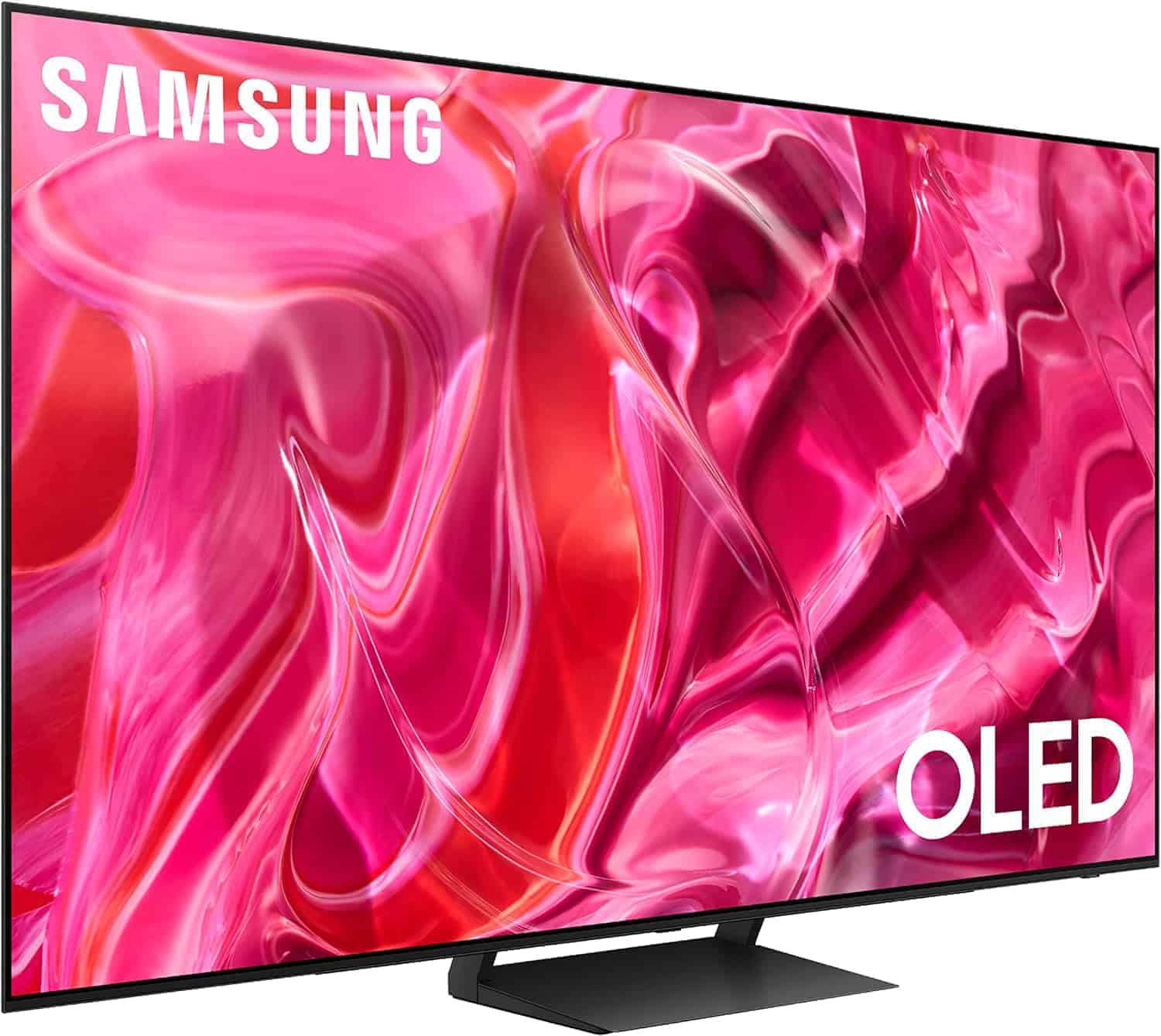
Connecting Bluetooth and wireless devices to your Samsung TV can greatly enhance your viewing and audio experience by enabling wireless audio streaming, gaming headsets, keyboards, and more. Here’s a comprehensive guide to help you understand and use Bluetooth and wireless features on your Samsung TV.
1. Which Samsung TVs Have Bluetooth?
Most modern Samsung Smart TVs, including the 2025 models like The Frame and QLED 4K HDR series, come equipped with Bluetooth functionality. To check if your specific model supports Bluetooth:
- Go to Settings > Sound > Sound Output.
- If you see options like Bluetooth Speaker List, your TV has Bluetooth capability.
If your TV model is older or doesn’t show these options, it may not support Bluetooth natively.
2. How to Enable Bluetooth on Samsung TV
To enable and use Bluetooth on your Samsung TV, follow these steps:
- Press the Home button on your remote.
- Navigate to Settings.
- Select Sound.
- Choose Sound Output.
- Select Bluetooth Speaker List or Bluetooth Audio.
- Your TV will scan for nearby Bluetooth devices.
- Select your device (headphones, speakers, soundbar) from the list to pair.
Once paired, audio will stream wirelessly to your Bluetooth device.
3. Devices You Can Connect via Bluetooth
- Wireless Headphones or Headsets: Great for private listening without disturbing others.
- Bluetooth Soundbars and Speakers: For enhanced audio quality without cables.
- Game Controllers: Some Samsung TVs support Bluetooth game controllers for gaming.
- Keyboards and Mice: For easier navigation and typing on smart TV apps.
4. Benefits of Using Bluetooth on Samsung TV
- Wireless audio for a clutter-free setup.
- Ability to watch TV or play games at high volume without disturbing others.
- Enhanced mobility and convenience.
- Seamless connection with multiple compatible accessories.
5. Troubleshooting Bluetooth Connection Issues
If you experience issues pairing or maintaining Bluetooth connections:
- Ensure your Bluetooth device is in pairing mode and close to the TV.
- Restart your TV and the Bluetooth device.
- Remove or forget the device on the TV and pair again.
- Check for software updates on your Samsung TV.
- Reduce interference by moving other wireless devices away.
6. Additional Tips
- Some Samsung TVs allow simultaneous connection of multiple Bluetooth devices.
- For the best audio quality, use devices that support advanced Bluetooth codecs.
- If your TV lacks native Bluetooth, consider using a Bluetooth transmitter connected via the TV’s audio output.
Do Samsung TVs Have Bluetooth?
Many Samsung TVs are equipped with Bluetooth capabilities, allowing users to connect a variety of audio devices wirelessly. This includes speakers, soundbars, headphones, and gamepads which can enhance the viewing and listening experience. To discover whether a specific Samsung TV model supports Bluetooth, one can navigate to the TV’s settings menu. Here, by selecting ‘Sound,’ followed by ‘Sound Output,’ the presence of a ‘Bluetooth Speaker List’ option will indicate Bluetooth support.
Not all Samsung TVs, however, come with built-in Bluetooth functionality. For models without this feature, external adapters are available to enable Bluetooth connectivity. This allows even non-Bluetooth TVs to connect with wireless audio devices, ensuring that users aren’t limited by the constraints of their TV’s original specifications.
Key Takeaways
- Samsung TVs may have Bluetooth capabilities for wireless audio connections.
- Bluetooth support can be verified through the TV’s sound settings.
- External adapters enable Bluetooth on Samsung TVs without built-in support.
Understanding Bluetooth Capabilities in Samsung TVs
Samsung TVs are equipped with built-in Bluetooth functions that let users easily connect a range of devices wirelessly, enhancing the audio experience and peripheral device interaction.
Samsung Smart TV Bluetooth Overview
Samsung Smart TVs come with Bluetooth technology that allows wireless connections between the TV and compatible devices. This tech makes it easy to stream audio without the mess of cables.
Compatible Bluetooth Devices and Pairing
Users can pair many devices with their Samsung TV. This includes speakers, soundbars, headphones, and earbuds. For pairing, one should go to the TV’s settings, find the Bluetooth device list, and follow the prompts to connect.
Enhancing Audio Experience with Bluetooth
Bluetooth enhances how we hear TV. You can send TV sound to portable speakers, soundbars, or headphones. The result is clearer audio that can be heard from different spots in a room.
Using Peripheral Bluetooth Input Devices
Apart from audio, Samsung TVs can connect to input devices like keyboards and mice through Bluetooth. This makes searching and navigating apps much easier.
Troubleshooting Common Bluetooth Connectivity Issues
When Bluetooth issues arise, checking the TV’s Bluetooth settings is a good start. If devices don’t connect, it’s often solved by refreshing the Bluetooth list or restarting the TV.
Advanced Samsung Bluetooth Settings and Features
In the settings menu, users can access expert settings and additional features like multi-output audio. This allows sound through the TV’s speakers and another Bluetooth device simultaneously.
Connecting Multiple Devices via Bluetooth
Samsung TVs can manage multiple Bluetooth connections. This means you can have a soundbar and headphones connected at the same time for personalized listening.
Bluetooth Connectivity Across Different Samsung Models
Bluetooth availability varies by model and year. Most Samsung Smart TVs after 2016 have Bluetooth. Checking the specs of your model will confirm its capabilities.
Bluetooth Connection and TV Sound Management
Within the sound settings menu, users can control where audio plays. Options include TV speakers, Bluetooth audio devices, or both using the multi-output audio feature.
Navigating the Input and Output Device Managers
The input device manager is where you manage devices like mice and keyboards. The output device manager handles audio outputs like soundbars, managing where sound is directed.





