
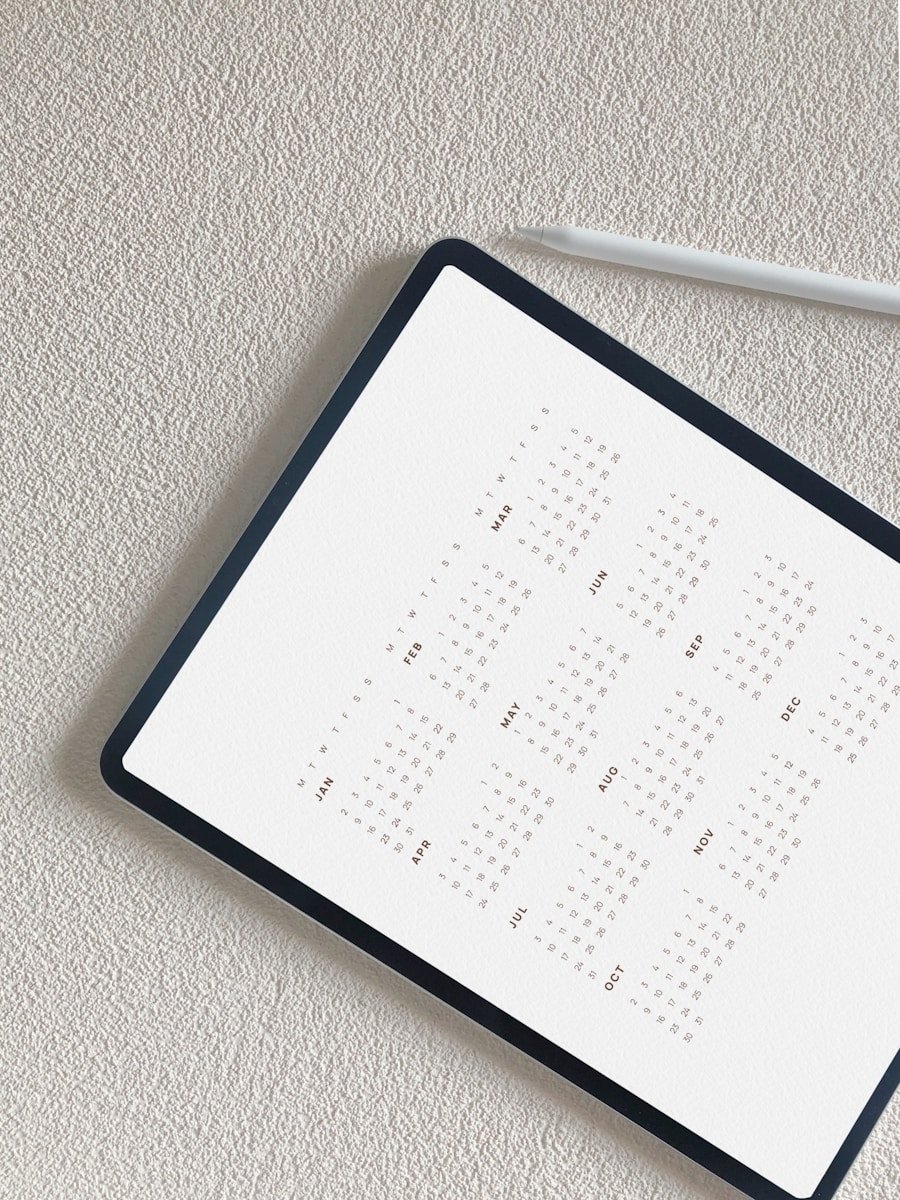
iPad users often encounter the frustrating issue of missing calendar events. Whether it’s a crucial meeting or a family event, losing this information can disrupt your day. To restore missing events, use iCloud to recover your calendar data quickly and easily. These events can disappear due to sync issues or accidental deletions.
Understanding why these events vanish can help prevent it from happening again. iCloud sync problems or software updates may cause these issues. Keeping your device updated and regularly backed up can help safeguard your calendar data.
If you notice events missing, there are steps to restore them. By accessing iCloud’s Data Recovery section, you can recover missing events from previous backups. This method quickly brings back important dates and events.
iPad Calendar Events Disappear: Troubleshooting Tips and Solutions
Losing calendar events on your iPad can be frustrating—especially when important appointments, meetings, or reminders suddenly vanish. Whether the issue appeared after an update, a sync change, or seemingly out of nowhere, there are several common causes and reliable fixes. This guide walks you through practical troubleshooting steps to restore missing calendar events and prevent the problem from happening again.
Common Reasons Calendar Events Disappear on iPad
Before diving into fixes, it helps to understand why calendar events may go missing:
- iCloud or email account syncing issues
- Calendar settings accidentally changed
- iOS/iPadOS updates causing temporary bugs
- Events hidden due to filtered calendar views
- Account sign‑out or password changes
- Incorrect date and time settings
Step‑by‑Step Troubleshooting Solutions
1. Check Calendar Visibility Settings
Sometimes events aren’t deleted—they’re just hidden.
- Open the Calendar app
- Tap Calendars at the bottom
- Make sure all relevant calendars are checked
- Tap Done
✅ This often resolves the issue immediately.
2. Restart Your iPad
A simple restart can fix temporary glitches:
- Press and hold the Power button
- Slide to power off
- Turn your iPad back on after 30 seconds
3. Verify iCloud Calendar Sync
If you use iCloud, confirm it’s syncing properly:
- Go to Settings → [Your Name] → iCloud
- Ensure Calendars is toggled ON
- Toggle it OFF, wait 10 seconds, then turn it back ON
⚠️ When prompted, choose Merge.
4. Check Email Account Calendar Sync
For Google, Outlook, or Exchange calendars:
- Go to Settings → Calendar → Accounts
- Select the affected account
- Ensure Calendars is enabled
- If needed, toggle it off and on again
5. Set Sync Range to “All Events”
Events may disappear if your sync range is limited:
- Open Settings → Calendar
- Tap Sync
- Select All Events
This ensures older and future events are visible.
6. Confirm Default Calendar Settings
New events may be saved to the wrong calendar:
- Go to Settings → Calendar
- Tap Default Calendar
- Choose your primary calendar (e.g., iCloud)
7. Check Date & Time Settings
Incorrect time settings can hide events:
- Go to Settings → General → Date & Time
- Enable Set Automatically
8. Update iPadOS
Apple frequently fixes calendar bugs through updates:
- Go to Settings → General → Software Update
- Install any available updates
9. Re‑Add Calendar Accounts
If syncing still fails:
- Go to Settings → Calendar → Accounts
- Select the account → Delete Account
- Restart your iPad
- Add the account again
✅ This often restores missing events after sync corruption.
10. Check iCloud.com or Other Devices
Log into iCloud.com or check another device using the same account:
- If events appear there, the issue is local to your iPad
- If missing everywhere, the events may have been deleted or overwritten
Prevent Calendar Events from Disappearing Again
- Keep iPadOS updated
- Avoid signing out of iCloud frequently
- Regularly check calendar visibility settings
- Use one primary calendar for important events
- Enable backups via iCloud
When to Contact Apple Support
If none of the above solutions work and events are permanently missing, contact Apple Support for account‑level recovery options.
Final Thoughts
Most disappearing calendar issues on iPad are caused by sync settings or hidden calendars—not permanent data loss. By following these troubleshooting steps, you can usually restore your events quickly and keep your schedule safe going forward.
Key Takeaways
- iCloud can help restore lost iPad calendar events.
- Sync issues or software updates may cause events to disappear.
- Use iCloud’s Data Recovery to recover missing calendar data.
Understanding Calendar Event Synchronization on iPad
Calendar event synchronization on iPads helps keep your events updated across multiple devices. This section explains how syncing works and offers solutions for common issues.
Basics of Calendar Event Syncing
Calendar syncing allows users to access their events on multiple devices. It involves connecting your iPad’s calendar app to online accounts like iCloud, Google, or Microsoft. When an event is created or edited on one device, changes appear on all synced devices.
To sync, go to Settings > Calendar > Accounts. Here, ensure accounts like iCloud are added. Use Wi-Fi for faster syncing. Events can also sync via cellular data, but this might be slower. Always keep your iPad updated with the latest iOS, like iOS 17. This ensures the best performance.
Common Reasons for Calendar Events Disappearing
Events may disappear due to various reasons. One cause is incorrect sync settings. Check Settings > Calendar > Sync and select All Events. This ensures all past and future events sync correctly.
Another reason is temporary glitches. Turning the calendar app off and on might fix this. Use Settings > Calendar > Accounts to toggle the account. Sometimes, events disappear due to storage issues. Clear some space and sync again. Keep the calendar app and iOS updated to avoid such problems.
iCloud and Account Settings for Calendar Sync
iPads often use iCloud for syncing. Check Settings > Apple ID > iCloud to make sure the Calendars toggle is on. This keeps your events synced across all your devices using the same Apple ID.
Log into iCloud.com to see if events that disappear from your iPad are visible there. If yes, the issue is likely on your iPad. Re-enable the account in Settings and check again. Make sure other accounts like Google or Microsoft are correctly set in Settings > Accounts > Add Account. Follow these steps to maintain reliable calendar syncing on your iPad.





