
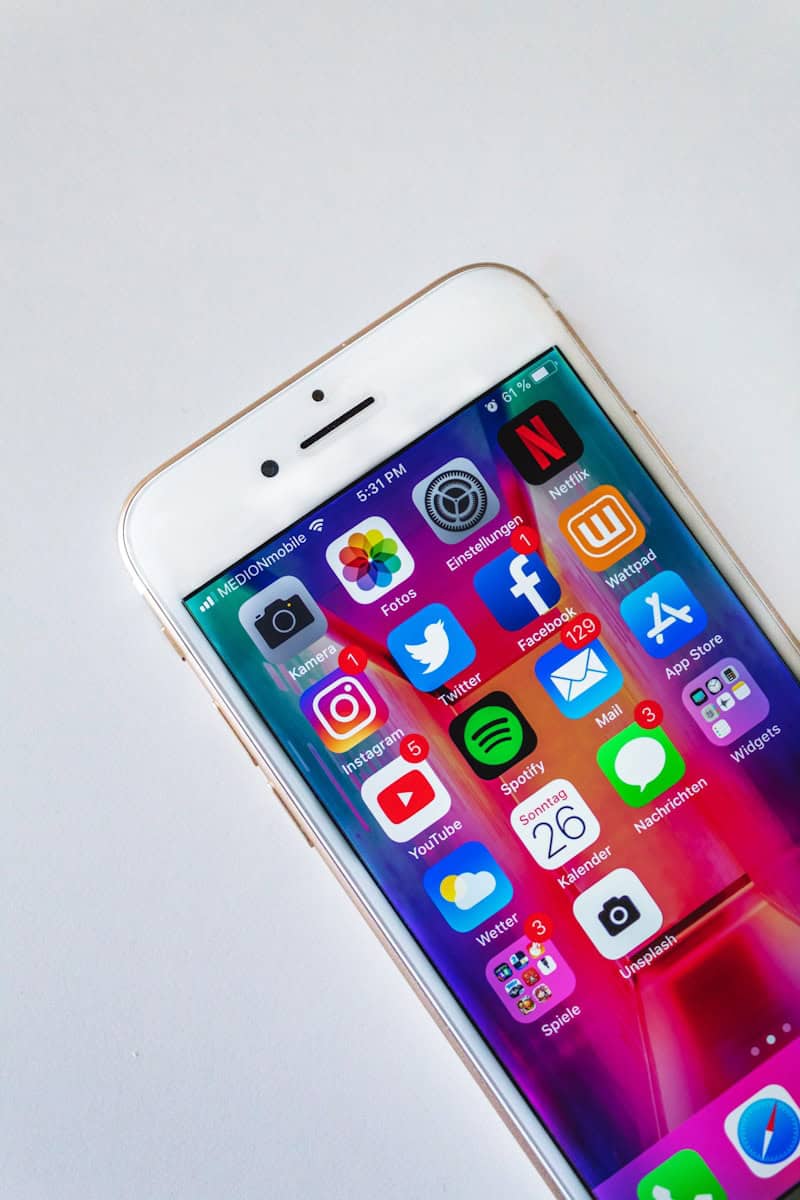
Imagine opening your iPhone to find an app missing. Many times, an app isn’t gone; it’s just hidden in the App Library or on a different Home Screen page. Understanding how to locate and restore these apps can save time and prevent frustration.
To find a missing app, users can try using the Spotlight search or checking hidden Home Screen pages. They can also download the app again from the App Store if it’s not visible. Resetting the Home Screen layout might also help in making all apps reappear alphabetically.
App Not Showing on iPhone: Quick Solutions and Tips
If you can’t find an app on your iPhone’s Home Screen, don’t worry. Here are quick steps to locate and restore missing apps.
1. Use Search to Find the App
- Swipe down from the middle of the Home Screen to open Spotlight Search.
- Type the app’s name.
- If it appears, tap it to open.
- If it shows but is not on the Home Screen, continue to the next steps.
2. Check the App Library
- Swipe left on your Home Screen until you reach the App Library.
- Use the search bar or browse categories to locate the app.
- If you find it, press and hold the app icon, then drag it back to the Home Screen.
3. Check for Hidden Home Screen Pages
- Long press on an empty area of the Home Screen to enter Edit mode.
- Tap the dots near the bottom that represent Home Screen pages.
- Make sure all pages are checked (visible). If any page is unchecked, check it to make it visible again.
4. Check for Restrictions or Screen Time Limits
- Go to Settings > Screen Time > Content & Privacy Restrictions.
- Ensure that app restrictions are not hiding or limiting the app.
- Also check Allowed Apps to make sure the app is enabled.
5. Reinstall the App
- If the app doesn’t appear in search or App Library, it might have been deleted.
- Open the App Store.
- Search for the app and tap the download icon to reinstall it.
6. Restart Your iPhone
- Sometimes a simple restart can refresh the system and restore missing icons.
- Press and hold the power button and volume button (or just the power button depending on your model), then slide to power off.
- Turn your iPhone back on.
7. Update iOS
- Go to Settings > General > Software Update.
- Install any available updates as bugs causing app display issues may be fixed.
8. Reset Home Screen Layout (Last Resort)
- Go to Settings > General > Reset > Reset Home Screen Layout.
- This will reset your Home Screen to default, and all apps will appear in their original order.
- Note: This removes folders and custom layouts.
Summary
| Step | What to Do |
|---|---|
| 1. Search | Use Spotlight Search |
| 2. App Library | Find and drag app back to Home Screen |
| 3. Hidden Pages | Make sure all Home Screen pages are visible |
| 4. Restrictions | Check Screen Time and Content Restrictions |
| 5. Reinstall | Download app again from App Store |
| 6. Restart | Power off and on your iPhone |
| 7. Update iOS | Install latest iOS updates |
| 8. Reset Home Screen Layout | Restore default app layout |
If you still have trouble, consider contacting Apple Support for further assistance.
Sources:
- Apple Support: If you can’t find an app on your iPhone
- Apple Community Discussions
- Apple Community: How to recover disappeared apps
Key Takeaways
- Apps might be hidden or on a different Home Screen.
- Use Spotlight or the App Store to locate or redownload missing apps.
- Resetting the Home Screen layout can help display all apps.
Troubleshooting App Visibility Issues
Sometimes, apps on an iPhone might disappear from the Home Screen. There are several ways to find and fix these app visibility issues.
Check Home Screen and Folders
First, swipe through all Home Screen pages to see if the app is hidden in a folder. Slowly search each page and folder. Sometimes, newly downloaded apps might get placed in unexpected folders. Use Spotlight Search to locate the app quickly if it’s mixed among several pages or folders. If the app icon is smaller or grayed out, it might be waiting to update or install.
Resetting the Home Screen Layout can also help. Go to Settings, then General, followed by Transfer or Reset iPhone. Choose Reset, then Reset Home Screen Layout. This will return the app icons to their default organization, possibly making the missing app visible.
Utilize Search Tools
Utilizing the Spotlight Search tool is another effective way to find hidden apps. Swipe down from the center of the Home Screen to access the Search Bar. Enter the app’s name or use the microphone icon to speak the app’s name. The app should appear in the search results if it’s installed on the device.
Another tool is the App Library. Swipe left past your last Home Screen page to access it. Here, your apps are automatically sorted into categories. You can either look through these categories or use the Search Bar at the top of the App Library to locate your app.
Review Restrictions and Content Settings
Screen Time and content restrictions can also cause apps to disappear. Go to Settings, then Screen Time. Next, check Content & Privacy Restrictions. Ensure Allowed Apps and Content Restrictions are set to allow visibility of all necessary apps.
If certain apps are restricted, they won’t be visible on the Home Screen or in the App Library. Temporarily disable Content & Privacy Restrictions by toggling the switch off to see if your missing app appears. Re-enabling the restrictions afterward will keep your settings but might hide restricted apps again.
Update or Restore iOS
Outdated iOS versions might cause app visibility issues. Check for updates by going to Settings, then General, followed by Software Update. Install any available updates to ensure your device is running the latest iOS version.
If updating doesn’t resolve the issue, consider restoring your iPhone. Back up your data first. Next, go to Settings, then General, and select Transfer or Reset iPhone. Choose Erase All Content and Settings, then restore from your backup. This can help remove any software glitches causing apps to disappear.
By following these steps, most app visibility issues on an iPhone can be resolved.





