
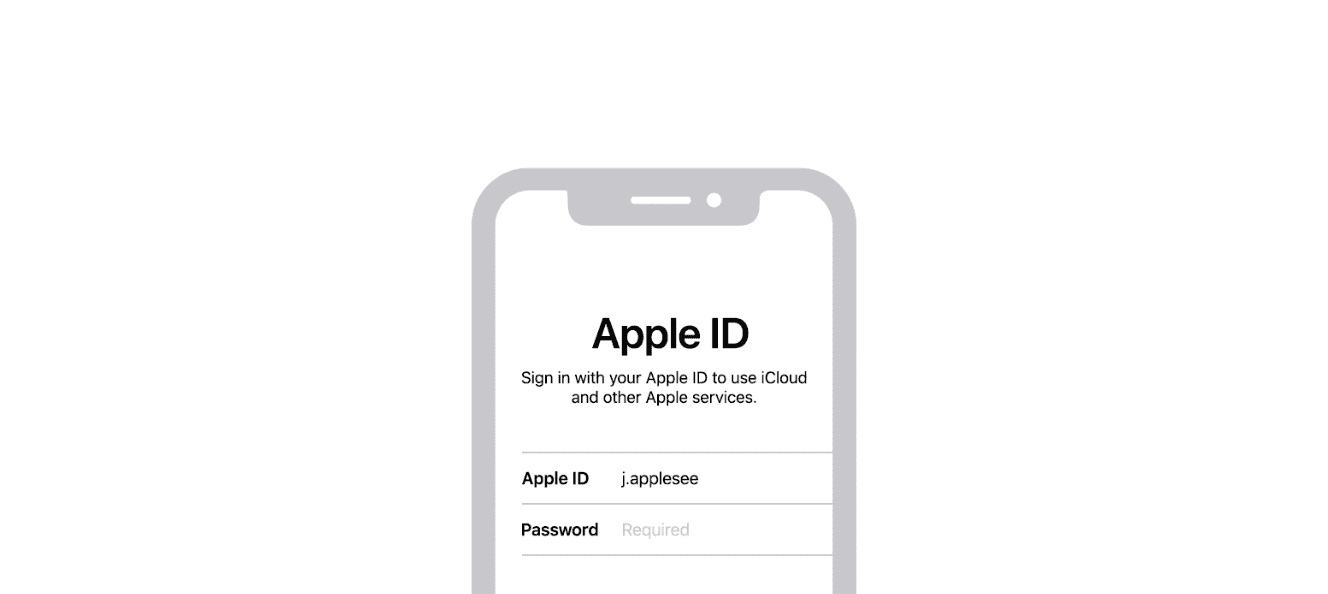
Many iPhone users face the issue of their device asking for the wrong Apple ID. The main reason this happens is because the iPhone is linked to a different Apple ID. This might occur if someone else used the same device before or if there’s a mix-up with multiple Apple IDs.
To fix this, you need to sign out of the current Apple ID. Go to Settings, tap on your name, and then select Sign Out. Enter the password for the current Apple ID, and confirm the action. Once signed out, you can sign in with the correct Apple ID by returning to Settings and tapping Sign In to your iPhone.
If you still face issues, checking your iCloud settings might help. Sometimes, the iPhone may hold onto old Apple ID details, even after signing out. Ensure your iCloud account matches your current Apple ID. Changing the Apple ID email can also solve the problem.
What To Do If You Are Linked To The Wrong Apple ID on iPhone
If your iPhone is connected to the wrong Apple ID, you may run into issues with app downloads, iCloud syncing, backups, and services like Find My. This usually happens when a device was previously owned, set up with someone else’s account, or signed in incorrectly during setup. The solution is to safely remove the incorrect Apple ID and sign in with the correct one.
Before making changes, ensure you have access to the correct login credentials. If the device is still tied to another person’s account with Activation Lock enabled, you may need their help to remove it.
Steps to remove the wrong Apple ID:
- Open Settings
- Tap the name at the top (Apple ID section)
- Scroll down and tap Sign Out
- Enter the password for that Apple ID (if required)
- Choose what data to keep on the device
- Confirm sign out
Sign in with the correct Apple ID:
- Go to Settings
- Tap Sign in to your iPhone
- Enter your Apple ID and password
- Enable syncing options like Contacts, Photos, and iCloud Drive
If you don’t know the password:
- Contact the previous owner
- Use Apple’s account recovery process
- Visit an Apple Store with proof of purchase
Important tips:
- Always back up your data before signing out
- Avoid factory resetting if Activation Lock is enabled
- Double-check App Store and iCloud accounts match
Key Takeaways
- Sign out of the current Apple ID to fix the issue.
- Ensure your iCloud settings match the Apple ID.
- Changing the Apple ID email may help.
Resolving Apple ID Issues on iPhone
When an iPhone shows an incorrect Apple ID, users might face difficulties accessing certain services. This guide offers steps to help fix it, making sure that the Apple ID on the device is correct.
Identifying the Incorrect Apple ID
It’s important to know when your iPhone is showing the wrong Apple ID. Common signs include being unable to download apps from the App Store or being asked for a password you don’t recognize. Check the Apple ID by going to Settings and tapping your Name at the top. The email address shown here is the current Apple ID on your iPhone. If it’s not your own, proceed to correct it.
Signing out of the Current Apple ID
To sign out, open Settings and tap your Name. Scroll to the bottom and select Sign Out. Enter the Apple ID password and tap Turn Off. You might need to enter your device passcode too. After signing out, you can sign in with the correct Apple ID. This can solve many issues related to apps, music, and other services not syncing properly.
Resetting or Changing Apple ID Password
If you forgot your Apple ID password, you can reset it. Go to Settings, tap your Name, then Password & Security. Select Change Password. You will need to enter your current device passcode. Follow the prompts to reset your password. This ensures security and helps in accessing your account without issues. With a new password, you might need to sign in again on all your devices.
Creating a New Apple ID
Sometimes, you might need to create a new Apple ID. To do this, open Settings and tap Sign in to your iPhone. Choose Don’t have an Apple ID or forgot it?. Follow the steps to create a new Apple ID using your email address. A new Apple ID can help you start fresh if the old one is locked or you’ve completely lost access to it.
Linking a Different Apple ID
If needed, you can link different Apple IDs to your iPhone for various purposes. For example, one Apple ID can handle iCloud while another can take care of App Store purchases. Go to Settings, tap your Name, then select the service you want to link a different Apple ID to, such as Media & Purchases. Sign in with the alternate Apple ID where required.
By following these steps, users can address issues related to incorrect Apple IDs on their iPhones, improving their experience with Apple services.





