
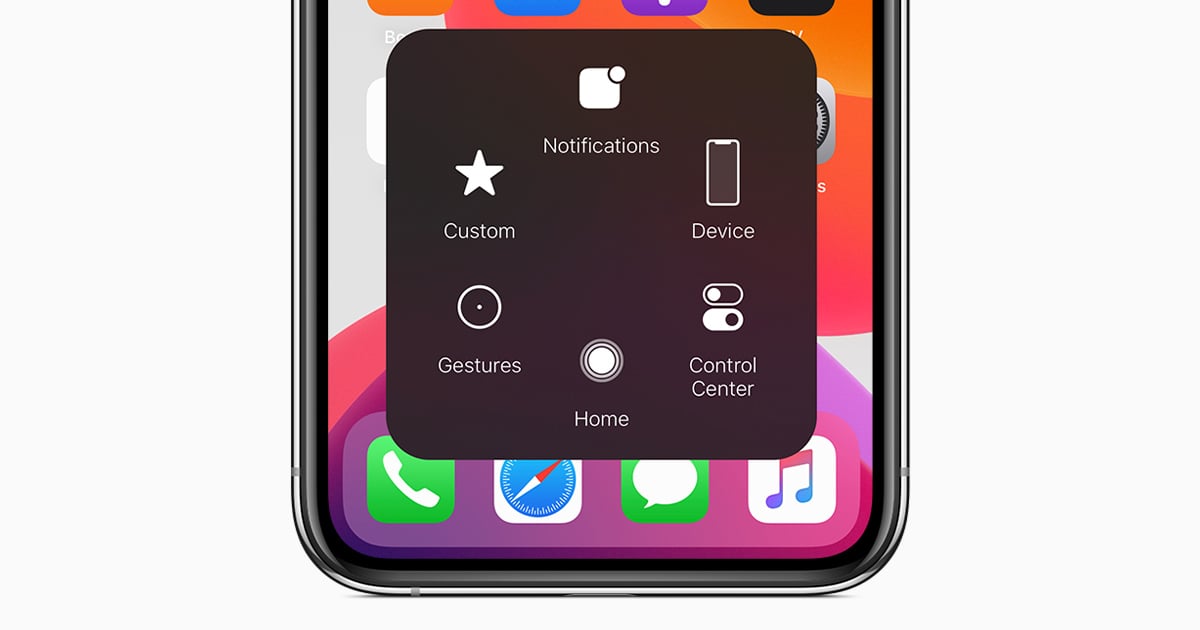
For many iPhone users, a small white dot can suddenly appear on their screens. This white dot is typically caused by a feature called AssistiveTouch. AssistiveTouch helps users who’ve trouble with the touch screen by providing on-screen shortcuts for common functions.
To check if AssistiveTouch is activated, go to your phone’s Settings. Then navigate to Accessibility and tap on Touch. From there, you can see if AssistiveTouch is enabled. Turning off AssistiveTouch should remove the white dot from your screen.
Sometimes, white dots may appear due to system glitches. Restarting your iPhone can often fix these issues. In more stubborn cases, system recovery tools can help resolve the problem efficiently.
What Does The White Dot On Your iPhone Mean?
If you’ve noticed a white dot on your iPhone screen, it could mean several different things depending on its location, size, and behavior. Here’s what it likely indicates and how to address it.
Common Causes of White Dots on iPhone
1. AssistiveTouch Feature (Most Common)
The most common cause of a white dot on your iPhone is the AssistiveTouch feature – an accessibility tool that provides on-screen shortcuts for various functions (source: Apeaksoft).
Characteristics:
- Appears as a semi-transparent white or gray circular button
- Can be moved around the screen
- Tappable and opens a menu with shortcuts
How to Remove It:
- Go to Settings
- Tap Accessibility
- Tap Touch
- Tap AssistiveTouch
- Toggle off AssistiveTouch
The white dot should disappear immediately (source: DeviceMag).
2. Stuck or Dead Pixel
A small, permanent white dot that doesn’t move could be a stuck pixel – where a single pixel fails to display the correct color and appears white (source: FoneGeek).
Characteristics:
- Tiny, fixed dot that doesn’t move
- Always visible regardless of what’s on screen
- More noticeable on dark backgrounds
How to Fix It:
- Try a pixel fix app from the App Store that rapidly cycles colors
- Apply gentle pressure to the affected area with a soft cloth
- Restart your iPhone to see if it resolves itself
- Contact Apple Support if under warranty – this may be a hardware defect (source: PhonePable)
3. Screen Damage or Pressure Mark
A larger white spot or dot could indicate physical damage to the LCD screen or pressure damage (source: PhonePable).
Characteristics:
- Larger than a single pixel
- May appear after dropping the phone or applying pressure
- Could expand over time
How to Fix It:
- This typically requires professional screen repair or replacement
- Check if your iPhone is under warranty or AppleCare+
- Visit an Apple Store or authorized repair center
4. Indicator Dots (Top of Screen)
If you see a white dot at the top left or right of your screen near the status bar, it might actually be an indicator light (source: ReiBoot).
Note: iOS typically shows:
- Green dot: Camera or camera + microphone in use
- Orange dot: Microphone in use
- White indicators may appear related to connectivity or notifications (source: Apple Community)
How to Take a Screenshot to Diagnose
A good way to determine if the white dot is software-related or hardware-related is to take a screenshot:
- Take a screenshot (press Volume Up + Side button simultaneously)
- View the screenshot
- If the dot appears in the screenshot: It’s likely software-related (like AssistiveTouch)
- If the dot does NOT appear: It’s likely a hardware issue (stuck pixel or screen damage)
Quick Summary
| Type of White Dot | What It Is | Solution |
|---|---|---|
| Moveable, semi-transparent circle | AssistiveTouch | Turn off in Settings > Accessibility > Touch |
| Tiny fixed dot | Stuck/dead pixel | Try pixel fix apps or contact Apple |
| Larger white spot | Screen damage | Professional repair needed |
| Top of screen indicator | Privacy/connectivity indicator | Normal iOS feature |
When to Contact Apple Support
You should reach out to Apple if:
- The white dot is a stuck pixel and your iPhone is under warranty
- The dot appeared after physical damage
- Software solutions haven’t resolved the issue
- The spot is growing or spreading
Visit an Apple Store, contact Apple Support, or visit an authorized service provider for assistance (source: FoneGeek).
Key Takeaways
- AssistiveTouch causes the white dot on your iPhone screen.
- Disable AssistiveTouch in Accessibility settings to remove it.
- Restarting or using recovery tools can fix system glitches causing white dots.
Understanding and Managing AssistiveTouch on iPhone
AssistiveTouch on the iPhone is a helpful accessibility feature that provides users with a virtual menu to access functions without using physical buttons. It’s useful for those with physical challenges and can be customized to fit different needs.
Overview of AssistiveTouch
AssistiveTouch is an accessibility feature on iPhone that creates a virtual Home button on the screen. This feature is handy if physical buttons on the device are broken or hard to use.
Users can activate AssistiveTouch by navigating to Settings > Accessibility > Touch > AssistiveTouch. Once turned on, a white dot appears on the screen. Tapping this dot opens a menu with quick access to common functions such as the Home button, Notification Center, and Control Center.
Customizing the AssistiveTouch Menu
Users can customize the AssistiveTouch menu to fit their preferences. To do this, go to Settings > Accessibility > Touch > AssistiveTouch and select “Customize Top Level Menu.”
Users can add, remove, or rearrange buttons in this menu. They can choose from various options like volume control, screenshot, app switcher, and more. This customization makes the AssistiveTouch feature more user-friendly by providing quick access to frequently used functions.
Enabling and Using Gestures with AssistiveTouch
AssistiveTouch supports gestures that help perform actions like pinch, double-tap, and multi-finger swipes without using physical touch. To set these up, go to Settings > Accessibility > Touch > AssistiveTouch then create a new gesture.
Users can record custom gestures or assign existing ones to the AssistiveTouch menu. This is especially useful for tasks requiring complex finger movements, as the gestures can be simplified and executed with a tap or drag.
Troubleshooting AssistiveTouch Issues
Sometimes, users might face problems with AssistiveTouch. Common issues include the button not appearing or not responding. Restarting the iPhone can often solve these problems.
If the issue persists, check if there are any iOS updates available as software fixes often address such glitches. Additionally, users can try turning AssistiveTouch off and back on through the Settings to reset its functions. If none of these steps work, contacting Apple Support may be necessary.





