
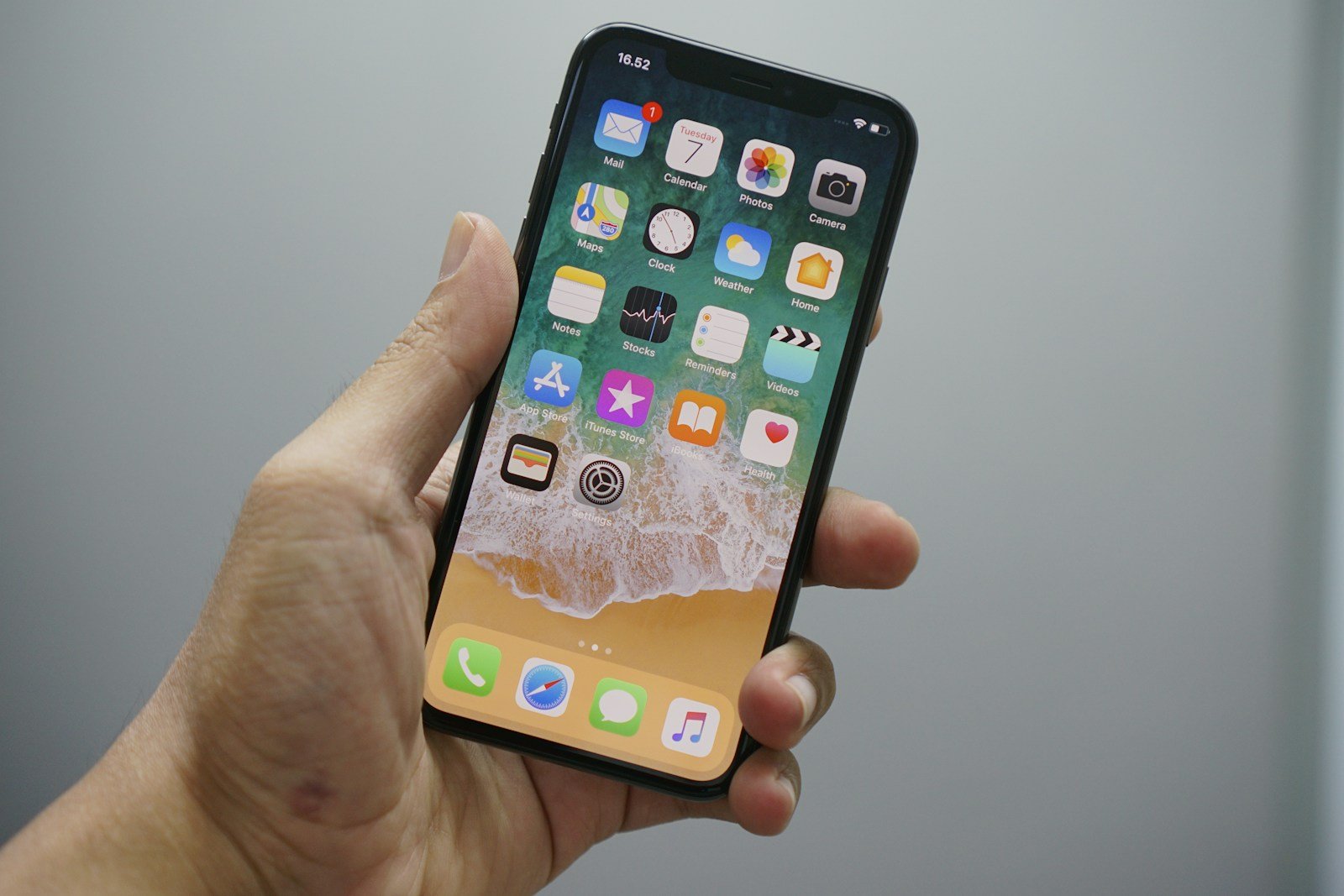
Many iPhone users encounter a frustrating problem: being unable to activate their device because an update is required. This hiccup can occur for various reasons, such as outdated software or system bugs. To resolve this, update your iPhone’s software by connecting it to a computer and using iTunes.
Activation issues make it impossible to use the iPhone. Your screen may insist on an update to proceed. Few steps can easily solve this, ensuring you can use your phone without problems.
Updating carrier settings through the iPhone’s Settings app might help. If these steps don’t work, a professional system repair tool may be necessary. Stay calm and follow these tips to get your iPhone up and running.
Why You See “Unable to Activate iPhone”
This message appears when your iPhone can’t connect to Apple’s activation servers or your carrier network. Common causes include:
- Apple’s activation server being temporarily unavailable.
- Network issues (Wi-Fi or cellular).
- A SIM card problem (unsupported, damaged, or not detected).
- iOS glitches or outdated software.
- Carrier lock or region restrictions.
✅ Step-by-Step Fixes
1. Check Apple’s System Status
Before anything else, visit Apple’s System Status page and look for “iOS Device Activation.”
- If it’s down, wait until Apple resolves the issue — you won’t be able to activate until servers are back online.
(Source: Apple Support)
2. Restart Your iPhone and Try Again
A simple restart can refresh the activation attempt.
- Press and hold the Side + Volume Down buttons (on Face ID models).
- Slide to power off, then wait 30 seconds.
- Turn it back on and retry activation.
3. Check Your Internet Connection
You need a stable Wi-Fi or cellular connection.
- Try connecting to a different Wi-Fi network.
- If using cellular, ensure you have strong signal and mobile data enabled.
- Avoid public or restricted networks that may block Apple’s activation servers.
4. Reinsert or Replace the SIM Card
If you see a message like “SIM not supported” or “No SIM”:
- Remove the SIM tray using a SIM ejector or paperclip.
- Clean and reinsert the SIM card.
- If still not detected, try another active SIM from the same or a different carrier.
- For eSIM users, contact your carrier to re-provision your eSIM.
(Source: SimplyMac)
5. Update or Restore Using iTunes/Finder
If activation still fails:
- Connect your iPhone to a Mac or PC.
- Open Finder (macOS Catalina or later) or iTunes (Windows/macOS Mojave or earlier).
- Select your device and choose Update (not Restore) to install the latest iOS.
- After updating, try activation again.
If “Update” doesn’t work, try Restore, but note this erases all data.
6. Activate via iTunes (Offline Method)
If your iPhone can’t activate over Wi-Fi, you can do it through iTunes:
- Connect your iPhone to your computer.
- Open iTunes/Finder — it should detect the device and attempt activation automatically.
- Follow any on-screen instructions.
7. Check for Carrier or Activation Lock
If your iPhone is carrier-locked or still linked to another Apple ID (via Activation Lock), you’ll need to:
- Contact your carrier to unlock the device.
- Or, if it’s linked to another Apple ID, the original owner must remove it from iCloud → Find My → Remove from Account.
8. Contact Apple Support
If none of the above works, contact Apple Support or visit an Apple Store.
You may have a hardware issue (e.g., logic board, modem, or SIM reader fault).
🧩 Bonus Tip: DFU Mode Restore
As a last resort, perform a DFU restore (Device Firmware Update):
- Connect your iPhone to a computer.
- Enter DFU mode (steps differ by model).
- In Finder/iTunes, choose Restore iPhone.
This reinstalls iOS from scratch — useful if activation errors are caused by corrupted system files.
⚙️ Summary Table
| Problem | Likely Cause | Fix |
|---|---|---|
| “Activation Server Unavailable” | Apple servers down | Wait and retry |
| “SIM Not Supported” | Carrier or SIM issue | Replace or contact carrier |
| “No Service” | Network issue | Use stable Wi-Fi or cellular |
| “Could Not Be Activated” | iOS or firmware issue | Update via iTunes/Finder |
| “Activation Lock” | Linked to another Apple ID | Remove via iCloud or contact Apple |
🧾 Sources
- Apple Support: If you can’t activate your iPhone
- SimplyMac: Unable to Activate iPhone
- TechCult: How to Fix Unable to Activate iPhone (2025)
- iMobie: 10 Ways to Fix iPhone Unable to Activate (2025)
Key Takeaways
- Update your iPhone’s software to fix activation issues.
- Activation problems may need carrier settings updates.
- Professional tools might be required if basic steps fail.
Understanding Activation Issues and Solutions
This section addresses common iPhone activation errors, the need for system updates, and solutions involving iTunes or Finder. You’ll also learn how to solve network and connection issues, and use recovery mode or factory reset.
Identifying Common Activation Errors
Activation errors can occur for various reasons. Invalid SIM or No SIM messages often appear if the SIM card isn’t detected. Other common errors include iPhone unable to activate due to server issues or an incorrect Apple ID or password. Sometimes, activation lock needs to be bypassed, requiring proper credentials.
Required Updates for Activation
iPhones may need iOS updates to activate. The latest software update ensures compatibility with carrier settings and activation servers. Go to Settings > General > Software Update to check for updates. Automatic Updates can help keep the device current, preventing future errors. Updating over a Wi-Fi network is recommended to avoid data charges.
Using iTunes or Finder for Activation
If the iPhone can’t activate on its own, use iTunes or Finder. Connect the iPhone to a computer using a USB cable. Launch iTunes on Windows or Finder on macOS. Follow on-screen prompts to recognize and activate the device. This method is useful when system updates or more advanced troubleshooting is required.
Troubleshooting Network and Connection Issues
Network issues can hinder activation. Make sure the device is connected to a stable Wi-Fi or cellular network. Restart the router and check for any outages. If using Wi-Fi, try resetting network settings on the iPhone under Settings > General > Reset > Reset Network Settings.
Recovery Mode and Factory Reset
For persistent activation problems, use recovery mode. Turn off the iPhone, then connect it to a computer while holding the home button (or volume down button on some models). Open iTunes or Finder, then select “Update” or “Restore”. A factory reset wipes all data but can fix serious software issues. Use this method as a last resort.
Each subsection offers targeted solutions to simplify the activation process, keeping your iPhone functioning smoothly.





