
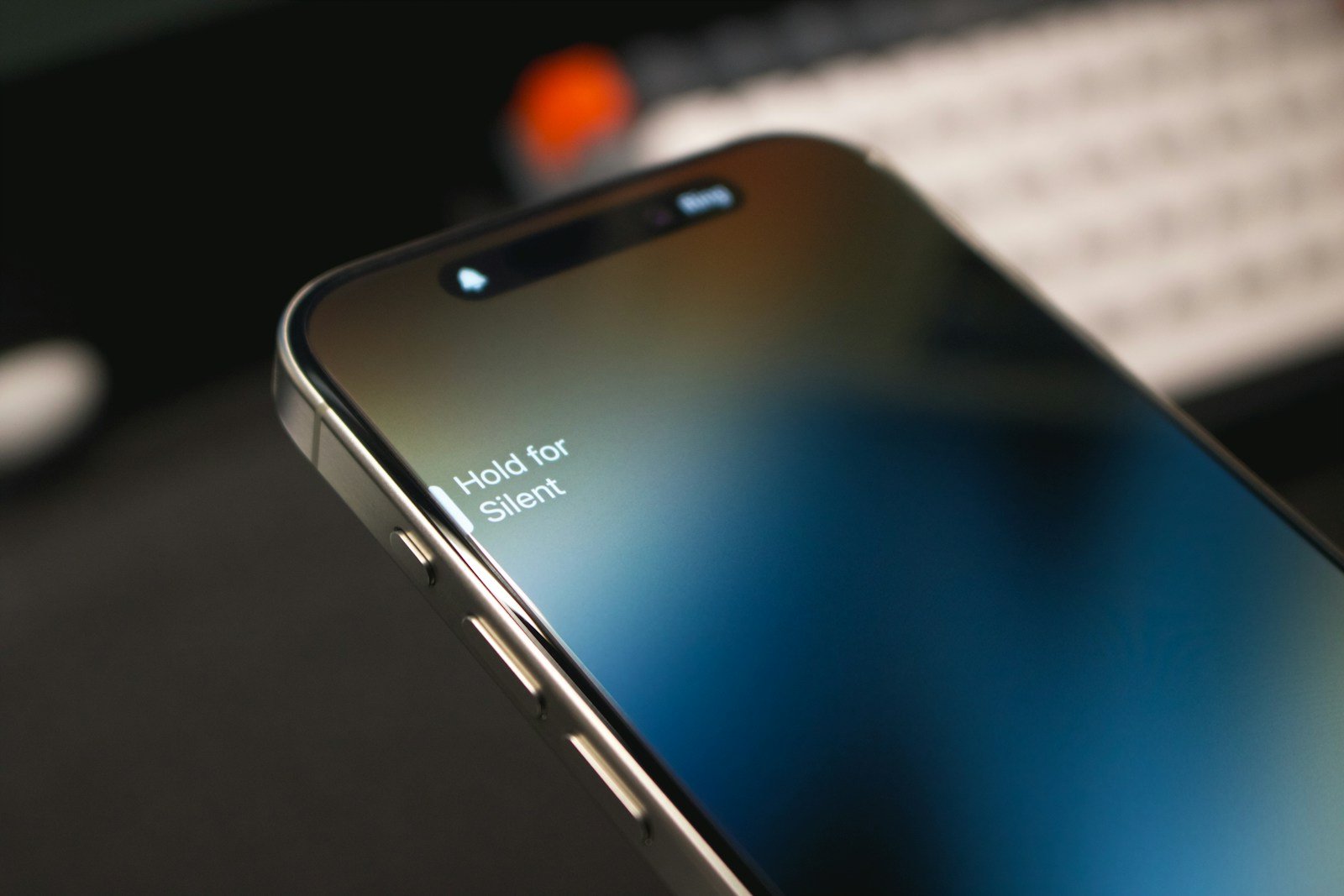
The silent button on an iPhone is essential for keeping your device quiet when needed. If your iPhone silent button is not working, you might miss important notifications or disrupt quiet environments. Understanding why this happens and how to fix it is important for iPhone users.
Problems may stem from software glitches or physical damage to the button. Some simple checks can help you figure out what might be wrong. From cleaning the button to checking settings, there are many ways to get your iPhone’s silent mode working again.
There are also some effective fixes and methods that might surprise you. Stay tuned to discover how you can solve this issue and get your iPhone back to normal.
Silent Button on iPhone Not Working: Complete Troubleshooting Guide
If your iPhone’s Silent (Ring/Silent) switch isn’t working properly, it can be frustrating—especially when you’re trying to mute notifications quickly. Whether the switch doesn’t respond, feels stuck, or your phone still rings in silent mode, this guide will walk you through the possible causes and solutions.
What the Silent Button Does
The Silent switch (located on the left side of most iPhones above the volume buttons) allows you to:
- 🔕 Instantly mute calls, alerts, and notifications
- 🔔 Switch back to ring mode
When silent mode is active, you’ll usually see an orange indicator on the switch and a bell icon with a slash on your screen.
Common Reasons the Silent Button Isn’t Working
- Dirt or debris stuck in the switch
- Software glitch
- Accessibility or Focus mode settings
- Hardware damage
- iPhone model differences (newer models use Action Button instead)
Step-by-Step Fixes
1. Check for Dirt or Debris
The most common issue is dust buildup inside the switch.
How to Clean It:
- Turn off your iPhone.
- Use a flashlight to inspect the switch.
- Gently clean around it using:
- A toothpick (wooden)
- A soft brush
- Compressed air
⚠️ Do not use metal objects or liquid cleaners directly in the switch.
After cleaning, toggle the switch multiple times to loosen debris.
2. Restart Your iPhone
A simple restart can fix minor system glitches.
Restart Steps:
- Face ID models: Press and hold Side button + Volume button → Slide to power off.
- Home button models: Hold the Power button → Slide to power off.
Wait 30 seconds and turn it back on.
3. Check Focus Mode (Do Not Disturb)
Sometimes the phone rings because Focus settings override expectations.
Check Focus Mode:
- Open Settings.
- Tap Focus.
- Ensure no Focus mode is active.
- Check allowed notifications and people settings.
4. Check Sounds & Haptics Settings
- Go to Settings → Sounds & Haptics.
- Toggle the Silent switch.
- Watch if the on-screen silent notification appears.
If nothing appears, the switch may not be registering.
5. Enable AssistiveTouch as a Temporary Fix
If the physical switch is broken, you can enable silent mode digitally.
Enable AssistiveTouch:
- Go to Settings → Accessibility.
- Tap Touch.
- Select AssistiveTouch → Turn it on.
- Tap the floating button.
- Go to Device → Tap Mute.
This allows you to control silent mode without the physical switch.
6. Update iOS
Software bugs can sometimes affect hardware controls.
- Go to Settings → General → Software Update.
- Install any available updates.
7. Reset All Settings (If Necessary)
If the issue persists:
- Go to Settings → General → Transfer or Reset iPhone.
- Tap Reset → Reset All Settings.
⚠️ This will not delete your data but will reset Wi-Fi, Bluetooth, and preferences.
If You Have an iPhone 15 Pro or Newer
Newer Pro models replaced the Silent switch with an Action Button.
To set it to Silent mode:
- Go to Settings → Action Button.
- Select Silent Mode.
- Press and hold the Action Button to toggle.
If it’s not working, check that it’s properly configured.
Signs It’s a Hardware Problem
You may need professional repair if:
- The switch feels loose or stuck.
- No on-screen silent icon appears when toggling.
- The switch works intermittently.
- The phone rings even though silent mode is active.
In this case, contact Apple Support or visit an Apple Store.
When to Contact Apple
Seek help if:
- Your iPhone is under warranty.
- Cleaning and resets didn’t fix it.
- The switch is physically damaged.
- You recently dropped the device.
Visit: https://support.apple.com
Final Thoughts
If your iPhone Silent button isn’t working, the issue is often minor—like dust buildup or a temporary glitch. Start with cleaning and restarting, then move to software checks if needed.
And if the hardware has failed, AssistiveTouch provides a reliable workaround until you can get professional repair.
With the right steps, you can restore quiet mode quickly and avoid unexpected ringing at the worst possible times. 🔕
Key Takeaways
- The silent button may stop working due to software or hardware issues.
- Cleaning the button or adjusting settings can often resolve the problem.
- Different methods can help, including software solutions and hardware checks.
Troubleshooting the Silent Button Issue
When the silent button on an iPhone stops working, several factors might be involved, including physical damage, software settings, or other issues. Here’s how you can troubleshoot the problem effectively.
Assessing the Physical Silent Switch
First, check if the silent switch is stuck or loose. Sometimes it collects dust or dirt.
Use a soft brush or a toothpick to clean around the switch. Do this carefully to avoid damaging it.
Move the switch back and forth to see if it feels normal. If it still doesn’t work, the issue might be more than just dirt.
Software and Settings Adjustments
If the hardware seems fine, the problem might be in the iPhone’s settings or software.
Start by checking the Do Not Disturb mode in Settings. Make sure it’s turned off. Sometimes, it can interfere with the silent mode.
Consider using Assistive Touch. Go to Settings > Accessibility > Touch > AssistiveTouch and turn it on. This adds an on-screen button you can use for silent mode instead.
Make sure your iOS version is up to date. Outdated software can cause various issues. Go to Settings > General > Software Update to check for updates.
Workarounds and Alternate Solutions
If standard troubleshooting doesn’t help, there are a few workarounds you can try.
One way is to set up a silent ringtone. Download a silent ringtone file onto your computer and sync it to your iPhone via iTunes. Then, set it as your default ringtone in the Sounds & Haptics settings.
Another option is to turn the ringer volume all the way down. Go to Settings > Sounds & Haptics and adjust the ringer volume slider to its minimum.
Seeking Professional Help
If none of the above solutions work, the issue might be hardware-related.
If your iPhone is under warranty, contact Apple Support. They might repair or replace your device.
For out-of-warranty devices, visit an Apple Store or an authorized service provider. They can diagnose and fix internal hardware problems.
If you prefer, use a reliable iOS system repair tool. These tools can fix system issues that might be affecting the silent switch.
Troubleshooting the silent button on an iPhone involves checking both hardware and software aspects. If you’re unsure, professional help is always available.





