
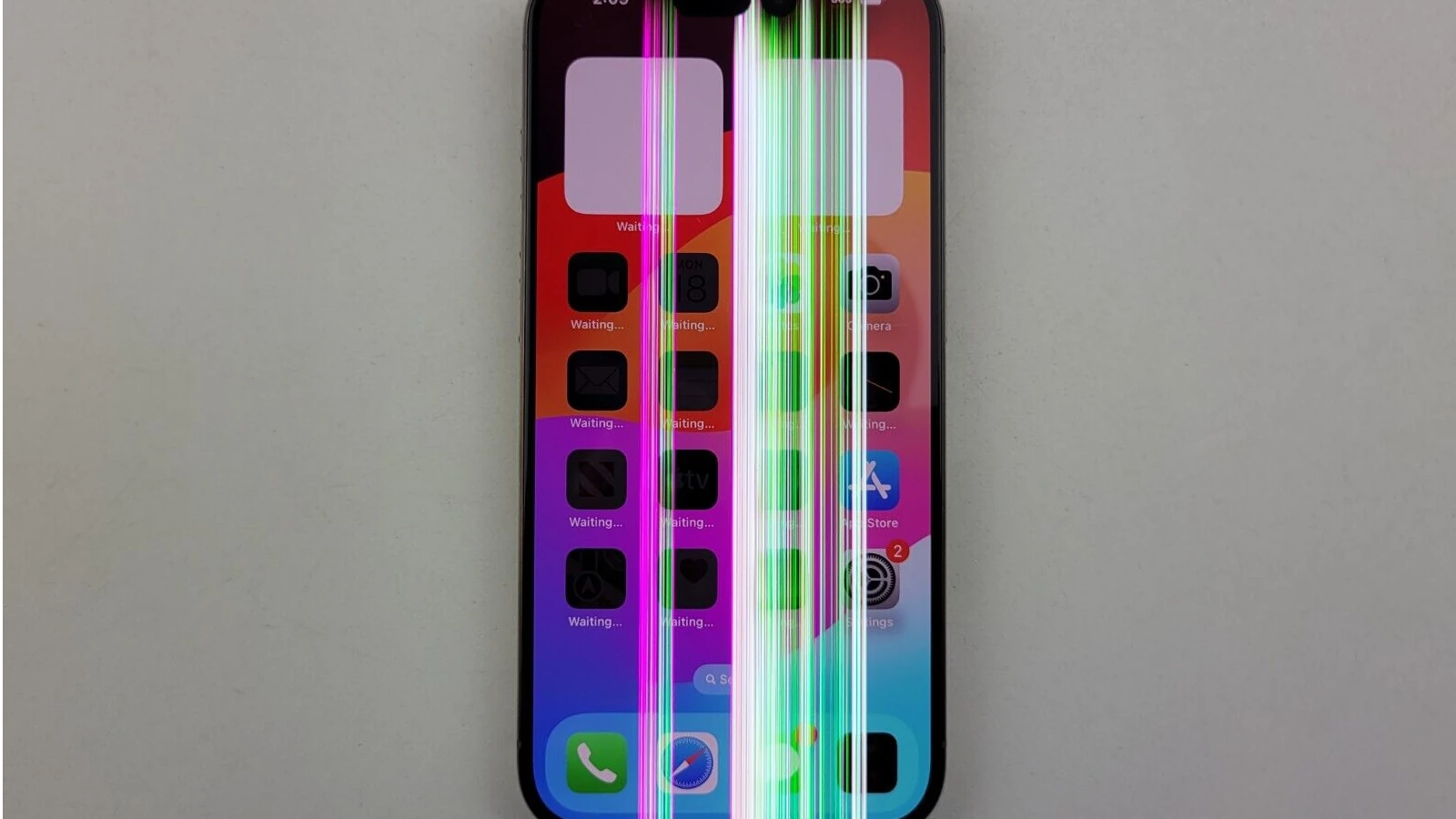
Vertical or horizontal lines on an iPhone screen can be frustrating for users. These lines might appear due to software glitches or hardware issues, such as a loose LCD cable or a damaged display. Restarting your iPhone or restoring it can sometimes fix software-related problems.
In other cases, green or purple lines indicate more serious electrical issues within the display. Users might see green pixels lined up vertically while red and blue pixels alternate in the columns next to them. This can happen due to minor damage to the iPhone screen, which breaks specific lines on the display.
For those experiencing these issues, several solutions are available. Restarting the phone, using an iPhone repair tool, or seeking professional repair services can help address both minor and significant problems.
Lines on iPhone Screen: Causes and Solutions
Discovering vertical or horizontal lines on your iPhone screen can be alarming and frustrating. These lines can appear suddenly or develop gradually, affecting your ability to use your device properly. This guide will help you understand what causes these lines and what you can do to fix them.
Common Types of Screen Lines
- Vertical lines: Run from top to bottom of the screen
- Horizontal lines: Run from left to right across the screen
- Black lines: Dark lines that may start small and grow over time
- Colored lines: Green, white, red, or other colored lines
- Flickering lines: Lines that appear and disappear intermittently
What Causes Lines on iPhone Screens?
Hardware Issues
1. Physical Damage Dropping your iPhone on a hard surface is one of the most common causes of screen lines (source: GeeksChalk). Even seemingly minor drops can damage internal components.
2. Loose LCD Cable Connection Vertical lines on the display typically indicate that the LCD cable is no longer properly connected to the logic board (source: GeeksChalk). This can happen from impact or wear over time.
3. Liquid Damage If your iPhone gets exposed to liquids, it can cause screen lines and other display issues (source: GeeksChalk).
4. Screen/Display Defects Manufacturing defects or deteriorating screen components can cause lines to appear, especially as the device ages.
5. Pressure Damage Keeping your iPhone in a tight pocket or sitting on it can create pressure that damages the display over time.
Software Issues
- iOS glitches or bugs
- Corrupted system files
- Problematic app installations
- Failed software updates
How Lines Develop Over Time
Black lines on iPhone screens often start as a few short pixels and can extend to full lines across the screen (source: Apple Community). These lines may increase very slowly, and when they reach the edges, another line can start appearing above the existing one, getting thicker with each passing day (source: Apple Community).
Diagnosing the Problem
Before attempting repairs, you need to determine whether the issue is software or hardware-related (source: SimplyMac):
Signs of Software Issues:
- Lines appear after a software update
- Lines disappear when using certain apps
- Lines come and go intermittently
Signs of Hardware Issues:
- Lines appeared after dropping the phone
- Lines are always visible, even during startup
- Lines are accompanied by other display problems
Solutions to Try
Software Fixes
1. Force Restart Your iPhone
This is the first step you should try (source: SimplyMac):
- iPhone 8 and later: Press and release Volume Up, press and release Volume Down, then press and hold the Side button until the Apple logo appears
- iPhone 7/7 Plus: Press and hold both Volume Down and Sleep/Wake buttons until the Apple logo appears
- iPhone 6s and earlier: Press and hold both Home and Sleep/Wake buttons until the Apple logo appears
2. Update iOS
Go to Settings > General > Software Update and install any available updates. Software bugs that cause display issues are often fixed in newer versions.
3. Reset All Settings
Go to Settings > General > Transfer or Reset iPhone > Reset > Reset All Settings. This won’t delete your data but will reset system settings to defaults.
4. Restore iPhone via iTunes/Finder
Connect your iPhone to a computer and perform a full restore. Back up your data first, as this will erase everything.
5. Factory Reset
As a last software resort, go to Settings > General > Transfer or Reset iPhone > Erase All Content and Settings.
Hardware Fixes
6. Check for Physical Damage
Inspect your iPhone for cracks, dents, or signs of liquid damage. If you see obvious damage, professional repair is likely needed.
7. Remove Case and Screen Protector
Sometimes a tight case or improperly installed screen protector can create pressure that causes display issues. Remove these accessories and check if the lines disappear.
8. Adjust Screen Brightness
Go to Settings > Display & Brightness and adjust brightness. Sometimes lines are more visible at certain brightness levels, which can help diagnose the issue.
9. Check for Loose Components
If you’re comfortable doing so, gently press around the edges of your screen to see if this temporarily fixes the lines, which could indicate a loose connection.
Professional Repair Options
10. Apple Support or Authorized Service Provider
If your iPhone is under warranty, always contact Apple Support or an authorized repair center before attempting any self-repairs (source: SimplyMac).
Visit an Apple Store or authorized service provider for:
- Screen replacement
- LCD cable reconnection
- Logic board repair
- Complete diagnostic testing
11. Third-Party Repair Services
Reputable third-party repair shops can often fix screen issues at lower costs than Apple, though this may void any remaining warranty.
12. DIY Repair
If you’re technically inclined, sites like iFixit provide free step-by-step repair instructions, manuals, schematics, and community support for DIY repairs (source: iFixit). However, this requires proper tools and risks further damage if done incorrectly.
Prevention Tips
To avoid display issues on your iPhone and unnecessary repair and replacement (source: MagFone):
- Use a quality protective case with raised edges
- Install a tempered glass screen protector
- Avoid exposing your iPhone to liquids
- Don’t put excessive pressure on the screen
- Keep your iPhone away from extreme temperatures
- Handle with care and avoid dropping it
- Keep iOS updated to avoid software bugs
- Don’t sit on your iPhone or keep it in tight pockets
When to Seek Professional Help
You should contact professional repair services if:
- Software solutions don’t resolve the issue
- Lines are growing or spreading
- The screen is cracked or physically damaged
- Your iPhone was exposed to liquid
- Touch functionality is affected
- The display shows other issues like discoloration or dead pixels
- Your device is still under warranty
Cost Considerations
Most of the time, vertical lines on your iPhone screen are the result of a hardware problem (source: GeeksChalk). Screen repairs can range from:
- AppleCare+: $29-$99 depending on model
- Out-of-warranty Apple repair: $129-$379 depending on model
- Third-party repair: $50-$200 depending on model and repair shop
Final Thoughts
Lines on your iPhone screen can be frustrating and make you feel helpless (source: MagFone). While software fixes work for some cases, most screen line issues are hardware-related and require professional repair. Start with the simple software solutions first, but don’t hesitate to seek professional help if the problem persists—waiting too long may allow the problem to worsen and potentially affect other components of your device.
Remember: prevention is the best cure. Protecting your iPhone with a quality case and screen protector, handling it carefully, and keeping it away from liquids and extreme temperatures can help you avoid these issues altogether.
Key Takeaways
- Restarting or restoring your iPhone can fix software issues causing screen lines.
- Green or purple lines often indicate a hardware problem.
- Professional repair is necessary for significant screen damage.
Diagnosing Screen Issues on Your iPhone
Identifying the types and causes of lines on an iPhone screen is crucial. These could be due to various hardware or software problems.
Identifying Common Symptoms
Different lines may appear on an iPhone screen. Vertical lines are common and often appear in various colors like green, black, or red. These lines can obstruct your view and make it hard to use the iPhone. Sometimes, lines can cover the entire display, especially right after turning it on.
Flickering or multicolored lines that disappear after a few seconds on models like the iPhone XR are also reported. Black lines may signify severe screen damage. In certain situations, you might not be able to see anything clearly due to these lines.
Understanding the Causes of Screen Lines
Physical Damage: Dropping your iPhone can cause the screen to break. This might damage the LCD cable or flex cables, leading to visible lines. Liquid Damage: Water or other liquids can seep into the device, affecting the display. Sometimes, the liquid contact indicator inside the SIM tray can help detect this damage.
Hardware Problems: Internal components like the logic board can get damaged. When this happens, the screen may show lines. Dust or debris inside the device can also cause issues. Software Glitches: Incomplete software updates or conflicts between apps and the system can result in screen lines. Malware infections or firmware glitches are also potential reasons, more common in older models like the iPhone 6, 7, and 8.
Pressure and Wear: Consistent pressure on the iPhone can affect the screen. This may cause lines to appear. Components may wear out in older models, exacerbating the problem.





