
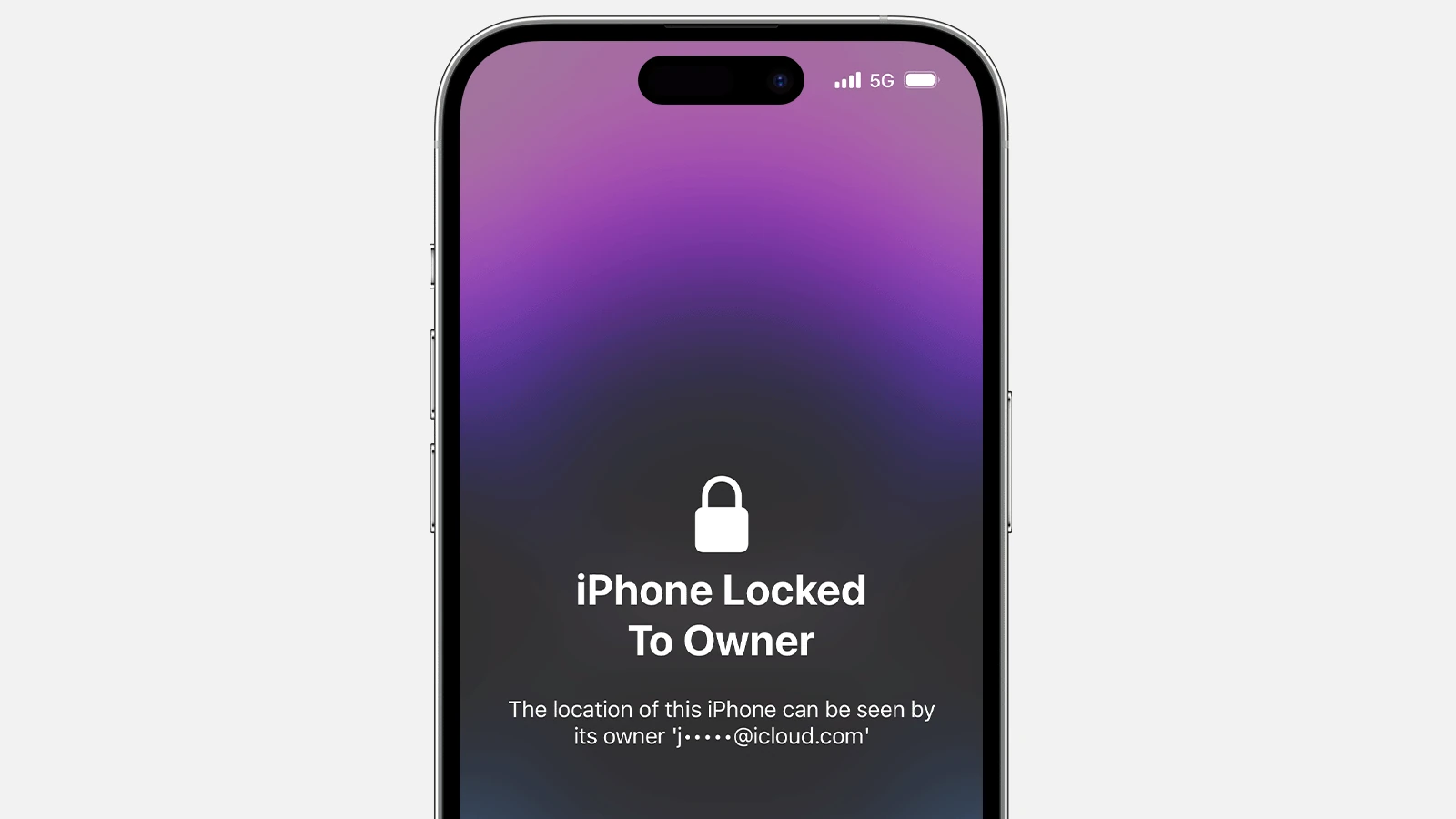
An iPhone that won’t activate can be frustrating. This issue can stop you from using your new phone or from enjoying the latest iOS features. If your iPhone won’t activate, it could be due to server issues, outdated software, or connection problems.
To get your iPhone up and running, start by checking your internet connection. Sometimes, a weak or unstable connection can prevent activation. You might also encounter error messages, hinting at server problems or outdated software.
Different iPhone models may need different troubleshooting steps. For example, performing a hard reset can help. Make sure your device is updated and, if needed, connect it to a computer with the latest iTunes version. These tips should help you get your iPhone activated without too much hassle.
iPhone Unable to Activate: Troubleshooting and Solutions
When setting up a new iPhone or after a reset, you might encounter the message “Unable to Activate iPhone”. This can be frustrating but is usually fixable with some simple troubleshooting.
Common Causes of Activation Failure
- Activation server issues on Apple’s side
- Poor or no internet connection
- SIM card problems or unsupported SIM
- Outdated iOS version or software glitches
- Device locked to another carrier (activation lock)
- Hardware issues
How to Fix iPhone Unable to Activate
1. Check Apple’s System Status
- Visit Apple System Status.
- Ensure iOS Device Activation is operational.
- If there’s an outage, wait and try again later.
2. Check Your Internet Connection
- Activation requires a stable internet connection via Wi-Fi or cellular.
- Connect to a reliable Wi-Fi network.
- Avoid VPNs or proxies that might interfere.
3. Restart Your iPhone
- Press and hold the power button and either volume button (iPhone X and later).
- Slide to power off.
- Turn it back on and try activation again.
4. Remove and Reinsert SIM Card
- Use a SIM ejector tool or paperclip to remove the SIM card.
- Check for damage or dirt.
- Reinsert the SIM properly.
- If you don’t have a SIM, try inserting one or connect to Wi-Fi.
5. Update iTunes and Use a Computer to Activate
- Connect your iPhone to a computer with the latest iTunes (Windows/macOS Mojave or earlier) or Finder (macOS Catalina or later).
- iTunes/Finder will detect the iPhone and may help with activation.
- Follow on-screen instructions.
6. Check for Carrier Restrictions
- Ensure your SIM card is supported by the iPhone (unlocked or locked to your carrier).
- Contact your carrier if you suspect a lock or activation issue.
7. Put iPhone in Recovery Mode and Restore
- Connect iPhone to a computer.
- Enter Recovery Mode (steps vary by model):
- iPhone 8 and later: Press and release volume up, then volume down, then hold side button until recovery screen appears.
- iPhone 7/7 Plus: Hold volume down + side button.
- iPhone 6s and earlier: Hold home + side/top button.
- In iTunes/Finder, choose Update first to reinstall iOS without erasing data.
- If update fails, choose Restore (this erases data).
8. Contact Apple Support
- If none of the above work, there may be a hardware issue or account lock.
- Visit Apple Support or an Apple Store for assistance.
Tips to Avoid Activation Issues
- Always keep your iPhone updated.
- Use official Apple accessories.
- Avoid unauthorized repairs that may cause hardware issues.
- Ensure your Apple ID and password are handy for activation lock.
Sources:
- Apple Support: If you can’t activate your iPhone or iPad
- TechCult: How to Fix Unable to Activate iPhone (2025)
- iMobie: 10 Ways to Fix iPhone Unable to Activate
Key Takeaways
- Weak or unstable internet can stop activation.
- Outdated software needs updating before activation.
- Connecting to a computer with iTunes can solve many issues.
Understanding iPhone Activation Issues
When trying to activate an iPhone, several problems might prevent success. These can range from issues with the activation server to problems with your SIM card or Apple ID.
Activation Server and System Status
Sometimes, activation problems are due to Apple’s activation servers being down. You can check the Apple System Status page. This page will show if services like the iPhone activation server are down. If the server is down, wait until it’s operational again. Issues with the system status can disrupt your iPhone activation process. These problems are often temporary, so checking this first can save time.
SIM Card and Carrier-Related Concerns
A functioning SIM card is necessary for activation. Check the SIM card tray and ensure it’s inserted correctly. The SIM card should not be damaged. If it is, get a replacement from your network provider. Issues might also arise if your carrier has activation restrictions. Contact your carrier if you face SIM card issues. They can provide important instructions and verify that your plan supports iPhone activation.
Wi-Fi and Internet Connection
You need a reliable Wi-Fi network or cellular data to activate your iPhone. Ensure you are connected to a Wi-Fi network or have a good internet connection. Sometimes, switching to a different network can help. If the connection is poor, the activation process might fail. Diagnose your Wi-Fi network issues before retrying. It might involve restarting your router or moving closer to it.
Apple ID and iCloud Account Verification
Your Apple ID and iCloud account play a vital role during activation. Make sure you enter the correct Apple ID and password. Verify that your iCloud account is in good standing. Sometimes, logging into your iCloud account on another device can help troubleshoot issues. If you’ve enabled two-factor authentication, ensure your secondary device is available to receive the verification code. Problems with Apple ID credentials often cause activation failures.





