
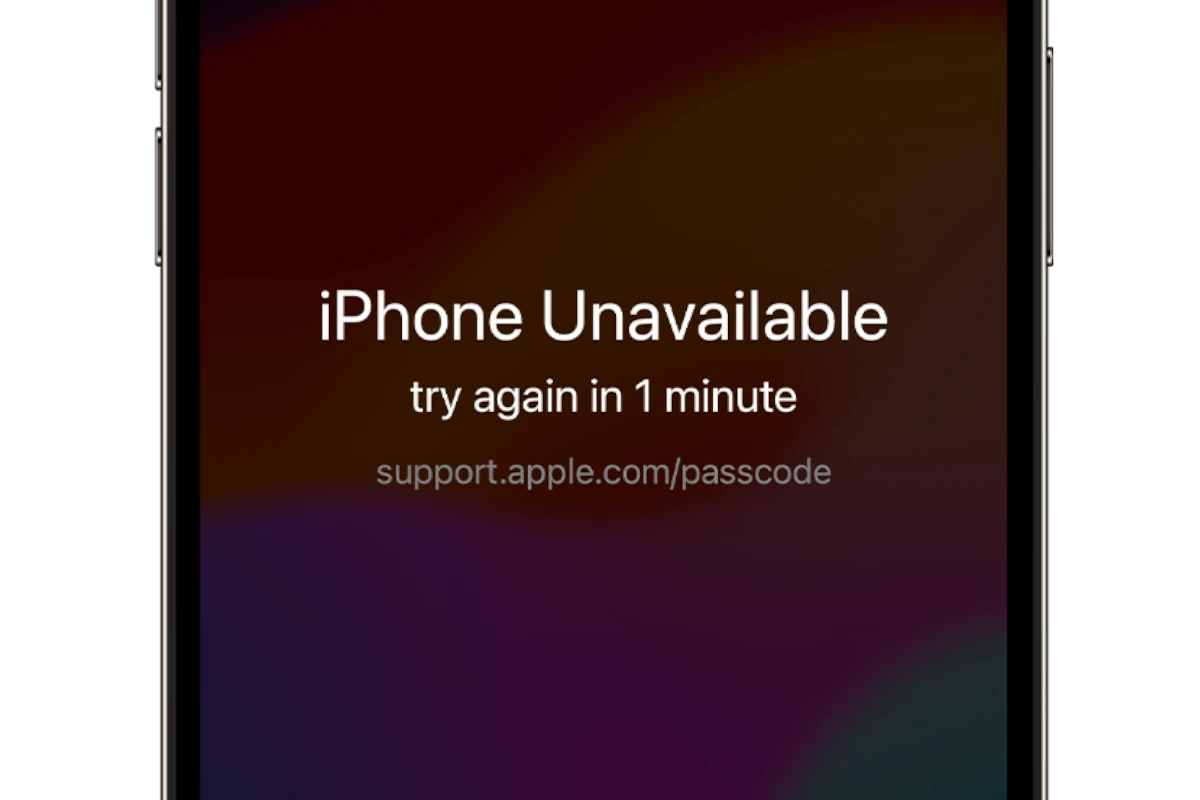
Many iPhone users face a common issue—getting locked out due to entering the wrong passcode too many times. This can be frustrating, especially when you need to access important information quickly. Bypassing the “iPhone Unavailable” message can be done using several methods such as using the Find My app, iTunes, or third-party software.
One way to bypass this screen is by using the Find My iPhone feature. This method is helpful if you remember your Apple ID and password. You can also use iTunes to restore your device. This might erase your data, so consider this if you have a recent backup. Additionally, third-party software like Tenorshare 4uKey can help.
Being locked out isn’t the end. With the right tools and steps, you can easily regain access to your iPhone.
How to Bypass “iPhone Unavailable” Screen: A Step-by-Step Guide
If you’ve entered the wrong passcode too many times on your iPhone, you might see the frustrating “iPhone Unavailable” or “Security Lockout” screen. This security feature is designed to protect your data, but it can leave you locked out of your device. Fortunately, there are several ways to bypass this screen and regain access to your iPhone. This guide will walk you through the most effective methods.
Why Does the “iPhone Unavailable” Screen Appear?
When incorrect passcodes are entered repeatedly, iOS disables the device temporarily or permanently to prevent unauthorized access. The lockout duration increases with each failed attempt, eventually leading to the “iPhone Unavailable” message.
Methods to Bypass the “iPhone Unavailable” Screen
1. Use iTunes or Finder to Restore Your iPhone
This method will erase your iPhone, removing the passcode and the “iPhone Unavailable” screen.
Steps:
- Connect your iPhone to a computer (Mac or Windows) using a USB cable.
- Open Finder (macOS Catalina and later) or iTunes (Windows or macOS Mojave and earlier).
- Put your iPhone into Recovery Mode:
- For iPhone 8 or later: Press and quickly release Volume Up, then Volume Down, then press and hold the Side button until the recovery mode screen appears.
- For iPhone 7/7 Plus: Press and hold Volume Down and Side buttons simultaneously until recovery mode screen appears.
- For iPhone 6s or earlier: Press and hold Home and Side buttons simultaneously until recovery mode screen appears.
- When prompted, choose Restore (not Update).
- Wait for the process to complete, then set up your iPhone as new or restore from a backup.
2. Use iCloud’s Find My iPhone to Erase Your Device
If Find My iPhone is enabled on your device, you can erase it remotely.
Steps:
- Go to iCloud.com on another device or computer.
- Sign in with your Apple ID.
- Click Find iPhone.
- Select your locked iPhone from the list of devices.
- Click Erase iPhone to remotely wipe your device.
- After erasing, you can restore from a backup or set up as new.
3. Use Third-Party Unlocking Tools
There are several software tools designed to bypass the “iPhone Unavailable” screen without needing a backup, such as:
- Tenorshare 4uKey
- iMyFone LockWiper
- Dr.Fone – Screen Unlock
These tools typically work by erasing the device and removing the passcode.
General Steps:
- Download and install the unlocking tool on your computer.
- Connect your iPhone via USB.
- Follow the on-screen instructions to put your iPhone into recovery mode.
- The software will download the necessary firmware and unlock your device.
- After unlocking, set up your iPhone again.
Note: These tools are paid, and results may vary depending on iOS version and device model.
4. Contact Apple Support
If the above methods don’t work or you prefer professional help, contact Apple Support or visit an Apple Store. They can assist in unlocking your device, but you must provide proof of purchase to verify ownership.
Important Considerations
- Data Loss: Most bypass methods erase your iPhone, so you will lose data unless you have a backup.
- Backup Regularly: To avoid data loss in situations like this, regularly back up your iPhone via iCloud or iTunes/Finder.
- Avoid Unauthorized Tools: Be cautious of unofficial unlocking services that might compromise your security or privacy.
Summary
| Method | Requires Backup? | Data Loss? | Notes |
|---|---|---|---|
| iTunes/Finder Restore | Yes | Yes | Official Apple method, reliable |
| iCloud Find My iPhone Erase | Yes | Yes | Requires Find My iPhone enabled |
| Third-Party Unlocking Software | No | Yes | Paid tools, may bypass without backup |
| Apple Support | No | Depends | Requires proof of ownership |
By following one of these methods, you can bypass the “iPhone Unavailable” screen and regain access to your device. Remember to keep your passcodes safe and back up your data regularly to prevent future lockouts.
Key Takeaways
- “iPhone Unavailable” can be bypassed using various methods.
- Find My iPhone and iTunes are effective tools.
- Third-party software provides additional solutions.
Understanding ‘iPhone Unavailable’ Message
The ‘iPhone Unavailable’ message appears when the device is locked due to security measures, like entering the wrong passcode multiple times. It is crucial to understand its causes and the security features involved.
Causes of iPhone Unavailability
The ‘iPhone Unavailable’ message can appear for several reasons. The most common cause is entering the wrong passcode too many times. After a certain number of incorrect attempts, the iPhone will lock itself to prevent unauthorized access.
This feature is vital for protecting personal information like photos, messages, and contacts. It helps secure the device from people trying to guess the passcode. On devices with iOS 15 or later, additional security measures like Face ID and Touch ID are in place. These features add extra layers of security to ensure that only the rightful owner can access the iPhone.
iOS Security Features
iOS includes several security features to safeguard the device. Face ID and Touch ID allow only the authorized user to unlock the phone. If too many wrong attempts are made to access the phone using these methods, the device will lock itself and display the ‘iPhone Unavailable’ message.
In iOS 15.2 and later, there is an option to erase the iPhone if it becomes locked. This feature can be used by clicking the Erase iPhone button on the lock screen and entering the Apple ID password. This option resets the device, allowing for a fresh start and restoring it from a backup if necessary.





