
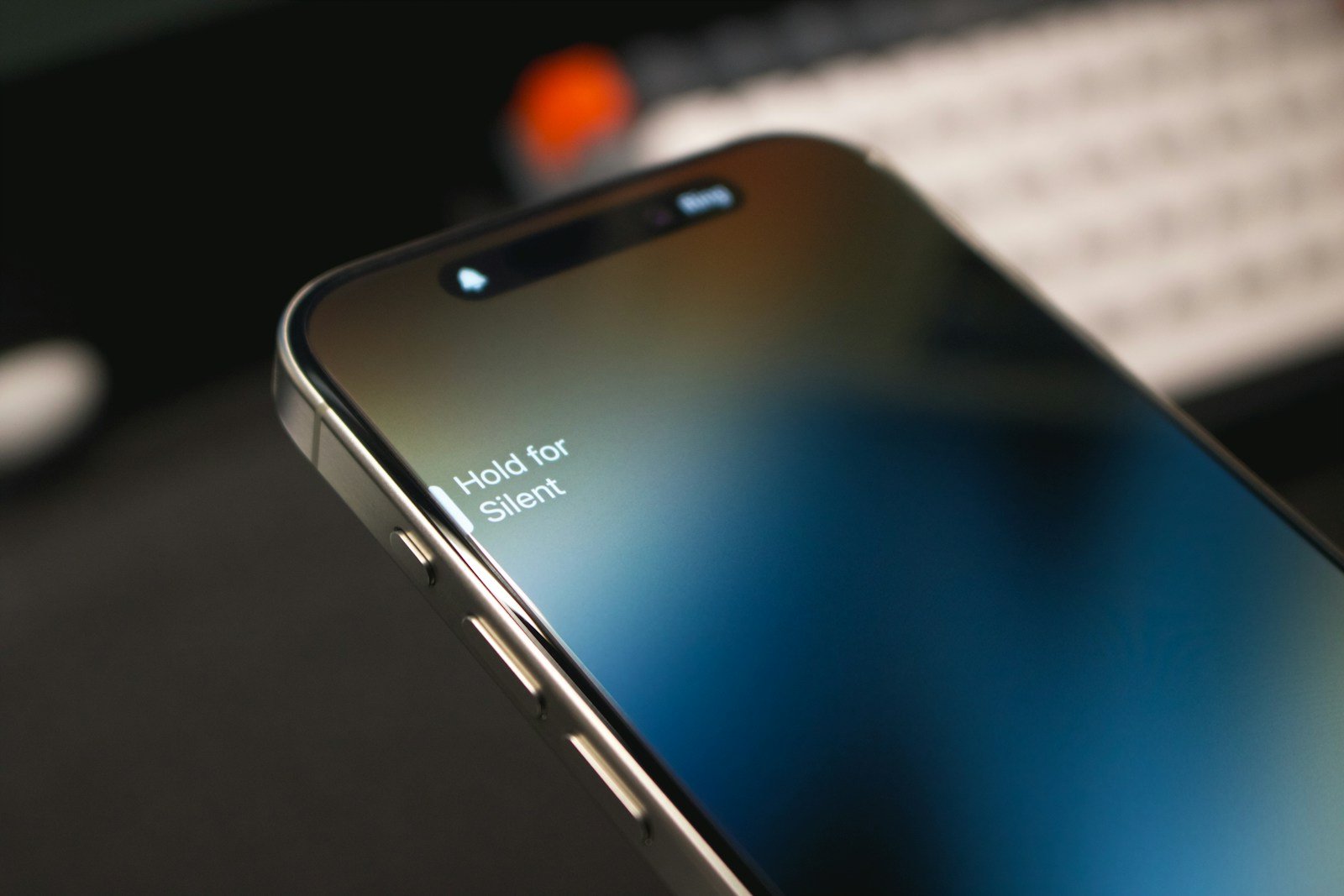
The side button on your iPhone is essential for many functions like locking the screen, taking screenshots, and using Siri. When this button stops working, it can make your device much harder to use. If your iPhone’s side button is not working, there are several steps you can take to troubleshoot and possibly fix the issue.
Start by checking if any case or debris is blocking the button. Removing the case or cleaning around the button might solve the problem. If it still doesn’t work, you can try using AssistiveTouch as a temporary workaround. This feature allows you to perform many of the same functions as the side button.
If these simple steps don’t fix the issue, you may need to update your iOS or seek a repair. Keeping your software up to date can sometimes resolve hardware problems. If nothing helps, scheduling a repair with Apple or a local service provider might be the best solution.
Guide: What to Do If Your iPhone Side Button Is Not Working
The Side Button on your iPhone (also called the power or sleep/wake button) is essential for locking your screen, turning your device on or off, and activating Siri or Apple Pay. If it stops working, it can be frustrating. Here’s a step-by-step guide to troubleshoot and fix the issue.
1. Clean the Side Button Area
- Why? Dirt, dust, or debris can cause the button to stick or become unresponsive.
- How?
- Power off your iPhone.
- Use a soft, dry toothbrush or a small brush to gently clean around the button.
- Avoid using liquids or sharp objects.
2. Restart Your iPhone Without Using the Side Button
If the Side Button isn’t working, you can still restart your iPhone using AssistiveTouch:
- Go to Settings > Accessibility > Touch > AssistiveTouch and turn it on.
- Tap the AssistiveTouch menu on your screen, then tap Device > More > Restart.
- Confirm to restart your iPhone.
3. Check for Software Updates
Sometimes, software glitches can affect hardware buttons.
- Go to Settings > General > Software Update.
- If an update is available, install it.
4. Enable AssistiveTouch as a Temporary Alternative
AssistiveTouch allows you to use an on-screen button for many hardware functions:
- Go to Settings > Accessibility > Touch > AssistiveTouch and toggle it on.
- You can customize the menu to include Lock Screen, Siri, and more.
5. Reset All Settings
If the problem persists, resetting settings can help without deleting your data:
- Go to Settings > General > Transfer or Reset iPhone > Reset > Reset All Settings.
- Enter your passcode and confirm.
6. Backup and Restore Your iPhone
If software issues are suspected, a full restore can help:
- Backup your iPhone via iCloud or iTunes/Finder.
- Restore your iPhone to factory settings using iTunes/Finder or Settings > General > Transfer or Reset iPhone > Erase All Content and Settings.
- After restoring, set up your iPhone and check if the Side Button works before restoring your backup.
7. Contact Apple Support or Visit an Apple Store
If none of the above steps work, the Side Button may have a hardware issue.
- Contact Apple Support via https://support.apple.com or the Apple Support app.
- Visit an Apple Store or authorized service provider for a diagnostic and repair.
Tips to Prevent Side Button Issues
- Avoid pressing the button too hard or frequently.
- Keep your iPhone clean and free from dust.
- Use a protective case that doesn’t obstruct the button.
Key Takeaways
- Check for debris blocking the side button
- Use AssistiveTouch as a temporary solution
- Update iOS or schedule a repair if the issue persists
Diagnosing Side Button Issues
Fixing a non-working iPhone side button can involve checking both hardware and software aspects. This guide will help focus on specific areas most users can troubleshoot on their own.
Checking for Physical Damage and Obstructions
A malfunction may be due to dirt or debris around the button. Use a soft cloth to clean the button area. Dust and particles can obstruct function. Gently pressing the button while cleaning can help dislodge anything stuck.
Inspect the button for any visible signs of wear and tear or damage. If the button feels different or stuck, there may be a hardware issue. Apple support can diagnose further if there’s internal damage.
Software-Related Troubles and Updates
Software bugs may cause side button issues. To troubleshoot, start by updating the iPhone’s software. Go to Settings -> General -> Software Update. Installing the latest updates can fix bugs that might be causing the problem.
If the button stops working after installing new apps, remove the most recent app to see if it resolves the issue. In rare cases, a full restore might be necessary, which reinstalls the iOS completely.
Restarting or Force Restarting Your iPhone
Sometimes, a simple restart can solve many problems. To restart, press and hold the power button until the slide to power off option appears. Slide it, wait for the phone to turn off, then press the power button again.
If the restart doesn’t work, try a force restart. For iPhone 8 or later, quickly press and release the volume up button, then the volume down button, and then press and hold the side button until the Apple logo appears. This can help reset any stalled processes that affect button functionality.





